
Queue Configuration Reference
1. What Is a Queue?
A queue is a holding area where interactions (calls, chats, emails, callbacks) wait to be routed to an available agent. Queues are the backbone of ACD (Automatic Call Distribution) routing in Genesys Cloud — every Transfer to ACD action in Architect points to a queue.
📌 Genesys Cloud supports up to 5,000 queues with a maximum of 5,000 members per queue for voice and chat channels.
2. How to Navigate to Queues
Two ways to get there:
- Search bar → type "Queues"
- Admin menu → Contact Center → Queues
⚠️ Permissions required: You must have administrative credentials with the
Routing > Queuepermission to create or edit queues. Users with onlyRouting > QueueMember > Managepermission can manage membership only — not queue settings.
3. Creating a New Queue
📌 Naming tip: Use a consistent naming convention (e.g.,
Support_Inbound,Sales_Chat) so queues are easy to identify in Architect flow dropdowns and reports.
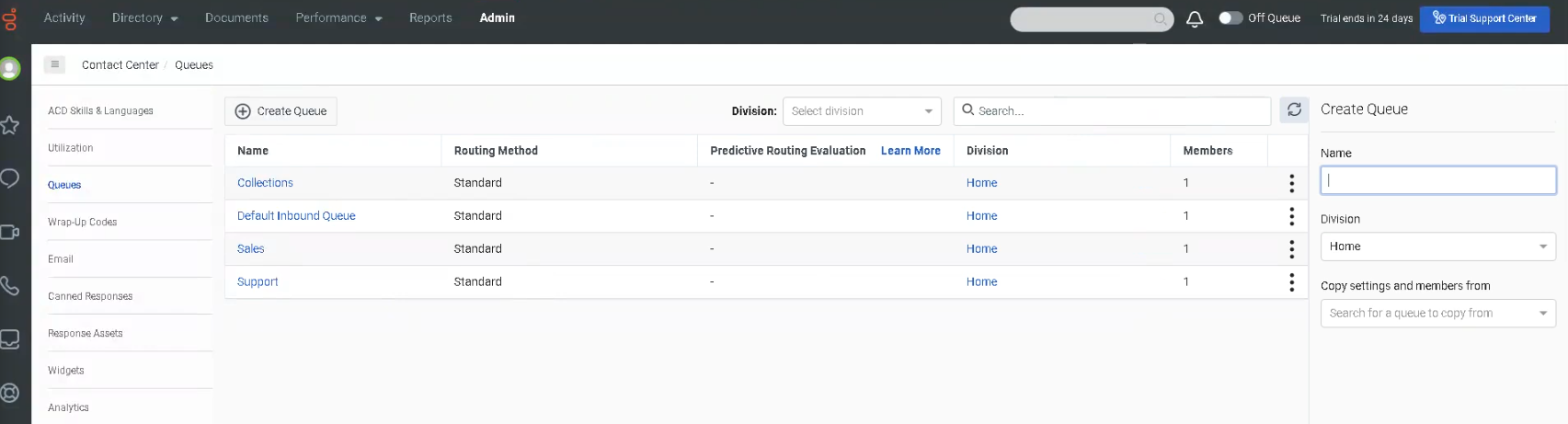
4. Queue Configuration Tabs
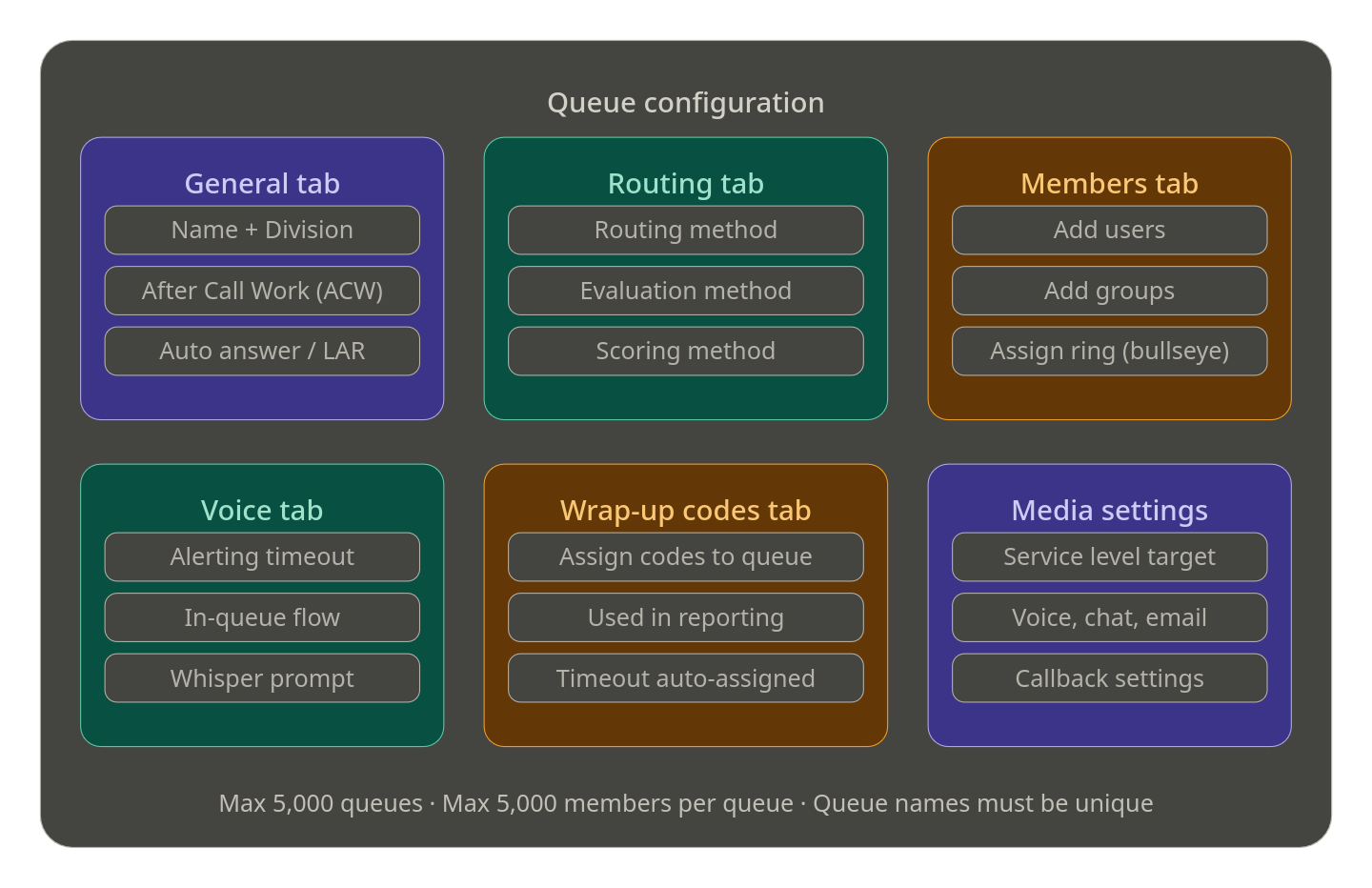
After saving, the queue opens with several configuration tabs:
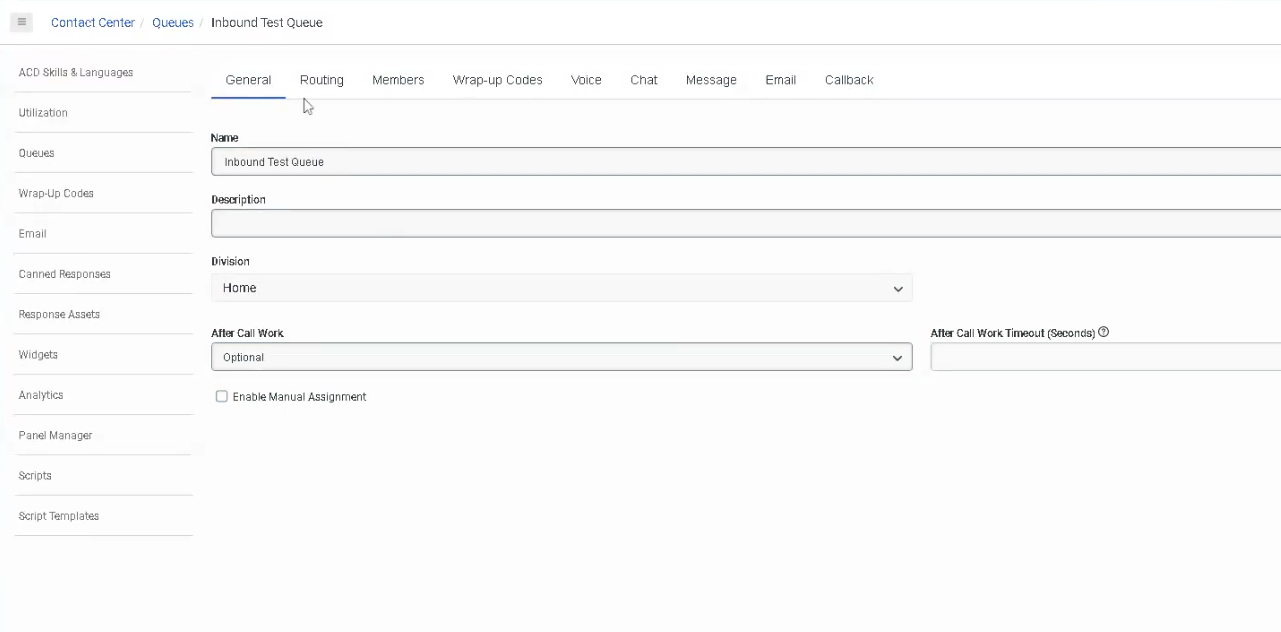
📋 General Tab
| Setting | Description |
|---|---|
| Name | Unique identifier — cannot contain asterisks |
| Division | Organizes the queue within your org's division structure |
| Description | Optional notes about the queue's purpose |
| After Call Work (ACW) | Controls agent wrap-up behavior after each interaction |
| Auto Answer | Automatically answers interactions for agents on this queue (digital channels) |
| Last Agent Routing (LAR) | Routes interactions to the last agent who handled that customer |
| Manual Assignment | Allows supervisors/agents to pull interactions from the queue manually |
⏱️ After Call Work (ACW) Modes
The lecture covers this partially — here is the complete list per current documentation:
| ACW Mode | Description |
|---|---|
| Optional | Agent can enter ACW manually or skip it entirely |
| Mandatory Discretionary | ACW is required but agent decides when to end it and return to queue |
| Mandatory Time-boxed | ACW has a set time limit; agent can end early and return to queue before timer expires |
| Mandatory Time-boxed – No Early Exit | Agent must wait the full time before returning to queue; cannot exit early |
| Agent Requested | Agent can request ACW; not automatically triggered |
📌 Maximum ACW timeout: 3,600 seconds (1 hour). If an agent fails to complete ACW within the timeout, Genesys automatically assigns the default wrap-up code
ININ-WRAP-UP-TIMEOUT.
🔀 Routing Tab
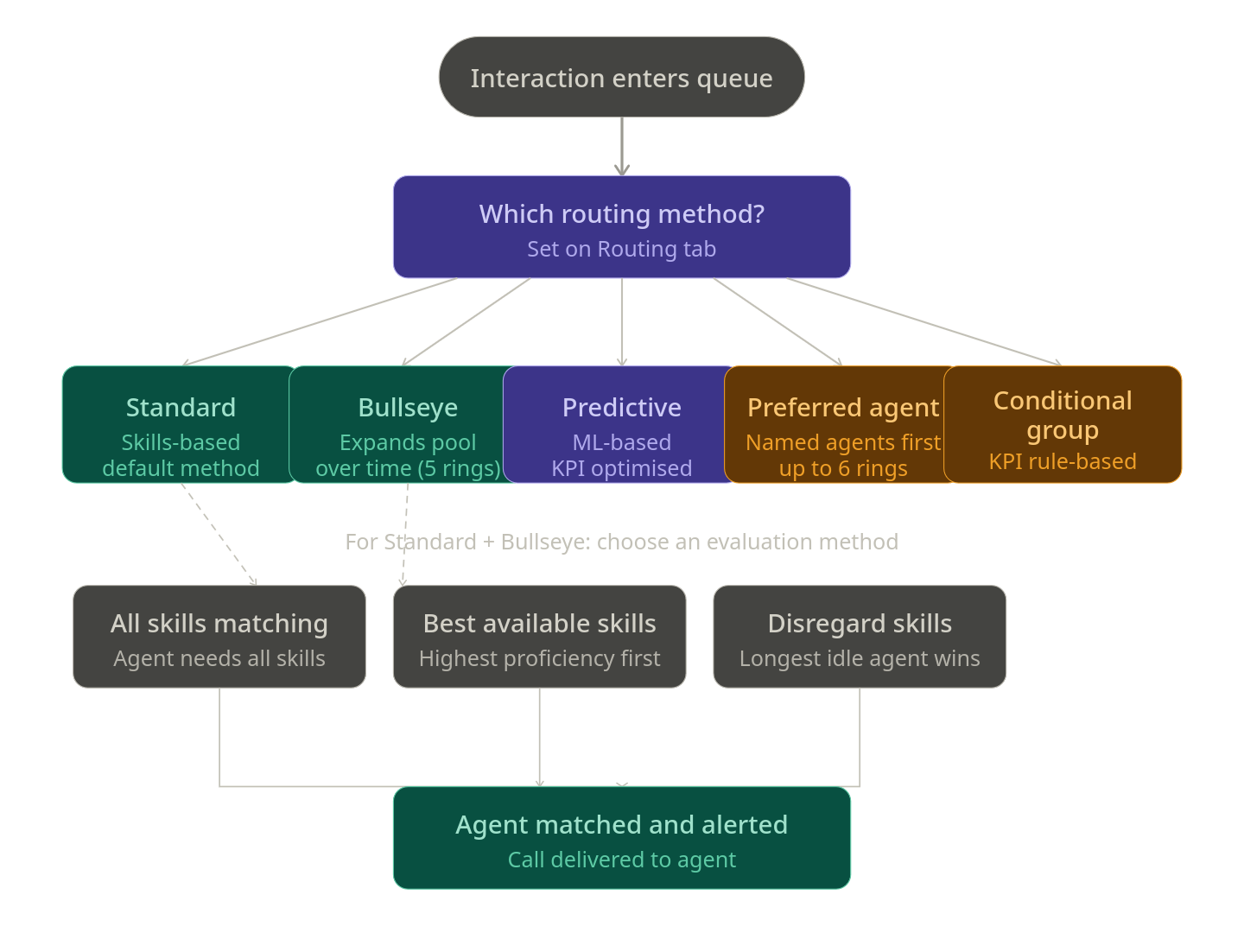
The Routing Tab is where you configure how interactions are matched to agents. The lecture mentions this is "based around skills" — here is the full picture:
Routing Methods (5 available)
| Routing Method | Description |
|---|---|
| Standard | Default method. Routes based on skills evaluation method you choose. |
| Bullseye | Skills-based routing with expansion rings — widens the agent pool over time if no match found. Supports up to 5 rings with configurable delays. |
| Predictive | Uses machine learning to analyze historical data and predict the best agent-interaction match to optimize a chosen KPI. Supports voice, email, and async messages. |
| Preferred Agent | Routes to specific preferred agents first, then falls back to bullseye rules. Supports up to 6 rings. |
| Conditional Group | Routes based on real-time KPI conditions (e.g., queue wait time, agents available). Supports up to 5 rules with 10 conditions per rule. |
Evaluation Methods (used with Standard and Bullseye routing)
| Evaluation Method | Description |
|---|---|
| All Skills Matching | Agent must have ALL required skills to receive the interaction |
| Best Available Skills | Routes to the agent with the highest skill proficiency available |
| Disregard Skills / Next Agent | Ignores skills entirely; routes to the agent idle longest |
Scoring Methods
| Scoring Method | Description |
|---|---|
| Conversation Score | Combines arrival time and priority value to rank waiting interactions |
| Priority Score | Uses only the priority value; time in queue used as tiebreaker |
📌 Best practice: Set the scoring method at queue creation or when the queue has no waiting interactions. Changing it mid-queue can cause unexpected routing order.
👥 Members Tab
- Add individual users or groups to the queue
- Members must be added for the queue to receive and route interactions
- For Bullseye routing, members can be assigned to specific rings
- For Preferred Agent routing, agent score pairs (0–100) define priority
🏷️ Wrap-Up Codes Tab
- Assign specific wrap-up codes agents can select after completing an interaction on this queue
- Wrap-up codes are used for reporting and interaction categorization
- If no code is selected by the agent within ACW timeout,
ININ-WRAP-UP-TIMEOUTis automatically assigned
📌 The lecture notes wrap-up codes are covered in a separate course — but be aware this tab exists and connects directly to reporting.
🔊 Voice Tab (Additional Settings)
Not covered in the lecture — but present in the UI:
| Setting | Description |
|---|---|
| Alerting Timeout | How long an agent's phone rings before the interaction is redirected |
| Service Level | Target % of interactions answered within a defined number of seconds |
| In-Queue Flow | Assign an Architect in-queue flow (e.g., music on hold, queue position announcements) |
| Whisper Prompt | Audio played to the agent just before they answer the call |
5. Queue Limits & Permissions Reference
| Item | Limit / Detail |
|---|---|
| Max queues per org | 5,000 |
| Max members per queue | 5,000 (voice and chat) |
| ACW max timeout | 3,600 seconds |
| Preferred agent rings | Up to 6 |
| Bullseye rings | Up to 5 |
| Conditional Group rules | Up to 5 rules, 10 conditions each |
| Queue name | Must be unique; no asterisks |
| Required permission (create/edit) | Routing > Queue > Edit |
| Required permission (members only) | Routing > QueueMember > Manage |
6. How Queues Connect to Call Flows
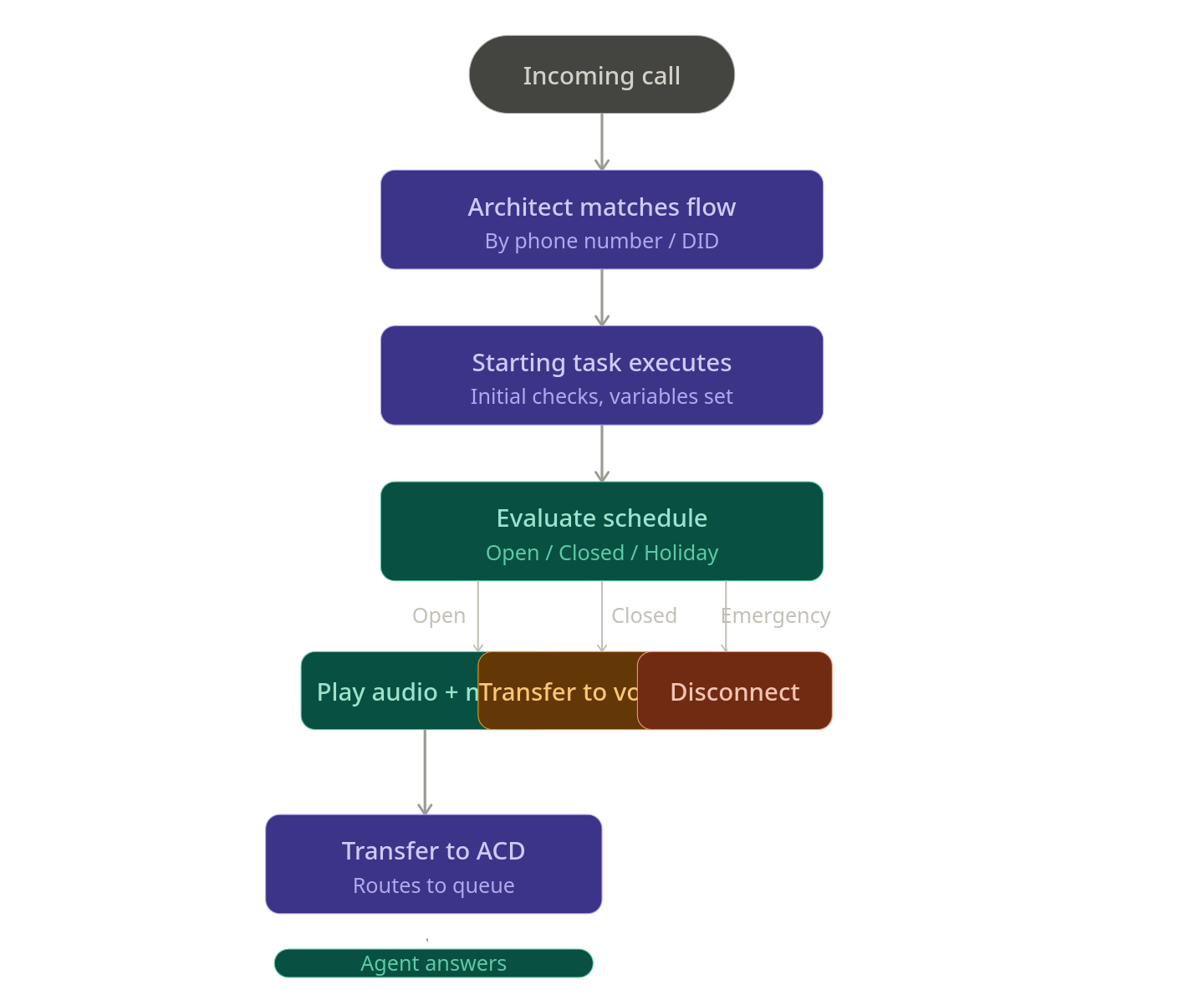
Once a queue is created, it's referenced inside Architect flows using the Transfer to ACD action:
Call Flow → Evaluate Schedule → Open → Transfer to ACD → [Select Queue Name]
This is the core connection between Architect and Queues — the queue you create here is what you select in your Transfer to ACD action.
7. Best Practices
| Practice | Why It Matters |
|---|---|
| Use consistent naming conventions | Easy to find in Architect dropdowns and reporting |
| Set ACW mode intentionally | Impacts agent productivity and reporting accuracy |
| Choose routing method at creation | Changing scoring methods mid-queue can cause unexpected routing |
| Assign an In-Queue flow | Controls caller hold experience (music, position announcements) |
| Test queue before connecting to live flow | Validate routing behavior without impacting real callers |
| Don't leave queues without members | Calls will wait indefinitely with no agent to answer |
8. Quick Reference Cheat Sheet
| I want to... | Where to configure |
|---|---|
| Create a new queue | Admin → Contact Center → Queues → + Create |
| Control how long agents do wrap-up | General tab → After Call Work |
| Change how calls are routed to agents | Routing tab → Routing Method |
| Add agents to the queue | Members tab → Add Users/Groups |
| Assign wrap-up codes to the queue | Wrap-Up Codes tab |
| Set hold music or queue announcements | Voice tab → In-Queue Flow |
| Play a message to agent before answering | Voice tab → Whisper Prompt |
| Reference the queue in a call flow | Architect → Transfer to ACD → select queue |
No Comments