
Prompt Management
What Are Prompts?
Prompts are audio or text-to-speech messages played to customers during interactions inside Architect flows. Every piece of audio a caller hears — welcome greetings, menu options, hold messages, closure announcements — is a prompt.
Two Types of Prompts
| Type | Description | Editable? |
|---|---|---|
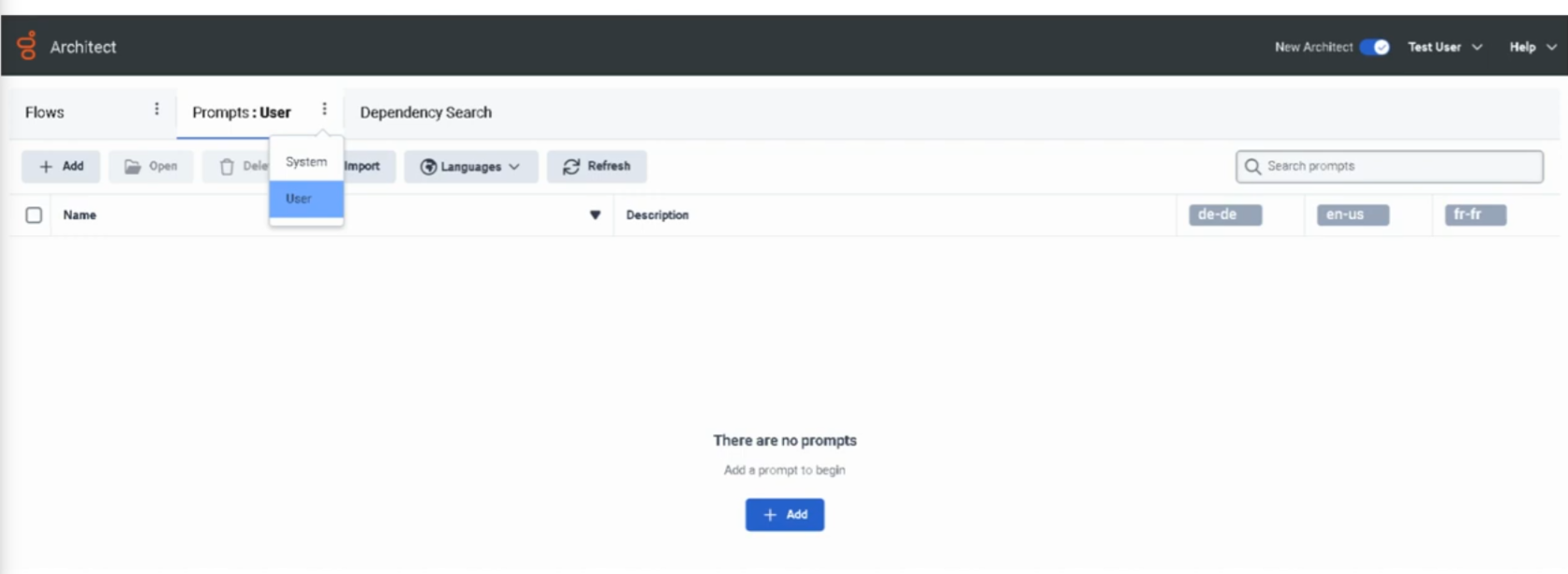
| System Prompts | Pre-built by Genesys for generic use (dates, numbers, days, months, standard phrases) | Cannot be renamed or deleted |
| User Prompts | Custom prompts created by administrators for org-specific messaging | Fully configurable |
ℹ️ System prompts are used internally by Architect for things like reading back times, dates, and digits. You do not create or manage them — you only create User Prompts.
Prompt Content Options
Each User Prompt can use one or both content types:
| Option | Description |
|---|---|
| Text-to-Speech (TTS) | Type the message text — Genesys synthesizes it using the org's configured TTS engine |
| Uploaded Audio (WAV) | Upload a professionally recorded audio file |
✅ Best practice: Use TTS for dynamic or frequently changing messages. Use uploaded WAV for polished, permanent messages like main greetings where audio quality matters most.
Prompt Naming Rules
| Rule | Detail |
|---|---|
| No spaces | Use underscores instead (e.g., US_Support_WelcomePrompt) |
| No special characters | Letters, numbers, and underscores only |
| Cannot start with a number | Must start with a letter |
| Must be unique | No two prompts can share the same name in the org |
Creating a Prompt
- Admin → Architect → Prompts
- Click Add
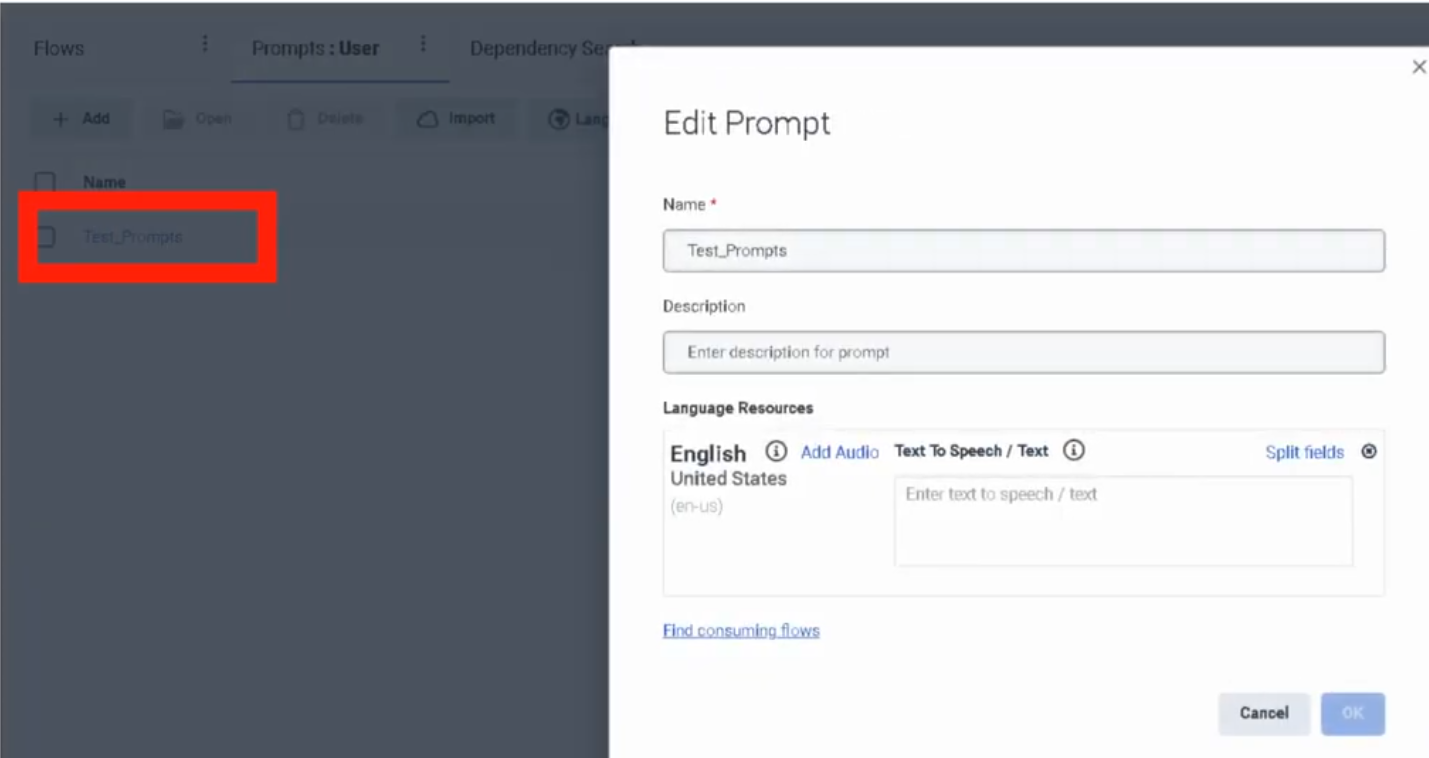
- Enter the Prompt Name (follow naming rules above)
- Optionally add a Description
- Click Create Prompt
- In the prompt editor:
- For TTS: type your message text in the Text-to-Speech field
- For audio: click Add Audio and upload a WAV file
- Click Save
Managing Prompts
| Task | How |
|---|---|
| Edit a prompt | Admin → Architect → Prompts → click prompt name |
| Update TTS text | Open prompt → edit text field → Save |
| Replace audio file | Open prompt → Add Audio → upload new WAV → Save |
| Add a language variant | Open prompt → add TTS or audio for additional supported language |
Multi-Language Prompts
A single prompt can have content defined for multiple languages. Architect selects the appropriate language variant at runtime based on the flow's language configuration. If a variant for the active language doesn't exist, Architect falls back to the default.
Using Prompts in Architect Flows
Prompts are referenced inside flows using the Play Audio action (or within Menu actions for IVR options). The flow does not embed the audio — it references the prompt by name from the central library.
Result: Updating a prompt in the library automatically updates it everywhere it is used, without republishing flows.
Architect Flow
      ↓
Play Audio action
      ↓
References prompt: US_Support_WelcomePrompt
      ↓
Prompt library serves TTS or WAV
      ↓
Customer hears message
      ↓
Flow continues
Common Prompt Use Cases
| Prompt Type | Example |
|---|---|
| Welcome Greeting | "Thank you for calling Customer Support." |
| IVR Menu | "Press 1 for Sales, 2 for Support, 3 for Billing." |
| Queue Hold Message | "All agents are currently busy. Your call is important to us." |
| Estimated Wait | "Your estimated wait time is approximately [X] minutes." |
| Holiday Closure | "Our offices are closed for [holiday]. We will reopen on [date]." |
| After Hours | "You have reached us outside our business hours." |
| Maintenance | "We are currently performing scheduled maintenance." |
Naming Convention
| Format | Example |
|---|---|
<Region>_<Dept>_<Purpose> |
US_Support_WelcomePrompt |
<Dept>_<Function>_Prompt |
Support_MenuPrompt |
<Region>_<Service>_Announcement |
EU_Service_HolidayAnnouncement |
Troubleshooting
| Issue | Cause | Fix |
|---|---|---|
| Prompt not playing in flow | Prompt not referenced in the Play Audio action | Open flow → verify the prompt action points to correct prompt |
| Audio playback failure | Incorrect file format | Re-upload as a valid WAV file |
| TTS not working | Text formatting issue (special characters, symbols) | Review and clean the TTS text content |
| Prompt change not reflected in live calls | Flow not republished after prompt update | Prompts update without republish — if issue persists, check the flow's prompt reference is correct |
| Wrong prompt playing | Incorrect prompt name referenced in flow | Update the Play Audio action to reference the correct prompt |
ℹ️ Unlike flow changes, prompt content updates (TTS text or audio replacement) take effect without republishing the flow. However, if you rename a prompt or create a new prompt to replace an old one, you must update the flow reference and republish.
Troubleshooting Checklist
| Check | ✓ |
|---|---|
| Prompt created in Architect | ☐ |
| TTS text entered or WAV file uploaded | ☐ |
| Prompt saved | ☐ |
| Play Audio action in flow references correct prompt | ☐ |
| Flow published (if flow changes were made) | ☐ |
| Test call/interaction confirms correct audio | ☐ |
Key Facts for Exam / Interview
| Question | Answer |
|---|---|
| Where are prompts managed? | Admin → Architect → Prompts |
| What two content types can a prompt have? | Text-to-Speech (TTS) and uploaded WAV audio |
| Can system prompts be deleted or renamed? | No |
| What file format is required for uploaded audio? | WAV |
| Do prompt updates require republishing the flow? | No — content updates are live immediately; only flow reference changes require republish |
| Can one prompt serve multiple languages? | Yes — add language variants within the same prompt |
See Also
- Architect Overview — where prompts are used inside flows
- Call Flow Components & Basics — the Play Audio and Menu actions that reference prompts
- Organization Settings → Global Settings — Default TTS Engine configuration
No Comments