
Canned Responses & Response Assets
Canned Responses
| Topic | Detail |
|---|---|
| Navigation | Admin → Contact Center → Canned Responses |
| Purpose | Pre-written answers agents can insert into Chat, Email, or Message interactions for consistency and speed |
| Structure | Libraries → Responses |
| Channels | Chat, Email, Message (WhatsApp, SMS, social) |
Libraries
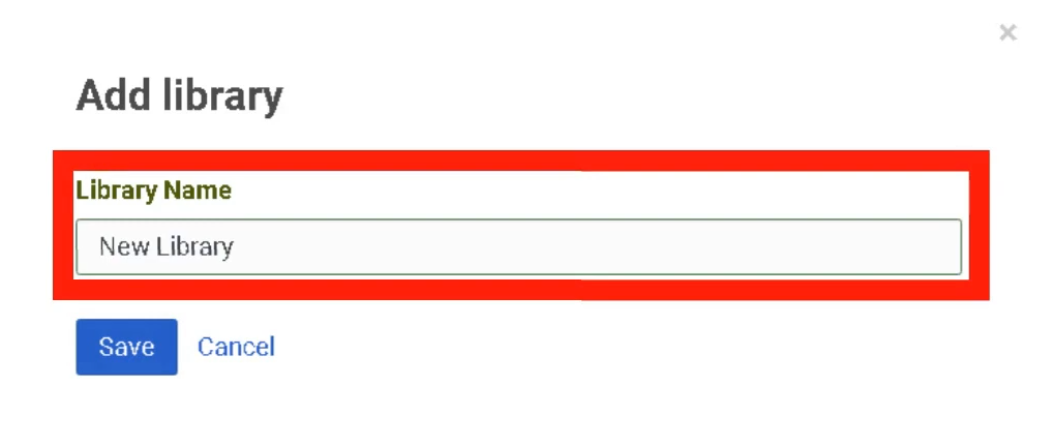
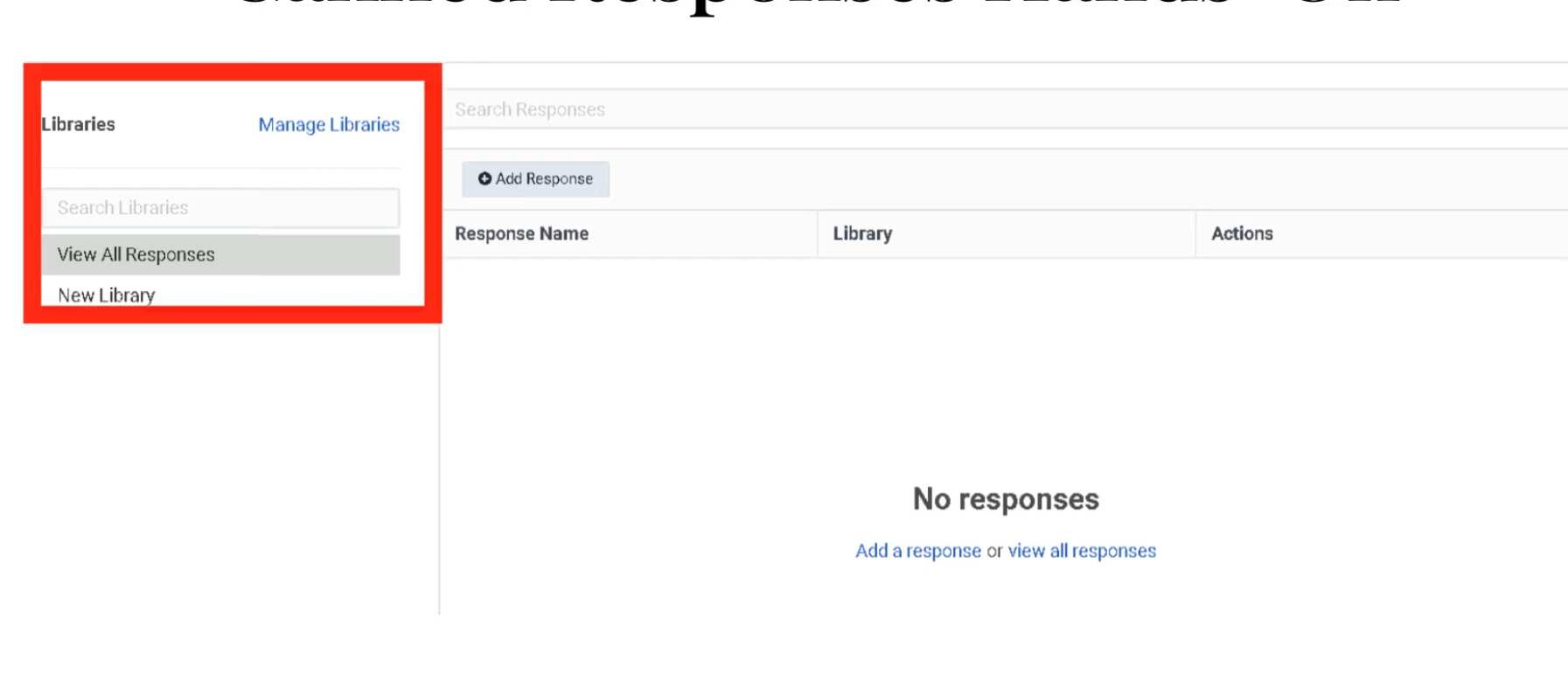
Libraries group responses by team, department, or topic (e.g., Billing, Technical Support, General FAQ). Access is controlled at the library level — only relevant teams see specific content.
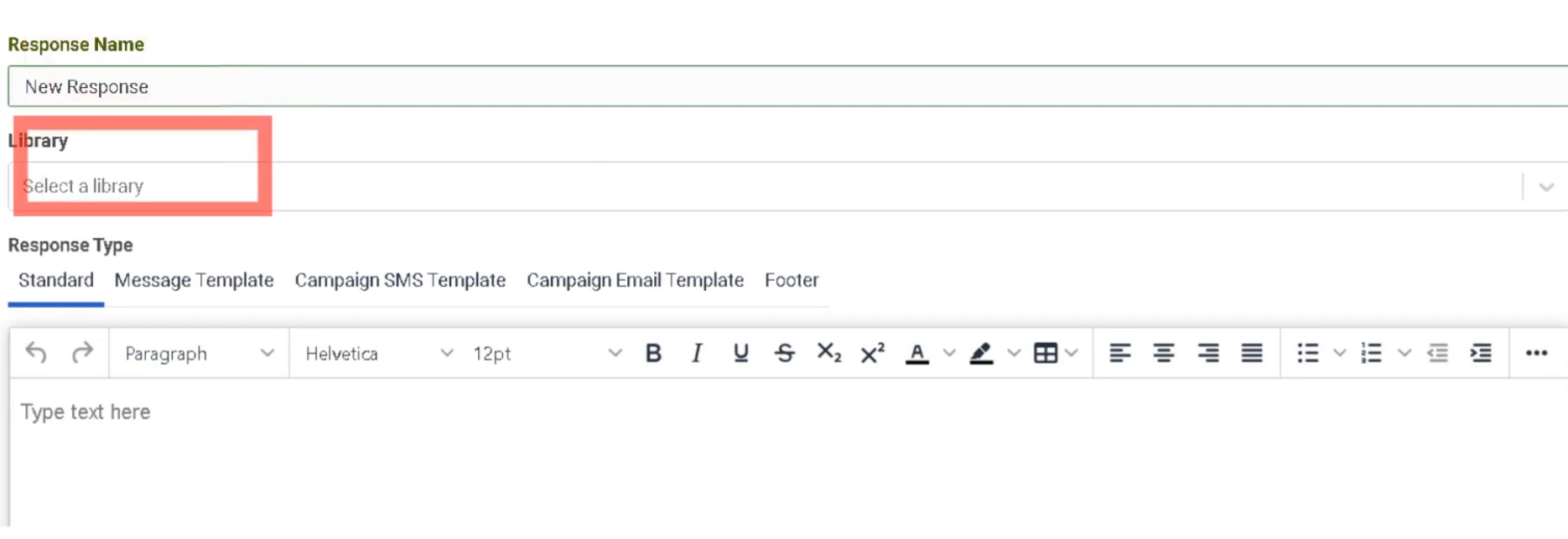
Creating a Canned Response

Response Types
| Type | Use Case | Constraint |
|---|---|---|
| Standard | Chat and Email replies | Can be edited or personalized by the agent before sending |
| Message Template | WhatsApp Business / proactive outbound | Requires pre-approval from Meta/WhatsApp — mandatory for messages sent 24+ hours after last customer message |
| Campaign SMS | Bulk SMS notifications | 160 characters per segment — carrier compliance required; supports variables/macros for personalization |
| Email Footer | Legal compliance / branding | Auto-appended to all outbound emails from the library — agents cannot see or remove it |
Agent Usage
| Mode | Description |
|---|---|
| Read-only | Agent reads the response to the customer — common for voice interactions |
| Insertion | Agent clicks to insert the full text directly into a chat, email, or messaging thread |
Best Practices
| Practice | Reason |
|---|---|
| Organize responses into focused libraries | Helps agents find responses quickly |
| Use clear response names | Agents search by name during live interactions |
| Keep standard responses concise | Long responses slow down chat interactions |
| Review Message Templates before WhatsApp campaigns | Meta approval can take days |
| Always configure Email Footer at library level | Prevents accidental removal of legal disclaimers |
Response Assets
| Topic | Detail |
|---|---|
| Navigation | Admin → Contact Center → Response Assets |
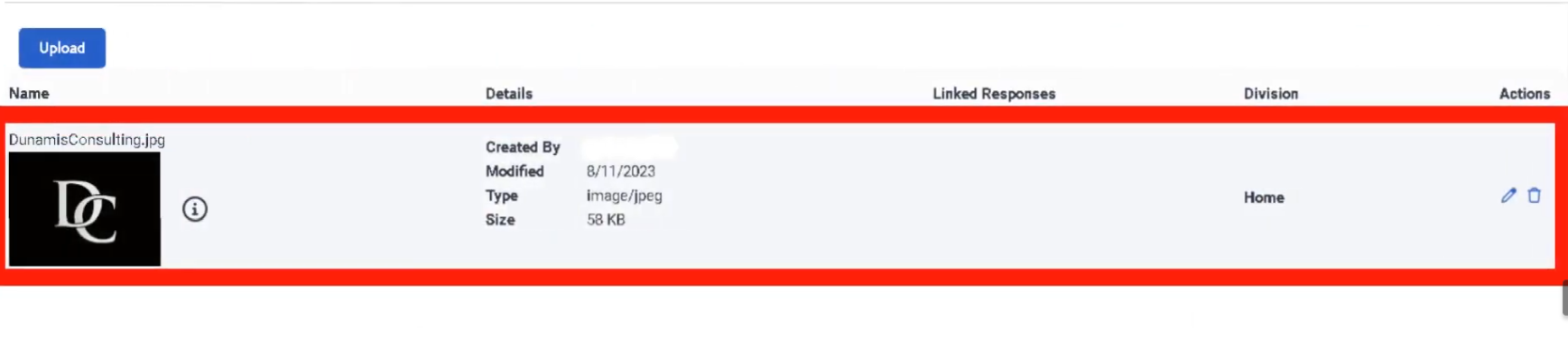
| Purpose | Central repository for images and documents embedded in Canned Responses |
| Supported Files | PNG, JPG (images); PDF (documents) |
Overview
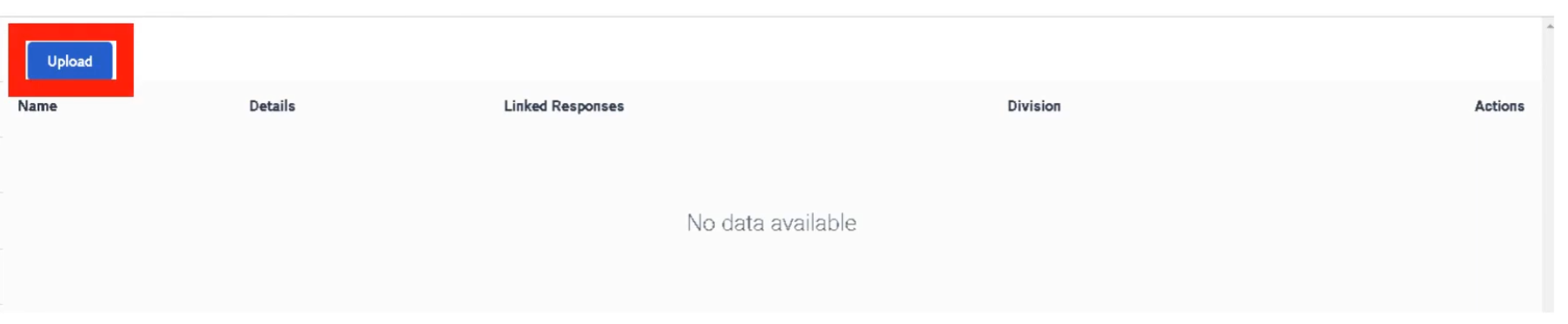
Response Assets is a central media library. Images and documents must be uploaded here before they can be embedded in a Canned Response. This ensures agents always use the most current version of a file and prevents broken image links in customer emails.
Asset Repository
Embedding in Canned Responses
| Method | Description |
|---|---|
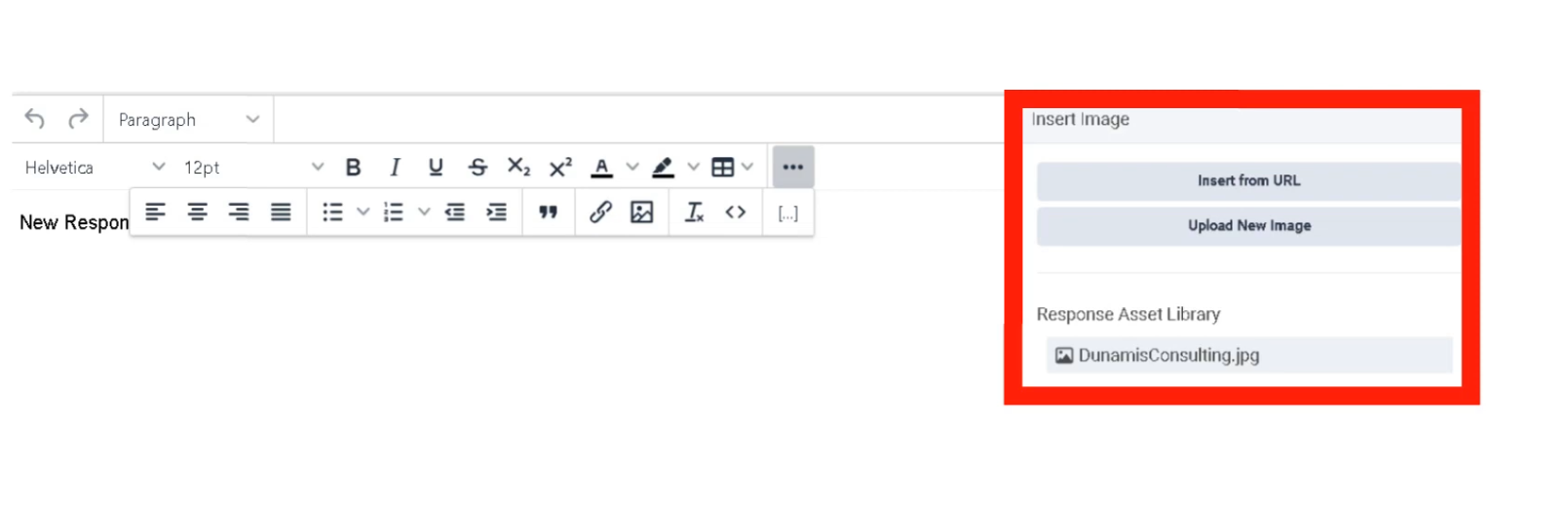
| Upload from Library | Select a pre-uploaded asset from the Response Asset collection — most secure and consistent |
| Insert from URL | Link to an externally hosted image — flexible but less secure |
| Upload New Image | Upload directly while editing a response — automatically populates the asset library |
Key Facts
| Feature | Detail |
|---|---|
| Centralization | Prevents broken image links in customer emails |
| Security | Internally hosted assets are scanned and verified by Genesys Cloud |
| Supported formats | PNG, JPG, PDF |
| Access | Accessible via a dedicated icon in the Canned Response editor |
Interview Cheat Sheet
| Question | Answer |
|---|---|
| What is a Canned Response library? | A named grouping of responses organized by team or topic |
| What approval does a WhatsApp Message Template require? | Pre-approval from Meta/WhatsApp |
| What is the SMS segment character limit? | 160 characters per segment |
| What does Email Footer do? | Auto-appends legal/branding content to outbound emails — agents cannot remove it |
| Where must images be uploaded before embedding in a response? | Response Assets (Admin → Contact Center → Response Assets) |
No Comments