
Operating Schedules
| Section | Detail |
|---|---|
| Navigation | Admin → Routing → Operating Schedules |
| Alt Navigation | Menu → Orchestration → Routing → Operating Schedules |
| Required Permission | Routing > Schedule > Add, Edit, View, Delete |
| Module Context | Part of Routing & Architect in Genesys Cloud |
| Purpose | Control when routing flows run based on date, time, or event |
✅ Verified against Genesys Cloud Resource Center — March 2026
Overview
Operating schedules determine how Genesys Cloud manages routing for inbound and outbound interactions based on time and events. They are used to support business hours, after-hours support, holidays, recurring events, maintenance windows, and special situations.
Architect uses operating schedules to determine which flow to execute — for example, routing callers to a live queue during open hours and to voicemail during closed hours.
⚠️ Naming note: The official Genesys Cloud term is Operating Schedules (not just "Schedules"). This distinction matters in the UI navigation and exam contexts.
Evaluation Order (Exam Critical)
When Genesys Cloud evaluates a schedule group, it checks conditions in this specific order:
Emergency (only if Emergency routing is activated)
        ↓
Holiday
        ↓
Closed
        ↓
Open
⚠️ Emergency is not part of the base evaluation order. It is a separate override that fires first only when Emergency routing has been actively turned on. The default hierarchy without Emergency active is: Holiday → Closed → Open.
⚠️ Default fallback: If no schedule in the group matches the current date/time, Closed is the default path in Architect's Evaluate Schedule Group action.
Key Concepts
| Topic | Explanation |
|---|---|
| Operating Schedule | A time-based object defining when a particular routing condition is active |
| Operating Schedule Group | Groups multiple schedules into a single routing definition with Open, Closed, and Holiday categories |
| Emergency Group | A separate object that adds emergency override behavior — activates/deactivates independently |
| Recurrence | Schedules can be one-time or repeating (daily, weekly, monthly, yearly, or custom iCal rule) |
| All Day | Runs the schedule for the full duration of the selected date(s) — no start/end time needed |
| Multi-Day Span | Use the "This occurrence spans multiple days" checkbox to configure a schedule that runs across consecutive days |
| Division | Controls which administrators can manage the schedule — every schedule must belong to a division (default: Home) |
| Copy Schedule | Existing schedules can be copied to create modified versions quickly |
| Usage Tracking | You can view which schedule groups and call flows any schedule is associated with |
Navigation
| Task | Steps |
|---|---|
| View Operating Schedules | Admin → Routing → Operating Schedules or Menu → Orchestration → Routing → Operating Schedules |
| Create a Schedule | Operating Schedules page → Add Schedule |
| View Schedule Groups | Operating Schedules page → Schedule Groups tab or Menu → Orchestration → Routing → Operating Schedule Groups |
| Copy a Schedule | Operating Schedules list → More (⋮) → Copy |
| View Schedule Usage | Operating Schedules list → click schedule name → view associated groups and flows |
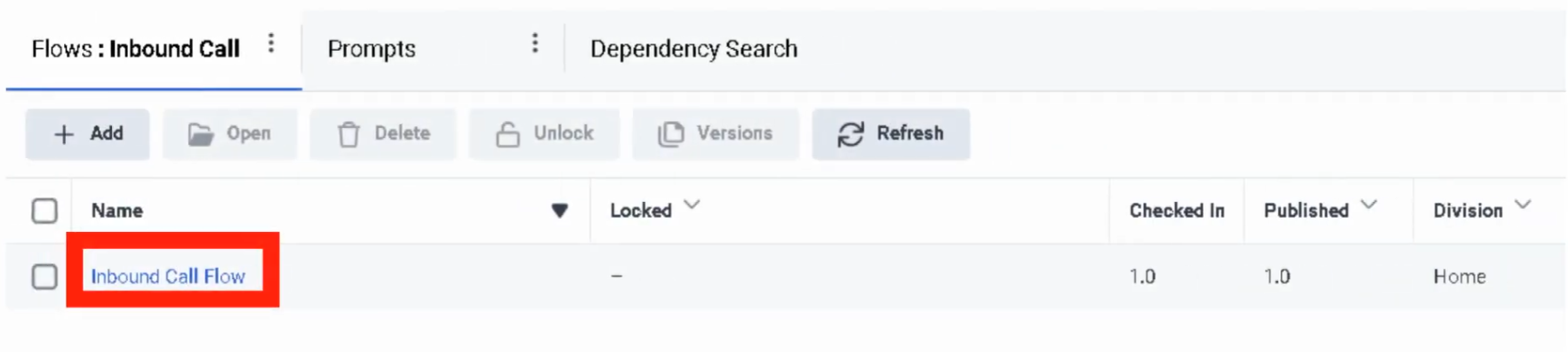
| Use in Architect | Architect → Open Flow → Add Evaluate Schedule Group action |
Configuration Fields
| Field | Description | Example |
|---|---|---|
| Schedule Name | Unique name identifying the schedule | US_Support_BusinessHours |
| Division | Administrative ownership — restricts which admins can manage it | Home |
| Single Day / Multi-Day | Single day sets one date; multi-day uses "This occurrence spans multiple days" checkbox | Multi-day |
| From / To | Start and end date/time for multi-day schedules | 2026-01-01 08:00 → 2026-12-31 18:00 |
| All Day | Runs for the full duration of selected date(s) — no time range needed | Disabled |
| Recurrence | How often the schedule repeats | Weekly |
| iCal Rule | Advanced recurrence rule for custom patterns | FREQ=WEEKLY;BYDAY=MO,TU,WE,TH,FR |
Creating an Operating Schedule
Recurrence Types
| Type | Description | Example |
|---|---|---|
| Does not repeat | One-time event | July_4_Closure |
| Daily | Repeats every day or every N days | After_Hours_Daily |
| Weekly | Repeats on selected days each week | Mon_Fri_BusinessHours |
| Monthly | Repeats on a specific day each month | First_Monday_Maintenance |
| Yearly | Repeats on the same date each year | Christmas_Holiday |
| Custom (iCal) | Advanced rule using iCal RRULE syntax | FREQ=WEEKLY;BYDAY=MO,TU,WE,TH,FR |
Operating Schedule Groups
Schedule groups combine multiple operating schedules into a single routing definition. Each schedule in a group is assigned a type:
| Type | Purpose |
|---|---|
| Open Hours | Active during business hours — must have at least one open schedule |
| Closed Hours | Active during off-hours or non-business periods |
| Holiday | Active on designated holiday dates |
Schedule groups also have a time zone setting that determines how all schedules in the group are evaluated. This accounts for daylight saving time automatically.
⚠️ A schedule group must contain at least one Open schedule to function correctly.
Architecture: Schedule Group Evaluation
Customer Interaction Arrives
           ↓
Call Route or Architect Flow
           ↓
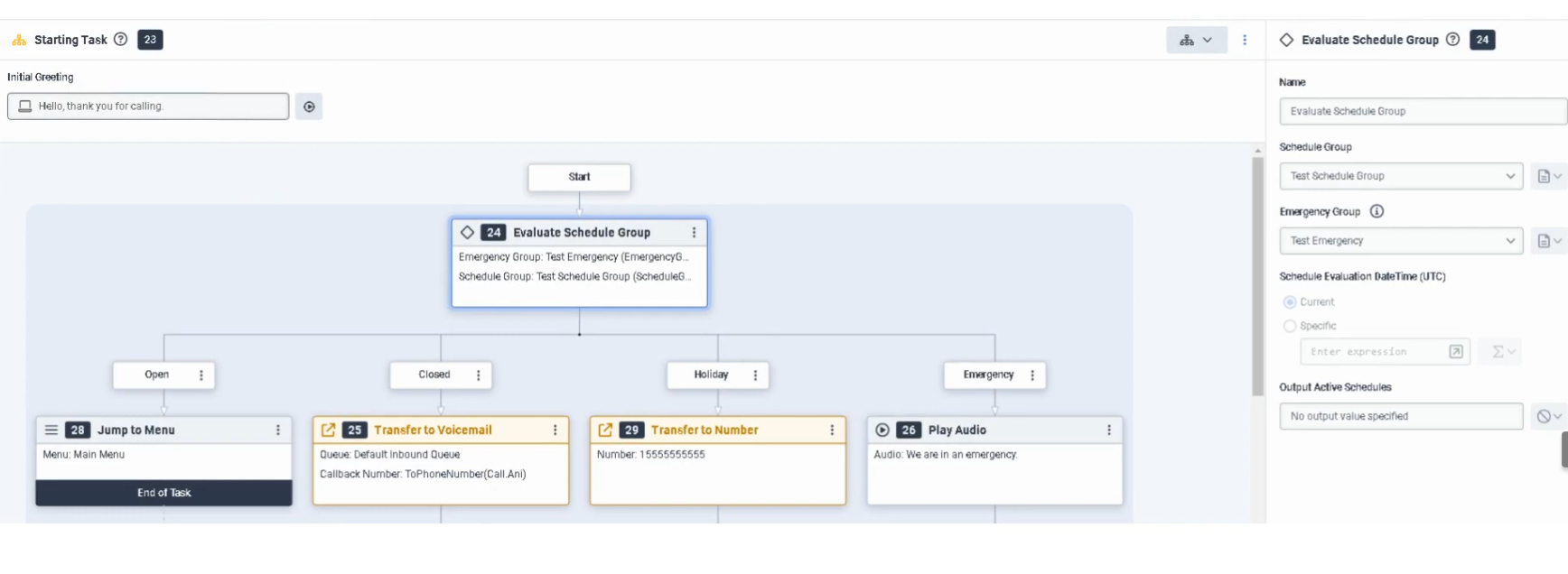
Evaluate Schedule Group action
           ↓
Emergency active? ──→ Yes ──→ Emergency path
           ↓ No
Holiday match? ────→ Yes ──→ Holiday path
           ↓ No
Closed match? ─────→ Yes ──→ Closed path
           ↓ No
Open ──────────────────────→ Open path
Real Flow Scenarios
Scenario 1 — Business Hours Menu
Caller Enters Flow → Evaluate Schedule Group → Open
→ Play Welcome Prompt → IVR Menu → Route to Queue
Scenario 2 — After-Hours Voicemail
Caller Enters Flow → Evaluate Schedule Group → Closed
→ Play Closed Prompt → Route to Voicemail
Scenario 3 — Holiday Transfer
Caller Enters Flow → Evaluate Schedule Group → Holiday
→ Play Holiday Prompt → Transfer to External Number
Scenario 4 — Emergency Override
Caller Enters Flow → Evaluate Schedule Group → Emergency (activated)
→ Play Emergency Prompt → Disconnect
Schedule Group Design Example
Schedule: US_Support_BusinessHours  (Open, Mon–Fri 08:00–18:00, weekly)
Schedule: US_Support_Christmas      (Holiday, Dec 25, yearly)
Schedule: US_Support_Closed         (Closed, all remaining times)
          ↓
Schedule Group: US_Support_Main_SG  (Time zone: America/New_York)
          ↓
Open      → Business hours IVR and queue
Closed    → Voicemail routing
Holiday   → External after-hours provider
Emergency → Emergency prompt + disconnect (via Emergency Group)
Screenshots
Best Practices
| Practice | Reason |
|---|---|
| Use the official term "Operating Schedules" | Matches UI and avoids confusion with WFM scheduling |
| Use clear, descriptive names | Easier to manage and troubleshoot routing logic |
| Separate business hours and holiday schedules | Provides flexibility without rebuilding open schedule logic |
| Always use schedule groups for production routing | Simplifies open/closed/holiday branching in one object |
| Set the correct time zone on the group | Prevents incorrect routing due to UTC or DST mismatches |
| Test all branches before go-live | Ensures each path (open/closed/holiday/emergency) routes correctly |
| Review holiday schedules annually | Keeps routing accurate as holidays change year to year |
| Use the Copy feature for similar schedules | Speeds up creation without starting from scratch |
| Check schedule usage before deleting | Avoid breaking flows that reference the schedule |
Naming Convention
| Resource | Pattern | Example |
|---|---|---|
| Business Hours Schedule | <Region>_<Dept>_BusinessHours |
US_Support_BusinessHours |
| Holiday Schedule | <Region>_<Dept>_<Holiday> |
US_Support_Christmas |
| Maintenance Schedule | <Region>_<Dept>_Maintenance |
US_Support_MaintenanceWindow |
| Schedule Group | <Region>_<Dept>_SG |
US_Support_Main_SG |
Security Considerations
| Control | Description |
|---|---|
| Division Assignment | Limits which admins can view, edit, or delete a schedule |
| Permission-based access | Routing > Schedule > Add, Edit, View, Delete controls all schedule management |
| External transfer verification | Confirm approved numbers before using them in holiday or emergency branches |
| Test before production | Misconfigured schedules can silently misroute customers |
Limitations & Constraints
| Constraint | Description |
|---|---|
| Division required | Every schedule must belong to a division — cannot be division-less |
| Open schedule required | A schedule group must have at least one Open Hours schedule |
| Emergency is separate | Emergency routing uses Emergency Groups, not schedule types — must be separately activated |
| Default fallback is Closed | If no schedule matches the current time, Architect defaults to the Closed path |
| Time zone on group, not schedule | Individual schedules don't have time zones — the time zone is set at the schedule group level |
Troubleshooting
| Issue | Cause | Resolution |
|---|---|---|
| Flow always routes Closed | Time zone mismatch or no active Open schedule | Verify schedule times and schedule group time zone |
| Holiday path never triggers | Holiday schedule not assigned to group | Add holiday schedule to the schedule group |
| Emergency path does not fire | Emergency group not activated | Verify emergency group is active and connected to the flow or call route |
| Recurring schedule not firing | Recurrence settings incorrect | Review repeating event settings and end conditions |
| External transfer not reached | Holiday branch misconfigured | Check Architect holiday branch action and verify external number |
| Schedule group unavailable in Architect | Permission or division visibility issue | Confirm Routing > Schedule > View permission and division access |
| Schedule won't delete | Schedule is in use by a group or call route | Remove the schedule from all groups and routes first |
Exam Cheat Sheet
| Question | Answer |
|---|---|
| What is an Operating Schedule? | A time-based object that controls when routing or flow logic is active |
| What permission is required? | Routing > Schedule > Add, Edit, View, Delete |
| What are the navigation paths? | Admin → Routing → Operating Schedules or Menu → Orchestration → Routing → Operating Schedules |
| What is the base evaluation order? | Holiday → Closed → Open |
| Where does Emergency fit in? | Evaluated first, but only when Emergency routing is actively turned on |
| What is the default fallback if nothing matches? | Closed |
| What is a Schedule Group? | A grouping of Open, Closed, and Holiday schedules with a shared time zone |
| Does a schedule group need an Open schedule? | Yes — at least one Open schedule is required |
| Where is the time zone set? | On the Schedule Group, not on individual schedules |
| Can schedules be copied? | Yes — use More (⋮) → Copy to duplicate and modify |
| What recurrence types are supported? | Does not repeat, Daily, Weekly, Monthly, Yearly, Custom (iCal) |
| What does "All Day" do? | Runs the schedule for the entire selected day — no start/end time |
Chapter Placement
❌ Operating Schedules does NOT belong in the Platform Operations chapter.
It belongs in the Routing & Architect chapter — alongside Call Routing, Emergency Groups, Schedule Groups, and Architect flows. Platform Operations covers platform-level administration (OAuth, SSO, Authorized Apps, API Usage). Operating Schedules is a routing configuration topic that directly controls call flow behavior and caller experience.
See Also
- Operating Schedule Groups — combine schedules into open/closed/holiday routing definitions
- Emergency Groups (
Admin → Routing → Emergency Groups) — override routing during critical events - Call Routing — map call flows to dialed addresses using schedule groups
- Architect → Evaluate Schedule Group — action used in flows to branch by schedule state
- Divisions Overview — understand how division assignment affects schedule visibility
No Comments