
AZ-104 - Governance and Compliance - Locking and Moving Resources
Control and organize Azure resources with Azure Resource Manager
Move Azure resources to another resource group
What are Locks
- Locks allow you to override permissions to resources.
- You can lock subscriptions, resources groups or resources.
- Lock Restrictions apply to all users and roles.
Lock types
- Read-only allows authorized users to read a resource, but they cannot delete or update the resource.
- Cannot-delete allows authorized users to read and modify a resource, but they cannot delete the resource.
- Locks are inherited from the parent scope.
Moving resources is the process of actually moving resources that are contained in a specific place in Azure

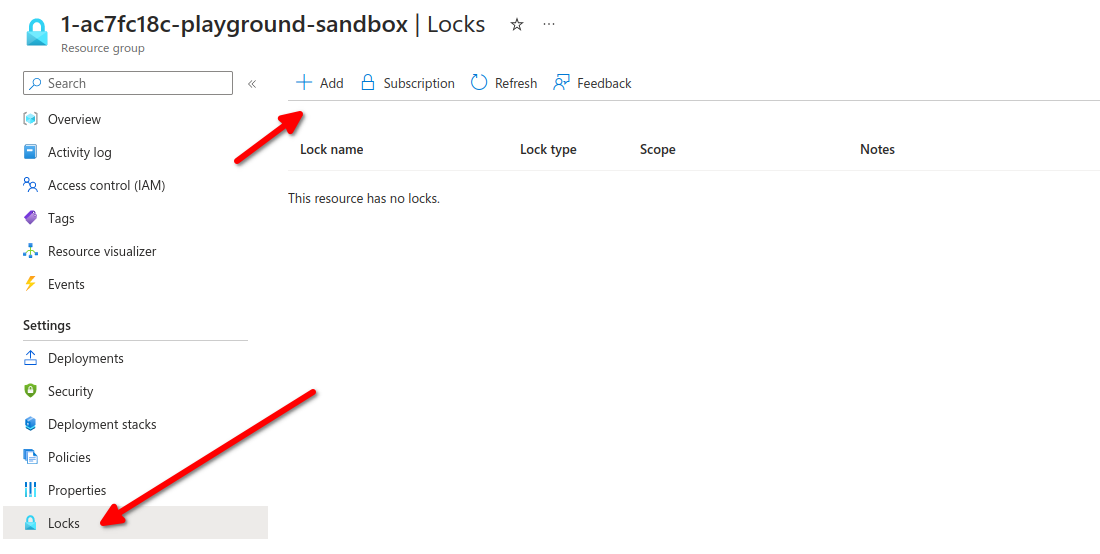
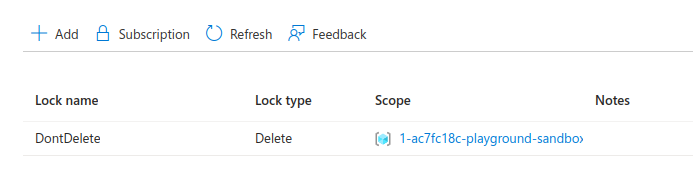
Add Lock to DontDelete or whatever random name, assign to Delete, from this page you can edit or delete the lock.
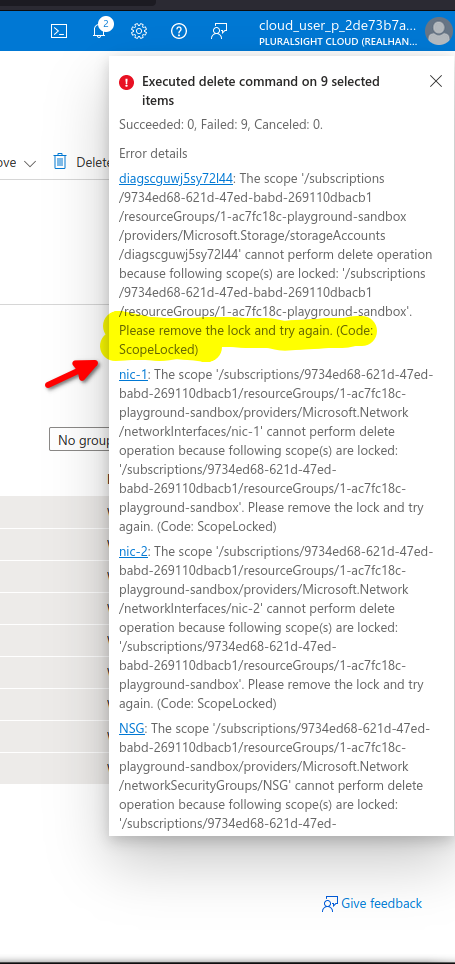
Now with a lock let's select all resources and ht delete
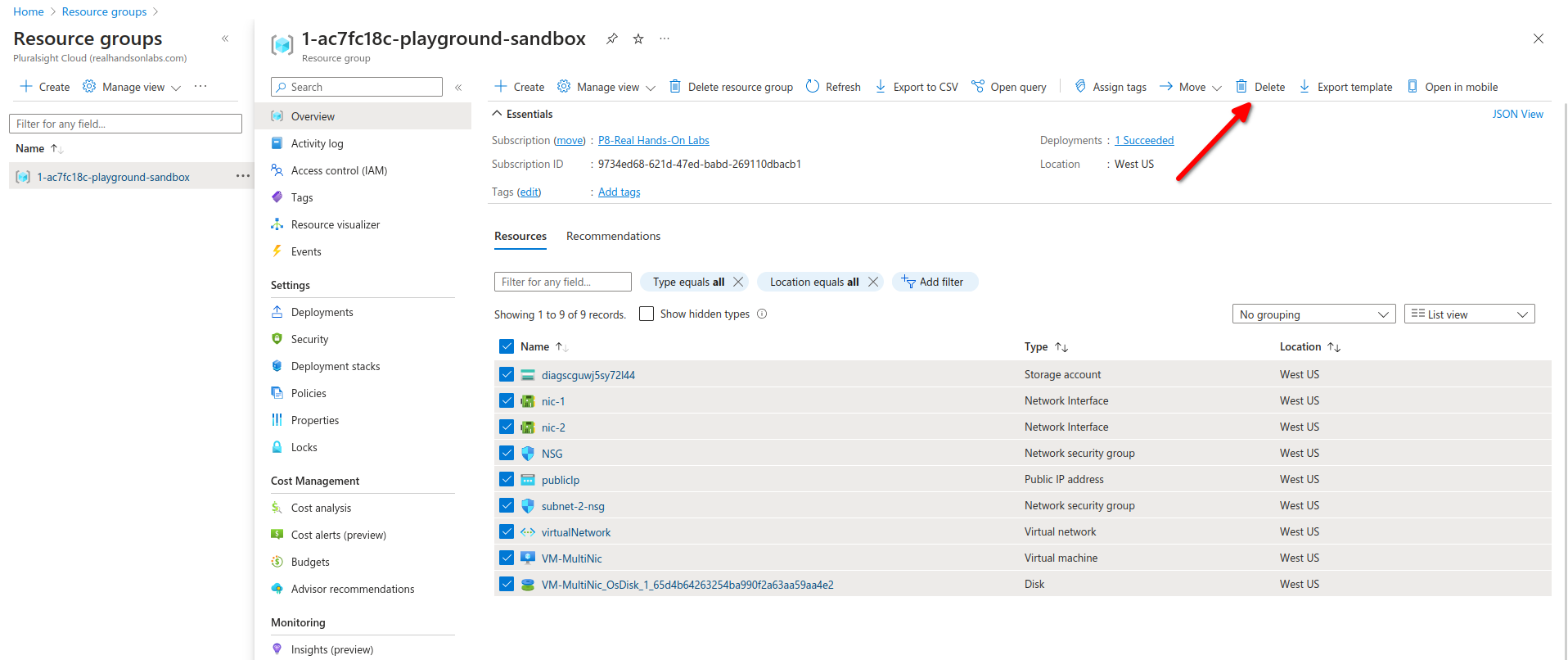
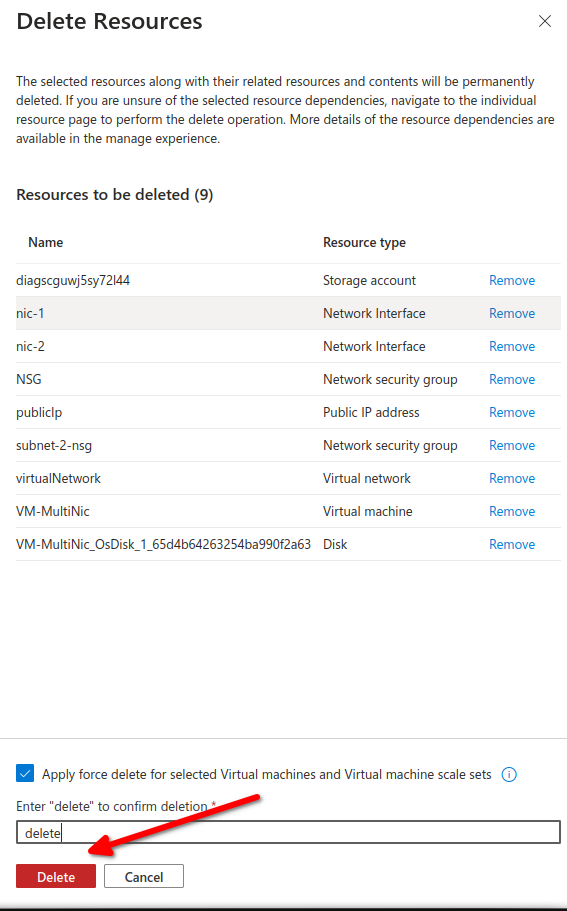
We are unable to delete because of the lock delete rule
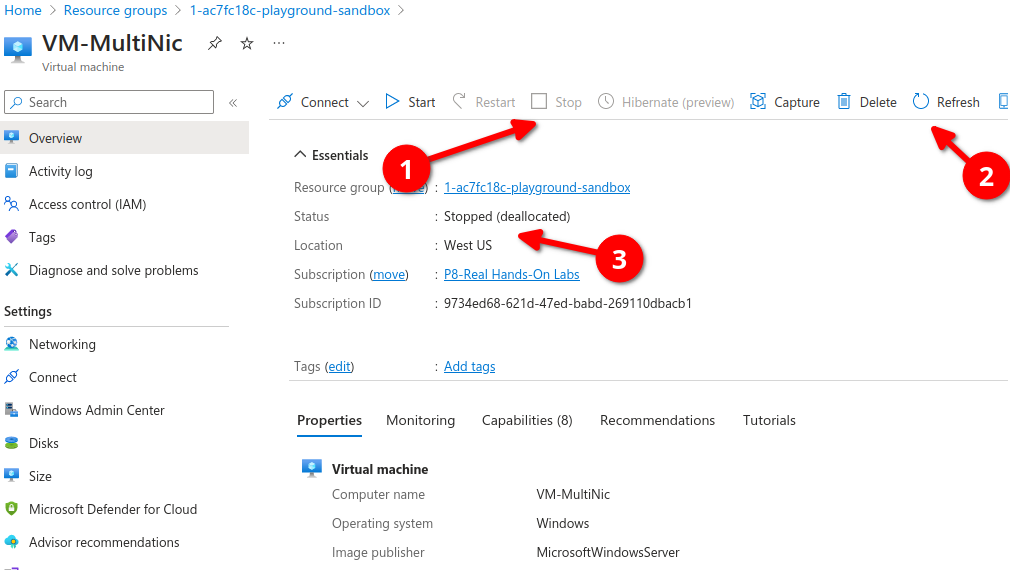
Now lets go to a specific resource inside our resource group, let's go to our VM
first we need to stop the resource then hit refresh, wait for the status to stopped.
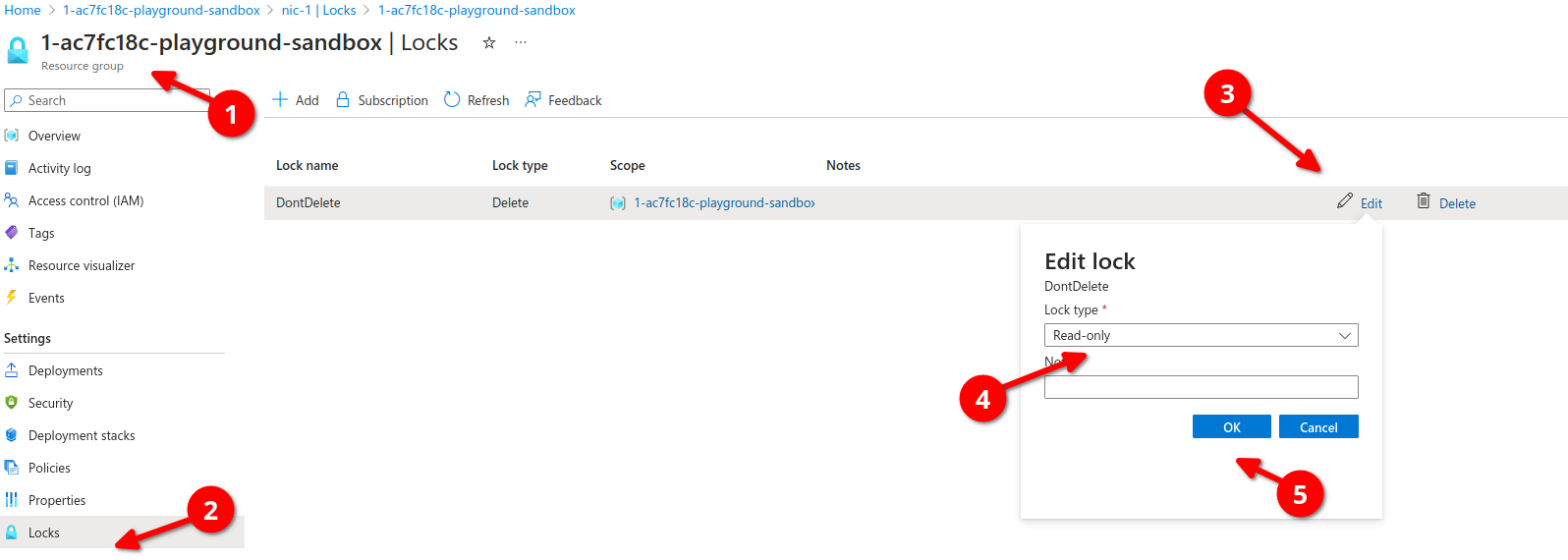
Let's go back to modify our resource group lock from Delete to Read Only
we go to our resource group, select lock (hit refresh if not shown) then edit, we will modify lock type from Delete to Read-only and hit ok
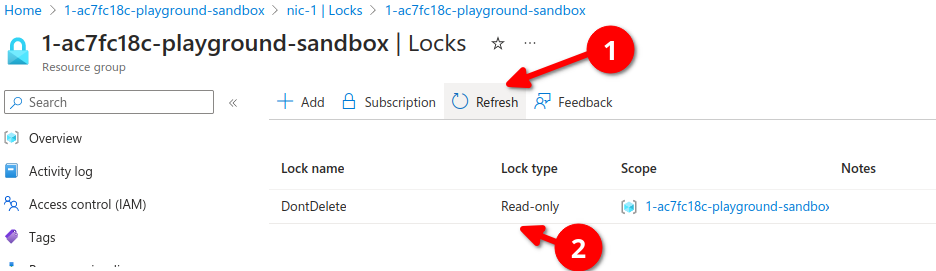
We will refresh and make sure its now read-only
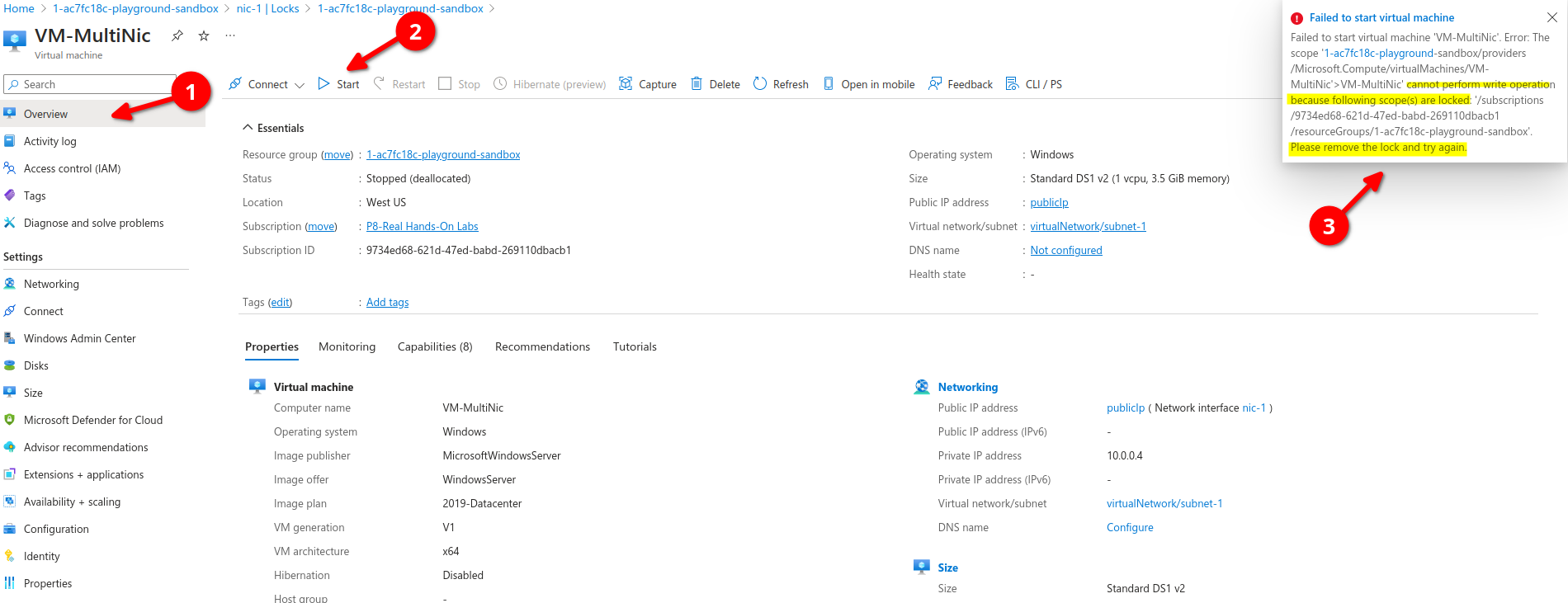
let's go back to our resources overview, open the VM again and let's Start our VM, we get a warning message, cannot perform write operation, please remove read-only lock
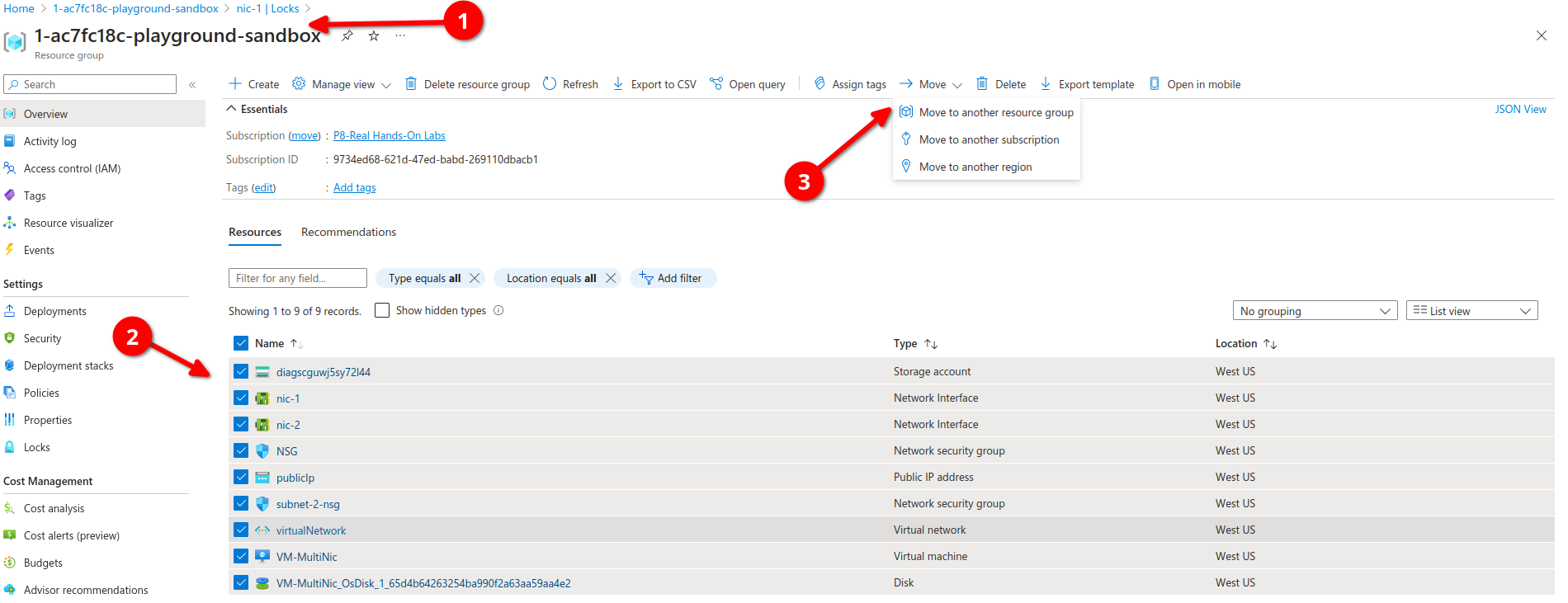
Now if we go back to our resources group we can select all our resources, from here we can click on Move, here you can move resources too another resource group, to another subscription or to another region.
No Comments