
AZ-104 Azure Identity - Creating and Managing Groups
- Describing groups
- Practical Use
- Creating a group
- Managing group membership
Azure Management groups: Create a hierarchy of Azure management groups tailored to your organization to efficiently manage your subscriptions and resources.
- Owners and Members: An owner of the group or a member of the group.
- Type of group: A security group or a Microsoft 365 group.
- Membership Type: Assigned, dynamic user or dynamic device.
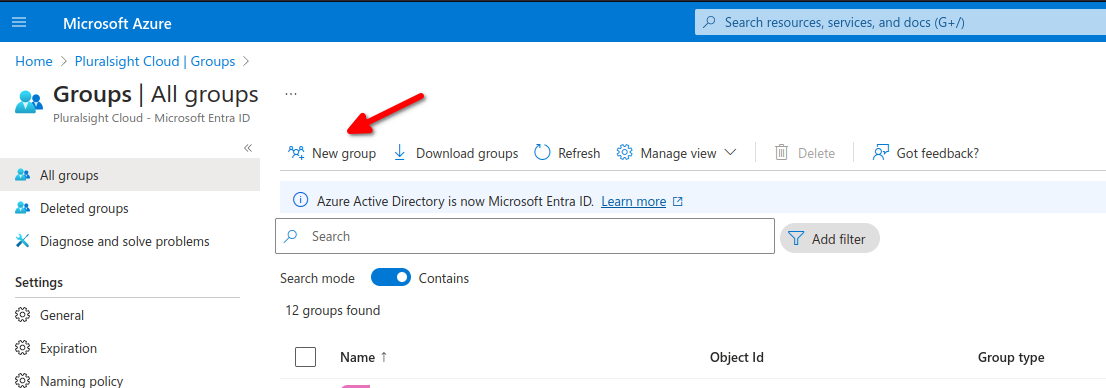
To create a new group we can navigate to Entra ID then groups then add group
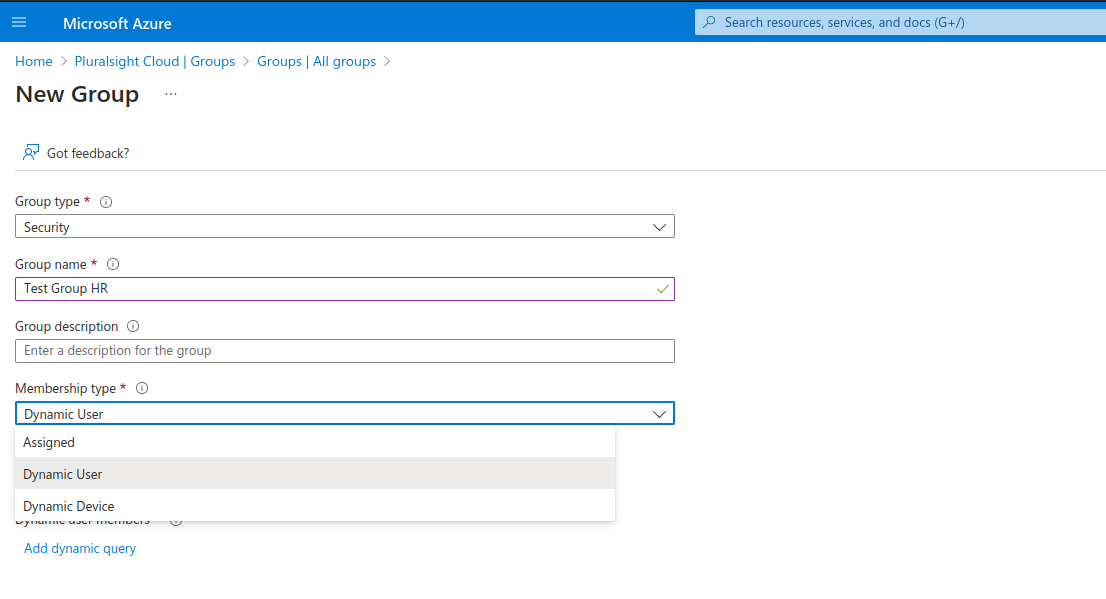
We have different membership types
- Assigned: Manually or in bulk add users
- Dynamic user: Add variables per fields such as department for example to add all users from X department
- Dynamic Device: This apply to specific hardware devices.
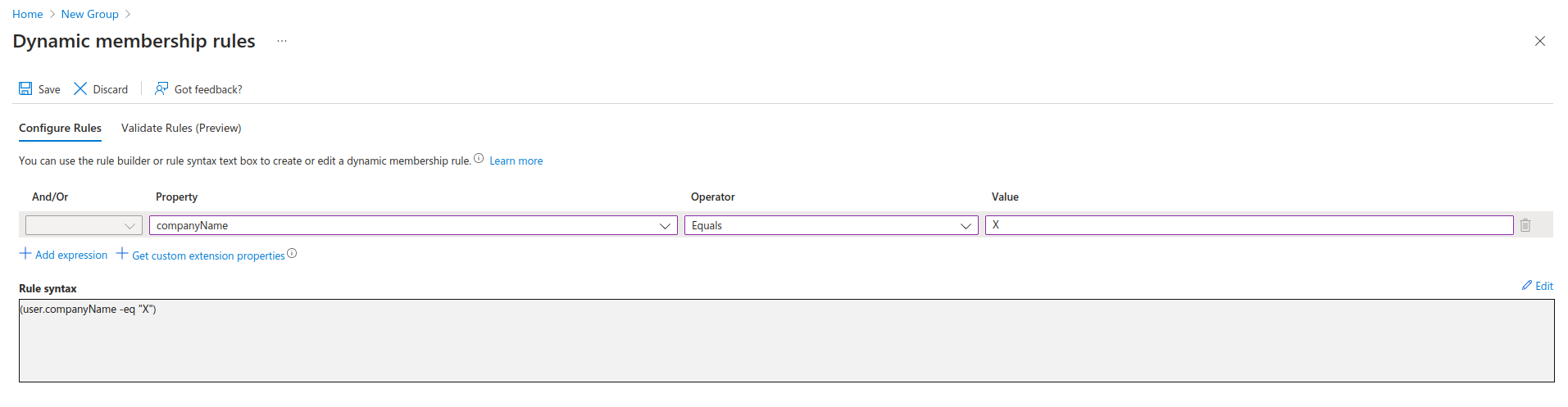
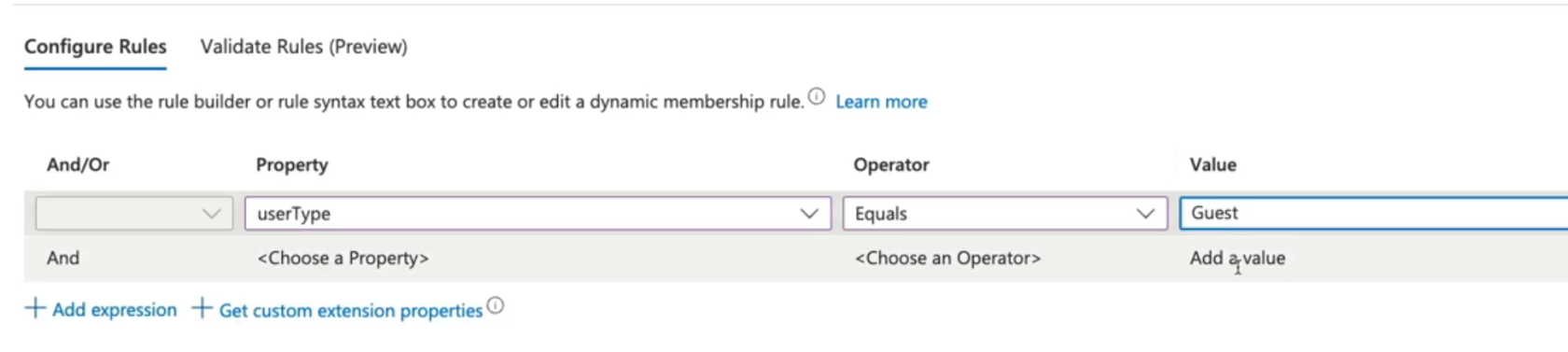
We need to click on Add Dynamic Query to add our rules for dynamic users in this case.
Here we added a Rule Syntax to add all members of Company-name X to our group, there are multiple properties and operators we can use.
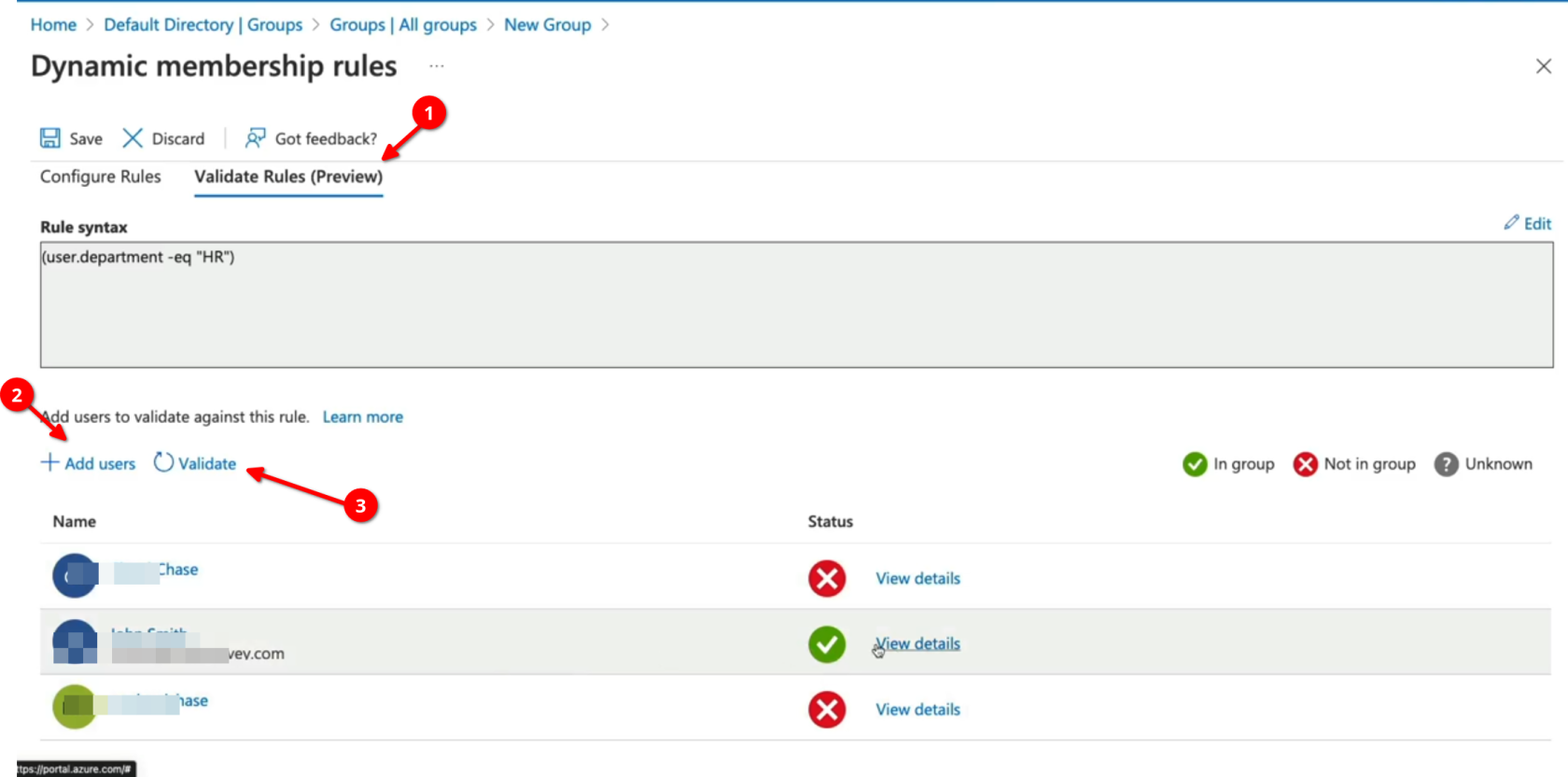
Now we need to add users then validate and see if they belong to group HR
we can also search by user-type for all Guest for example and apply a group for all Guests.
Group Types
- Security: Security groups are used to manage access o shared resources for a group of users.
- Microsoft 365: These groups are used to give members access to shared mailbox, calendar, files, etc.
- Assigned: Users are specifically selected to be members of a group.
- Dynamic user: Membership rules are created that automate group membership via user attributes.
- Dynamic Device: Membership rules are created that automate group membership via devices attributes.
No Comments