
Create a skill expression group
Lab: Create a Skill Expression Group
Book: Genesys Cloud How-To → Groups, Users & Roles Reference page: Groups (People & Permissions) — Chapter 2: People & Access Navigation: Admin → Directory → Groups → Skill Expression tab
Before You Start
| Requirement | Why |
|---|---|
| ACD Skills must already exist in the org | You can only build expressions against skills that have been created |
| Skills must be assigned to at least some users | Otherwise the group will populate empty |
| Division decided | You cannot change a group's division after creation |
Step 1: Navigate to Groups
- Click Admin
- Under Directory, click Groups
Step 2: Access Skill Expressions
- Click the Skill Expression tab (next to the General tab at the top of the Groups page)
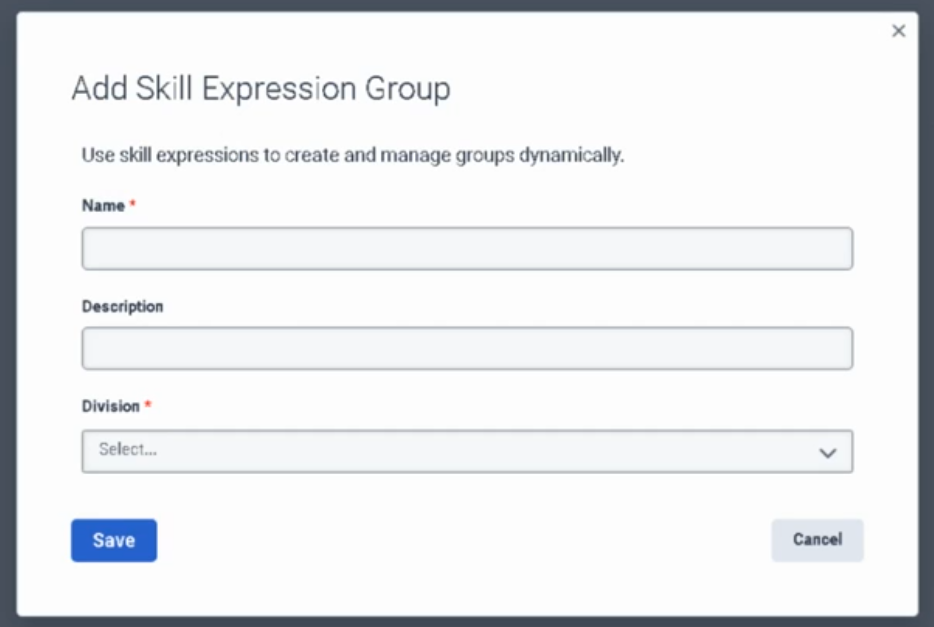
- Click Add Skill Expression Group
Step 3: Basic Configuration
| Field | Notes |
|---|---|
| Name | Clear, descriptive name (e.g., "Level 3 VoIP Engineers", "Spanish Bilingual Agents") |
| Description | Optional — explain the purpose or the skill logic being used |
| Division | Select the division this group belongs to |
Click Save.
Step 4: Build the Skill Expression Logic
- You are now on the group's Membership tab
- On the right side, click Build Skill Expression
- Click Add to create your first condition
Step 5: Define the First Condition
For each condition, configure three fields:
| Field | Options |
|---|---|
| Skill | Type the ACD skill name (e.g., "SIP", "Spanish", "Troubleshooting") |
| Operator | == Equal to / > Greater than / >= Greater than or equal to |
| Skill Level | Proficiency level 1–5 |
Example: Spanish >= 3 → includes all agents with Spanish skill at level 3, 4, or 5
Step 6: Add Sub-Conditions (Optional)
To filter by multiple skills:
- Click Add again to add another condition
- Choose the logical connector:
- AND — agent must meet all conditions
- OR — agent must meet at least one condition
- Define the additional skill, operator, and level
Example multi-condition expression:
Spanish >= 3
AND
SIP >= 2
→ Only agents who have Spanish level 3+ AND SIP level 2+ are included
Example OR expression:
French >= 2
OR
Spanish >= 2
→ Agents who speak either French or Spanish at level 2+ are included
Step 7: Save
Click Save.
The group will now automatically populate with all agents whose ACD skill assignments match the expression. No manual member management required.
What Happens After Saving
- Membership updates approximately 1 minute after any agent's skills change
- New agents assigned the matching skills are automatically added
- Agents whose skills drop below the threshold are automatically removed
- Membership is read-only — you cannot manually add or remove members from a Skill Expression Group
Key Limits (Reference)
| Limit | Value |
|---|---|
| Max Skill Expression Groups per org | 300 |
| Max primary conditions per group | 10 |
| Max sub-conditions per primary condition | 10 |
Troubleshooting
| Issue | Check |
|---|---|
| Group shows no members | Verify the ACD skill name is spelled exactly as configured; verify agents have the skill assigned at the correct level |
| Group not updating after skill change | Wait ~1 minute; skill expression groups do not update instantly |
| Cannot find skill in expression builder | The skill may not exist yet — create it first under Admin → Contact Center → ACD Skills |
| Cannot manually add a member | Expected behaviour — Skill Expression Groups are fully automatic; use a General Group if you need manual control |
See Also
- Groups (People & Permissions) — full reference including group types, limits, and general group creation
- Lab: Create a Queue — assigning skill expression groups to queues as members
- User Profile Management — where ACD Skills are assigned to individual agents
No Comments