
Retrieve CTI desktop log from agent machine
“Retrieve the CTI desktop log from agent machine.”
There is a CTI log that gets saved on the Agent’s machine that dumps a trace of CTI activity. This log can help in determining login issues or connection issues and may explain why the agent either cannot login or does not see the CTI pop-up.
-
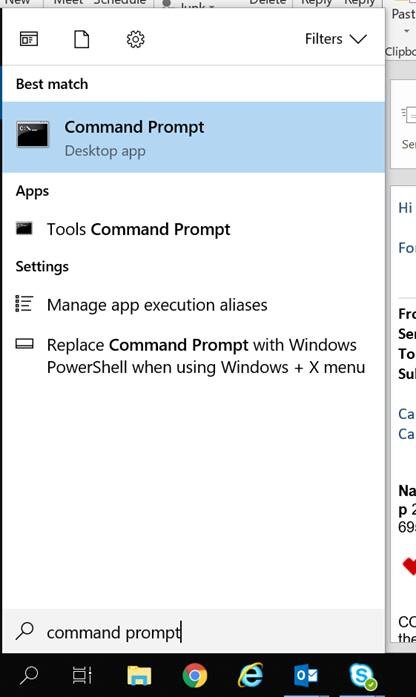
Search for the Command Prompt and select it.
-
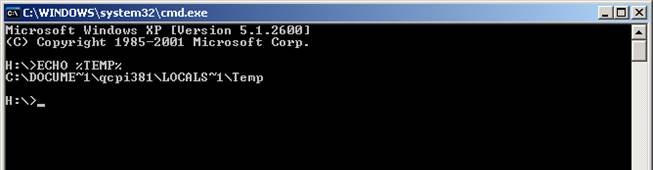
When you get the black screen, enter “ECHO %TEMP%”. This will provide the path to the temporary folder where the CTI Log is located.
-
Open Windows Explorer and follow the path shown in the black screen to find the file “JavaCTIClient.log”

NOTE: The App Data folder may be a hidden folder and the rep may not be able to see it. If they can’t see it, see instructions below.
To view hidden files and folders in Windows 7
1. Select the Start button, then select Control Panel > Appearance and Personalization.
2. Select Folder Options, then select the View tab.
3. Under Advanced settings, select Show hidden files, folders, and drives, and then select OK.
To view hidden files and folders in Windows 10
1. Open File Explorer from the taskbar.
2. Select View > Options > Change folder and search options.
3. Select the View tab and, in Advanced settings, select Show hidden files, folders, and drives and OK.
No Comments