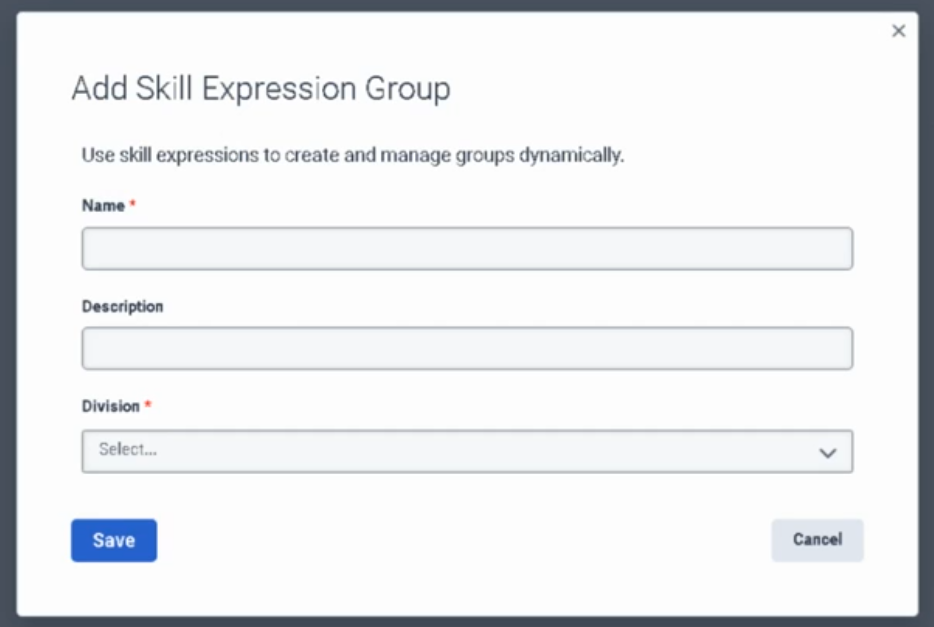
Create a skill expression group
Step-by-Step: Creating a Skill Expression Group
Navigate to Groups:

    Go to Admin > Directory > Groups.

Access Skill Expressions:

    Click on the Skill Expression tab (located next to the General tab).

    Click Add Skill Expression Group.

Basic Configuration:

    Name: Type a clear name (e.g., Level 3 VoIP Engineers).

    Description: (Optional) Explain the purpose.

    Division: Select the division this group belongs to.

    Click Save.

Build the Logic (Membership Tab):

    On the right side of the Membership tab, click Build Skill Expression.

    Click Add to create your first condition.

Define the Criteria:

    Select Skill: Type the name of the ACD skill (e.g., SIP or Troubleshooting).

    Operator: Choose a relational operator:

        == (Equal to)

        > (Greater than)

        >= (Greater than or equal to)

    Skill Level: Select the proficiency level (1–5).

Optional: Add Complexity:

    Click Add again to include a sub-condition (using AND/OR logic) if you want to filter by multiple skills.

Finalize:

    Click Save. The group will now automatically populate with any agents who have those matching skills assigned to their profile.