
Work Teams
Navigation: Admin → Directory → Work Teams Also accessible via: Menu → User Management → Work Teams
What Are Work Teams?
Work teams are supervisor-managed groups of agents used to monitor performance and manage workforce operations collectively. They are distinct from Groups (People & Permissions) in purpose and behaviour.
⚠️ Not related to Microsoft Teams. Genesys Cloud Work Teams and the Microsoft Teams integration are completely separate features.
Work Teams vs. Groups — Key Differences
| Feature | Work Teams | General Groups |
|---|---|---|
| Primary purpose | Performance management & WFM | Routing, chat, role assignment |
| Membership rule | One team per division per user | Users can belong to multiple groups |
| Division requirement | All members must share same division | Members can span divisions |
| Chat room created | No | Yes (automatic) |
| Role assignment | No | Yes |
| Queue membership | Yes (add team to queue) | Yes (add group to queue) |
| Schedule management | Yes (WFM schedules) | No |
| Automatic membership | No (manual only) | Yes (rule-based or skill expression) |
Org Limits
| Item | Limit |
|---|---|
| Work teams per org | 200 (contact Customer Care to increase) |
| Work teams per user | 1 per division |
| Division requirement | All members must belong to the team's assigned division |
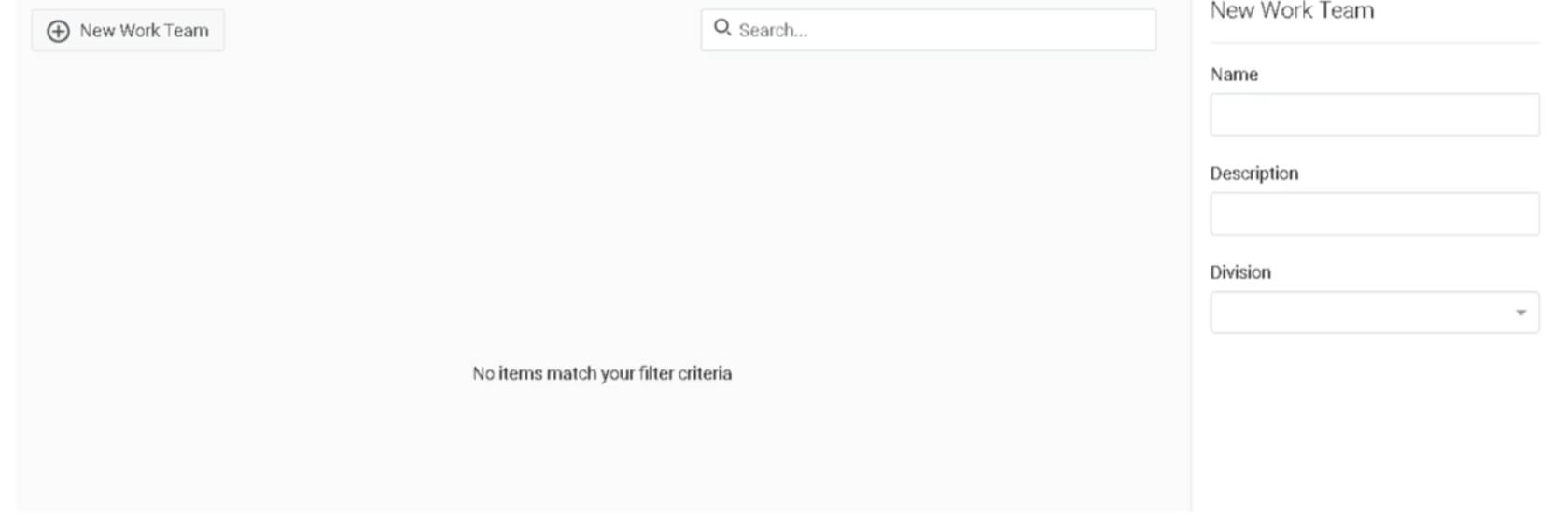
Creating a Work Team
- Click Admin
- Under Directory, click Work Teams
- Click New Team
- Fill in the required fields:
| Field | Notes |
|---|---|
| Name | Appears in views and lists |
| Description | Purpose/context for the team |
| Division | All members must belong to this division |
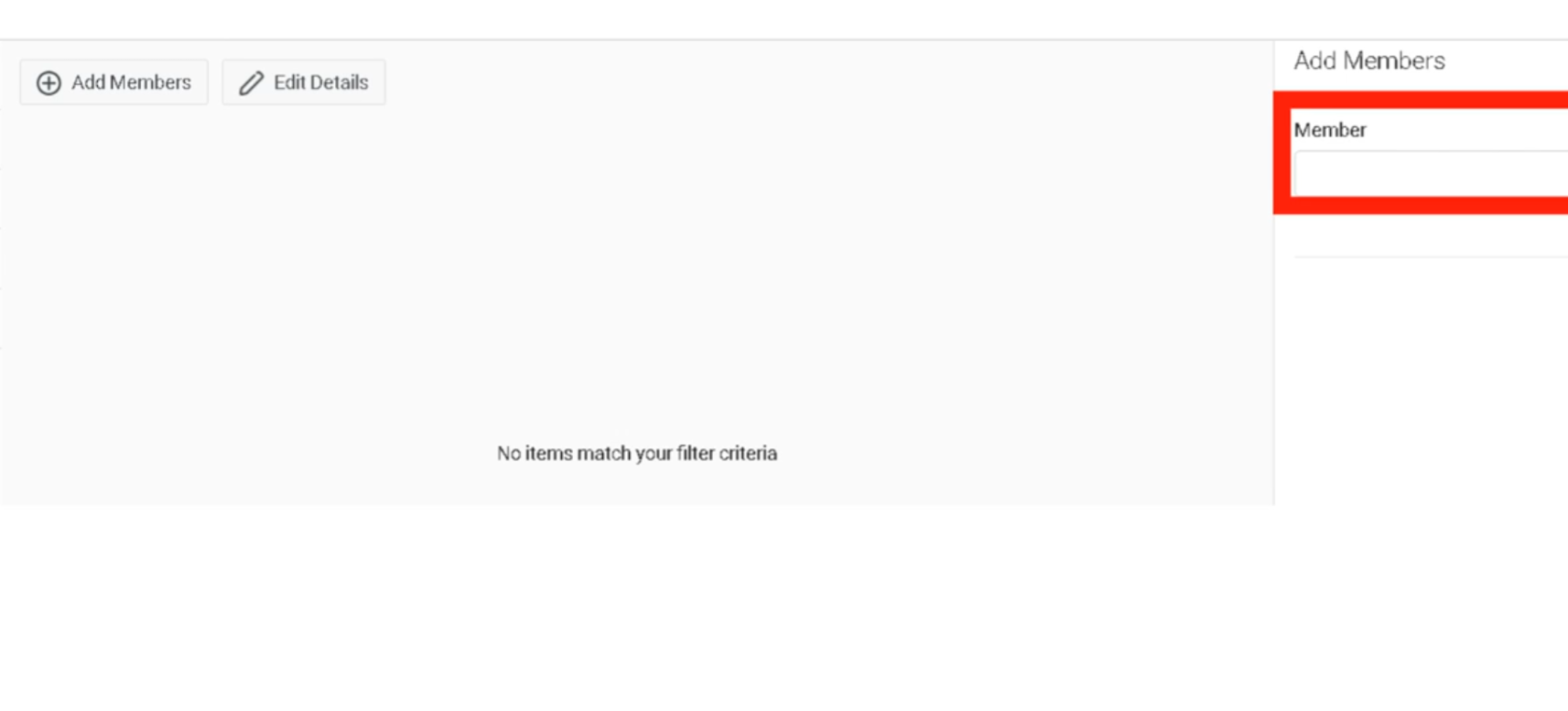
- Add members — you can only add users from divisions where you have the Assign permission
- Save
Adding a Work Team to a Queue
Work teams can be assigned to queues in place of individual users.
⚠️ Mutually exclusive: You cannot mix individual users and a work team on the same queue. If you switch from users to a work team, the previously selected individual users are removed.
Steps:
- Admin → Contact Center → Queues → select queue
- Click the Members tab → Groups tab
- Click Add Group → search for and select the work team
- Click Add Selected → Save
What Supervisors Can Do with Work Teams
Work teams enable the following supervisor capabilities:
Performance Monitoring
- Filter Agent Performance / Detail views by work team
- Filter Agent Status view by work team
- Filter Agent Evaluation view by work team
- Filter Queue Performance Detail by work team
Workforce Management
- View and edit WFM schedules by work team
- Schedule activities for an entire work team at once
- Filter Real-time Adherence by work team
- Assign quality policies to a work team
Audit & Tracking
- Work team membership appears on the People page
- Changes to work team membership are recorded in the audit trail
Permissions Required
| Action | Permission |
|---|---|
| Create / manage work teams | Groups > Work Team > Add, Edit, Delete |
| Add members from a division | Groups > Work Team > Assign (for that division) |
| View work teams in WFM schedules | Groups > Work Team > View (non-conditional = all teams in management unit) |
ℹ️ If you have no Work Team permissions at all, the work team selector does not appear in WFM schedule views.
Relationship to Divisions
- When creating a work team, the division controls which users are eligible for membership
- A supervisor can only add users from divisions where they have the Assign permission
- Users can belong to one work team per division — so a user in multiple divisions could technically be in one work team in each
Relationship to WFM Business Units and Management Units
Work teams operate within the WFM scheduling hierarchy:
Business Unit
  └── Management Unit(s)
        └── Work Teams (filter / schedule view layer)
Work teams are not the same as management units. Management units group agents for forecasting and scheduling capacity (max 1,500 agents). Work teams are a supervisory filter and scheduling activity tool layered on top.
See Also
- Groups (People & Permissions) — for routing, role assignment, and chat rooms
- Queue & Routing Management — for assigning work teams to queues
- Divisions & Access Control — division membership rules affect work team eligibility
- Architectural Build Order — work teams are built in Phase 3 (People), after users and before queues