opology
Navigation: Admin → Telephony → Topology
Last verified: Genesys Cloud Resource Center — March 2026
What Is Topology?
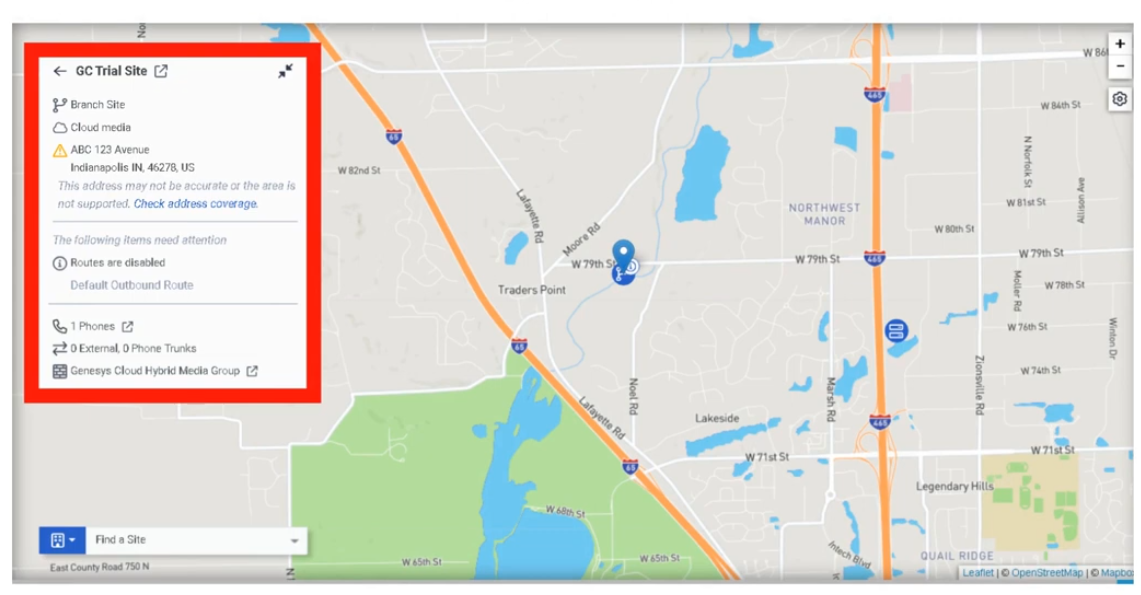
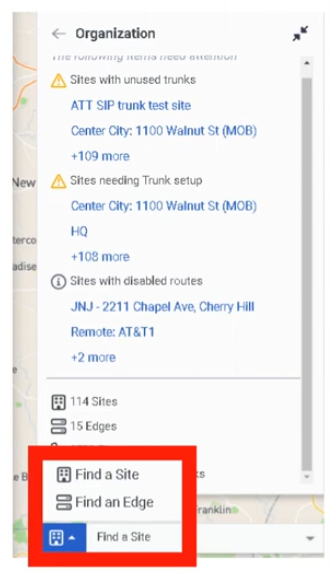
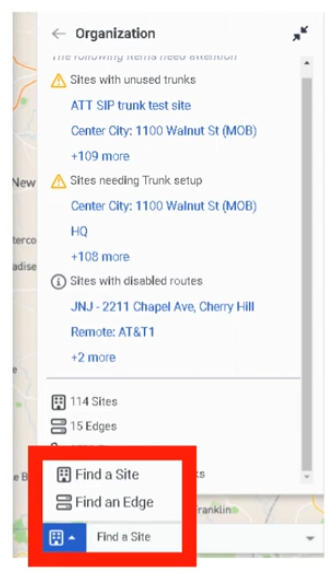
Topology is the administrative map view of the Genesys Cloud telephony network. It displays how telephony components relate to each other — sites, phones, edges, and trunks — and is especially useful for troubleshooting offline or out-of-service edges and validating phone-to-edge assignments.
ℹ️ Topology is a monitoring and diagnostic tool, not a provisioning wizard. Changes to telephony objects are made in their respective admin pages; Topology is where you confirm the result.
Navigation
| Task |
Path |
| Open Topology |
Admin → Telephony → Topology |
| Drill into an object |
Click any site, edge, trunk, or phone in the map |
| Troubleshoot edges |
Select the edge object to view status details |
What Topology Shows
| Object |
Description |
| Sites |
Logical telephony routing entities |
| Edges |
Media-handling devices in the telephony environment |
| Trunks |
Carrier or PBX connectivity into Genesys Cloud |
| Phones |
Endpoints and their edge/site assignments |
| Phone-to-Edge Assignments |
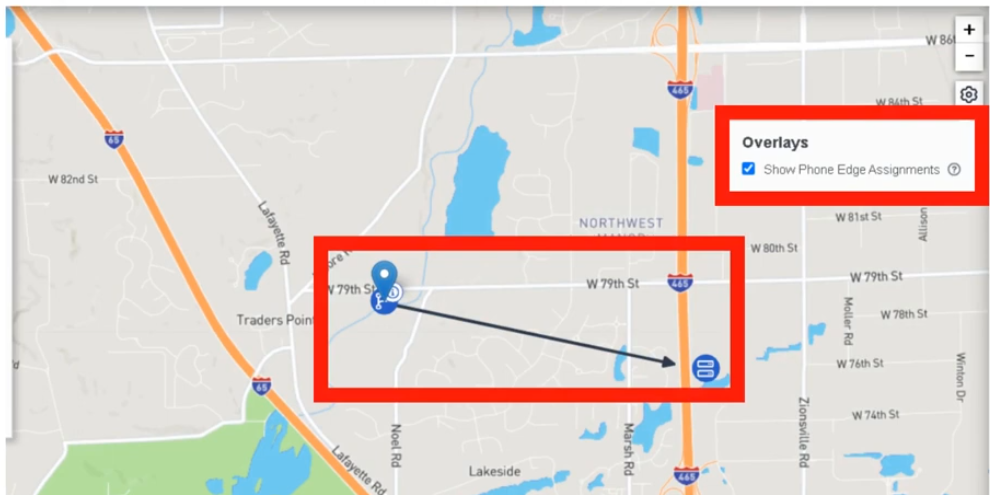
Shows which phones connect to which edges, including primary and secondary site relationships |
| Status Indicators |
Visual state of objects — helps identify offline or out-of-service edges |
How to Use Topology
| Step |
Action |
| Step 1 |
Navigate to Admin → Telephony → Topology |
| Step 2 |
Review the map for your organization's telephony objects |
| Step 3 |
Look for offline or out-of-service edge indicators |
| Step 4 |
Click into a suspect object to drill down into its details |
| Step 5 |
Enable phone-to-edge assignment view to validate primary/secondary site relationships |
| Step 6 |
Use findings to continue troubleshooting in the relevant admin page (Sites, Trunks, Edges) |
Key Use Cases
| Scenario |
Description |
| Incident triage |
Quickly visualize where a telephony problem exists before diving into logs |
| Post-change validation |
Confirm expected object relationships after site, trunk, or edge changes |
| Resiliency review |
Validate phone-to-edge assignments and primary/secondary site design |
| Edge troubleshooting |
Identify offline or out-of-service edges at a glance |
| Onboarding review |
Confirm a new telephony deployment is connected as designed |
Troubleshooting
| Issue |
Cause |
Resolution |
| Edge appears offline |
Edge, network, or service issue |
Drill into the edge; continue in Admin → Telephony → Edges |
| Phones not where expected |
Assignment or site relationship misconfiguration |
Review phone-to-edge assignments and site design |
| Map looks incomplete |
Telephony objects not yet configured or not in expected state |
Verify sites, trunks, edges, and phones exist and are correctly assigned |
| Trunk/site relationship unclear |
Naming inconsistency or design ambiguity |
Standardize naming; compare with site/trunk config pages |
Best Practices
| Practice |
Reason |
| Review Topology after major telephony changes |
Visually confirms that relationships updated as expected |
| Use Topology early when troubleshooting |
Narrows the fault domain before deeper investigation |
| Validate phone-to-edge assignments regularly |
Prevents unnoticed resiliency or registration issues |
| Keep site and trunk naming consistent |
Makes the map easier to read and interpret |
| Use Topology for visibility; use admin pages for fixes |
Topology shows the problem — the fix happens elsewhere |
Quick Reference
| Question |
Answer |
| What does Topology show? |
Sites, phones, edges, and trunks in a visual map |
| What is it mainly used for? |
Visualization and troubleshooting |
| Can you make changes in Topology? |
No — it is read-only for monitoring and diagnostics |
| What edge issue does it help with? |
Identifying offline or out-of-service edges |
| Does it show resiliency design? |
Yes — phone-to-edge assignments show primary/secondary site relationships |
See Also
Screenshots