Integration Management
| Section |
Description |
| Module Context |
Integration Management covers OAuth Clients, Authorized Applications, and Single Sign-On (SSO) in Genesys Cloud Administration. |
| Admin Location |
Admin → Integrations |
| Purpose |
Enables secure API authentication, third-party application connectivity, and enterprise identity federation. |
OAuth Clients
Overview
| Topic |
Explanation |
| OAuth Client |
An application registered in Genesys Cloud that can request access tokens to call Platform APIs. |
| OAuth Standard |
Genesys Cloud implements the OAuth 2.0 authorization framework for secure API authorization. |
| Access Token |
Temporary credential used to authenticate API calls. |
| Token Lifetime |
Configurable between 300 seconds and 172,800 seconds (2 days). |
| OAuth Scopes |
Define the level of access an application has to organization data. |
| Role-Based Access |
OAuth permissions are determined by roles assigned to the OAuth client. |
| Integration Role |
OAuth clients are commonly used for integrations, data actions, AppFoundry apps, and external systems. |
OAuth allows organizations to share information with applications without sharing user credentials, and uses scopes and roles to restrict access to resources.
Navigation
| Task |
Navigation |
| View OAuth Clients |
Admin → Integrations → OAuth |
| Create OAuth Client |
Admin → Integrations → OAuth → Add Client |
| Review Authorized Apps |
Admin → Integrations → Authorized Applications |
Configuration Fields
| Field |
Description |
Example |
| App Name |
Name displayed when authorization occurs |
CRM_Integration_Client |
| Description |
Brief description of the OAuth client purpose |
Salesforce Data Sync |
| Token Duration |
Lifetime of OAuth access tokens (300–172,800 seconds) |
3600 |
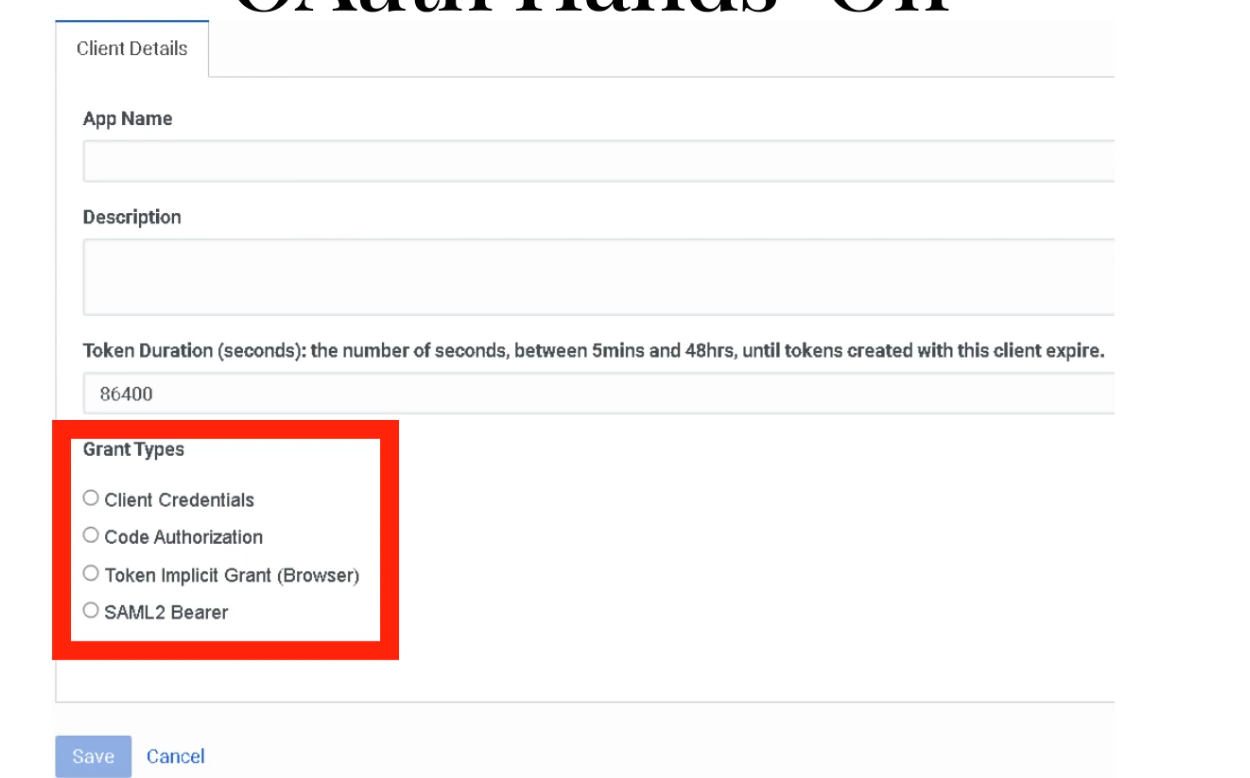
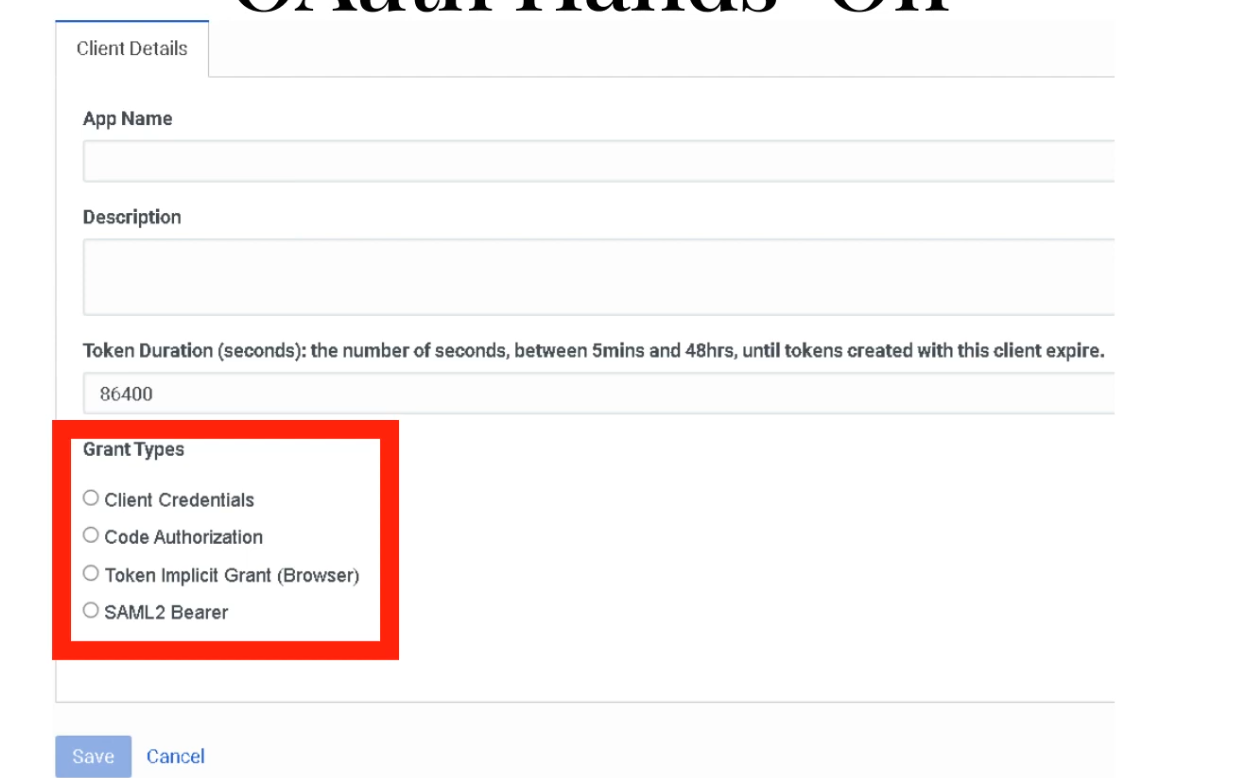
| Grant Types |
Defines how an application obtains a token |
Client Credentials |
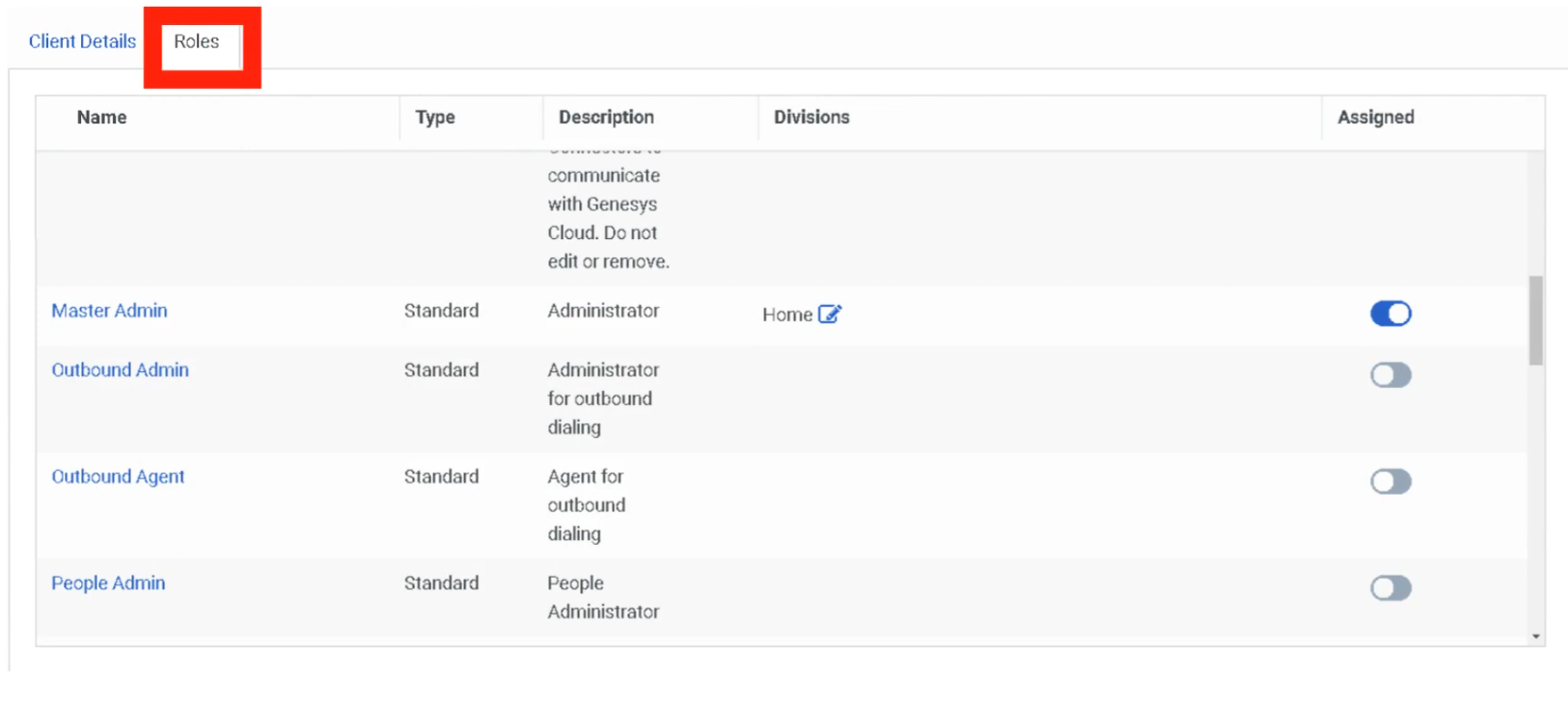
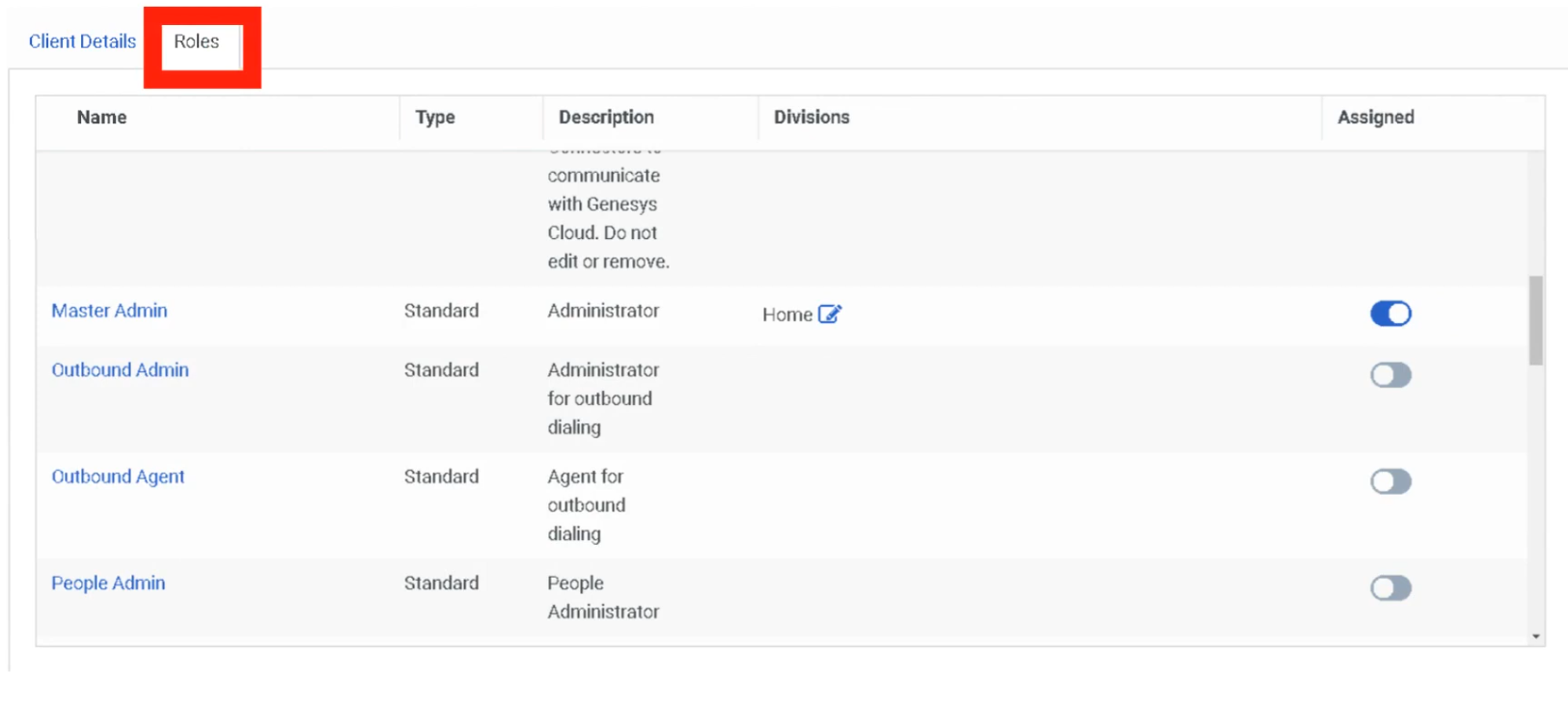
| Roles |
Permissions assigned to the OAuth client |
Master Admin |
| Client ID |
Unique identifier generated automatically |
Generated |
| Client Secret |
Secret key used to authenticate token requests |
Generated |
| Authorized Redirect URI |
Used with Authorization Code or Implicit grants |
https://app.example.com/callback |
Grant Types
| Grant Type |
Description |
Typical Use |
| Client Credentials |
Machine-to-machine authentication; no user context |
Server integrations, data actions |
| Authorization Code |
User-delegated access with redirect |
Web apps requiring user context |
| Implicit |
Simplified flow for browser-based apps |
Legacy browser apps |
| SAML2 Bearer |
SSO-based token exchange |
Federated identity scenarios |
⚠️ After selecting Client Credentials, a Roles tab appears — assign the minimum required role. Use least-privilege roles in production.
After selecting Client Credentials, the Roles tab appears — assign Master Admin or a least-privilege role.
Implementation Steps
| Step |
Action |
| Step 1 |
Navigate to Admin → Integrations → OAuth |
| Step 2 |
Click Add Client |
| Step 3 |
Enter application name and description |
| Step 4 |
Configure token expiration |
| Step 5 |
Select OAuth grant type |
| Step 6 |
Assign roles to the OAuth client |
| Step 7 |
Save configuration |
| Step 8 |
Copy generated Client ID and Client Secret — store securely |
Creating an Integration Using OAuth Credentials
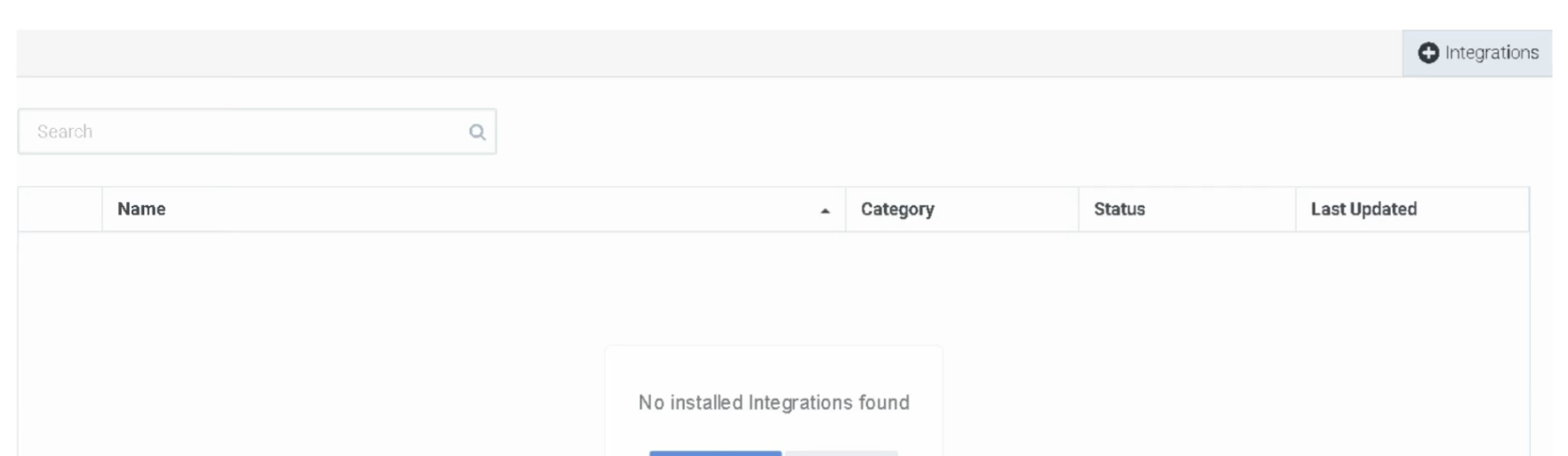
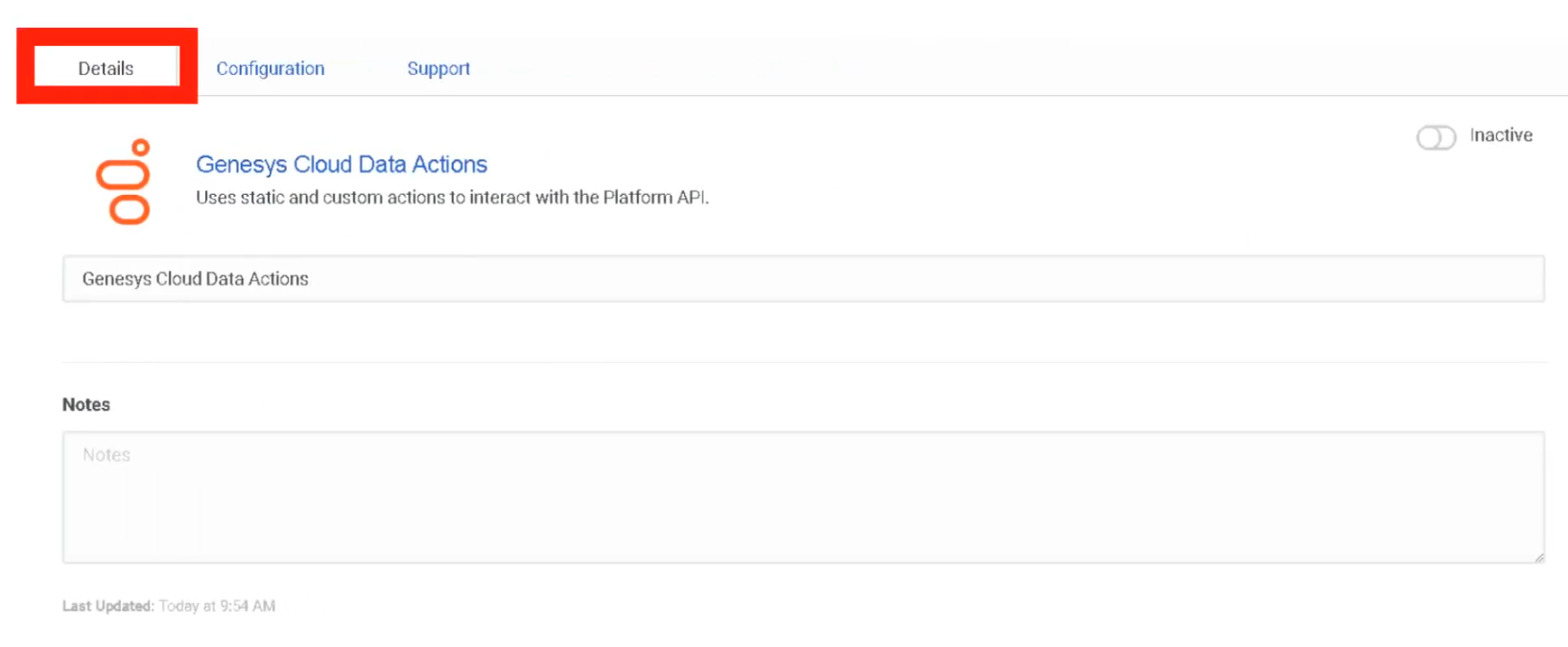
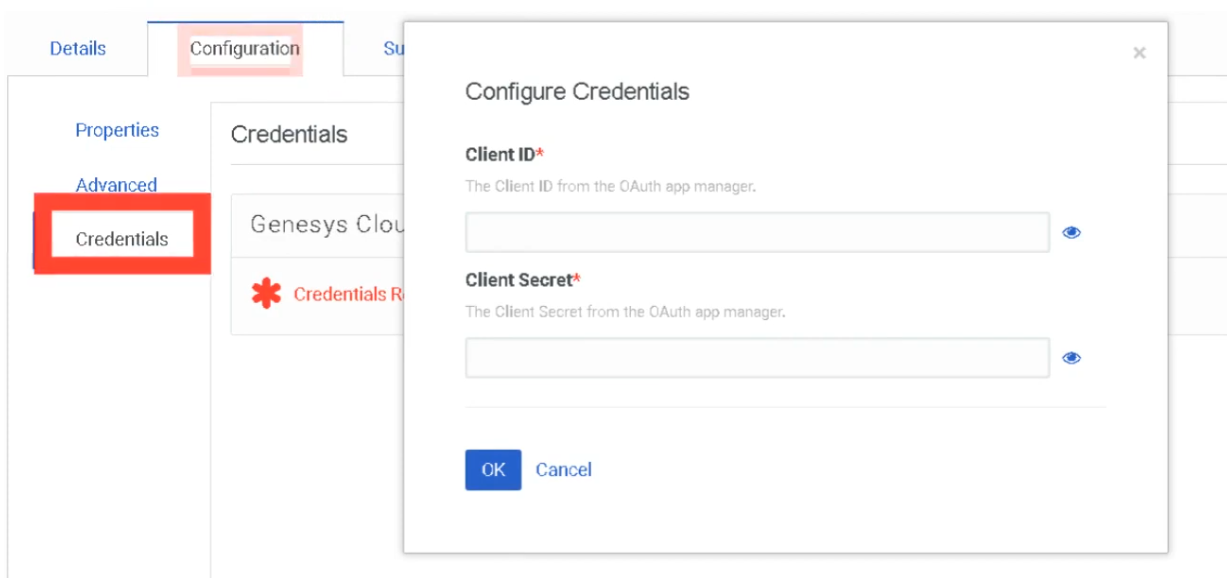
After creating an OAuth client, use the credentials to configure an integration:
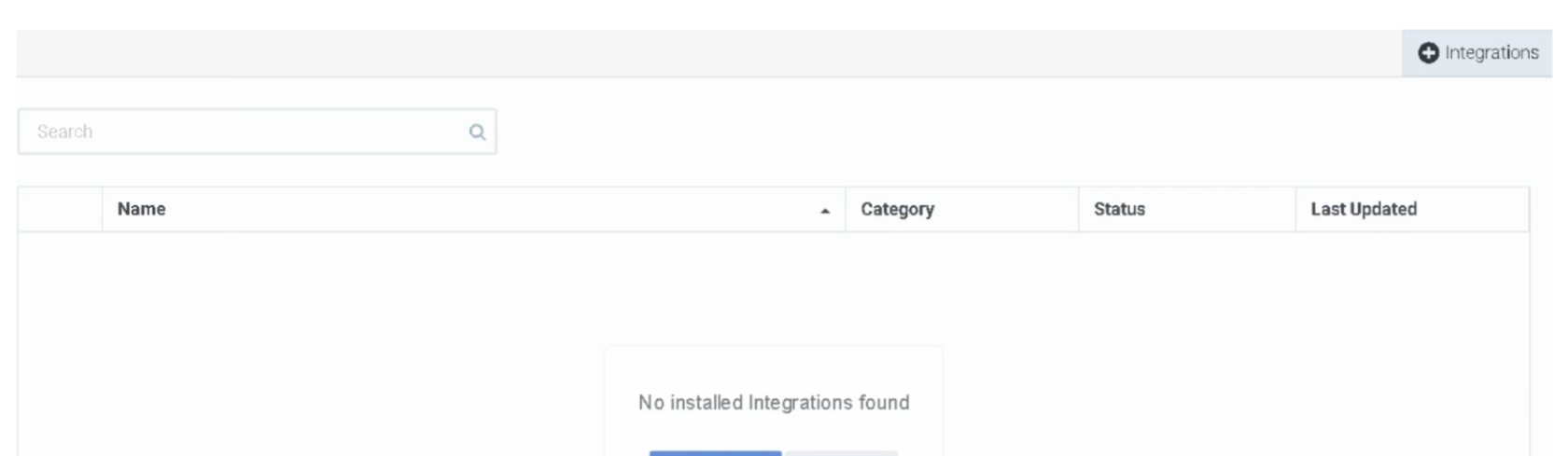
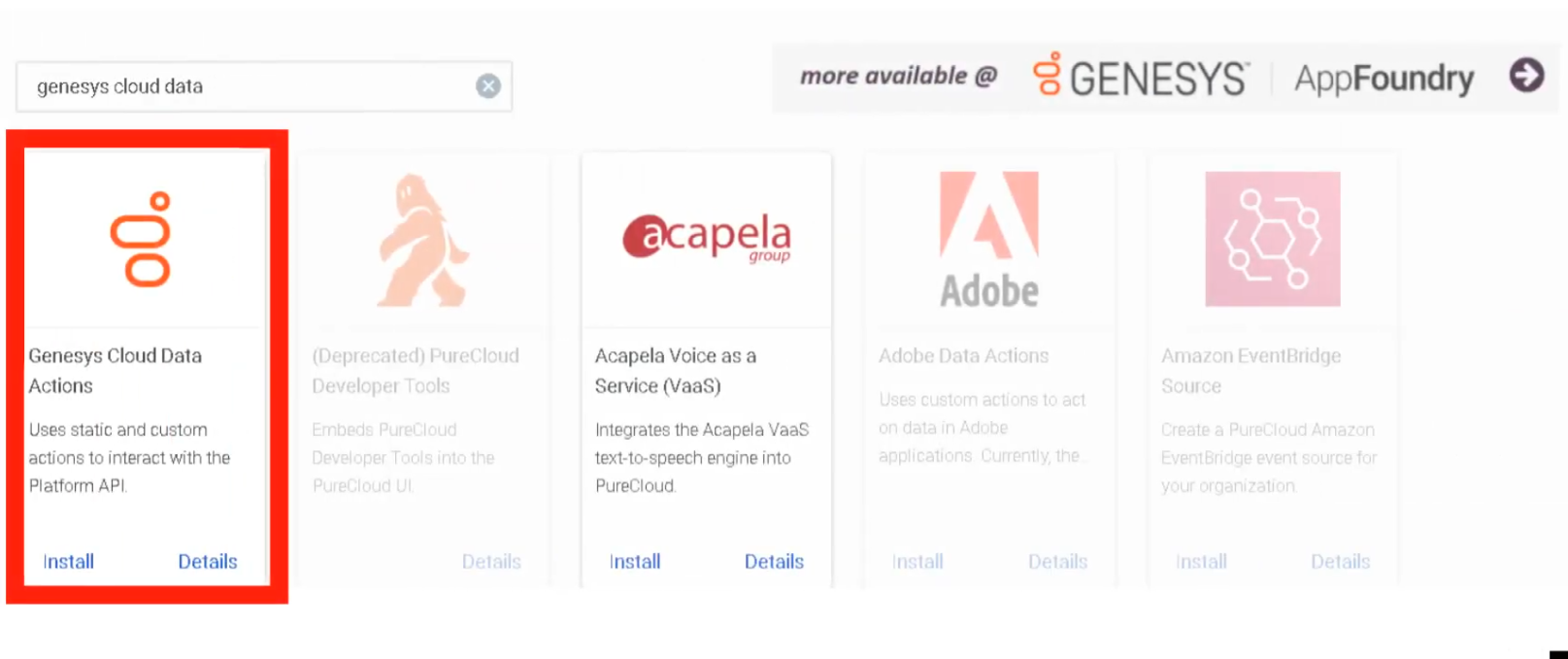
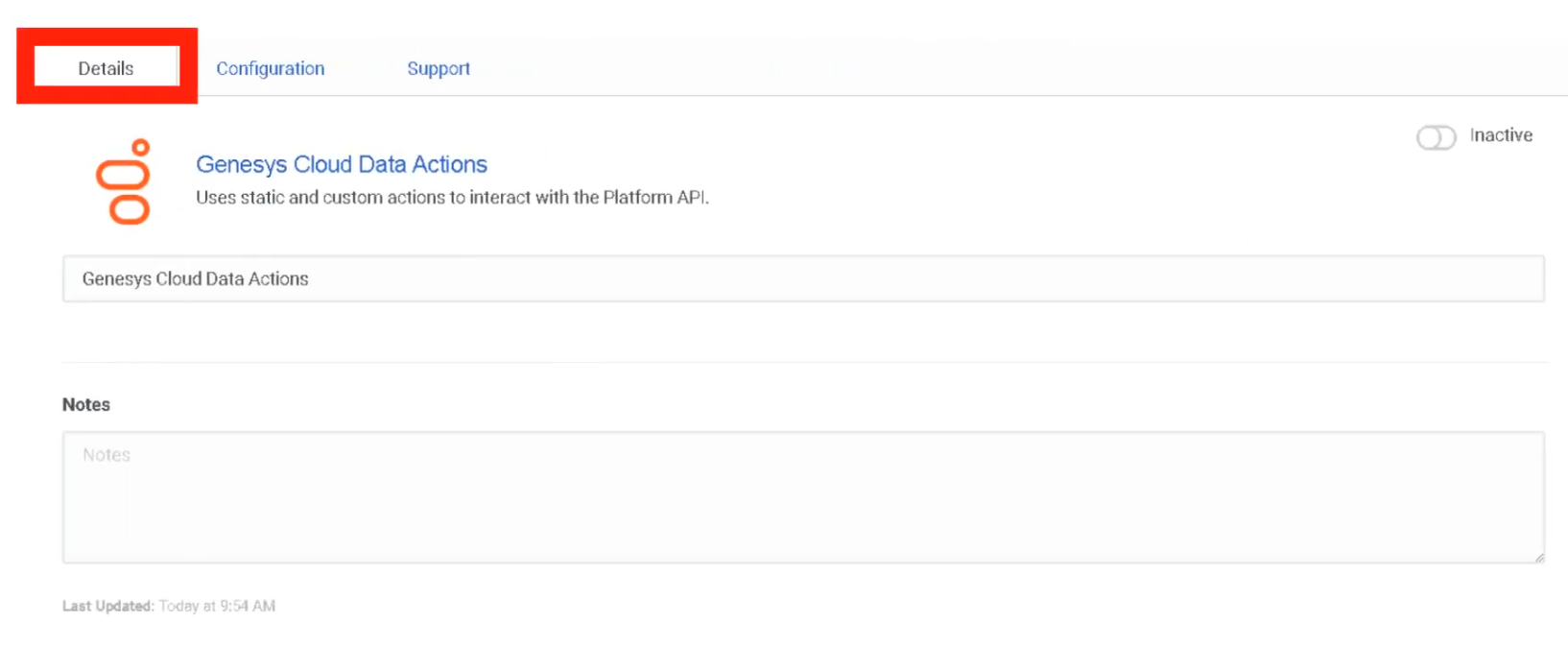
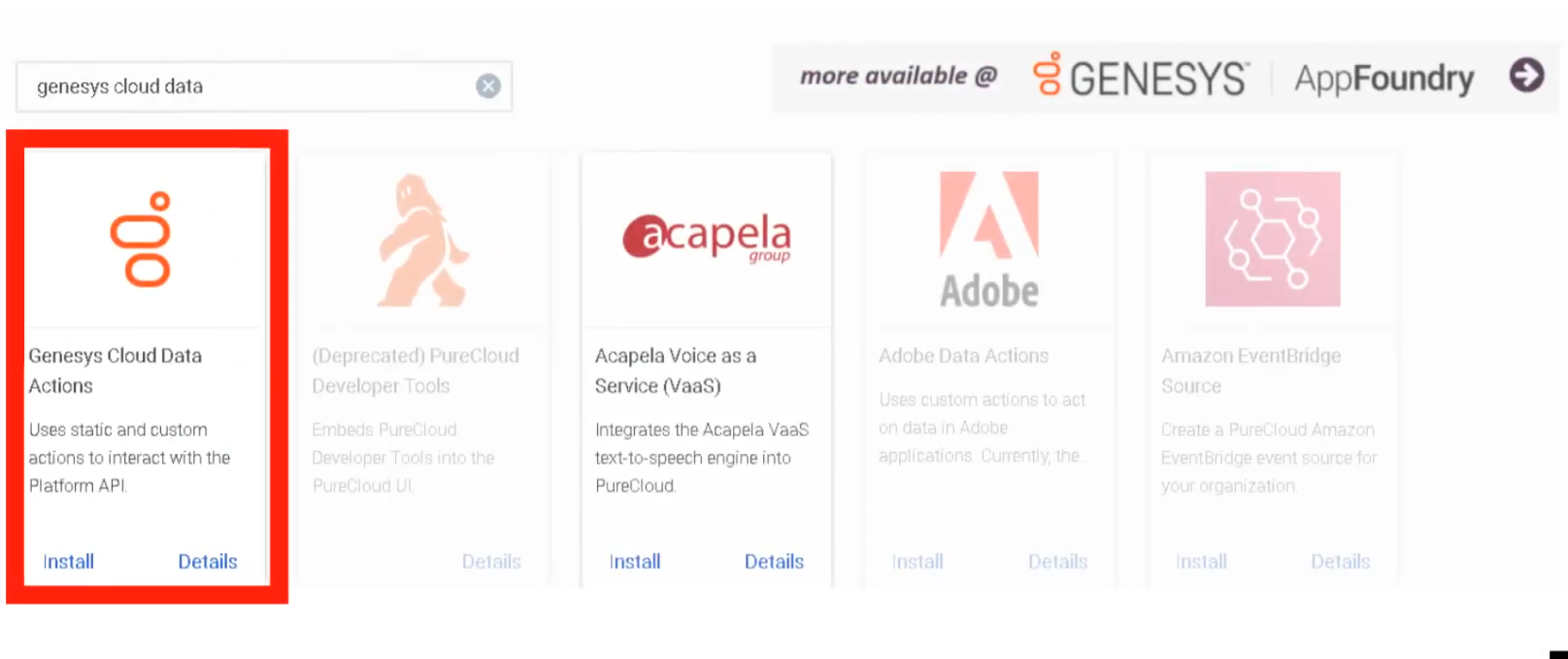
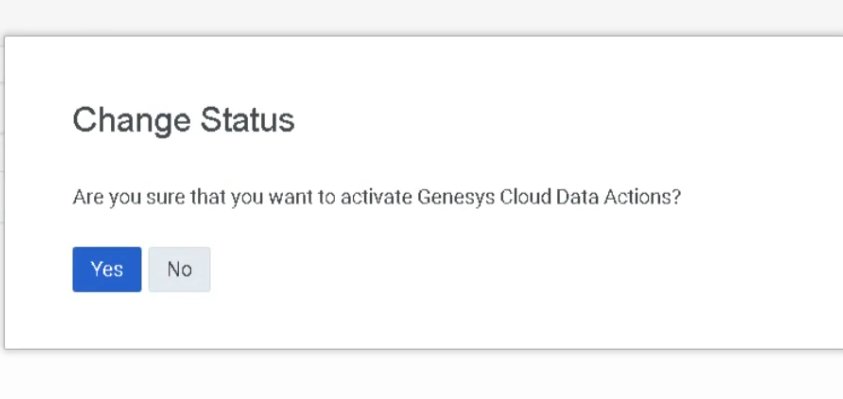
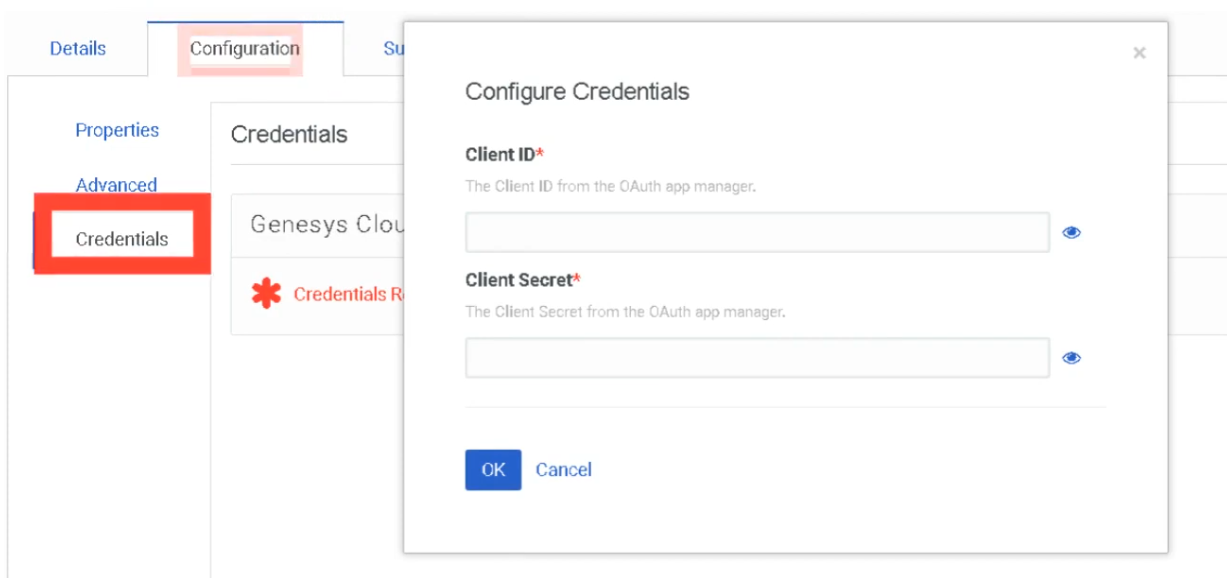
Add the integration using the OAuth credentials:
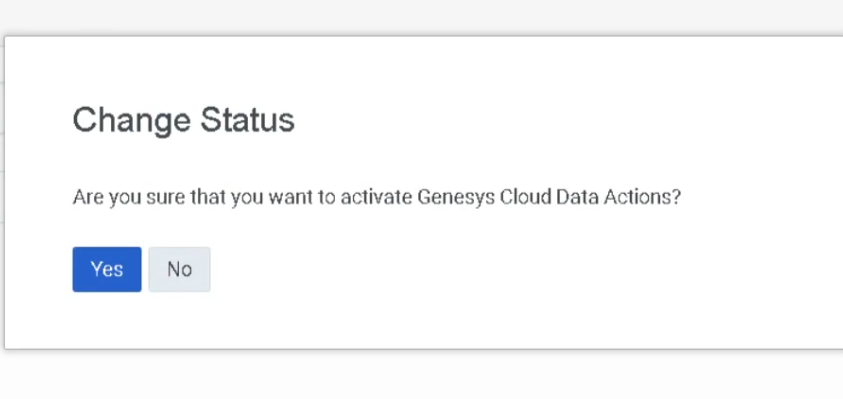
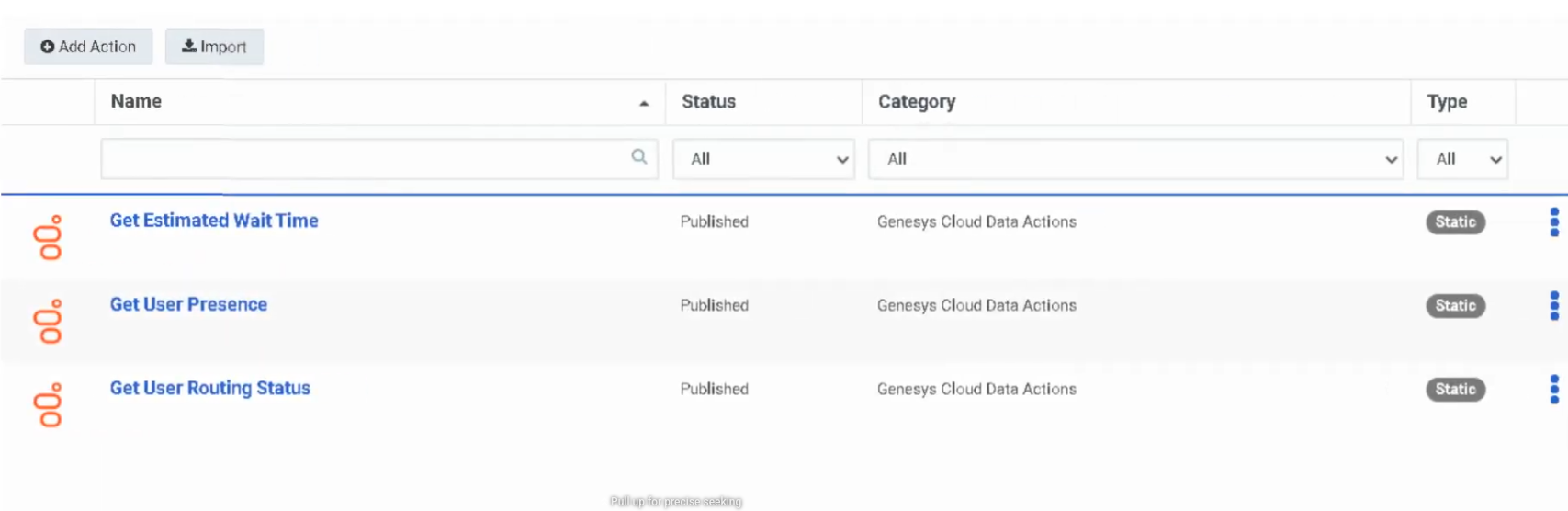
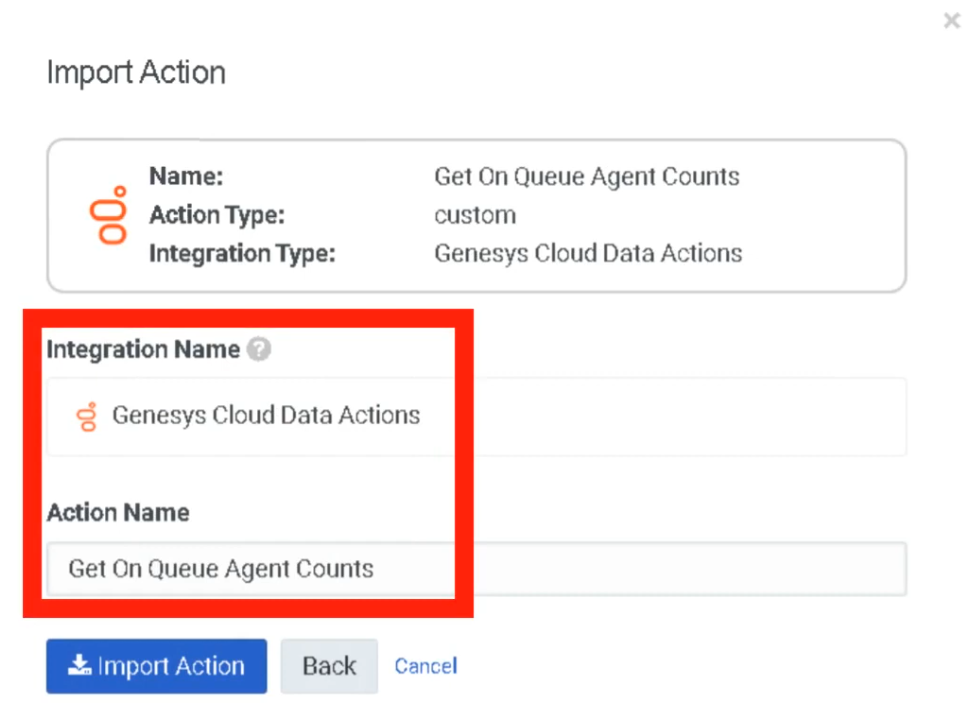
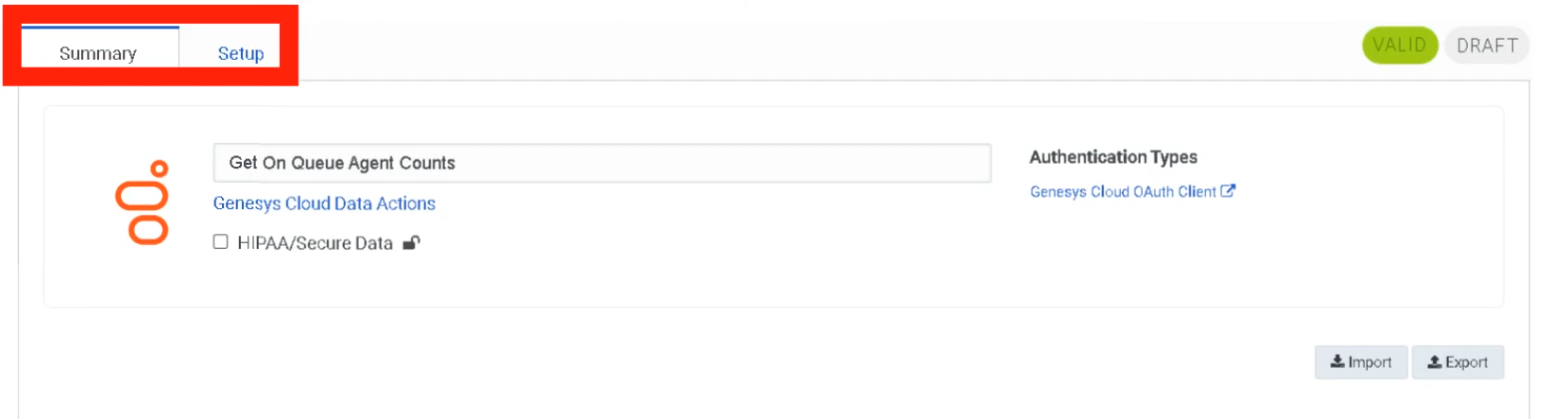
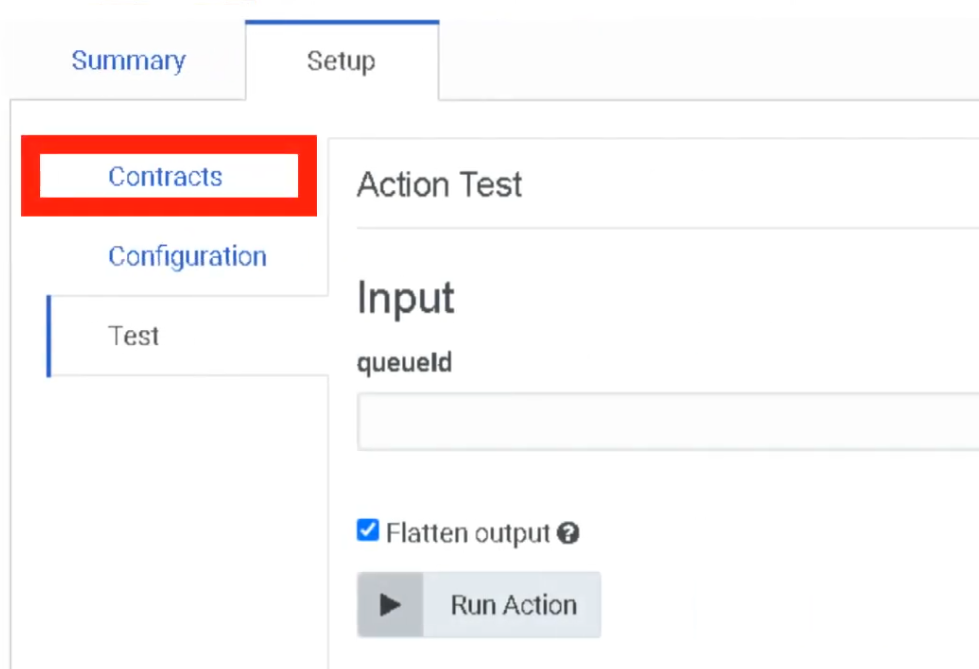
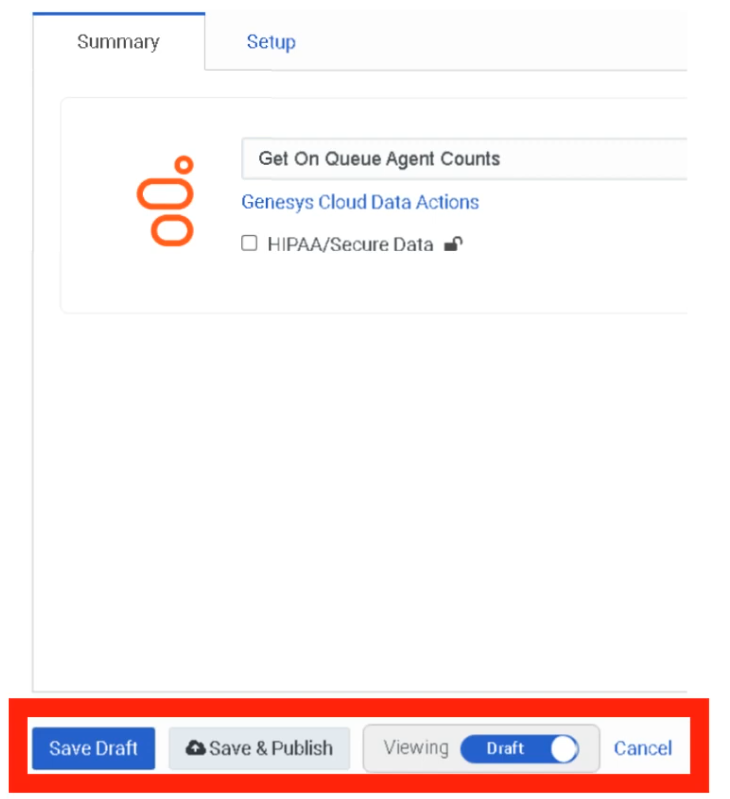
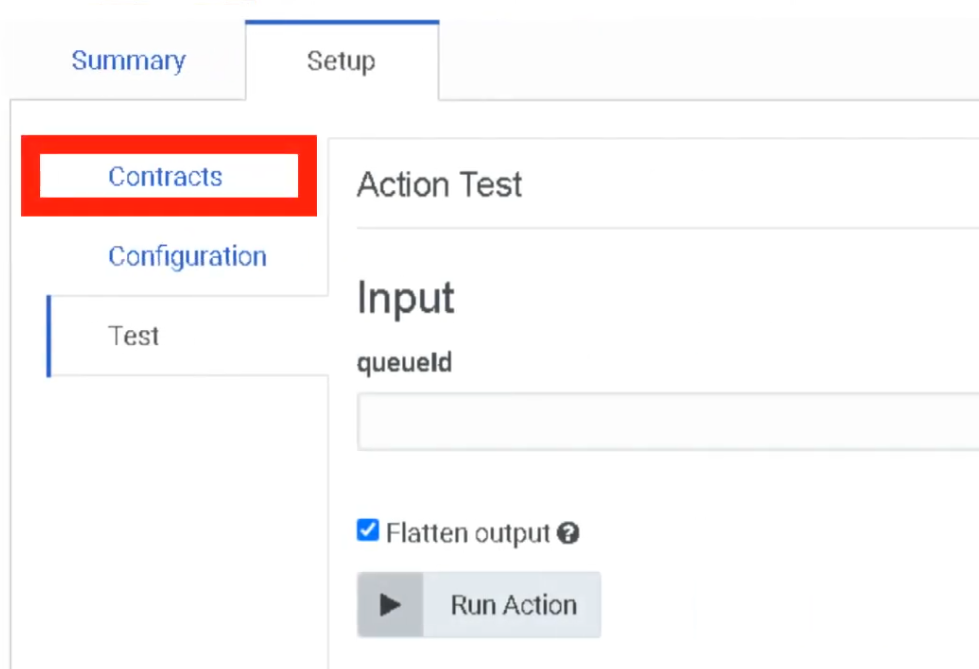
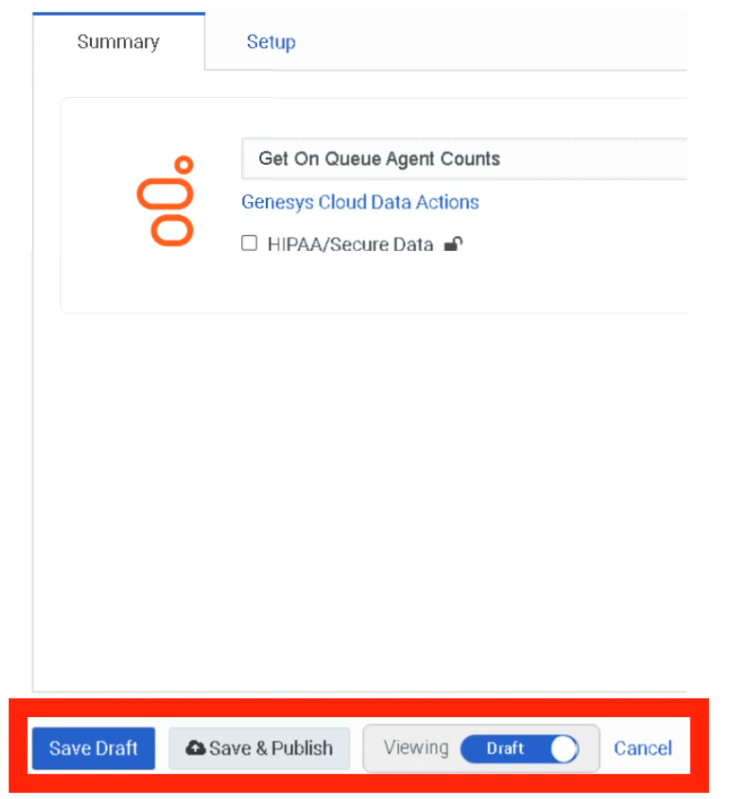
Creating a Data Action
After the integration is configured, create a Data Action to call APIs from Architect flows:
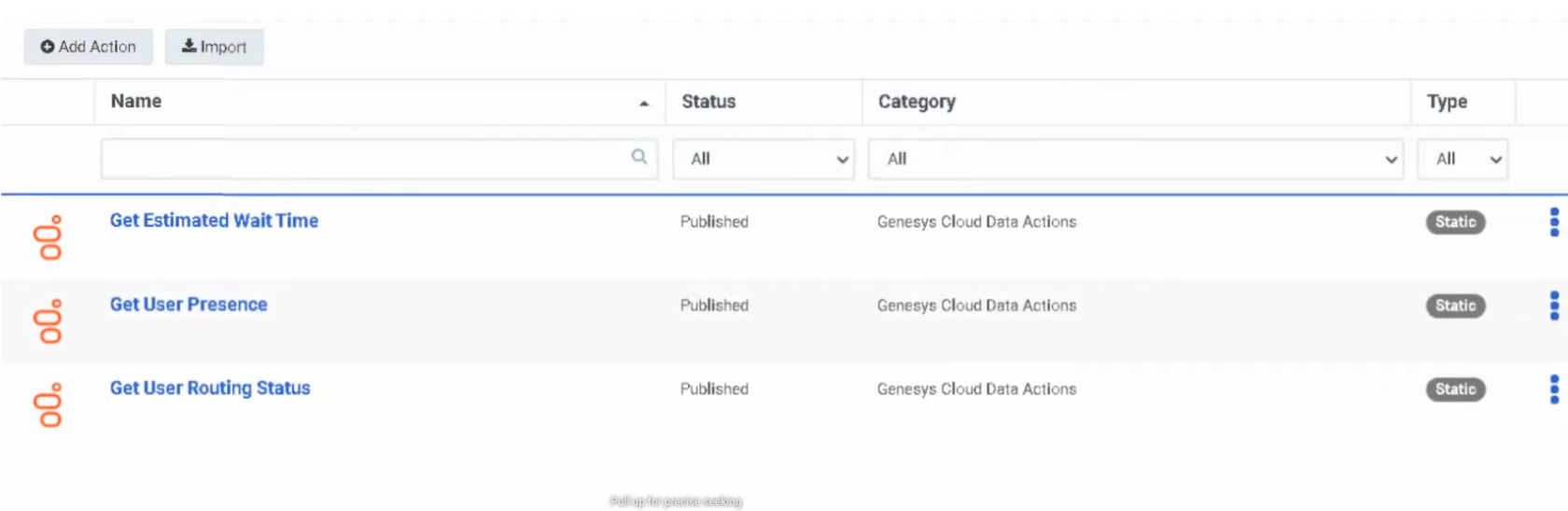
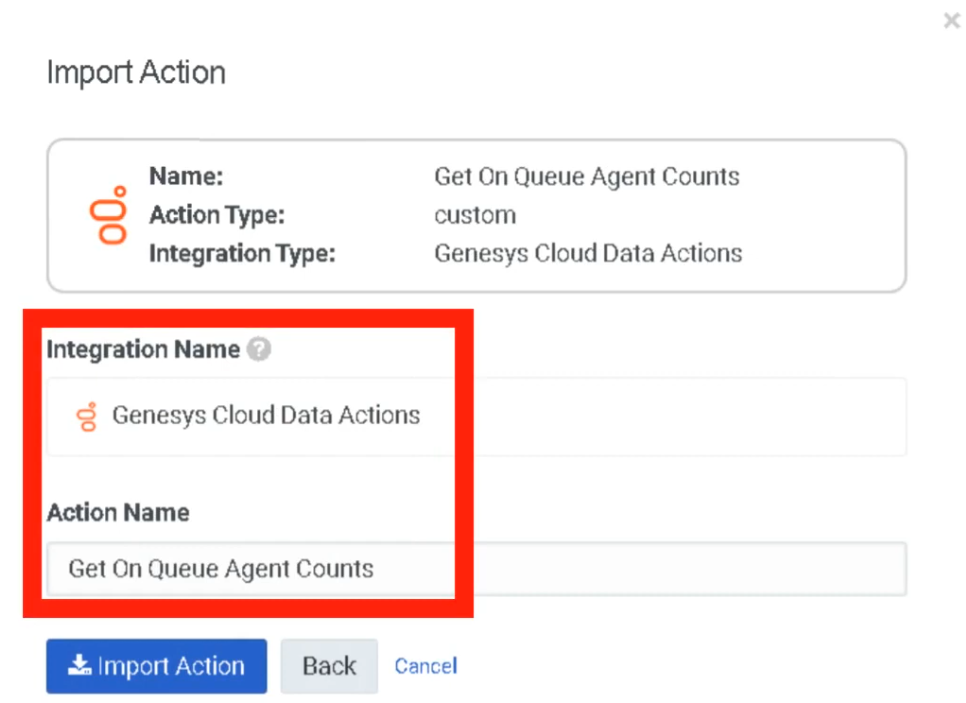
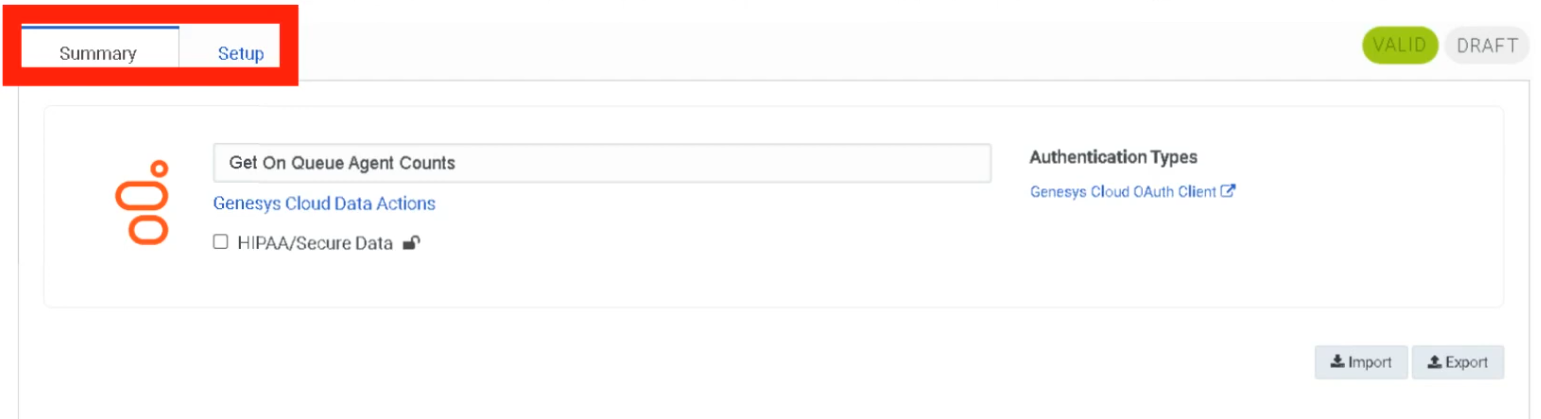
End-to-End Flow: OAuth → Integration → Data Action → Architect
External System
      ↓
OAuth Client Authentication
      ↓
Access Token Issued
      ↓
Integration / Data Action
      ↓
Architect Flow
      ↓
Customer Interaction
Security Considerations
| Security Control |
Description |
| Least Privilege Access |
Assign minimal permissions to OAuth clients |
| Token Expiration |
Shorter token lifetimes reduce exposure |
| Secure Storage |
Store client secrets in secure vaults |
| API Monitoring |
Track requests via Platform Usage dashboard |
| Credential Protection |
Client ID + Secret function like a username/password — protect accordingly |
Troubleshooting
| Issue |
Cause |
Resolution |
| Token request fails |
Invalid client credentials |
Verify client ID and secret |
| API access denied |
Missing role permissions |
Assign correct roles |
| Token expired |
Token lifetime exceeded |
Request new token |
| Authentication errors |
Incorrect grant type |
Verify OAuth configuration |
| Integration failure |
Credentials not configured |
Update integration credentials |
Interview Cheat Sheet
| Question |
Answer |
| What is OAuth used for in Genesys Cloud? |
Authenticate applications and authorize API access |
| What is an OAuth access token? |
Temporary credential used to authenticate API requests |
| What grant types are supported? |
Client Credentials, Authorization Code, Implicit, SAML2 Bearer |
| What controls API access permissions? |
OAuth client roles and scopes |
| Maximum token lifetime? |
172,800 seconds |
Authorized Applications
Overview
| Topic |
Explanation |
| Authorized Application |
An application that has been granted permission to access Genesys Cloud via OAuth. |
| Application State |
Applications can be Pending, Approved, or Revoked. |
| Scopes |
Define the specific permissions granted to an application. |
| Security Importance |
Allows administrators to control external application access and revoke permissions when necessary. |
Navigation
| Task |
Navigation |
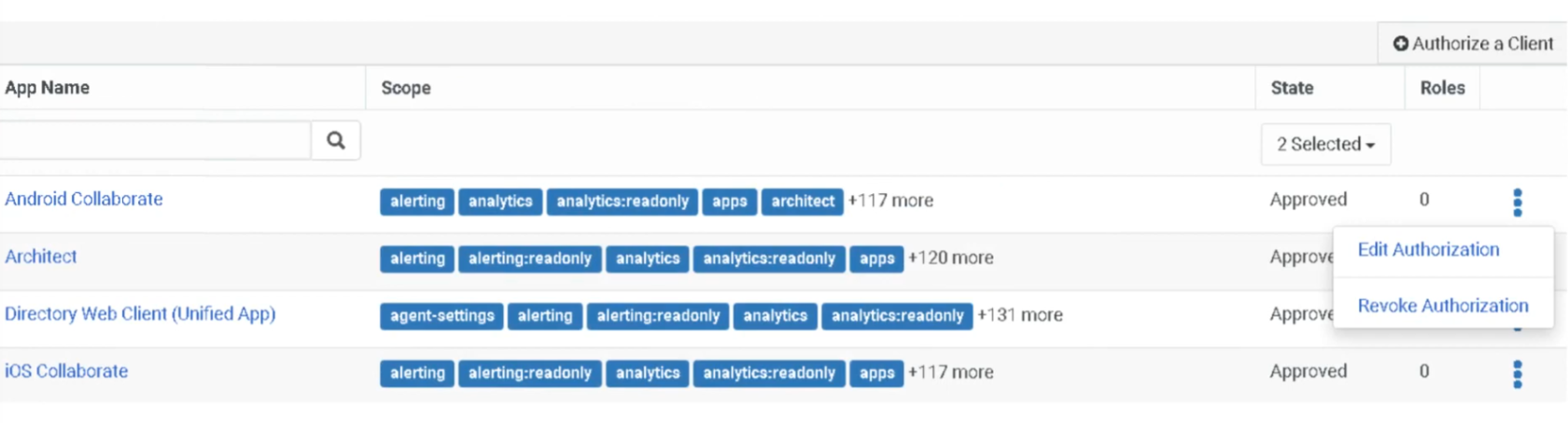
| View Authorized Applications |
Admin → Integrations → Authorized Applications |
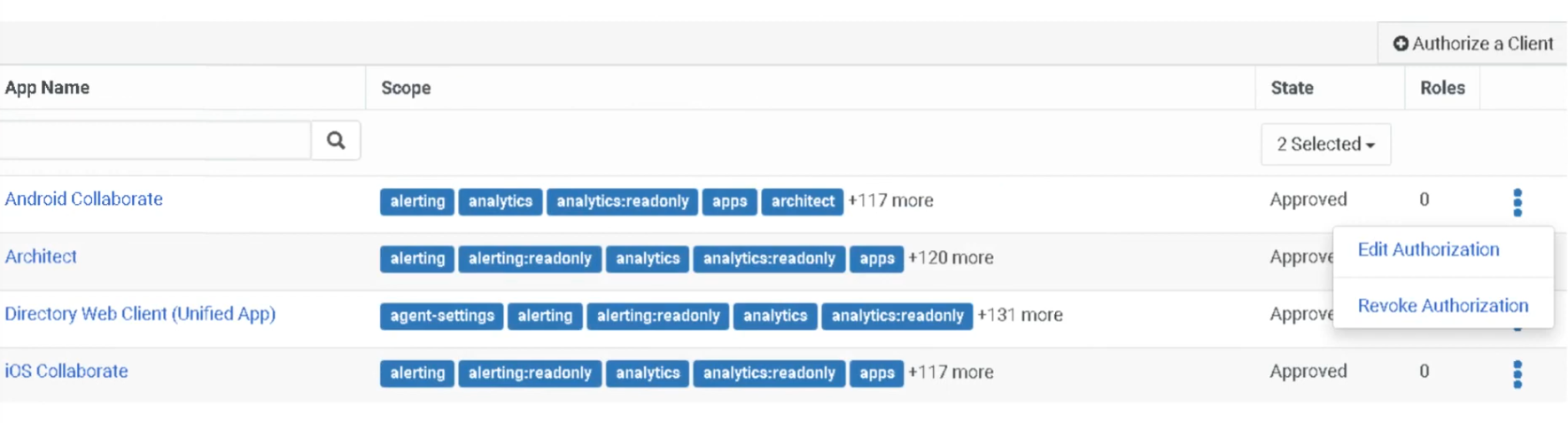
| Edit Application Permissions |
Click ⋮ (three dots) beside the application |
| Revoke Application Access |
Select Revoke from application menu |
Configuration Fields
| Field |
Description |
Example |
| App Name |
Name of the OAuth client application |
CRM_Integration_App |
| Scopes |
Permissions granted to the application |
analytics:read |
| State |
Current authorization status |
Approved |
| Roles |
Roles assigned to the application |
Master Admin |
| Actions Menu |
Options to edit or revoke access |
Edit / Revoke |
Application States
| State |
Meaning |
| Pending |
Application has requested access but not yet approved |
| Approved |
Application is authorized to access Genesys Cloud APIs |
| Revoked |
Application access has been removed; API calls are immediately blocked |
⚠️ Revoking an application immediately blocks all API access. Use with caution for active integrations.
Best Practices
| Practice |
Reason |
| Regularly review authorized apps |
Ensure only trusted applications have access |
| Apply least privilege roles |
Limit application permissions |
| Revoke unused applications |
Reduce security risk |
| Monitor API activity |
Detect unusual usage patterns |
| Document integrations |
Maintain governance over external access |
Interview Cheat Sheet
| Question |
Answer |
| What are Authorized Applications? |
Applications granted OAuth permission to access Genesys Cloud APIs |
| What controls application permissions? |
OAuth scopes and assigned roles |
| Where are authorized apps managed? |
Admin → Integrations → Authorized Applications |
| What happens if an app is revoked? |
It can no longer access the platform APIs — immediately |
Single Sign-On (SSO)
Overview
| Topic |
Explanation |
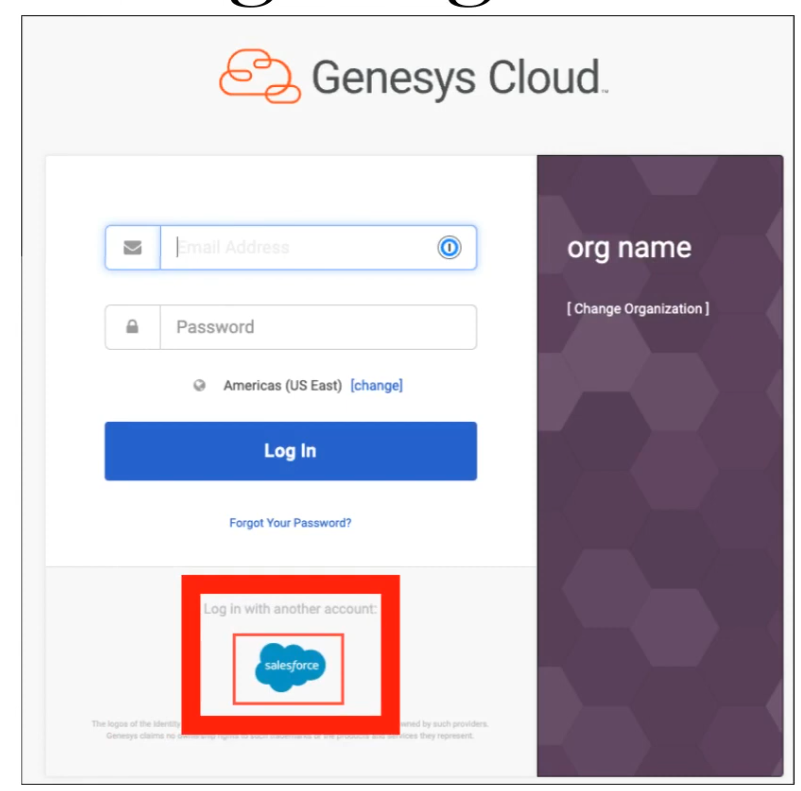
| Single Sign-On |
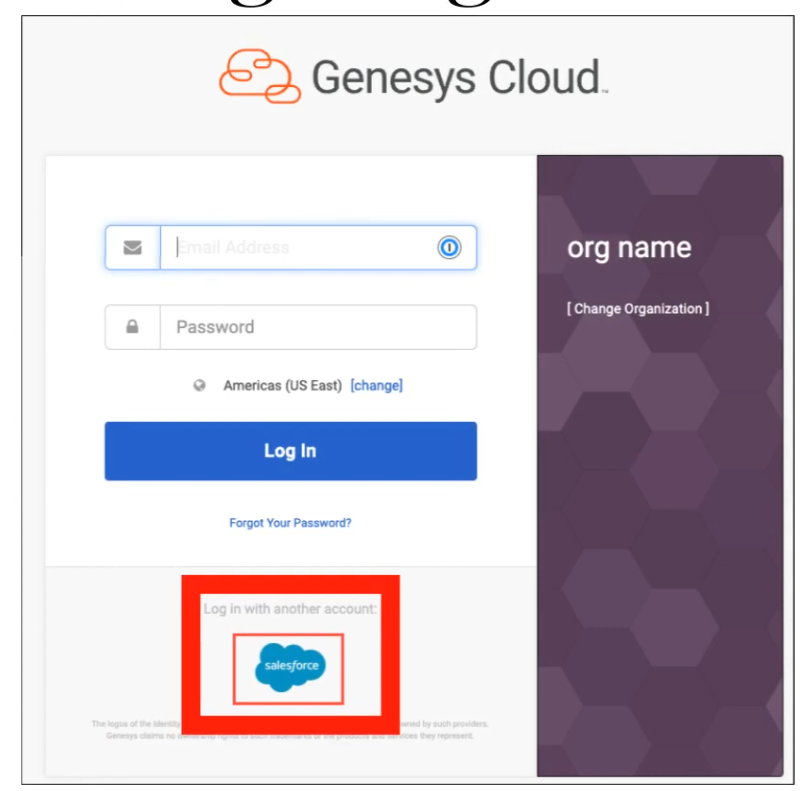
Authentication method allowing users to log into Genesys Cloud using corporate identity provider credentials. |
| Identity Provider (IdP) |
External authentication service such as Azure AD, Okta, Google Workspace, or OneLogin. |
| Service Provider (SP) |
Genesys Cloud acts as the service provider in SSO integrations. |
| Protocol |
SAML 2.0 — the only supported SSO protocol. |
| Authentication Flows |
Supports Service Provider–initiated and Identity Provider–initiated login flows. |
| User Requirement |
Users must already exist in Genesys Cloud before SSO authentication will work. |
| Certificate Risk |
Expired IdP certificates will break authentication for all SSO users. |
Navigation
| Task |
Navigation |
| Configure SSO |
Admin → Integrations → Single Sign-On |
| Add Identity Provider |
Admin → Integrations → Single Sign-On → Add Identity Provider |
| Download Genesys Certificate |
Available within the SSO configuration page |
Configuration Fields
| Field |
Description |
Example |
| Identity Provider Name |
Name of the configured SSO provider |
AzureAD_SSO |
| Display Name |
Name displayed on login page |
Company SSO |
| Identity Provider Type |
External authentication service |
Azure AD |
| SAML Metadata File |
XML configuration file provided by IdP |
idp_metadata.xml |
| Issuer URI |
Unique identifier of the IdP |
https://login.microsoftonline.com |
| SSO URL |
URL used to authenticate users |
https://login.microsoftonline.com/... |
| Logout URL |
Optional logout redirect URL |
https://login.microsoftonline.com/logout |
| Certificate |
Security certificate for validating SAML responses |
Base64 certificate |
SSO Authentication Flow
User Login Request
       ↓
Redirect to Identity Provider
       ↓
User Authentication (+ MFA if configured in IdP)
       ↓
SAML Assertion Sent to Genesys Cloud
       ↓
Genesys Cloud Validates Assertion
       ↓
User Access Granted
Implementation Steps
| Step |
Action |
| Step 1 |
Obtain SAML metadata XML from identity provider |
| Step 2 |
Navigate to Admin → Integrations → Single Sign-On |
| Step 3 |
Click Add Identity Provider |
| Step 4 |
Import SAML metadata file |
| Step 5 |
Configure login display settings (name, logo) |
| Step 6 |
Save configuration |
| Step 7 |
Test authentication before enabling for all users |
| Step 8 |
Enable SSO for organization users |
Limitations & Constraints
| Constraint |
Description |
| Protocol Support |
Only SAML 2.0 is supported — no OIDC or WS-Federation |
| User Provisioning |
Users must exist in Genesys Cloud before they can authenticate via SSO |
| IdP Configuration |
Requires configuration on both IdP and Genesys Cloud sides |
| Certificate Expiration |
Expired certificates break authentication for all SSO users — monitor and rotate proactively |
Troubleshooting
| Issue |
Cause |
Resolution |
| SSO login failure |
Incorrect SAML configuration |
Verify metadata configuration |
| Invalid assertion |
Certificate mismatch |
Update SAML certificate |
| User cannot authenticate |
User not provisioned in Genesys Cloud |
Create the user first |
| Login redirect loop |
Incorrect IdP URL |
Verify identity provider configuration |
| SSO test fails |
Incorrect metadata |
Re-import metadata file |
Interview Cheat Sheet
| Question |
Answer |
| What is SSO in Genesys Cloud? |
Authentication using corporate identity providers instead of separate Genesys credentials |
| Which protocol is supported? |
SAML 2.0 only |
| What must exist before SSO works? |
The user account must already exist in Genesys Cloud |
| Where is SSO configured? |
Admin → Integrations → Single Sign-On |
| What breaks SSO? |
Expired certificates or users not provisioned in Genesys Cloud |