
Global Settings
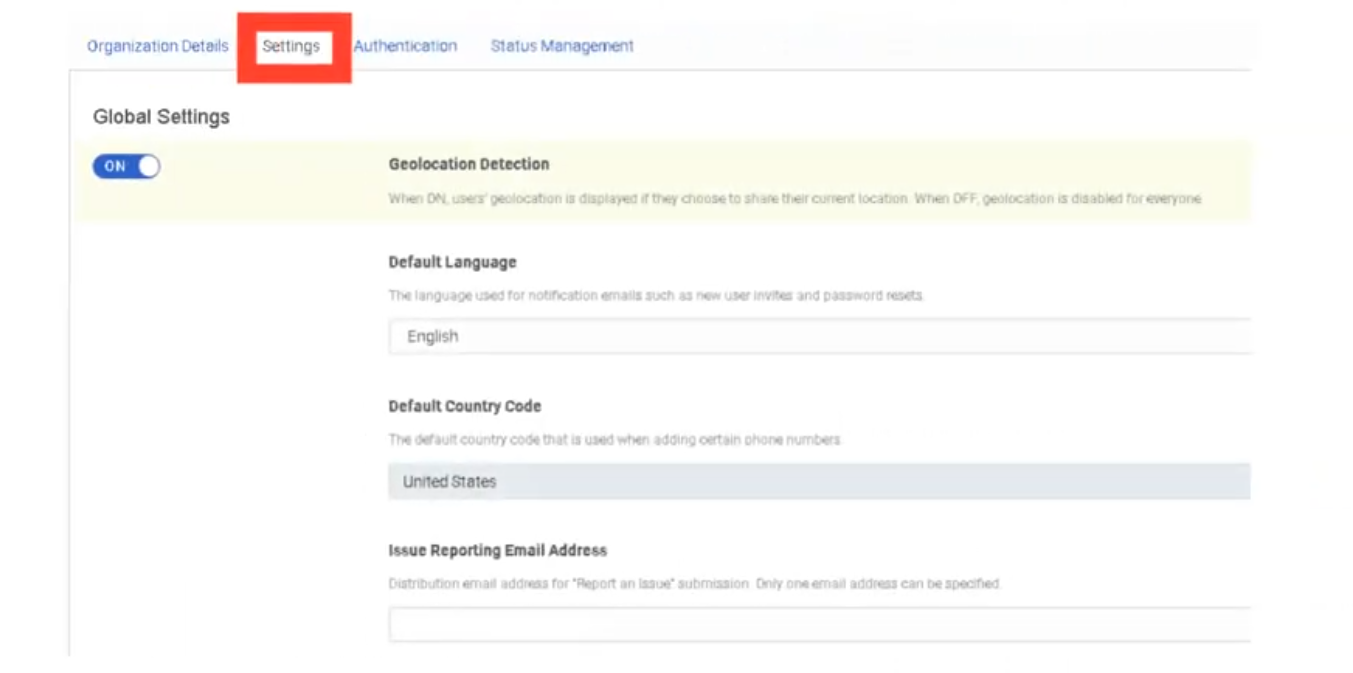
Global Settings control the foundational behavior of your Genesys Cloud organization — how the platform identifies users, what language and region it operates in, and where internal issues are reported. These settings are configured under Admin → Account Settings → Organization Settings → Settings.
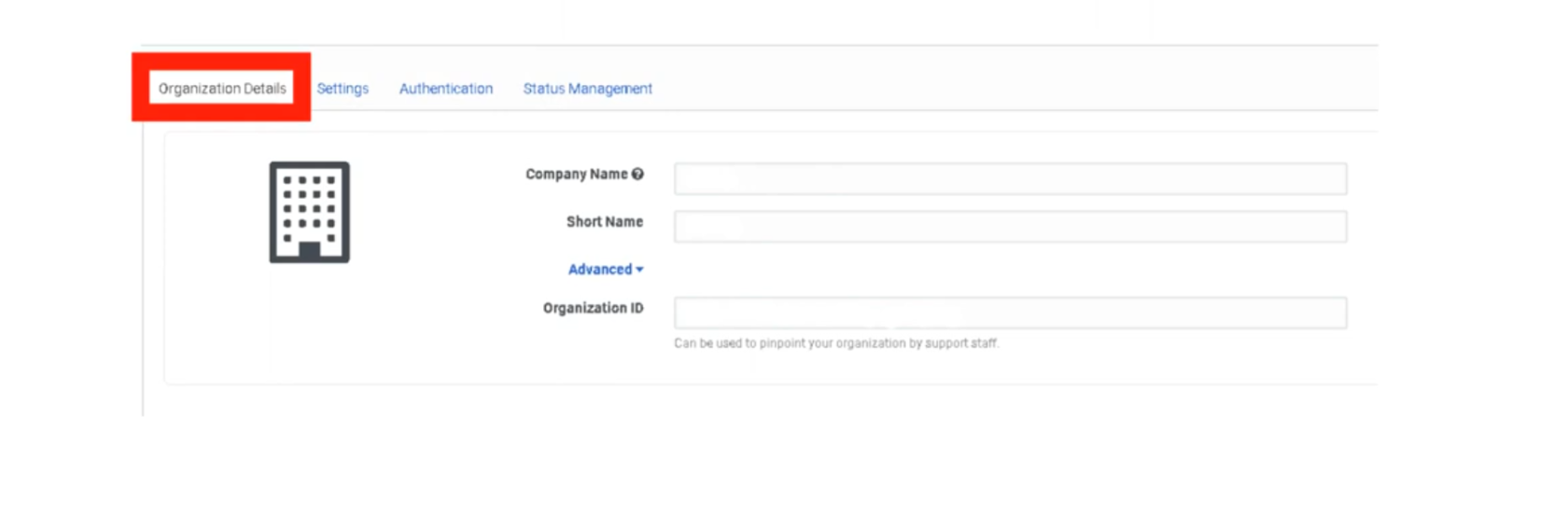
Organization Details
These fields identify your specific Genesys Cloud instance. Most are view-only after provisioning. Administration
| Setting | Description | Editable? |
|---|---|---|
| Organization Name | The display name of your org shown across the platform. | ✅ Yes |
| Organization ID | A unique, system-generated identifier for your cloud instance. Used in API calls and support tickets. | ❌ No |
| Short Name | A URL-safe identifier used in your Genesys Cloud login URL (e.g. yourcompany.mypurecloud.com). |
❌ No |
| Default Site | The telephony site assigned as the default for new users. | ✅ Yes |
📌 Note: If you are unsure of your Organization Short Name, navigate to Admin → Account Settings → Organization Settings. You will need it when configuring BYOC trunk integrations and SSO providers.
Geolocation Detection
| Setting | Description |
|---|---|
| Geolocation Detection | When enabled, Genesys Cloud automatically detects and displays user physical locations on the directory and presence map. Can be toggled off for privacy or compliance reasons. |
Default: On. Toggle off under Admin → Account Settings → Organization Settings → Settings → Turn off location detection.
Default Language & Country Code
These settings establish the regional baseline for the entire organization. They affect system-generated emails and phone number formatting across the platform.
| Setting | Description | Impact |
|---|---|---|
| Default Language | Sets the language used for system-generated emails such as user invitations and password reset messages. | System emails, platform UI default for new users |
| Default Country Code | Sets the default international dialing prefix for phone number formatting (e.g., +1 for United States, +52 for Mexico). | Phone number display, E.164 formatting, DID assignment |
📌 Important: The Default Country Code does not restrict which countries agents can dial. It only determines how phone numbers without an explicit country prefix are interpreted and formatted.
Issue Submission Destination
| Setting | Description |
|---|---|
| Issue Submission Destination | Defines where feedback and issue reports submitted by users through the in-app Help → Report a Problem feature are sent. Can be directed to an internal email address or ticketing system instead of Genesys Support. |
Useful for organizations that want to triage user-reported issues internally before escalating to Genesys Care.
Invite Links
| Setting | Description |
|---|---|
| Invite Link Configuration | Controls how new user invitation emails are generated and whether invitation links expire. Administrators can configure link behavior when onboarding users manually or via CSV import. |
Free Seating
| Setting | Description |
|---|---|
| Free Seating | When enabled, agents are not assigned a fixed physical phone. Instead, they log in and the system dynamically assigns them to whatever phone they are using. Reduces the need to pre-assign individual phone profiles to every user. |
📌 Note: Free Seating must be enabled at the org level before it can be applied to individual users. Requires compatible phone base settings.
Voicemail Settings
These settings apply to all users in the organization unless overridden at the user level.
| Setting | Description | Default |
|---|---|---|
| Voicemail PIN | Requires users to set and enter a PIN to access their voicemail. Can be disabled org-wide if your security policy does not require it. | On |
| Voicemail Timeout | Number of seconds a call rings before being forwarded to voicemail. | Configurable |
| Maximum Voicemail Length | Sets the maximum duration (in seconds) of a voicemail message a caller can leave. | Configurable |
| Voicemail Transcription | When enabled, Genesys Cloud transcribes voicemail audio to text and includes it in email notifications. | Off |
| Voicemail Notifications | Sends an email notification to the user when a new voicemail is received. | Configurable |
| Allow PII in Voicemail Email Notifications | When enabled, the voicemail email notification includes the caller's phone number and name. Disable for environments with strict PII handling requirements. | Off |
Default Text-to-Speech (TTS) Engine
| Setting | Description |
|---|---|
| Default TTS Engine | Sets the organization-wide TTS engine used in Architect flows when no specific engine is defined at the flow level. Options include Genesys TTS, Google TTS, and Microsoft Azure TTS (the latter two require AppFoundry integration). |
📌 Note (March 2026): Genesys plans to end native Enhanced TTS support for select Google and Microsoft voices on August 5, 2026. After that date, those voices require a third-party TTS integration via AppFoundry under the BYOT-A billing model. Plan accordingly if your flows use Google Standard or Microsoft voices.
Summary — What Lives Here vs. Other Pages
| Setting Area | This Page | Other Page |
|---|---|---|
| Org ID, name, short name | ✅ | — |
| Geolocation | ✅ | — |
| Default language / country code | ✅ | — |
| Invite links / free seating | ✅ | → Onboarding & Access |
| Voicemail settings | ✅ | → Onboarding & Access (detail) |
| Default TTS engine | ✅ | → Architect & Call Flows (usage) |
| Security & compliance | — | → Security & Compliance |
| Password policy / SSO / MFA | — | → Security & Compliance |
| Secondary statuses | — | → Status & Presence Management |
| Routing behaviors | — | → Technical Routing Behaviours |
| Role backfill / division-aware roles | — | → Security & Compliance |
| Execution data retention | — | → Technical Routing Behaviours |
Last verified against Genesys Cloud Resource Center – March 2026