
Call Flow Components & Basics
Module 3 Study Guide | Source: Lecture + Verified against Genesys Cloud Resource Center (2025–2026)
1. What Is a Call Flow?
A call flow is a structured, visual representation of the sequence of events and actions that occur within a telephony or contact center system when handling incoming or outgoing calls.
- Determines how calls are handled, processed, and routed
- Ensures efficient operations and high-quality customer experiences
- Replaces simple "call goes to a phone" routing with intelligent, rule-based logic
- Enables: schedule-based routing, self-service options, queue management, voicemail, and more
📌 Key Concept: Architect matches incoming interactions to flows based on criteria like the phone number dialed, then routes based on time, calendar, and logic rules.
2. Call Flow Components
Call flow components are pre-built, drag-and-drop elements used in Genesys Cloud Architect to build call flow logic.
They are organized in the Toolbox (right-side panel) into expandable categories:
| Category | Purpose |
|---|---|
| Audio | Play prompts or TTS to callers |
| Bot | Integrate conversational AI bots |
| Common | Shared/reusable utility actions |
| Data | Retrieve or update data from APIs/tables |
| Disconnect | End the call or interaction |
| Find | Dynamically locate queues, users, schedules at runtime |
| Flow | Callbacks, screen pops, wrap-up codes |
| Logical | Decision, Switch, Schedule evaluation |
| Loops | Repeat sections of flow logic |
| Menus | IVR menus for caller DTMF or speech input |
| Tasks | Group logic into reusable routines |
| Transfer | Route callers to queues, agents, numbers, voicemail, other flows |
📌 Note (Current as of 2026): Action availability in the Toolbox varies by your Genesys Cloud license plan. The maximum number of actions Architect can run per flow invocation is 10,000 — exceeding this triggers error handling (default: disconnect).
3. Common Call Flow Components
These are the most frequently used components when building a basic call flow:
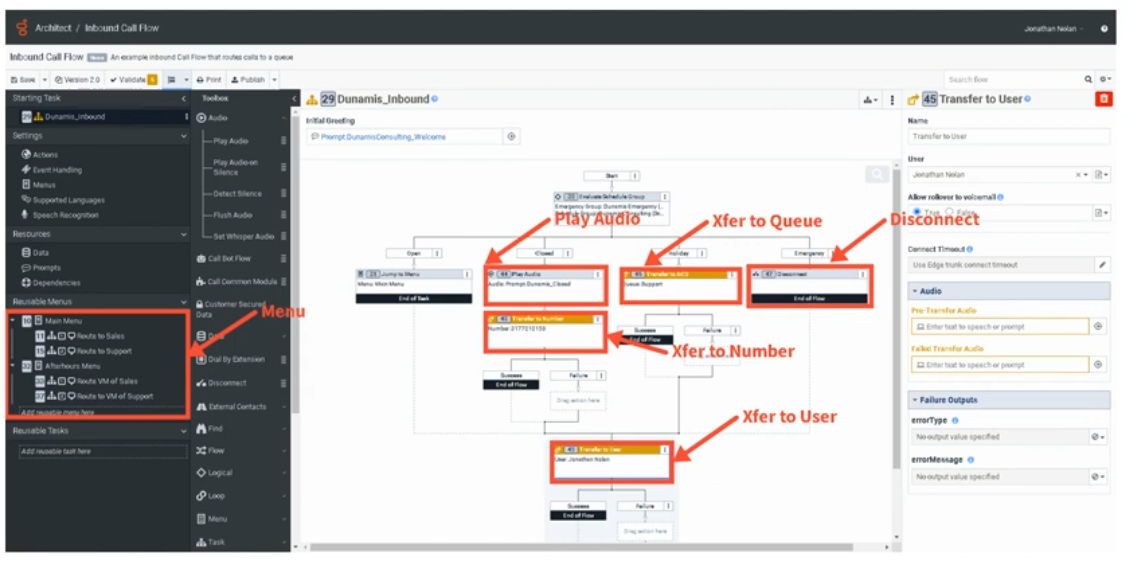
🔊 Play Audio
- Plays a pre-recorded prompt or text-to-speech (TTS) message to the caller
- Output: a prompt file uploaded to Genesys Cloud, or a TTS string
- Drag from Toolbox → Audio → Play Audio
📋 Menu
➡️ Transfer to ACD
- Sends the interaction to a queue (group of agents) for routing
- Available in: call flow menus, inbound flows, in-queue flows, chat, email, bot flows
- Supports: priority settings, preferred agents (up to 100), language skills, ACD skills
- Has Success and Failure output paths
⚠️ Current Doc Note: In secure flows, Genesys Cloud overrides the failure path and disconnects the call using blind transfers instead of consultation transfers.
📞 Transfer to User
- Sends the call directly to a specific agent
- The selected user must have logged into Genesys Cloud at least once
🔢 Transfer to Number
- Routes the call to an external phone number (e.g., after-hours vendor, third-party support)
- Flow author presets the number; callers cannot change it
- Architect tries to use the same trunk/site as the inbound call
📬 Transfer to Voicemail
- Sends caller directly to a user's, queue's, or group's voicemail
- Voicemail interactions retain the original call priority and route to the next available agent
- Maximum voicemail length: 3 minutes
- Callers can: Send, Review, Re-record, or Cancel via DTMF or speech
- Voicemail must be enabled for the org; grayed-out users have no voicemail configured
❌ Disconnect
- Ends the call/interaction
- Used for: emergency closures, no-routing scenarios, end of flow logic
4. Connecting Components
How to Connect
- Click and drag components from the Toolbox onto the canvas
- Reposition by clicking and dragging to a new location
- Right-click an arrowhead on a component to select the next step from a context menu
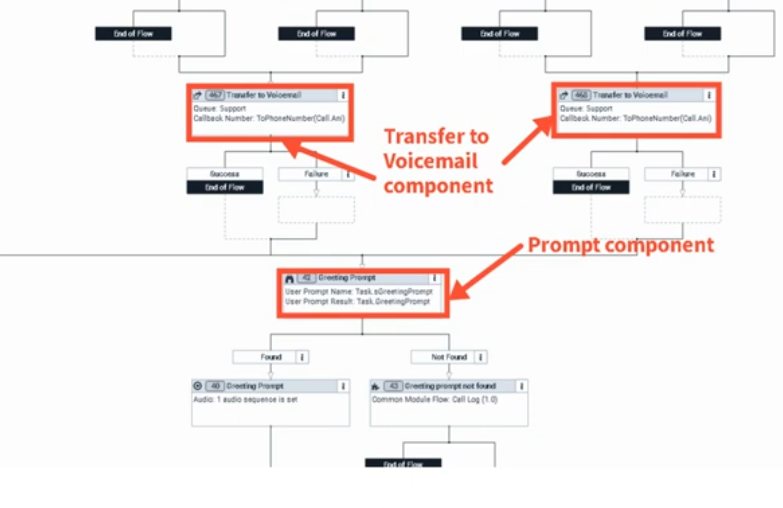
Component Outputs
Each component has one or more output circles on its right side representing possible outcomes:
| Component | Output Example |
|---|---|
| Play Audio | TTS string or uploaded prompt file |
| Transfer to ACD | Queue name |
| Transfer to Number | External phone number |
| Menu | One output path per DTMF key or speech option |
| Decision | True / False paths |
Connection Properties
- Some components have connection properties (configured in the Properties Panel)
- Others (like Play Audio) have no connection properties — just an output
- Properties Panel shows on the right when a component is selected
Building the Flow
- Drag a component to the canvas
- Configure it in the Properties Panel
- Connect its output arrow(s) to the next component
- Continue until the flow ends with a Disconnect or Transfer
- Repeat as needed
5. Schedule-Based Routing Example
A common pattern using the Evaluate Schedule or Evaluate Schedule Group action:
Schedule Group
├── Open     → Play Greeting Prompt → Transfer to ACD (Support Queue)
├── Closed   → Transfer to Voicemail (Support Queue)
└── Holiday  → Transfer to External Number (Third-party vendor)
└── Emergency → Disconnect
📌 Each branch is a separate output path from the schedule component, connecting to different actions.
6. Best Practices for Designing Call Flows
| Practice | Why It Matters |
|---|---|
| Keep it simple | Easier to troubleshoot, maintain, and hand off |
| Use Reusable Tasks | Isolate logic (schedule checks, data actions) for independent editing |
| Use Reusable Menus | Avoid duplicating menus used in multiple places |
| Use meaningful names | Allows quick review without drilling into every component |
| Test before deploying | Use Architect's built-in Debug Tool before go-live |
| Consolidate Update Data actions | Reduces flow size — multiple updates in one action vs. many single-update actions |
| Avoid duplicating Data Actions | Call Data Action, Create Callback, and Set Screen Pop are resource-heavy |
📌 Current Doc Addition (2026): Genesys now includes a Flow Size indicator under Insights & Optimizations to help you track resource usage and optimize before publishing. Common module flows have a lower size limit than other flow types.
7. Key UI Components (Canvas)
| UI Element | Purpose |
|---|---|
| Toolbox | Source of all drag-and-drop actions |
| Canvas | Visual workspace where flow is built |
| Properties Panel | Configure selected component's settings |
| Output Circles | Connection points on right side of each component |
| Arrows/Connections | Visual paths between components |
| Debug Tool | Test flow internally without a real phone |
| Validation | Check for errors before publishing |
| Flow Insights | View execution frequency overlay (read-only mode, up to 7 days of history) |
8. Additional Current Features
These are confirmed-current Genesys Cloud Architect features you may encounter:
- Flow Insights — Visual overlay showing how often each component executes; helps identify drop-off points and optimization opportunities
- Flow Size Indicator — Shows % of maximum flow size used; warns when approaching limits
- AI-Powered Slots — Bot flows now support special characters, customizable continuation prompts, and multi-turn test widget conversations
- Virtual Agent Performance Dashboard — Track bot containment rates, transfers, and ROI
- Preferred Agents (Transfer to ACD) — Supports up to 100 preferred agents with scoring
9. Quick Reference Cheat Sheet
| I want to... | Use this component |
|---|---|
| Play a message to the caller | Play Audio |
| Let callers press 1 for Sales | Menu |
| Route to a group of agents | Transfer to ACD |
| Route to a specific agent | Transfer to User |
| Route to an outside number | Transfer to Number |
| Send to voicemail | Transfer to Voicemail |
| Check if office is open | Evaluate Schedule / Evaluate Schedule Group |
| Make a True/False decision | Decision |
| Look up data from an API | Call Data Action |
| End the call | Disconnect |
| Reuse logic across the flow | Reusable Task / Call Task |
Last verified against Genesys Cloud Resource Center — January/February 2026