Dashboard & Architect Exploration
This exercise focuses on exploring the Genesys Cloud dashboard and the Architect interface to become familiar with navigation, menus, and configuration areas.
| Step | Action | Description |
|---|---|---|
| 1 | Login to Genesys Cloud | Access the platform with a trial or production account using admin credentials. |
| 2 | Open Admin Section | Navigate to the Admin area where various system configuration objects are available. |
| 3 | Locate Architect | Find Architect in the Admin section and open it. Architect launches in a separate browser window. |
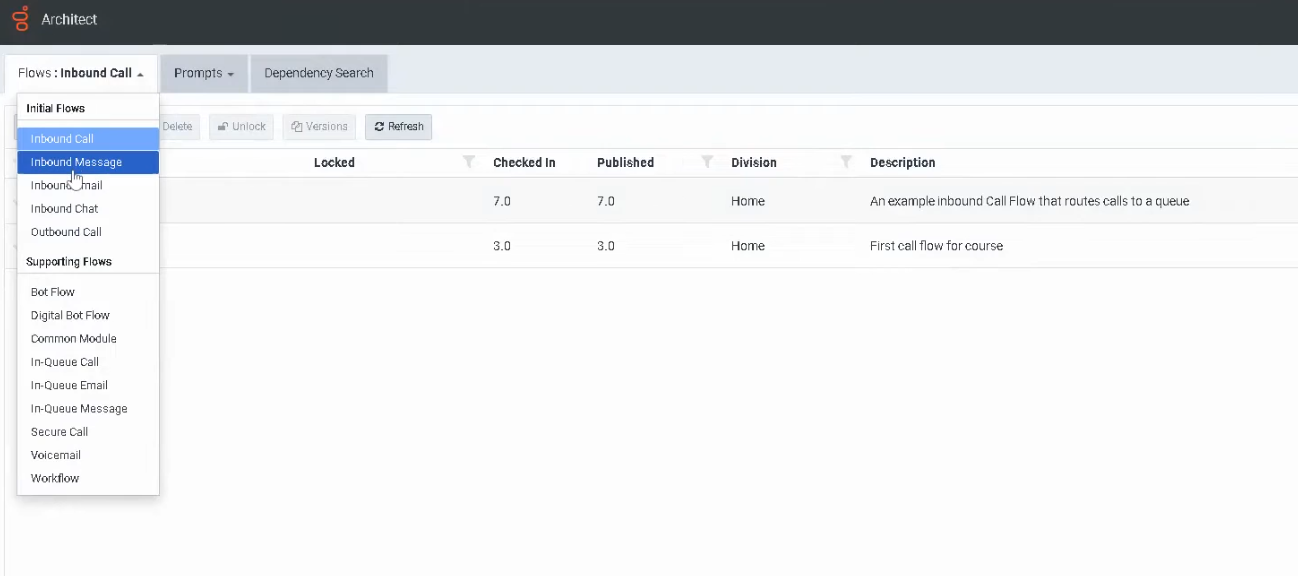
| 4 | Review Flow Types | In Architect, view available flow types including Inbound Call, Message, Email, Chat, and Outbound Flows. |
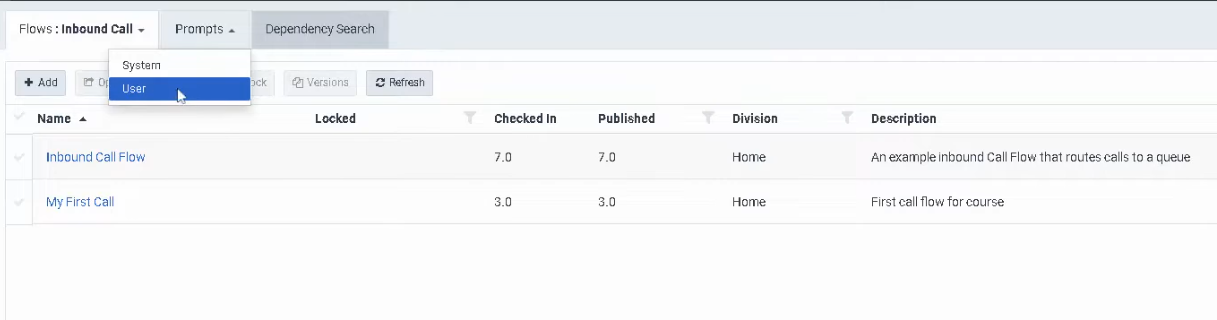
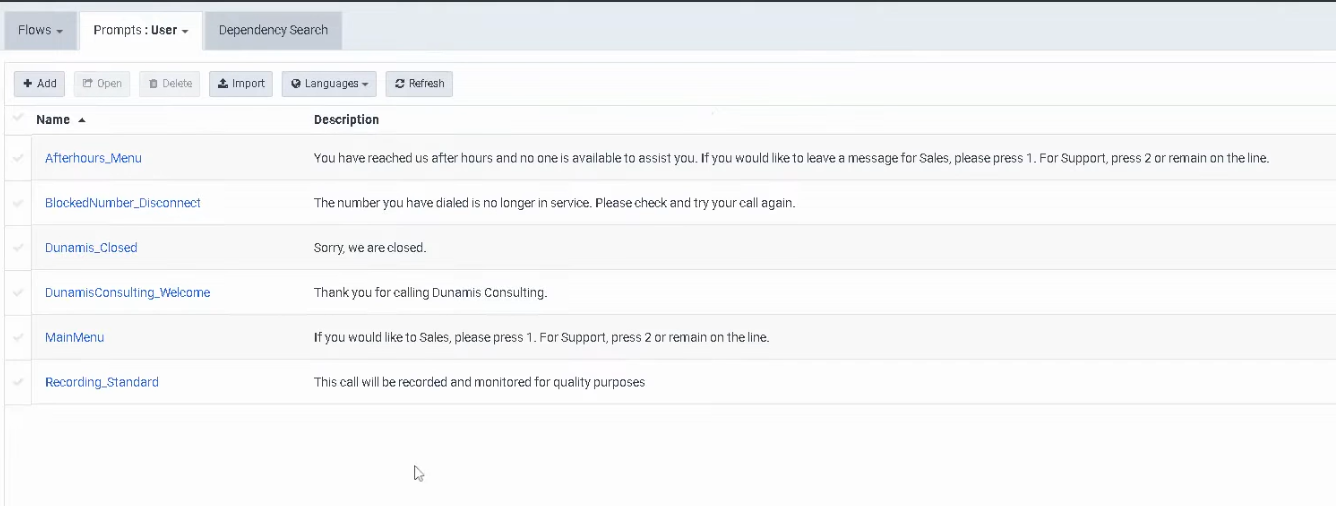
| 5 | Review Prompts | Navigate to Prompts to view or manage system and user-defined audio prompts. |
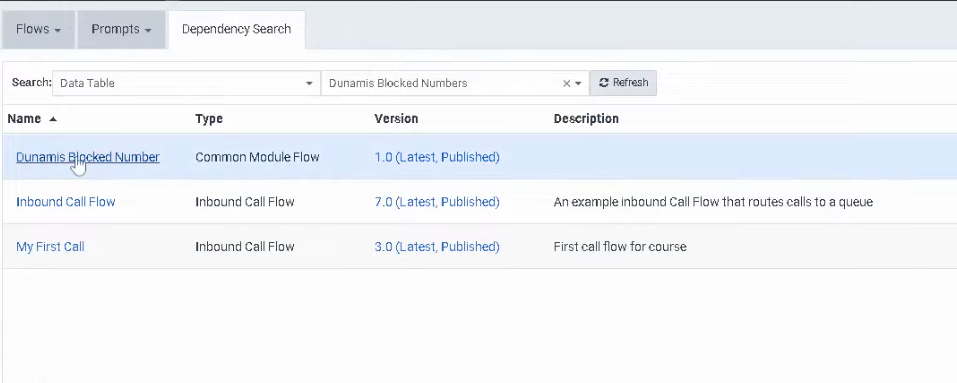
| 6 | Perform Dependency Search | Use Dependency Search to determine which flows or objects are dependent on specific resources such as data tables. |
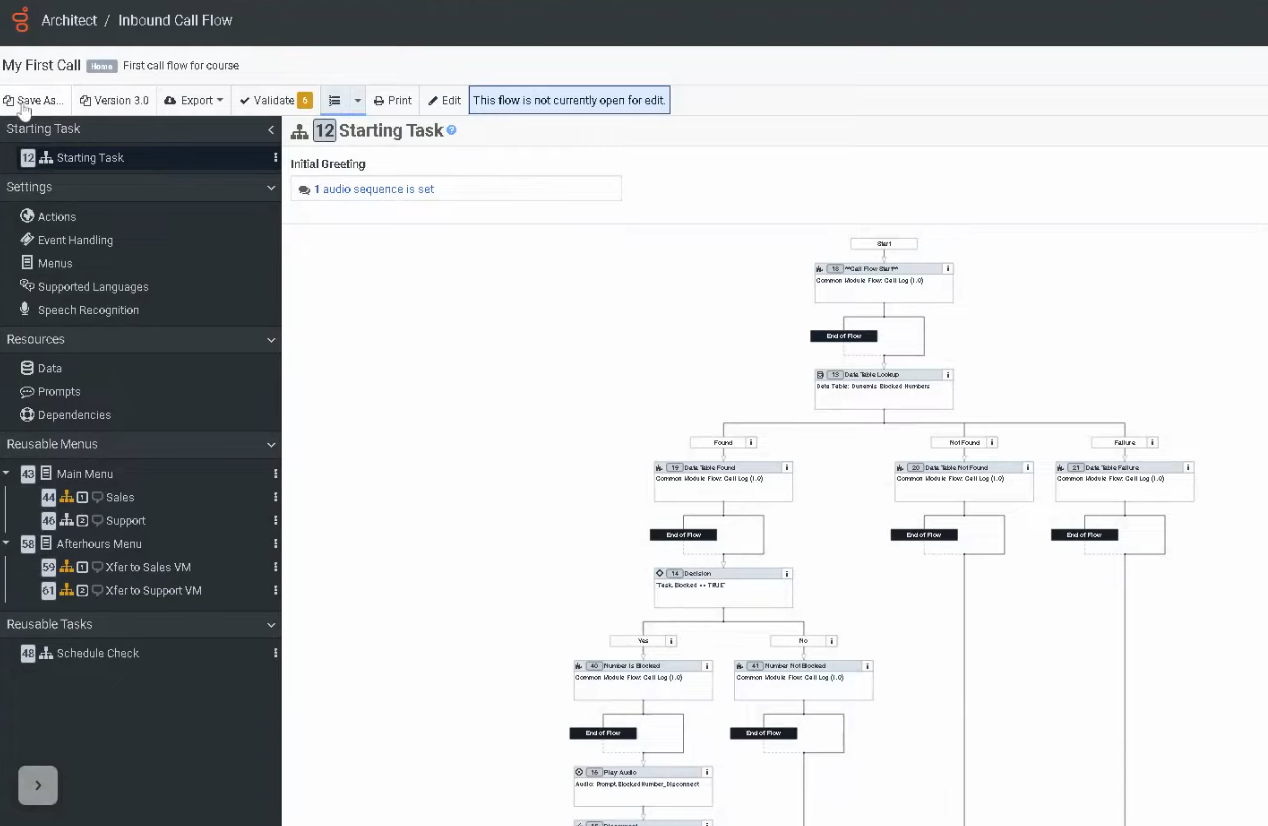
| 7 | Open an Existing Flow | Select an inbound call flow (for example My First Call Flow) to explore its structure. |
| 8 | Observe Read-Only Mode | The flow cannot be edited until the Edit button is selected. |
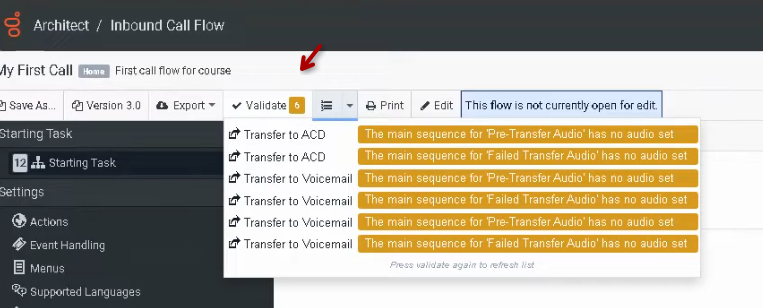
| 9 | Validate the Flow | Use Validate to check the flow for warnings or configuration reminders before publishing. |
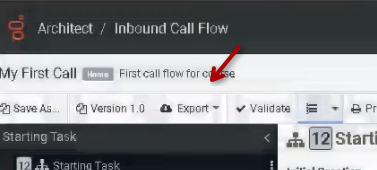
| 10 | Export the Flow | Export the flow as .i3 or .yaml files for backup or importing into another organization. |
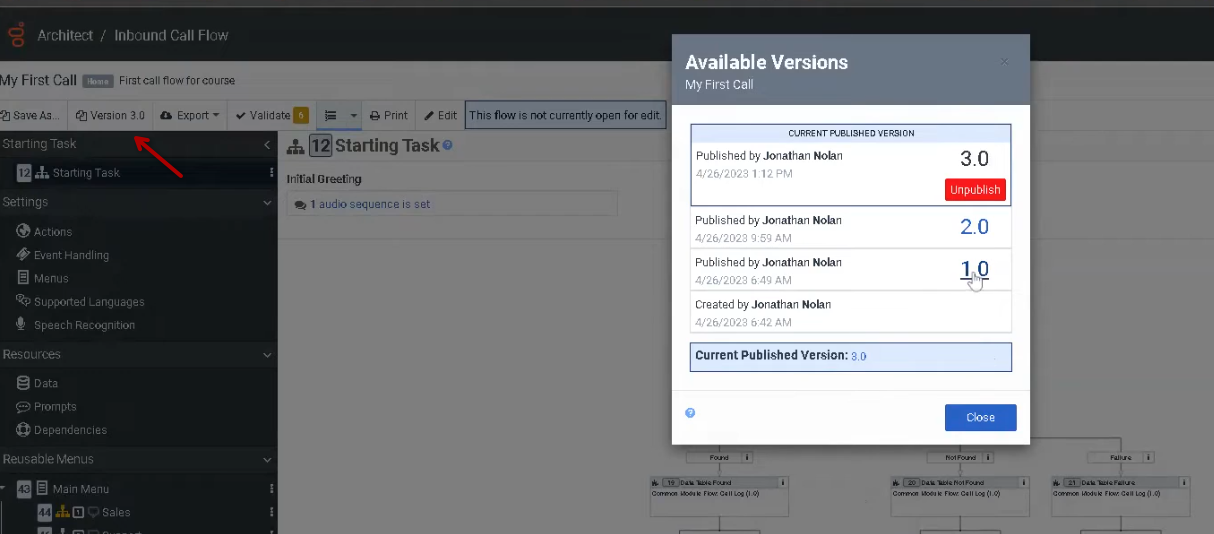
| 11 | Review Versions | Use the Versions option to open, export, or restore previous versions of the flow. |
| 12 | Enter Edit Mode | Select Edit to unlock additional options including save, revert changes, and debugging. |
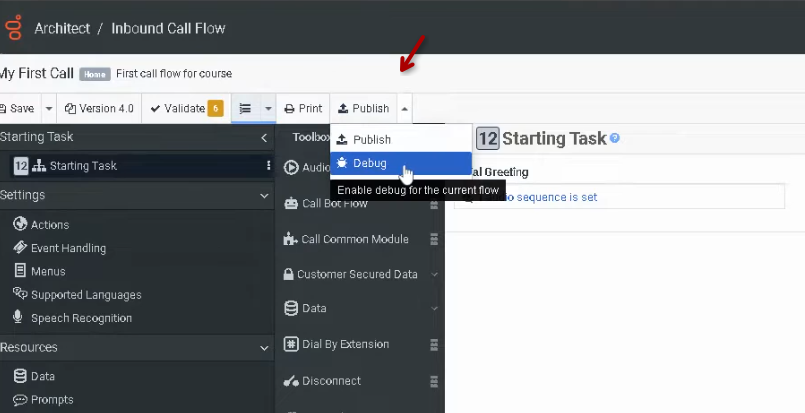
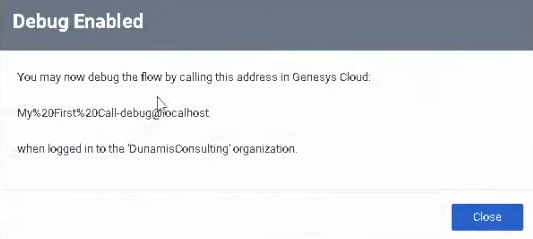
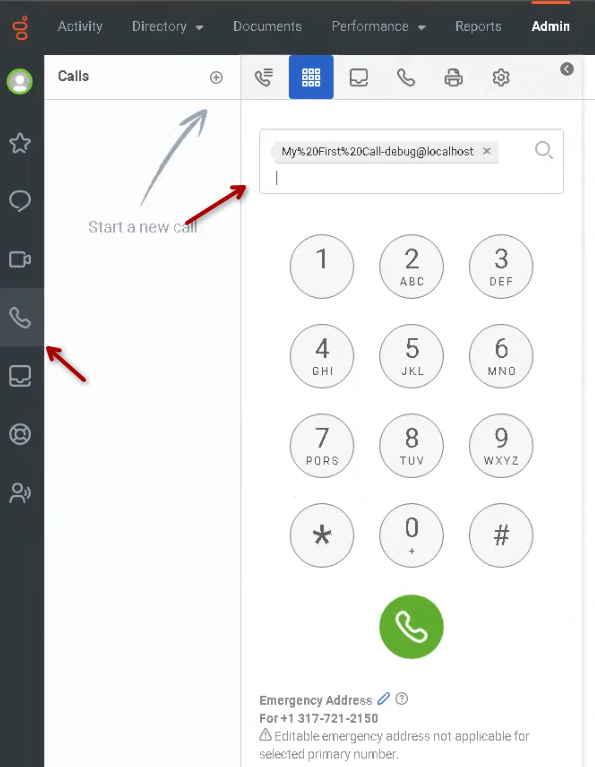
| 13 | Test with Debug | Use the Debug feature to test the call flow internally by copying the debug address and dialing it from the Genesys Cloud dial pad. |
| 14 | Review Navigation Panel | Explore left panel sections including Starting Task, Settings, Supported Languages, Resources, Prompts, Dependencies, Reusable Menus, and Reusable Tasks. |
| 15 | Explore Toolbox | Review the toolbox categories used to build flows such as Audio, Data, Flow, Logical, Loops, Menus, Tasks, and Transfer. |
| 16 | Review Workspace | The workspace canvas allows you to drag components, arrange flow logic, and zoom in or out while building flows. |
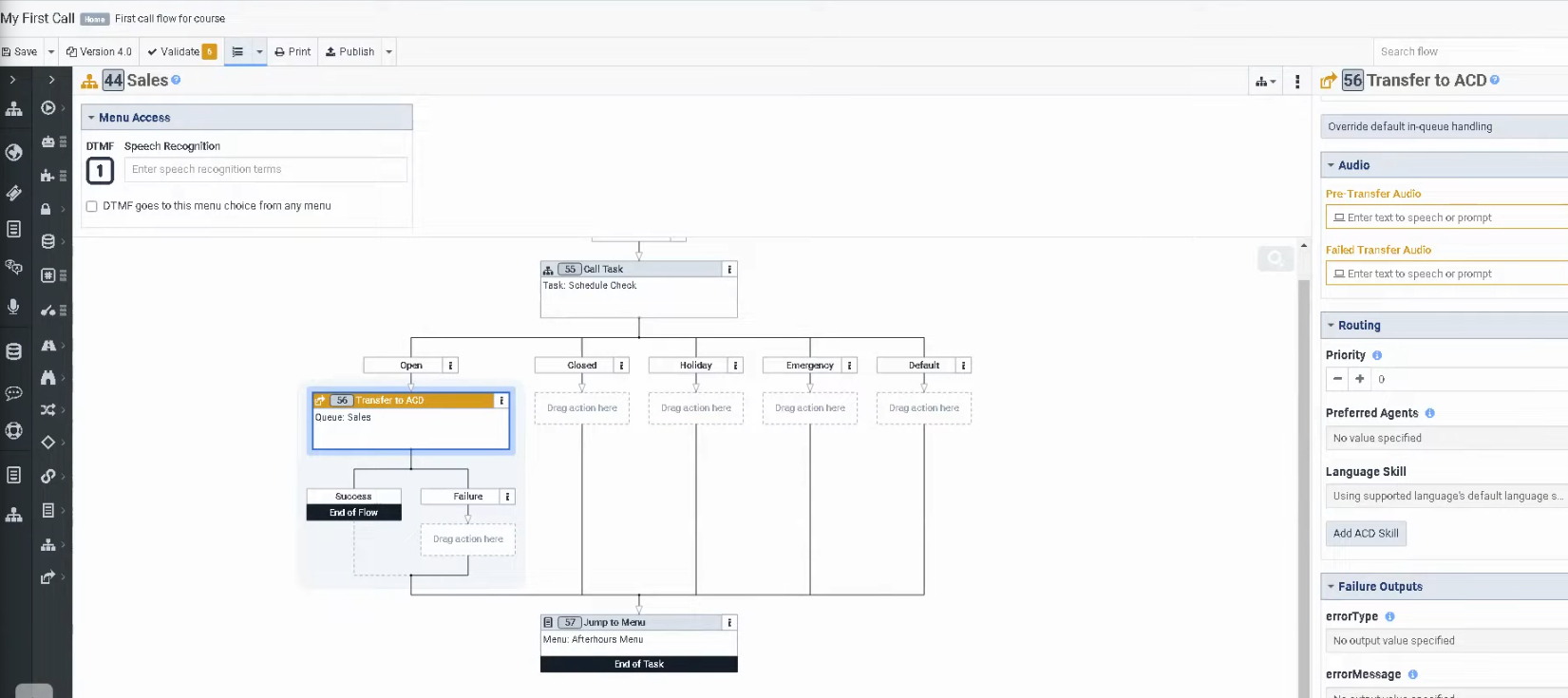
| 17 | Review Properties Panel | Selecting a component displays configuration options in the Properties Panel on the right side. |
| 18 | Example Configuration | Example shown: Transfer to ACD, where queue, pre-transfer audio, failure paths, priority, and skills can be configured. |
Explore Flow types
Prompts for system and user
Dependency search
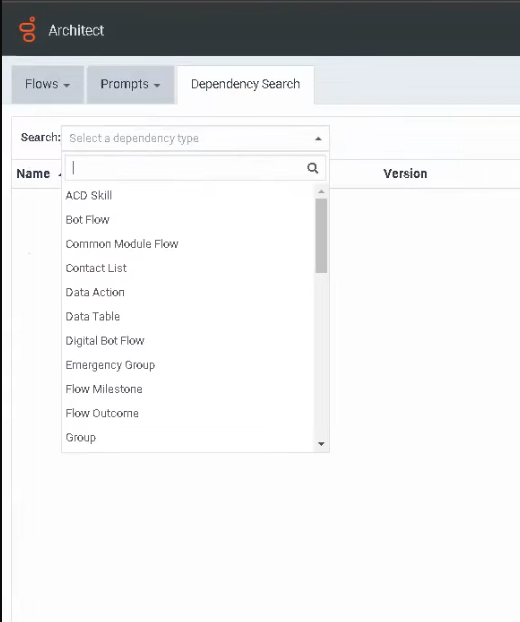
Dependency search / Data table
Open an existing flow
Validate your call flow
Expor the flow
Versioning
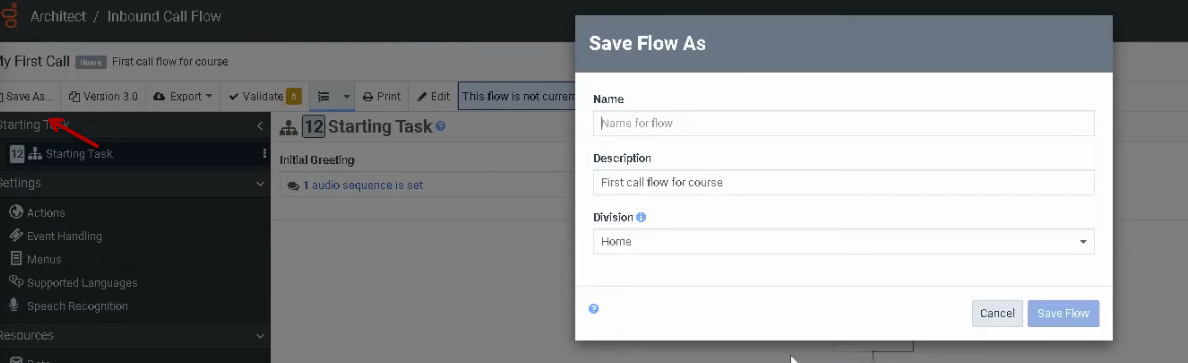
Save as
Edit
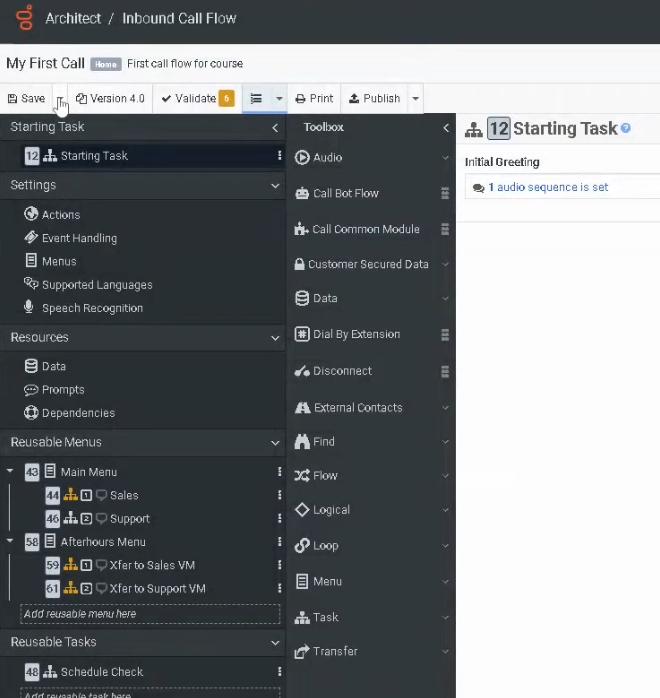
Publish and Debug
Navigate the menu
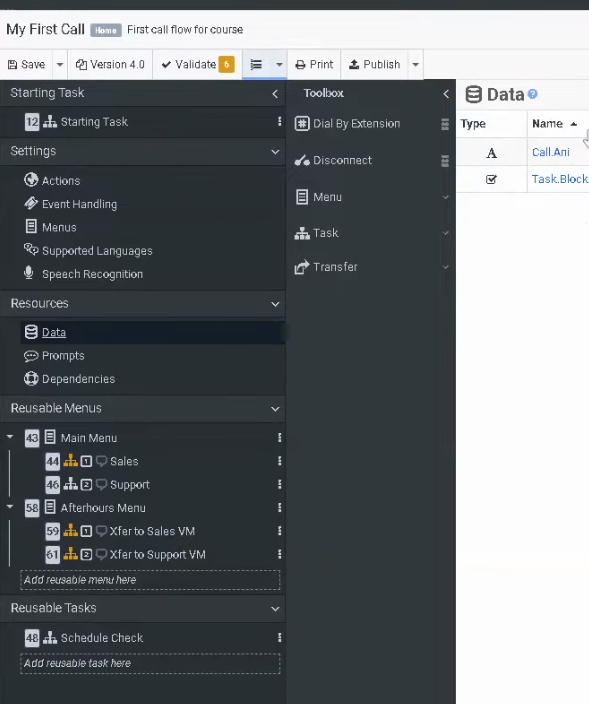
Navigate the toolbox
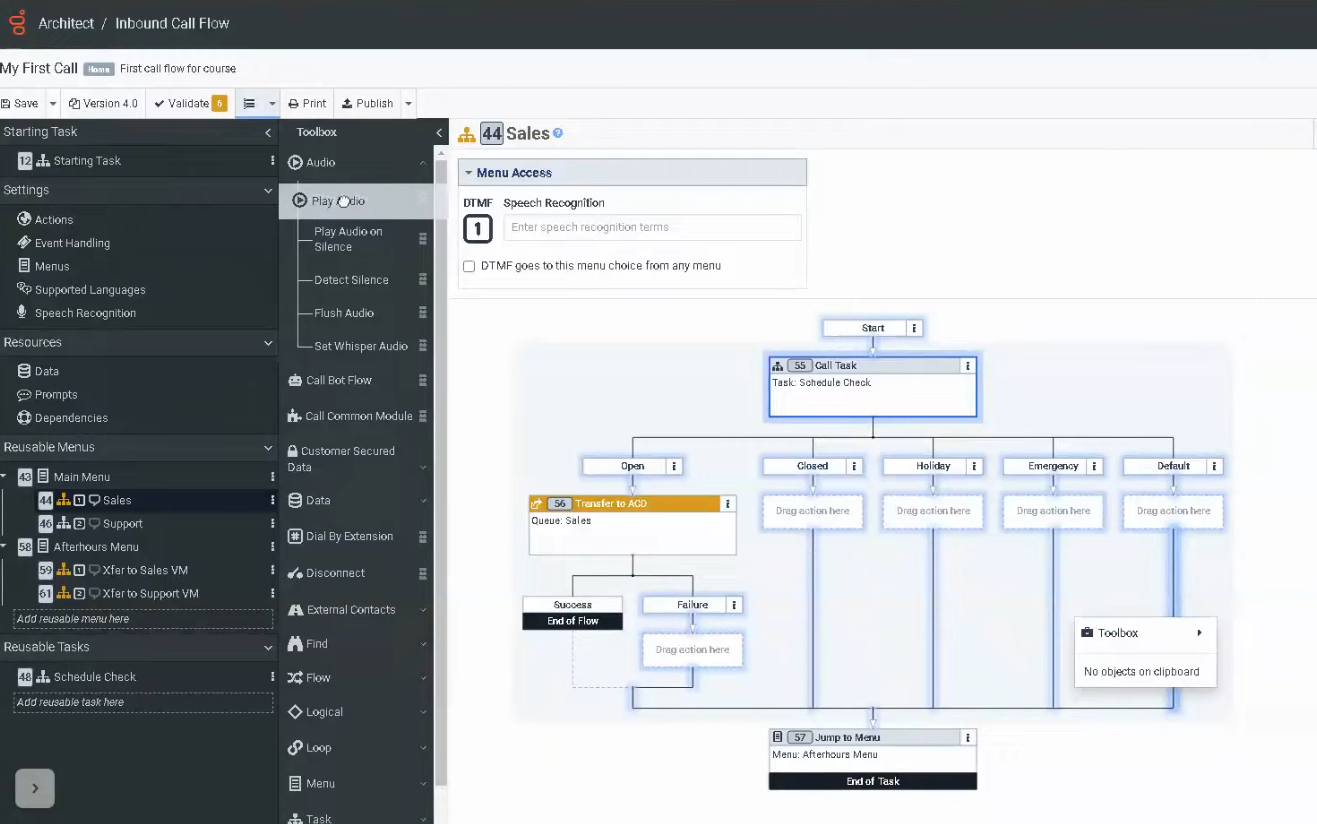
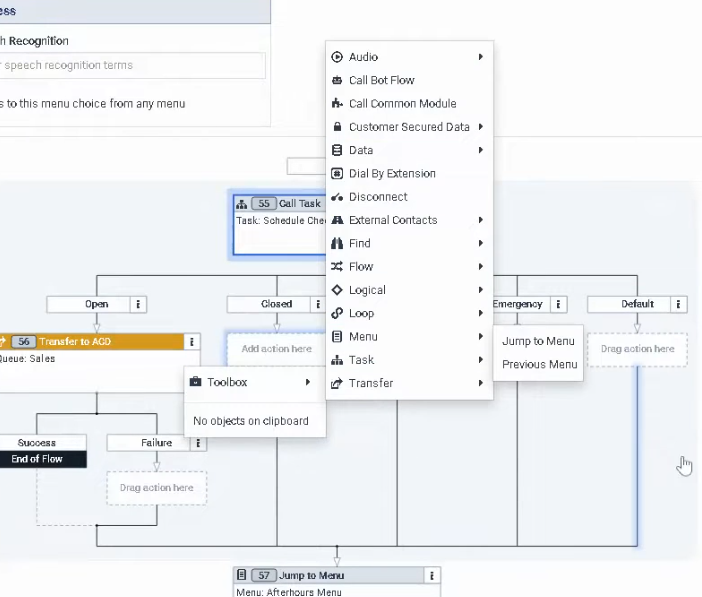
Inboud flow