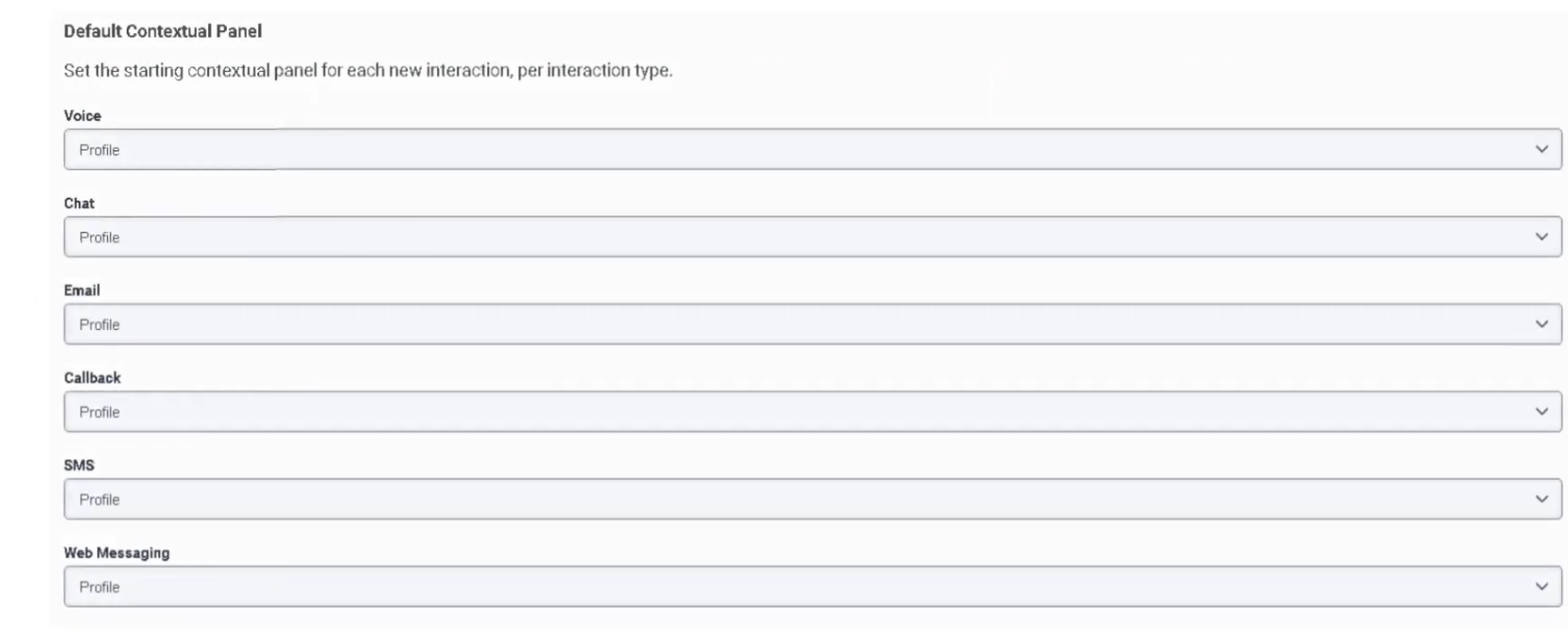
Panel Manager
| Topic |
Detail |
| Navigation |
Admin → Contact Center → Panel Manager |
| Purpose |
Create custom UI panels embedded in the agent desktop for CRM systems, internal tools, dashboards, or web apps |
| Security Requirement |
All embedded panel URLs must use HTTPS |
Overview
Panel Manager allows administrators to embed external tools directly into the Genesys Cloud agent workspace, eliminating the need for agents to switch between multiple applications during interactions.
Two Types of Panels in the Agent Desktop
| Type |
Description |
| Interaction Panels |
System panels automatically created when a customer interaction occurs (voice, chat, email, etc.) — manage the conversation itself |
| Custom Panels (Panel Manager) |
Administrator-created panels embedding external tools, CRMs, dashboards, or internal applications — provide supporting context |
Custom Panel Configuration Fields
| Field |
Description |
| Panel Name |
Name displayed to agents in the desktop |
| URL |
Web application URL loaded in the panel — must be HTTPS |
| Icon |
Visual identifier shown in the agent interface |
| Default State |
Whether the panel loads automatically when an interaction begins |
| Role Assignment |
Controls which users can see and access the panel |
| Width / Layout |
Determines panel size and position in the desktop |
How to Create a Panel
- Navigate to
Admin → Contact Center → Panel Manager
- Click Create Panel
- Configure Name, URL (HTTPS), Icon, and Visibility settings
- Save the configuration
- Assign to the appropriate roles or agent groups
Best Practices
| Practice |
Reason |
| Use HTTPS only |
Security requirement — HTTP URLs will not load |
| Keep UI lightweight |
Heavy applications slow the agent desktop and increase handle time |
| Limit total panels |
Too many panels reduce usability and create cognitive overload |
| Align panels with workflows |
Panels should directly support what agents do during calls |
| Use role-based access |
Only expose panels to the teams that need them |
Voice Interaction Panels
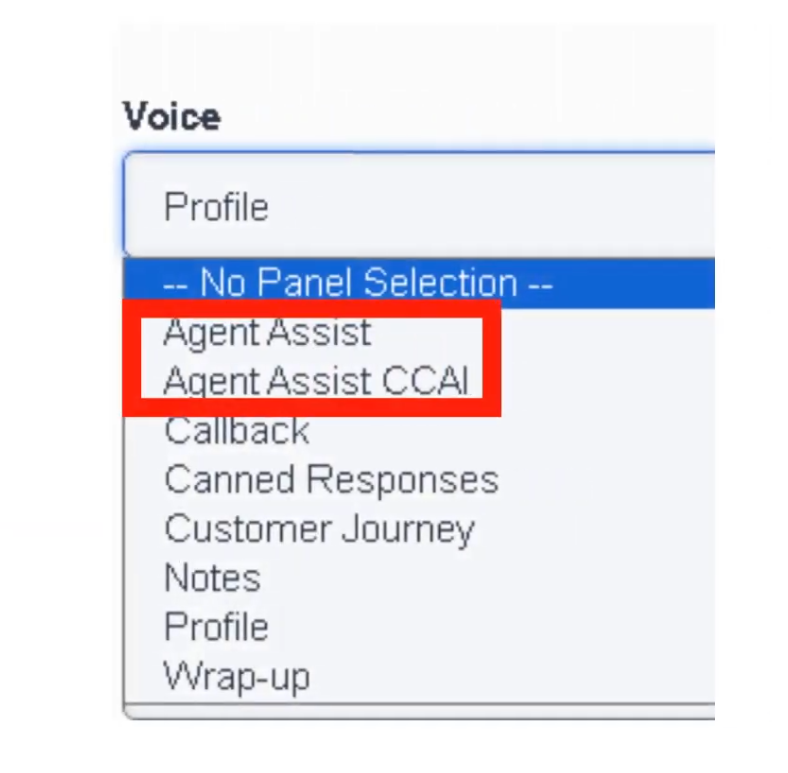
The following panels are available within the Voice Interaction workspace. Availability depends on enabled features, integrations, and licenses in the environment.
| Panel |
Description |
| Agent Assist |
Real-time transcription, AI suggestions, knowledge article recommendations, intent detection |
| Agent Assist (CCAI) |
Google Contact Center AI — speech-to-text, smart reply suggestions, knowledge recommendations |
| Callback |
Displays callback interactions assigned to agent with dial controls and outcome tracking |
| Canned Responses |
Insert predefined messages from response libraries during voice interactions |
| Customer Journey |
Interaction timeline showing previous customer touches across all channels |
| Notes |
Record interaction notes for documentation and follow-up |
| Profile |
Customer identity, contact attributes, and synchronized CRM data |
| Wrap-Up |
Classify interaction outcome with wrap-up codes and manage ACW |
Interaction Panels by Channel
System-created panels that appear when an interaction is active:
| Channel |
Panel Features |
| Voice |
Call controls (hold, mute, transfer, conference), dial pad, notes, wrap-up codes |
| Chat |
Real-time messaging, canned responses, file sharing, typing indicators |
| Message (WhatsApp/SMS) |
Asynchronous conversations, persistent thread history, attachments |
| Email |
Email composition, templates, attachments, threaded conversation history |
| Callback |
Scheduled callback details, dial controls, wrap-up codes |
| Social Messaging |
Social platform messages, thread tracking, media attachments |
Interview Cheat Sheet
| Question |
Answer |
| What is Panel Manager used for? |
Embedding external tools (CRM, dashboards, internal apps) into the agent desktop |
| What URL protocol is required? |
HTTPS — HTTP will not load |
| What is the difference between Interaction Panels and Custom Panels? |
Interaction panels manage conversations; custom panels provide supporting tools |
| What is the Agent Assist panel? |
AI-driven panel with real-time transcription, suggestions, and knowledge recommendations |
| What does the Customer Journey panel show? |
Previous customer interactions across all channels |