Email — Domains & Routing
| Topic |
Detail |
| Navigation |
Admin → Contact Center → Email |
| Purpose |
Configure email domains, addresses, routing logic, and agent experience settings |
| Max Recipients |
50 total (To + CC + BCC combined) |
| BCC Limit |
Maximum 5 hidden recipients per email |
Step 1 — Email Domains
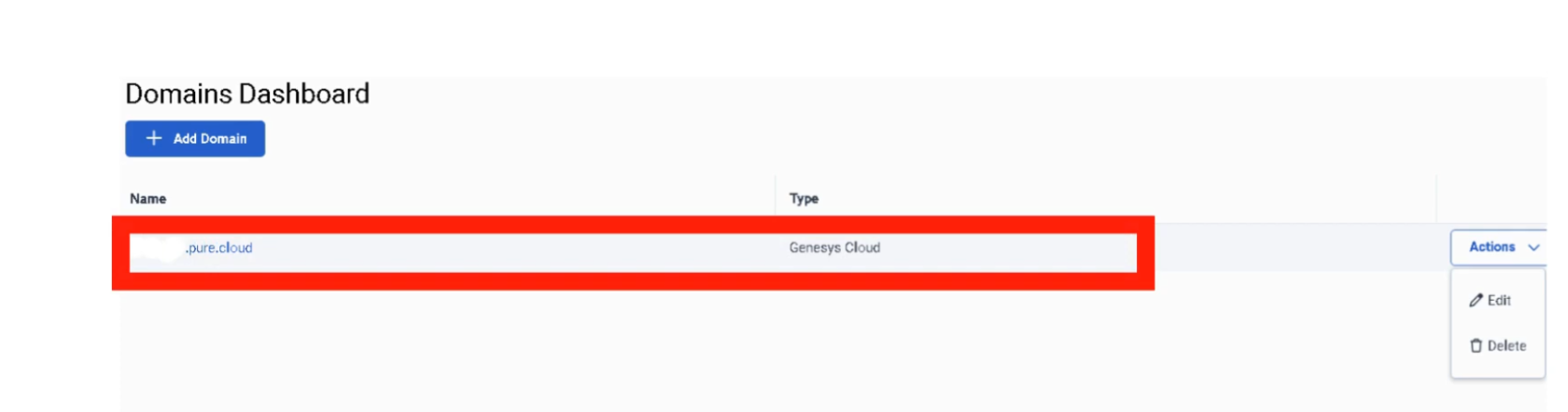
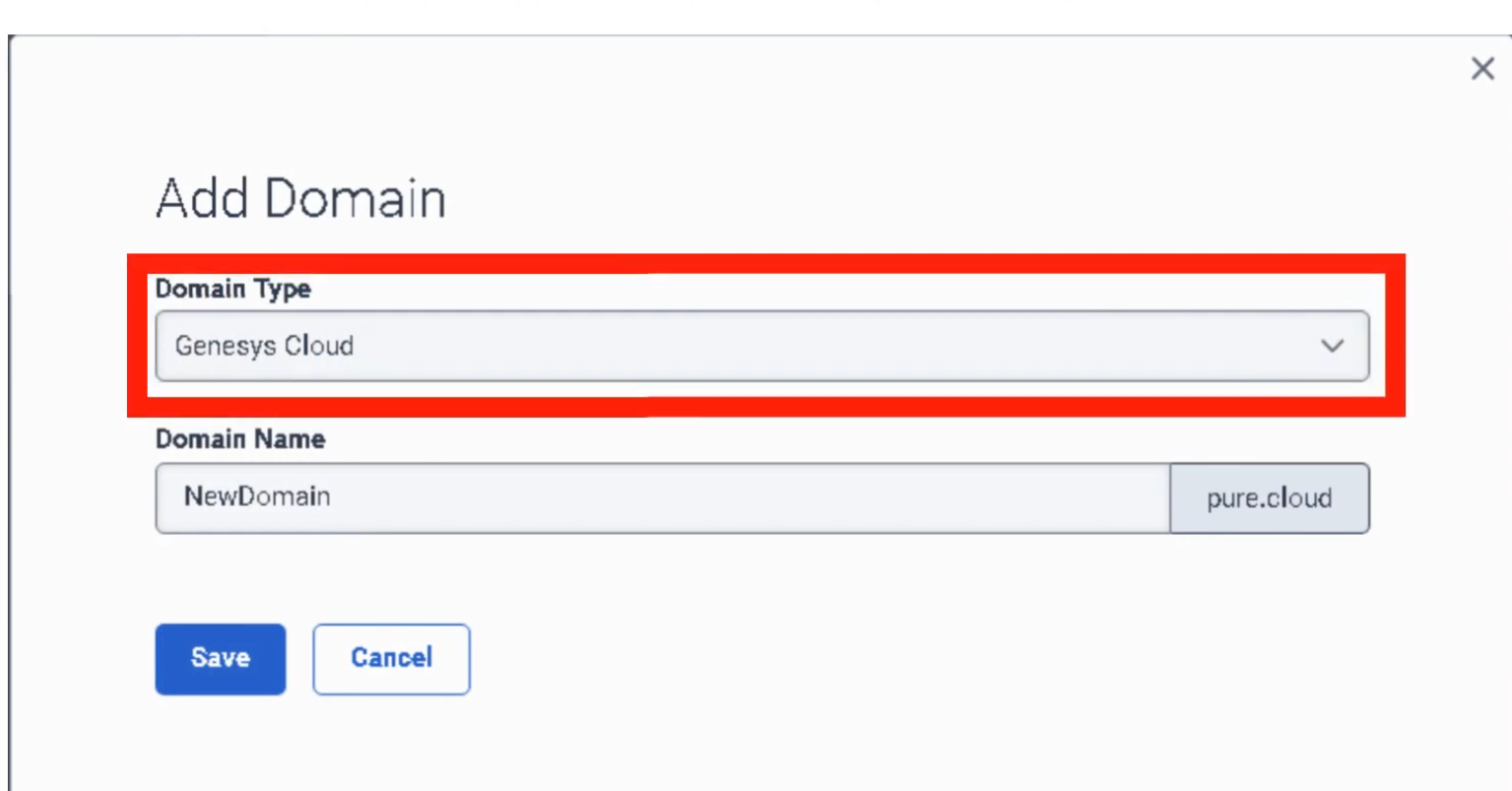
Before receiving email, define the domain:
- Navigate to
Admin → Contact Center → Email → Domains
| Domain Type |
Description |
| Genesys Cloud |
Built-in subdomain (e.g., company.mypurecloud.com) — no DNS configuration required |
| Custom |
Corporate domain (e.g., [email protected]) — requires DNS MX record or forwarding + DNS verification |
| Campaign/Agentless |
Used specifically for outbound-only notifications — no inbound routing |
Custom domains require DNS verification before Genesys Cloud can send or receive on your behalf.
Step 2 — Email Address Configuration
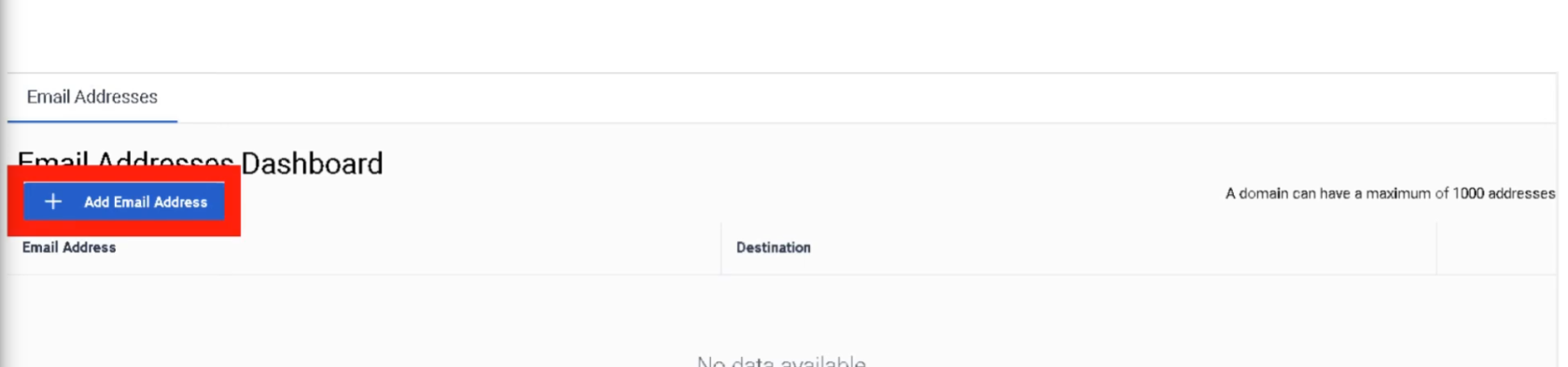
Once the domain is defined, create specific email addresses:
| Field |
Description |
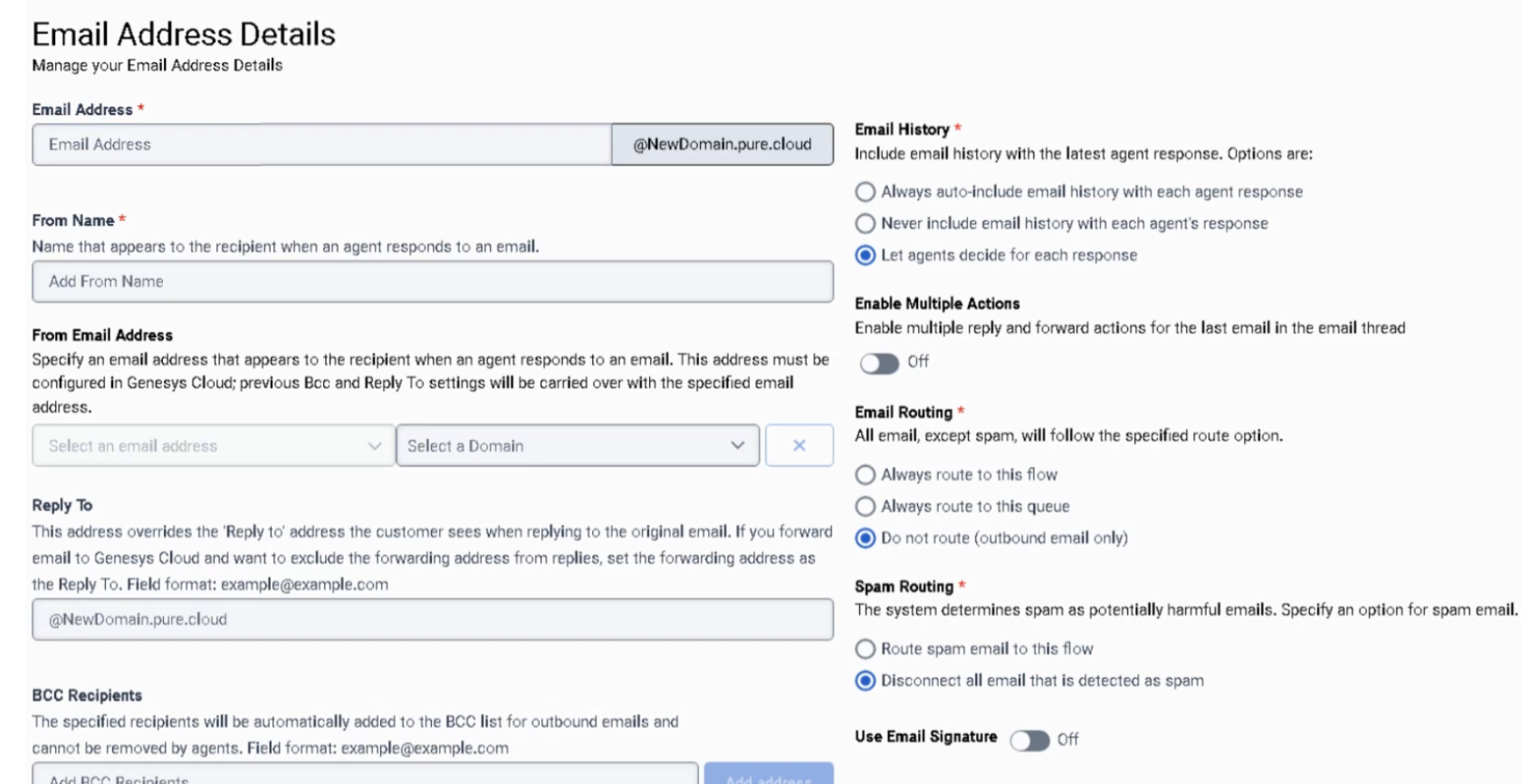
| Email Address |
The inbound address customers use (e.g., [email protected]) |
| From Name |
Friendly display name shown in the customer's inbox (e.g., "Global Support Team") |
| From Email Address |
Address the recipient sees when an agent replies — must be verified within your Genesys Cloud domain |
| Reply To |
Optional — overrides the From address when a customer clicks reply; useful for directing replies to a specific mailbox |
| BCC Recipients |
Up to 5 hidden recipients on every outbound response — agents cannot see or remove these; count toward the 50-recipient limit |
| Email History |
Controls whether the prior conversation thread is included in agent replies |
| Email Actions |
Enables/disables Multiple Replies or Forwards within the same thread |
Email History Options
| Option |
Behavior |
| Always |
Automatically includes the full prior thread |
| Never |
Sends a clean reply without history |
| Let Agent Decide |
Provides the agent a toggle to include or exclude history |
Step 3 — Routing & Handling Logic
| Routing Option |
Description |
| Route to a Queue |
Directly assigns email to an agent group — can also set ACD Skills, Language, and Priority |
| Route to a Flow |
Sends email to an Architect Inbound Email Flow for automated processing or keyword-based routing |
| Do Not Route |
For outbound-only addresses — no inbound routing expected |
Spam Routing
| Option |
Behavior |
| Route Spam to a Flow |
Sends flagged emails to a specific Architect flow for manual supervisor review |
| Disconnect |
Automatically drops spam so it never reaches an agent |
Email Quick Reference
| Field |
Constraint |
| Max Recipients |
50 total (To + CC + BCC) |
| BCC Limit |
5 addresses maximum |
| Priority |
Added to Time in Queue in minutes for routing rank |
| Spam Handling |
Disconnect or Route to Flow |
| Enqueue Flow |
Architect flow handling the email while it waits in queue |
Queue Email Tab Settings
These settings are configured per queue under the Email tab of the Queue configuration:
| Field |
Description |
| Service Level & Target |
SLA goal — typically set in hours (e.g., 90% within 4 hours) |
| Alerting Timeout |
Seconds email flashes on agent screen before moving to next agent |
| Auto-Answer |
Enabled = email workspace opens immediately; best for high-volume environments |
| Outbound Email Address |
Address recipients see when an agent replies from this queue |
| Email Domain |
Verified domain used for outbound email |
| In-Queue Email Flow |
Architect Inbound Email Flow — can perform keyword routing |
| Default Script |
Script displaying customer history or canned response suggestions |
| Auto-Reply |
Sends an immediate acknowledgement before an agent reviews the email |
Interview Cheat Sheet
| Question |
Answer |
| What are the three domain types? |
Genesys Cloud (built-in), Custom (DNS verified), Campaign/Agentless (outbound only) |
| Max total recipients per email? |
50 (To + CC + BCC combined) |
| Max BCC recipients? |
5 |
| How does Priority affect email routing? |
It adds minutes to the Time in Queue for ranking |
| What are the spam routing options? |
Disconnect or Route to Flow |
| What must be done before using a custom domain? |
DNS verification |
