
ACD Skills & Languages
| Topic | Detail |
|---|---|
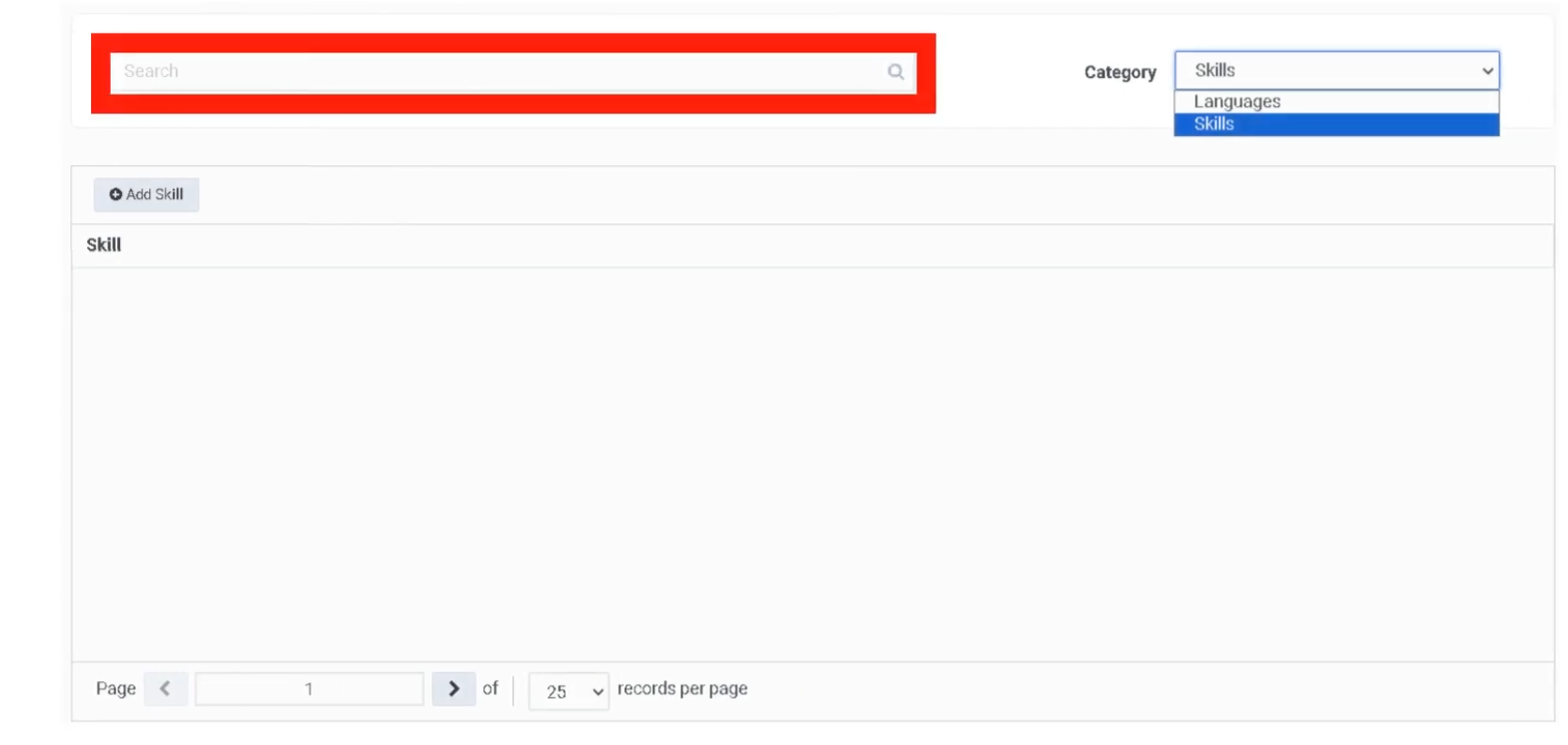
| Navigation | Admin → Contact Center → ACD Skills & Languages |
| Purpose | Define skills and languages used by the ACD routing engine to match interactions to the right agents |
| Proficiency Scale | 1 (Beginner) to 5 (Expert) |
| Skill Status | Active (default) or Inactive (retired — preserves historical reporting data) |
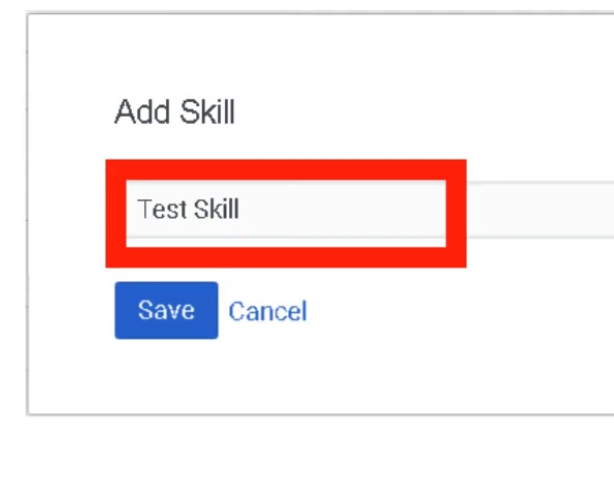
Creating a Skill
⚠️ Once created, a skill must be assigned to a User profile or referenced in an Architect flow before it has any effect on routing.
Creating a Language
Languages are treated separately from skills because Genesys Cloud has built-in logic to prioritize a caller's native language during routing.
Assigning Skills to Users
Individual Assignment
Bulk Assignment
In the People list: select multiple agents → More Actions → Assign Skill
Proficiency Ratings
| Rating | Meaning |
|---|---|
| 1 | Beginner / Trainee |
| 2 | Basic |
| 3 | Intermediate |
| 4 | Advanced |
| 5 | Expert / Subject Matter Expert |
Skill Expressions (Advanced Routing)
Instead of a single skill requirement, use a Skill Expression Group with AND/OR logic:
(Skill: SIP == 5) AND (Skill: Oracle_SBC >= 3)
This allows highly specific routing without requiring a separate queue for every possible skill combination. Skill Expression Groups are configured under Admin → People & Permissions → Groups.
How Routing Uses Skills
In Architect's Transfer to ACD action, you specify:
- Target queue
- Required skill(s) and minimum proficiency level
- Language requirement (if applicable)
The ACD engine then matches the interaction to an available agent who meets all requirements. With Bullseye routing, if no agent matches, the requirements are relaxed in configurable rings over time.
Interview Cheat Sheet
| Question | Answer |
|---|---|
| Where are ACD skills created? | Admin → Contact Center → ACD Skills & Languages |
| What does setting a skill to Inactive do? | Retires it from new routing logic without deleting historical data |
| What is proficiency scale? | 1 (Beginner) to 5 (Expert) |
| How do you assign skills to multiple agents at once? | People list → select agents → More Actions → Assign Skill |
| What is a Skill Expression? | AND/OR logic combining multiple skills for routing (e.g., SIP == 5 AND SBC >= 3) |
| Why are languages separate from skills? | Genesys has built-in native-language prioritization logic for languages |