RHCSA EX200
Objectives
EX200 Objectives
Study points for the exam
-
RHCSA exam candidates should be able to accomplish the tasks below without assistance. These have been grouped into several categories.
- Understand and use essential tools
-
- Access a shell prompt and issue commands with correct syntax
- Use input-output redirection (>, >>, |, 2>, etc.)
- Use grep and regular expressions to analyze text
- Access remote systems using SSH
- Log in and switch users in multiuser targets
- Archive, compress, unpack, and uncompress files using tar, gzip, and bzip2
- Create and edit text files
- Create, delete, copy, and move files and directories
- Create hard and soft links
- List, set, and change standard ugo/rwx permissions
- Locate, read, and use system documentation including man, info, and files in /usr/share/doc
- Create simple shell scripts
-
- Conditionally execute code (use of: if, test, [], etc.)
- Use Looping constructs (for, etc.) to process file, command line input
- Process script inputs ($1, $2, etc.)
- Processing output of shell commands within a script
- Operate running systems
-
- Boot, reboot, and shut down a system normally
- Boot systems into different targets manually
- Interrupt the boot process in order to gain access to a system
- Identify CPU/memory intensive processes and kill processes
- Adjust process scheduling
- Manage tuning profiles
- Locate and interpret system log files and journals
- Preserve system journals
- Start, stop, and check the status of network services
- Securely transfer files between systems
- Configure local storage
-
- List, create, delete partitions on MBR and GPT disks
- Create and remove physical volumes
- Assign physical volumes to volume groups
- Create and delete logical volumes
- Configure systems to mount file systems at boot by universally unique ID (UUID) or label
- Add new partitions and logical volumes, and swap to a system non-destructively
- Create and configure file systems
-
- Create, mount, unmount, and use vfat, ext4, and xfs file systems
- Mount and unmount network file systems using NFS
- Configure autofs
- Extend existing logical volumes
- Create and configure set-GID directories for collaboration
- Diagnose and correct file permission problems
- Deploy, configure, and maintain systems
-
- Schedule tasks using at and cron
- Start and stop services and configure services to start automatically at boot
- Configure systems to boot into a specific target automatically
- Configure time service clients
- Install and update software packages from Red Hat Network, a remote repository, or from the local file system
- Modify the system bootloader
- Manage basic networking
-
- Configure IPv4 and IPv6 addresses
- Configure hostname resolution
- Configure network services to start automatically at boot
- Restrict network access using firewall-cmd/firewall
- Manage users and groups
-
- Create, delete, and modify local user accounts
- Change passwords and adjust password aging for local user accounts
- Create, delete, and modify local groups and group memberships
- Configure superuser access
- Manage security
-
- Configure firewall settings using firewall-cmd/firewalld
- Manage default file permissions
- Configure key-based authentication for SSH
- Set enforcing and permissive modes for SELinux
- List and identify SELinux file and process context
- Restore default file contexts
- Manage SELinux port labels
- Use boolean settings to modify system SELinux settings
- Diagnose and address routine SELinux policy violations
- Manage containers
-
- Find and retrieve container images from a remote registry
- Inspect container images
- Perform container management using commands such as podman and skopeo
- Build a container from a Containerfile
- Perform basic container management such as running, starting, stopping, and listing running containers
- Run a service inside a container
- Configure a container to start automatically as a systemd service
- Attach persistent storage to a container
RHCSA EX200 - Understand and use essential tools
RHCSA EX200 - Accessing linux systems LAB
- Log in and switch users in multiuser targets
- Access remote systems using SSH
- Configure Key-based authentication for SSH
- Securely transfer files between systems
csr@MainPC:~/Downloads$ ssh cloud_user@3.80.189.75
The authenticity of host '3.80.189.75 (3.80.189.75)' can't be established.
ED25519 key fingerprint is SHA256:4nFxuEkL7XMM8ehB0hYTUHPRJTYV0O8iyC8MsidjbUs.
This key is not known by any other names.
Are you sure you want to continue connecting (yes/no/[fingerprint])? yes
Warning: Permanently added '3.80.189.75' (ED25519) to the list of known hosts.
(cloud_user@3.80.189.75) Password:
Register this system with Red Hat Insights: insights-client --register
Create an account or view all your systems at https://red.ht/insights-dashboard
cloud_user@server1: ~ $ whoami ; groups
cloud_user
cloud_user wheel sysadmins
cloud_user@server1: ~ $ id
uid=1001(cloud_user) gid=1001(cloud_user) groups=1001(cloud_user),10(wheel),49999(sysadmins) context=unconfined_u:unconfined_r:unconfined_t:s0-s0:c0.c1023
cloud_user@server1: ~ $
This will show what happens and what files are sourced or executed when using different types of privilege elevations
cloud_user@server1: ~ $ sudo -i
[sudo] password for cloud_user:
root@server1: ~ # echo export SOURCED1=.bash_profile >> ~/.bash_profile ; echo 'echo $SOURCED1' >> ~/.bash_profile
root@server1: ~ # grep SOURCED .bash_profile
export SOURCED1=.bash_profile
echo $SOURCED1
root@server1: ~ # echo export SOURCED2=.bashrc >> ~/.bashrc ; echo 'echo $SOURCED2' >> ~/.bashrc
root@server1: ~ # grep SOURCED .bashrc
export SOURCED2=.bashrc
echo $SOURCED2
cloud_user@server1: ~ $ sudo -k   ##  When used without a command, invalidates the user's cached credentials for the current session.  The next time sudo is run in the session, a password must be entered if the security policy requires authentication
cloud_user@server1: ~ $ sudo -i echo
[sudo] password for cloud_user:
.bashrc
.bash_profile
cloud_user@server1: ~ $ sudo -i passwd root
[sudo] password for cloud_user:
.bashrc
.bash_profile
Changing password for user root.
New password:
Retype new password:
passwd: all authentication tokens updated successfully.
cloud_user@server1: ~ $ su -c 'echo $PATH'
Password:
/home/cloud_user/.local/bin:/home/cloud_user/bin:/usr/local/bin:/usr/bin:/usr/local/sbin:/usr/sbin
cloud_user@server1: ~ $ su - -c 'echo $PATH'
Password:
.bashrc
.bash_profile
/usr/local/sbin:/usr/local/bin:/usr/sbin:/usr/bin:/root/bin
cloud_user@server1: ~ $
sudo = cloud_user
sudo -i = root user
su = cloud_user
su - = root user
Task 2 - access remote systems using ssh
Ssh to second server
cloud_user@server1: ~ $ ssh cloud_user@10.0.1.197
The authenticity of host '10.0.1.197 (10.0.1.197)' can't be established.
ECDSA key fingerprint is SHA256:FplhCnLMLm5YPqa00ssQlH/FEVGrxMaNkThmr4r8AaI.
Are you sure you want to continue connecting (yes/no/[fingerprint])? yes
Warning: Permanently added '10.0.1.197' (ECDSA) to the list of known hosts.
Password:
Register this system with Red Hat Insights: insights-client --register
Create an account or view all your systems at https://red.ht/insights-dashboard
cloud_user@server2: ~ $
Retrieving information from remote server and creating a file to input data
cloud_user@server1: ~ $ ssh -t cloud_user@10.0.1.197 df -hT >> server_health.txt
Password:
Connection to 10.0.1.197 closed.
cloud_user@server1: ~ $ ls
audit  build  init_pass  mariadb_repo_setup  Public  server_health.txt  Templates  wget-1.19.5-8.el8_1.1.x86_64.rpm
cloud_user@server1: ~ $ cat server_health.txt
Filesystem     Type      Size  Used Avail Use% Mounted on
devtmpfs       devtmpfs  1.8G     0  1.8G   0% /dev
tmpfs          tmpfs     1.9G     0  1.9G   0% /dev/shm
tmpfs          tmpfs     1.9G   17M  1.9G   1% /run
tmpfs          tmpfs     1.9G     0  1.9G   0% /sys/fs/cgroup
/dev/xvda2     xfs        20G   14G  6.7G  67% /
tmpfs          tmpfs     373M     0  373M   0% /run/user/1001
cloud_user@server1: ~ $ ssh -t cloud_user@10.0.1.197 df free >> server_health.txt
Password:
Connection to 10.0.1.197 closed.
cloud_user@server1: ~ $ cat server_health.txt
Filesystem     Type      Size  Used Avail Use% Mounted on
devtmpfs       devtmpfs  1.8G     0  1.8G   0% /dev
tmpfs          tmpfs     1.9G     0  1.9G   0% /dev/shm
tmpfs          tmpfs     1.9G   17M  1.9G   1% /run
tmpfs          tmpfs     1.9G     0  1.9G   0% /sys/fs/cgroup
/dev/xvda2     xfs        20G   14G  6.7G  67% /
tmpfs          tmpfs     373M     0  373M   0% /run/user/1001
df: free: No such file or directory
cloud_user@server1: ~ $ free
              total        used        free      shared  buff/cache   available
Mem:        3818520      279104     2419652       18768     1119764     3297500
Swap:       8388604           0     8388604
cloud_user@server1: ~ $ ssh cloud_user@10.0.1.197
Password:
Register this system with Red Hat Insights: insights-client --register
Create an account or view all your systems at https://red.ht/insights-dashboard
Last login: Wed Apr 10 18:37:25 2024 from 10.0.1.151
cloud_user@server2: ~ $ free
              total        used        free      shared  buff/cache   available
Mem:        3818520      241588     2697600       18764      879332     3336480
Swap:       8388604           0     8388604
cloud_user@server2: ~ $ exit
logout
Connection to 10.0.1.197 closed.
cloud_user@server1: ~ $ ssh -t cloud_user@10.0.1.197 free >> server_health.txt
Password:
Connection to 10.0.1.197 closed.
cloud_user@server1: ~ $ cat server_health.txt
Filesystem     Type      Size  Used Avail Use% Mounted on
devtmpfs       devtmpfs  1.8G     0  1.8G   0% /dev
tmpfs          tmpfs     1.9G     0  1.9G   0% /dev/shm
tmpfs          tmpfs     1.9G   17M  1.9G   1% /run
tmpfs          tmpfs     1.9G     0  1.9G   0% /sys/fs/cgroup
/dev/xvda2     xfs        20G   14G  6.7G  67% /
tmpfs          tmpfs     373M     0  373M   0% /run/user/1001
df: free: No such file or directory
              total        used        free      shared  buff/cache   available
Mem:        3818520      239348     2699840       18692      879332     3338776
Swap:       8388604           0     8388604
Task 3 - creating a keygen to ssh to remote server
cloud_user@server1: ~ $ ssh-keygen
Generating public/private rsa key pair.
Enter file in which to save the key (/home/cloud_user/.ssh/id_rsa):
Enter passphrase (empty for no passphrase):
Enter same passphrase again:
Your identification has been saved in /home/cloud_user/.ssh/id_rsa.
Your public key has been saved in /home/cloud_user/.ssh/id_rsa.pub.
The key fingerprint is:
SHA256:Ag8dXpCf+hWNs+ftc4ItGtOET3s3vd6UKPAWwJCdlbg cloud_user@server1
The key's randomart image is:
+---[RSA 3072]----+
|      o++ +..    |
|     o.+o+ .     |
|    o o. +.o     |
|     +  oE=..    |
|      o.S..=o    |
|      ..  ==o.. o|
|       . .o*+=.o+|
|        . .o=.=o=|
|          .. oo*.|
+----[SHA256]-----+
cloud_user@server1: ~ $ ssh-copy-id 10.0.1.197
/usr/bin/ssh-copy-id: INFO: Source of key(s) to be installed: "/home/cloud_user/.ssh/id_rsa.pub"
/usr/bin/ssh-copy-id: INFO: attempting to log in with the new key(s), to filter out any that are already installed
/usr/bin/ssh-copy-id: INFO: 1 key(s) remain to be installed -- if you are prompted now it is to install the new keys
Password:

Number of key(s) added: 1

Now try logging into the machine, with:   "ssh '10.0.1.197'"
and check to make sure that only the key(s) you wanted were added.


cloud_user@server1: ~ $ ssh cloud_user@10.0.1.197
Register this system with Red Hat Insights: insights-client --register
Create an account or view all your systems at https://red.ht/insights-dashboard
Last login: Wed Apr 10 18:38:22 2024 from 10.0.1.151
cloud_user@server2: ~ $
eval used on a Unix or Linux system to execute the arguments as a shell command. The eval command is helpful when you want to execute a Unix or Linux command that has been saved in a variable
ssh-agent is a background program that handles passwords for SSH private keys. The ssh-add command prompts the user for a private key password and adds it to the list maintained by ssh-agent. Once you add a password to ssh-agent, you will not be prompted for it when using SSH or scp to connect to hosts with your public key.
cloud_user@server1: ~ $ eval $(ssh-agent -s)
Agent pid 3231
cloud_user@server1: ~ $ ssh-add
Identity added: /home/cloud_user/.ssh/id_rsa (cloud_user@server1)
cloud_user@server1: ~ $ ssh cloud_user@10.0.1.197
Register this system with Red Hat Insights: insights-client --register
Create an account or view all your systems at https://red.ht/insights-dashboard
Last login: Wed Apr 10 18:41:49 2024 from 10.0.1.151
cloud_user@server2: ~ $
RHCSA EX200 - VIM Survival kit LAB
- Creating, opening, and exiting a file
- Making simple change to a file
- Changing a system file
- Simple navigation
- Inserting, Copying and Deleting
- Undoing and redoing
- Saving and or exiting
- Resources for getting help
1. - Creating opening and exiting a file.
Open a new file typing vim on shell
enter I to insert text, escape to go back to navigation mode then :w name to save the file name

now if we try to edit a system file for example vim /etc/hosts we can look at the bottom this file is readonly

to exit a file without making changes you need to exit by hitting escape key then type q! this will exit and ignore any changes
2- Making simple changes to a file
Copy a random file to make changes, we choose help.txt from vim
cloud_user@ip-10-0-1-10:~$ cp /usr/share/vim/vim80/doc/help.txt ~/vimhelp.txt
cloud_user@ip-10-0-1-10:~$ ls
myfirstnovel.txt  vimhelp.txt
cloud_user@ip-10-0-1-10:~$
vim vimhelp.txt
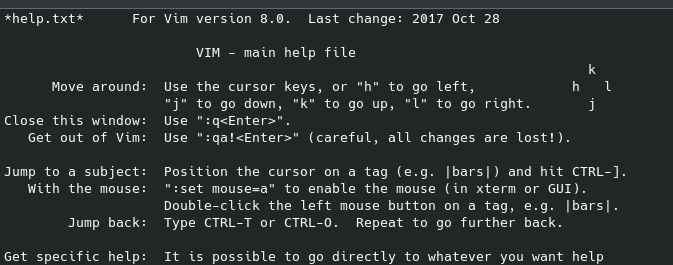
let s modify the VIM main help file
3.- Changing a system file
sudo -i vim /etc/hosts (will allow us to run the command as root.
add snowblower to the localhost
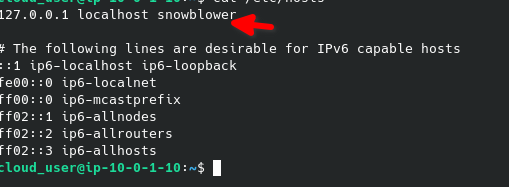
cloud_user@ip-10-0-1-10:~$ sudo -i vim /etc/hosts
cloud_user@ip-10-0-1-10:~$ grep snowblower /etc/hosts
127.0.0.1 localhost snowblower
cloud_user@ip-10-0-1-10:~$ ping -c 4 snowblower
PING localhost (127.0.0.1) 56(84) bytes of data.
64 bytes from localhost (127.0.0.1): icmp_seq=1 ttl=64 time=0.017 ms
64 bytes from localhost (127.0.0.1): icmp_seq=2 ttl=64 time=0.035 ms
64 bytes from localhost (127.0.0.1): icmp_seq=3 ttl=64 time=0.029 ms
64 bytes from localhost (127.0.0.1): icmp_seq=4 ttl=64 time=0.029 ms

--- localhost ping statistics ---
4 packets transmitted, 4 received, 0% packet loss, time 3055ms
rtt min/avg/max/mdev = 0.017/0.027/0.035/0.008 ms
4.- Simple Navigation
press w will take you forward one word, press b will take you backwards one word
now type / to search mode, search for Vim and hit enter it will take you to the first word that matches (capital wise) press n to go to the next one or shift n to go backwards.
5. - Inserting copying and deleting
o = insert a line below the cursor
dd = deletes a line
VA]1%Ex^
RHCSA EX200 - Managing Files LAB
creating a tar from /usr/share/doc directory
[csr@rhel-lab1 ~]$ du -sh /usr/share/doc
63M     /usr/share/doc
[csr@rhel-lab1 ~]$ tar -cf documentation.tar /usr/share/doc
tar: Removing leading `/' from member names
[csr@rhel-lab1 ~]$ ls
2  archives  documentation.tar  Desktop  Documents  Downloads  Music  output  Pictures  Public  Templates  Videos
[csr@rhel-lab1 ~]$ ls -l
total 59748
-rw-r--r--. 1 csr csr     1328 Apr 11 18:55 2
drwxr-xr-x. 2 csr csr       26 Apr  9 18:32 archives
-rw-r--r--. 1 csr csr 61173760 Apr 15 18:33 documentation.tar
drwxr-xr-x. 2 csr csr        6 Apr 10 12:03 Desktop
drwxr-xr-x. 2 csr csr       72 Apr 11 18:04 Documents
drwxr-xr-x. 2 csr csr        6 Apr 10 12:03 Downloads
drwxr-xr-x. 2 csr csr        6 Apr 10 12:03 Music
-rw-r--r--. 1 csr csr        6 Apr 11 17:56 output
drwxr-xr-x. 2 csr csr        6 Apr 10 12:03 Pictures
drwxr-xr-x. 2 csr csr        6 Apr 10 12:03 Public
drwxr-xr-x. 2 csr csr        6 Apr 10 12:03 Templates
drwxr-xr-x. 2 csr csr        6 Apr 10 12:03 Videos
[csr@rhel-lab1 ~]$ du -sh *.tar
59M     ddocumentation.tar
listing content of a tar file - tar-tvf filename (t list the content, -v verbose, -f use file archive)
[csr@rhel-lab1 ~]$ tar -tvf documentation.tar | more
drwxr-xr-x root/root         0 2024-04-09 17:31 usr/share/doc/
drwxr-xr-x root/root         0 2024-04-08 14:55 usr/share/doc/hwdata/
-rw-r--r-- root/root       175 2023-08-21 01:22 usr/share/doc/hwdata/LICENSE
drwxr-xr-x root/root         0 2024-04-08 14:55 usr/share/doc/xkeyboard-config/
-rw-r--r-- root/root       510 2021-06-08 15:20 usr/share/doc/xkeyboard-config/AUTHORS
-rw-r--r-- root/root      9244 2021-06-08 15:20 usr/share/doc/xkeyboard-config/COPYING
-rw-r--r-- root/root       861 2021-06-08 15:20 usr/share/doc/xkeyboard-config/HOWTO.testing
-rw-r--r-- root/root      2303 2021-06-08 15:20 usr/share/doc/xkeyboard-config/HOWTO.transition
-rw-r--r-- root/root      5108 2021-06-08 15:20 usr/share/doc/xkeyboard-config/NEWS
-rw-r--r-- root/root      1627 2021-06-08 15:20 usr/share/doc/xkeyboard-config/README
-rw-r--r-- root/root      7515 2021-06-08 15:20 usr/share/doc/xkeyboard-config/README.config
-rw-r--r-- root/root     23948 2021-06-08 15:20 usr/share/doc/xkeyboard-config/README.enhancing
-rw-r--r-- root/root      1882 2021-06-08 15:20 usr/share/doc/xkeyboard-config/README.symbols
create the same but compressed using gz
[csr@rhel-lab1 ~]$ tar -czvf documentation.tar.gz /usr/share/doc | more
tar: Removing leading `/' from member names
/usr/share/doc/
/usr/share/doc/hwdata/
/usr/share/doc/hwdata/LICENSE
/usr/share/doc/xkeyboard-config/
/usr/share/doc/xkeyboard-config/AUTHORS
/usr/share/doc/xkeyboard-config/COPYING
/usr/share/doc/xkeyboard-config/HOWTO.testing
/usr/share/doc/xkeyboard-config/HOWTO.transition
/usr/share/doc/xkeyboard-config/NEWS
/usr/share/doc/xkeyboard-config/README
/usr/share/doc/xkeyboard-config/README.config
/usr/share/doc/xkeyboard-config/README.enhancing
/usr/share/doc/xkeyboard-config/README.symbols
/usr/share/doc/tzdata/
/usr/share/doc/tzdata/README
/usr/share/doc/tzdata/theory.html
/usr/share/doc/tzdata/tz-art.html
/usr/share/doc/tzdata/tz-link.html
[csr@rhel-lab1 ~]$ du -sh docu*.*
59M     documentation.tar
19M     documentation.tar.gz
using J for compression
[csr@rhel-lab1 ~]$ tar -cjvf documentation.tar.bz2 /usr/share/doc | more
tar: Removing leading `/' from member names
/usr/share/doc/
/usr/share/doc/hwdata/
/usr/share/doc/hwdata/LICENSE
/usr/share/doc/xkeyboard-config/
/usr/share/doc/xkeyboard-config/AUTHORS
/usr/share/doc/xkeyboard-config/COPYING
/usr/share/doc/xkeyboard-config/HOWTO.testing
/usr/share/doc/xkeyboard-config/HOWTO.transition
/usr/share/doc/xkeyboard-config/NEWS
/usr/share/doc/xkeyboard-config/README
/usr/share/doc/xkeyboard-config/README.config
/usr/share/doc/xkeyboard-config/README.enhancing
/usr/share/doc/xkeyboard-config/README.symbols
/usr/share/doc/tzdata/
[csr@rhel-lab1 ~]$ du -sh docu*.*
59M     documentation.tar
16M     documentation.tar.bz2
19M     documentation.tar.gz
Listing the gz file content
[csr@rhel-lab1 ~]$ tar -ttzvf documentation.tar.gz | more
drwxr-xr-x root/root         0 2024-04-09 17:31 usr/share/doc/
drwxr-xr-x root/root         0 2024-04-08 14:55 usr/share/doc/hwdata/
-rw-r--r-- root/root       175 2023-08-21 01:22 usr/share/doc/hwdata/LICENSE
drwxr-xr-x root/root         0 2024-04-08 14:55 usr/share/doc/xkeyboard-config/
-rw-r--r-- root/root       510 2021-06-08 15:20 usr/share/doc/xkeyboard-config/AUTHORS
-rw-r--r-- root/root      9244 2021-06-08 15:20 usr/share/doc/xkeyboard-config/COPYING
-rw-r--r-- root/root       861 2021-06-08 15:20 usr/share/doc/xkeyboard-config/HOWTO.testing
-rw-r--r-- root/root      2303 2021-06-08 15:20 usr/share/doc/xkeyboard-config/HOWTO.transition
-rw-r--r-- root/root      5108 2021-06-08 15:20 usr/share/doc/xkeyboard-config/NEWS
-rw-r--r-- root/root      1627 2021-06-08 15:20 usr/share/doc/xkeyboard-config/READ
untar file and view the content using tree
[csr@rhel-lab1 ~]$ mkdir doctests
[csr@rhel-lab1 ~]$ mv documentation.tar* /doctests/
mv: target '/doctests/' is not a directory
[csr@rhel-lab1 ~]$ mv documentation.tar* ~/doctests/
[csr@rhel-lab1 ~]$ cd doctests/
[csr@rhel-lab1 doctests]$ ls
documentation.tar  documentation.tar.bz2  documentation.tar.gz
[csr@rhel-lab1 doctests]$ tar -xzvf documentation.tar.gz
[csr@rhel-lab1 doctests]$ ls -la
total 93816
drwxr-xr-x.  3 csr csr       99 Apr 15 18:51 .
drwx------. 17 csr csr     4096 Apr 15 18:49 ..
-rw-r--r--.  1 csr csr 61173760 Apr 15 18:33 documentation.tar
-rw-r--r--.  1 csr csr 15930018 Apr 15 18:44 documentation.tar.bz2
-rw-r--r--.  1 csr csr 18954095 Apr 15 18:42 documentation.tar.gz
drwxr-xr-x.  3 csr csr       19 Apr 15 18:51 usr
[csr@rhel-lab1 doctests]$ tree usr | more
usr
└── share
    └── doc
        ├── abattis-cantarell-fonts
        │   ├── NEWS
        │   └── README.md
        ├── accountsservice
        │   ├── AUTHORS
        │   └── README.md
        ├── adcli
        │   ├── AUTHORS
        │   ├── ChangeLog
        │   ├── COPYING
        │   ├── NEWS
        │   └── README
        ├── adobe-mappings-cmap
        │   ├── README.md
        │   └── VERSIONS.txt
        ├── adobe-mappings-pdf
        │   └── README.md
        ├── adobe-source-code-pro-fonts
        │   └── README.md
        ├── alsa-lib
        │   ├── asoundrc.txt
extract a single file from the tar document
[csr@rhel-lab1 doctests]$ tar -xzvf documentation.tar.gz usr/share/doc/gdisk/gdisk_test.sh
usr/share/doc/gdisk/gdisk_test.sh
[csr@rhel-lab1 doctests]$
[csr@rhel-lab1 doctests]$ tree usr
usr
└── share
    └── doc
        └── gdisk
            └── gdisk_test.sh
using gunzip
cloud_user@server1: ~ $ ls
audit  build  init_pass  mariadb_repo_setup  Public  Templates  wget-1.19.5-8.el8_1.1.x86_64.rpm
cloud_user@server1: ~ $ gzip wget-1.19.5-8.el8_1.1.x86_64.rpm
cloud_user@server1: ~ $ ll
total 740
drwxrwxr-x. 2 cloud_user cloud_user     74 Sep  8  2020 audit
drwxrwxr-x. 2 cloud_user cloud_user     55 Sep  8  2020 build
-rw-r--r--. 1 cloud_user cloud_user      1 Apr 30  2021 init_pass
-rwxrwxr-x. 1 cloud_user cloud_user  19519 Sep  9  2020 mariadb_repo_setup
drwxr-xr-x. 2 cloud_user cloud_user      6 May  8  2019 Public
drwxr-xr-x. 2 cloud_user cloud_user      6 May  8  2019 Templates
-rw-r--r--. 1 cloud_user cloud_user 729756 Sep  9  2020 wget-1.19.5-8.el8_1.1.x86_64.rpm.gz
unzip it
cloud_user@server1: ~ $ gunzip wget-1.19.5-8.el8_1.1.x86_64.rpm.gz
cloud_user@server1: ~ $ ll
total 760
drwxrwxr-x. 2 cloud_user cloud_user     74 Sep  8  2020 audit
drwxrwxr-x. 2 cloud_user cloud_user     55 Sep  8  2020 build
-rw-r--r--. 1 cloud_user cloud_user      1 Apr 30  2021 init_pass
-rwxrwxr-x. 1 cloud_user cloud_user  19519 Sep  9  2020 mariadb_repo_setup
drwxr-xr-x. 2 cloud_user cloud_user      6 May  8  2019 Public
drwxr-xr-x. 2 cloud_user cloud_user      6 May  8  2019 Templates
-rw-r--r--. 1 cloud_user cloud_user 752504 Sep  9  2020 wget-1.19.5-8.el8_1.1.x86_64.rpm
cloud_user@server1: ~ $
same apply to bzip
cloud_user@server1: ~ $ bzip2 wget-1.19.5-8.el8_1.1.x86_64.rpm
cloud_user@server1: ~ $ ll
total 744
drwxrwxr-x. 2 cloud_user cloud_user     74 Sep  8  2020 audit
drwxrwxr-x. 2 cloud_user cloud_user     55 Sep  8  2020 build
-rw-r--r--. 1 cloud_user cloud_user      1 Apr 30  2021 init_pass
-rwxrwxr-x. 1 cloud_user cloud_user  19519 Sep  9  2020 mariadb_repo_setup
drwxr-xr-x. 2 cloud_user cloud_user      6 May  8  2019 Public
drwxr-xr-x. 2 cloud_user cloud_user      6 May  8  2019 Templates
-rw-r--r--. 1 cloud_user cloud_user 736128 Sep  9  2020 wget-1.19.5-8.el8_1.1.x86_64.rpm.bz2
cloud_user@server1: ~ $ bunzip2 wget-1.19.5-8.el8_1.1.x86_64.rpm.bz2
cloud_user@server1: ~ $ ll
total 760
drwxrwxr-x. 2 cloud_user cloud_user     74 Sep  8  2020 audit
drwxrwxr-x. 2 cloud_user cloud_user     55 Sep  8  2020 build
-rw-r--r--. 1 cloud_user cloud_user      1 Apr 30  2021 init_pass
-rwxrwxr-x. 1 cloud_user cloud_user  19519 Sep  9  2020 mariadb_repo_setup
drwxr-xr-x. 2 cloud_user cloud_user      6 May  8  2019 Public
drwxr-xr-x. 2 cloud_user cloud_user      6 May  8  2019 Templates
-rw-r--r--. 1 cloud_user cloud_user 752504 Sep  9  2020 wget-1.19.5-8.el8_1.1.x86_64.rpm
cloud_user@server1: ~ $
Task 2
Using brackets and how to create multiple files
cloud_user@server1: ~ $ mkdir -p ~/code/ursula/{cloudform,xml} ~/code/mortimer/json
cloud_user@server1: ~ $ tree code
code
├── mortimer
│   └── json
└── ursula
    ├── cloudform
    └── xml

5 directories, 0 files
cloud_user@server1: ~ $

cloud_user@server1: ~ $ touch ~/code/ursula/{file1,file2,file3}.json ~/code/ursula/file{1,2,3}.xml
cloud_user@server1: ~ $ tree code
code
├── mortimer
│   └── json
└── ursula
    ├── cloudform
    ├── file1.json
    ├── file1.xml
    ├── file2.json
    ├── file2.xml
    ├── file3.json
    ├── file3.xml
    └── xml

5 directories, 6 files

cloud_user@server1: ~ $ touch ~/code/mortimer/{file1,file2,file3}.cf
cloud_user@server1: ~ $ tree
.
├── audit
│   ├── devsys05-account-audit.log
│   └── devsys08-account-audit.log
├── build
│   ├── devsys12-account-audit.log
│   └── dnf.log
├── code
│   ├── mortimer
│   │   ├── file1.cf
│   │   ├── file2.cf
│   │   ├── file3.cf
│   │   └── json
│   └── ursula
│       ├── cloudform
│       ├── file1.json
│       ├── file1.xml
│       ├── file2.json
│       ├── file2.xml
│       ├── file3.json
│       ├── file3.xml
│       └── xml
├── init_pass
├── mariadb_repo_setup
├── Public
├── Templates
└── wget-1.19.5-8.el8_1.1.x86_64.rpm
moving files around
cloud_user@server1: ~ $ mv ~/code/ursula/*.xml ~/code/ursula/xml/
cloud_user@server1: ~ $ tree
.
├── audit
│   ├── devsys05-account-audit.log
│   └── devsys08-account-audit.log
├── build
│   ├── devsys12-account-audit.log
│   └── dnf.log
├── code
│   ├── mortimer
│   │   ├── file1.cf
│   │   ├── file2.cf
│   │   ├── file3.cf
│   │   └── json
│   └── ursula
│       ├── cloudform
│       ├── file1.json
│       ├── file2.json
│       ├── file3.json
│       └── xml
│           ├── file1.xml
│           ├── file2.xml
│           └── file3.xml
├── init_pass
├── mariadb_repo_setup
├── Public
├── Templates
└── wget-1.19.5-8.el8_1.1.x86_64.rpm

10 directories, 16 files
cloud_user@server1: ~ $
cloud_user@server1: ~ $ mv ~/code/ursula/*.json ~/code/mortimer/json/
cloud_user@server1: ~ $ tree code
code
├── mortimer
│   ├── file1.cf
│   ├── file2.cf
│   ├── file3.cf
│   └── json
│       ├── file1.json
│       ├── file2.json
│       └── file3.json
└── ursula
    ├── cloudform
    └── xml
        ├── file1.xml
        ├── file2.xml
        └── file3.xml

5 directories, 9 files
cloud_user@server1: ~ $
cloud_user@server1: mortimer $ mv *.cf ../ursula/cloudform/
cloud_user@server1: mortimer $ cd
cloud_user@server1: ~ $ tree code
code
├── mortimer
│   └── json
│       ├── file1.json
│       ├── file2.json
│       └── file3.json
└── ursula
    ├── cloudform
    │   ├── file1.cf
    │   ├── file2.cf
    │   └── file3.cf
    └── xml
        ├── file1.xml
        ├── file2.xml
        └── file3.xml

5 directories, 9 files
cloud_user@server1: ~ $
cloud_user@server1: ~ $ cp ~/code/ursula/cloudform/ ~/code/mortimer/ -r
cloud_user@server1: ~ $ tree code
code
├── mortimer
│   ├── cloudform
│   │   ├── file1.cf
│   │   ├── file2.cf
│   │   └── file3.cf
│   └── json
│       ├── file1.json
│       ├── file2.json
│       └── file3.json
└── ursula
    ├── cloudform
    │   ├── file1.cf
    │   ├── file2.cf
    │   └── file3.cf
    └── xml
        ├── file1.xml
        ├── file2.xml
        └── file3.xml

6 directories, 12 files
cloud_user@server1: ~ $ rm -rf ~/code/ursula/cloudform/
cloud_user@server1: ~ $ tree code
code
├── mortimer
│   ├── cloudform
│   │   ├── file1.cf
│   │   ├── file2.cf
│   │   └── file3.cf
│   └── json
│       ├── file1.json
│       ├── file2.json
│       └── file3.json
└── ursula
    └── xml
        ├── file1.xml
        ├── file2.xml
        └── file3.xml

5 directories, 9 files
cloud_user@server1: ~ $
task 3 creating softlinks and hardlinks
l
cloud_user@server1: links $ ll
total 0
cloud_user@server1: links $ touch original
cloud_user@server1: links $ ll -i #Use -i to show the inode nuber
total 0
12583416 -rw-rw-r--. 1 cloud_user cloud_user 0 Apr 16 01:20 original
cloud_user@server1: links $
creating a softlink
cloud_user@server1: links $ ln -s original softlink
cloud_user@server1: links $ ll -i
total 0
12583416 -rw-rw-r--. 1 cloud_user cloud_user 0 Apr 16 01:20 original
12583419 lrwxrwxrwx. 1 cloud_user cloud_user 8 Apr 16 01:22 softlink -> original
creating a softlink to a folder, we can notice they have different inode numbers
cloud_user@server1: links $ mkdir directory
cloud_user@server1: links $ ln -s directory/ otherdirectory
cloud_user@server1: links $ ls -li
total 0
33560168 drwxrwxr-x. 2 cloud_user cloud_user  6 Apr 16 01:22 directory
12583416 -rw-rw-r--. 1 cloud_user cloud_user  0 Apr 16 01:20 original
12583420 lrwxrwxrwx. 1 cloud_user cloud_user 10 Apr 16 01:22 otherdirectory -> directory/
12583419 lrwxrwxrwx. 1 cloud_user cloud_user  8 Apr 16 01:22 softlink -> original
creating a hardlink we can notice the inode is the same
cloud_user@server1: links $ ln original hardlink
cloud_user@server1: links $ ls -li
total 0
33560168 drwxrwxr-x. 2 cloud_user cloud_user  6 Apr 16 01:22 directory
12583416 -rw-rw-r--. 2 cloud_user cloud_user  0 Apr 16 01:20 hardlink
12583416 -rw-rw-r--. 2 cloud_user cloud_user  0 Apr 16 01:20 original
12583420 lrwxrwxrwx. 1 cloud_user cloud_user 10 Apr 16 01:22 otherdirectory -> directory/
12583419 lrwxrwxrwx. 1 cloud_user cloud_user  8 Apr 16 01:22 softlink -> original
creating a softlink to fstab
cloud_user@server1: links $ ln -s /etc/fstab softtab
cloud_user@server1: links $ ll -i
total 0
33560168 drwxrwxr-x. 2 cloud_user cloud_user  6 Apr 16 01:22 directory
12583416 -rw-rw-r--. 2 cloud_user cloud_user  0 Apr 16 01:20 hardlink
12583416 -rw-rw-r--. 2 cloud_user cloud_user  0 Apr 16 01:20 original
12583420 lrwxrwxrwx. 1 cloud_user cloud_user 10 Apr 16 01:22 otherdirectory -> directory/
12583419 lrwxrwxrwx. 1 cloud_user cloud_user  8 Apr 16 01:22 softlink -> original
12583421 lrwxrwxrwx. 1 cloud_user cloud_user 10 Apr 16 01:25 softtab -> /etc/fstab
now a hardlink to fstab
cloud_user@server1: links $ ln /etc/fstab hardtab
ln: failed to create hard link 'hardtab' => '/etc/fstab': Operation not permitted
cloud_user@server1: links $ sudo ln /etc/fstab hardtab
[sudo] password for cloud_user:
cloud_user@server1: links $ ll -i
total 4
33560168 drwxrwxr-x. 2 cloud_user cloud_user   6 Apr 16 01:22 directory
12583416 -rw-rw-r--. 2 cloud_user cloud_user   0 Apr 16 01:20 hardlink
   71951 -rw-r--r--. 2 root       root       475 May  8  2019 hardtab
12583416 -rw-rw-r--. 2 cloud_user cloud_user   0 Apr 16 01:20 original
12583420 lrwxrwxrwx. 1 cloud_user cloud_user  10 Apr 16 01:22 otherdirectory -> directory/
12583419 lrwxrwxrwx. 1 cloud_user cloud_user   8 Apr 16 01:22 softlink -> original
12583421 lrwxrwxrwx. 1 cloud_user cloud_user  10 Apr 16 01:25 softtab -> /etc/fstab
finding where a hardlink belongs using the inode to search
cloud_user@server1: links $ find / -inum 71951 2> /dev/null
/proc/2428/oom_adj
/etc/fstab
/home/cloud_user/links/hardtab
Now we are going to find by inode number and also execute an ls -li
cloud_user@server1: links $ find / -inum 71951 -exec ls -li {} \; 2> /dev/null
71951 -rw-r--r--. 1 root root 0 Apr 16 01:27 /proc/2428/oom_adj
71951 -rw-r--r--. 2 root root 475 May  8  2019 /etc/fstab
71951 -rw-r--r--. 2 root root 475 May  8  2019 /home/cloud_user/links/hardtab
cloud_user@server1: links $
cloud_user@server1: links $ find ./ -inum 12583416
./original
./hardlink
cloud_user@server1: links $
Task 4
creating a working folder
loud_user@server1: ~ $ sudo -i
[sudo] password for cloud_user:
root@server1: ~ # mkdir /project-phoenix
root@server1: ~ # ls
anaconda-ks.cfg  aws-cfn-bootstrap-1.4  original-ks.cfg
root@server1: ~ # pwd
/root
root@server1: ~ # cd ..
root@server1: / # ls
bin  boot  data  dev  etc  home  lib  lib64  media  mnt  opt  proc  project-phoenix  root  run  sbin  srv  swapfile  sys  tmp  usr  var
root@server1: / # cd /home/
root@server1: home # ls -ld /project-phoenix/
drwxr-xr-x. 2 root root 6 Apr 16 02:11 /project-phoenix/
creating users
root@server1: home #
root@server1: home # useradd -m -g users -G devops snuffy ; passwd snuffy
Changing password for user snuffy.
New password:
Retype new password:
passwd: all authentication tokens updated successfully.
root@server1: home # useradd -m -g devops -G users ursula ; passwd ursula
Changing password for user ursula.
New password:
Retype new password:
Sorry, passwords do not match.
passwd: Authentication token manipulation error
root@server1: home # passwd ursula
Changing password for user ursula.
New password:
Retype new password:
Sorry, passwords do not match.
^[[Apasswd: Authentication token manipulation error
root@server1: home # passwd ursula
Changing password for user ursula.
New password:
Retype new password:
passwd: all authentication tokens updated successfully.
root@server1: home # useradd -m -g sysadmins -G users mortimer ; passwd mortimer
Changing password for user mortimer.
New password:
Retype new password:
passwd: all authentication tokens updated successfully.
root@server1: home # cat /etc/passwd
root:x:0:0:root:/root:/bin/bash
bin:x:1:1:bin:/bin:/sbin/nologin
daemon:x:2:2:daemon:/sbin:/sbin/nologin
adm:x:3:4:adm:/var/adm:/sbin/nologin
lp:x:4:7:lp:/var/spool/lpd:/sbin/nologin
sync:x:5:0:sync:/sbin:/bin/sync
shutdown:x:6:0:shutdown:/sbin:/sbin/shutdown
halt:x:7:0:halt:/sbin:/sbin/halt
mail:x:8:12:mail:/var/spool/mail:/sbin/nologin
operator:x:11:0:operator:/root:/sbin/nologin
games:x:12:100:games:/usr/games:/sbin/nologin
ftp:x:14:50:FTP User:/var/ftp:/sbin/nologin
nobody:x:65534:65534:Kernel Overflow User:/:/sbin/nologin
dbus:x:81:81:System message bus:/:/sbin/nologin
systemd-coredump:x:999:997:systemd Core Dumper:/:/sbin/nologin
systemd-resolve:x:193:193:systemd Resolver:/:/sbin/nologin
tss:x:59:59:Account used by the trousers package to sandbox the tcsd daemon:/dev/null:/sbin/nologin
polkitd:x:998:996:User for polkitd:/:/sbin/nologin
unbound:x:997:995:Unbound DNS resolver:/etc/unbound:/sbin/nologin
sssd:x:996:993:User for sssd:/:/sbin/nologin
insights:x:995:992:Red Hat Insights:/var/lib/insights:/sbin/nologin
sshd:x:74:74:Privilege-separated SSH:/var/empty/sshd:/sbin/nologin
chrony:x:994:991::/var/lib/chrony:/sbin/nologin
cloud_user:x:1001:1001::/home/cloud_user:/bin/bash
ssm-user:x:1002:1002::/home/ssm-user:/bin/bash
qemu:x:107:107:qemu user:/:/sbin/nologin
rtkit:x:172:172:RealtimeKit:/proc:/sbin/nologin
pulse:x:171:171:PulseAudio System Daemon:/var/run/pulse:/sbin/nologin
usbmuxd:x:113:113:usbmuxd user:/:/sbin/nologin
gluster:x:993:986:GlusterFS daemons:/run/gluster:/sbin/nologin
saslauth:x:992:76:Saslauthd user:/run/saslauthd:/sbin/nologin
geoclue:x:991:985:User for geoclue:/var/lib/geoclue:/sbin/nologin
rpc:x:32:32:Rpcbind Daemon:/var/lib/rpcbind:/sbin/nologin
rpcuser:x:29:29:RPC Service User:/var/lib/nfs:/sbin/nologin
dnsmasq:x:984:984:Dnsmasq DHCP and DNS server:/var/lib/dnsmasq:/sbin/nologin
pipewire:x:983:982:PipeWire System Daemon:/var/run/pipewire:/sbin/nologin
colord:x:982:981:User for colord:/var/lib/colord:/sbin/nologin
gdm:x:42:42::/var/lib/gdm:/sbin/nologin
radvd:x:75:75:radvd user:/:/sbin/nologin
gnome-initial-setup:x:981:980::/run/gnome-initial-setup/:/sbin/nologin
avahi:x:70:70:Avahi mDNS/DNS-SD Stack:/var/run/avahi-daemon:/sbin/nologin
setroubleshoot:x:980:979::/var/lib/setroubleshoot:/sbin/nologin
flatpak:x:979:978:User for flatpak system helper:/:/sbin/nologin
devops:x:1003:1003:DevOps Admin Service Account:/home/devops:/bin/bash
mysql:x:977:976:MySQL server:/var/lib/mysql:/sbin/nologin
snuffy:x:1004:100::/home/snuffy:/bin/bash
ursula:x:1005:1003::/home/ursula:/bin/bash
mortimer:x:1006:49999::/home/mortimer:/bin/bash
Set folder permissions
set the grouup to users and change permissions to folder
root@server1: home #
root@server1: home # ls -ld /project-phoenix/
drwxr-xr-x. 2 root root 6 Apr 16 02:11 /project-phoenix/
root@server1: home # chown .users /project-phoenix/
root@server1: home # ls -ld /project-phoenix/
drwxr-xr-x. 2 root users 6 Apr 16 02:11 /project-phoenix/
root@server1: home # chmod g+w /project-phoenix/
root@server1: home # ls -ld /project-phoenix/
drwxrwxr-x. 2 root users 6 Apr 16 02:11 /project-phoenix/
root@server1: home #
test permissions
root@server1: home # su snuffy
snuffy@server1: home $ touch /project-phoenix/snuffy.file1
snuffy@server1: home $ exit
exit
root@server1: home # sudo - ursula
sudo: -: command not found
root@server1: home # su - ursula
[ursula@server1 ~]$ touch /project-phoenix/ursula.file1
[ursula@server1 ~]$ exit
logout
root@server1: home # su - mortimer
[mortimer@server1 ~]$ touch /project-phoenix/mortimer.file1
[mortimer@server1 ~]$ logout
root@server1: home # ls -l /project-phoenix/
total 0
-rw-r--r--. 1 mortimer sysadmins 0 Apr 16 02:18 mortimer.file1
-rw-r--r--. 1 snuffy   users     0 Apr 16 02:18 snuffy.file1
-rw-r--r--. 1 ursula   devops    0 Apr 16 02:18 ursula.file1
root@server1: home #
Change so all users has the same ownership
root@server1: home # ls -ld /project-phoenix/ ; ls -l /project-phoenix/
drwxrwxr-x. 2 root users 68 Apr 16 02:18 /project-phoenix/
total 0
-rw-r--r--. 1 mortimer sysadmins 0 Apr 16 02:18 mortimer.file1
-rw-r--r--. 1 snuffy   users     0 Apr 16 02:18 snuffy.file1
-rw-r--r--. 1 ursula   devops    0 Apr 16 02:18 ursula.file1
root@server1: home # chmod g+s /project-phoenix/
root@server1: home # ls -ld /project-phoenix/
drwxrwsr-x. 2 root users 68 Apr 16 02:18 /project-phoenix/
root@server1: home # su - snuffy
Last login: Tue Apr 16 02:17:55 UTC 2024 on pts/0
[snuffy@server1 ~]$ touch /project-phoenix/snuffy.file2
[snuffy@server1 ~]$ exxit
bash: exxit: command not found...
e^C
[snuffy@server1 ~]$ exit
logout
root@server1: home # su - ursula
Last login: Tue Apr 16 02:18:22 UTC 2024 on pts/0
[ursula@server1 ~]$ touch /project-phoenix/ursula.file2
[ursula@server1 ~]$ exit
logout
root@server1: home # su - mortimer
Last login: Tue Apr 16 02:18:36 UTC 2024 on pts/0
[mortimer@server1 ~]$ touch /project-phoenix/mortimer.file2
[mortimer@server1 ~]$ exit
logout
root@server1: home # ls -ld /project-phoenix/
drwxrwsr-x. 2 root users 130 Apr 16 02:20 /project-phoenix/
root@server1: home # ls -l /project-phoenix/
total 0
-rw-r--r--. 1 mortimer sysadmins 0 Apr 16 02:18 mortimer.file1
-rw-r--r--. 1 mortimer users     0 Apr 16 02:20 mortimer.file2
-rw-r--r--. 1 snuffy   users     0 Apr 16 02:18 snuffy.file1
-rw-r--r--. 1 snuffy   users     0 Apr 16 02:20 snuffy.file2
-rw-r--r--. 1 ursula   devops    0 Apr 16 02:18 ursula.file1
-rw-r--r--. 1 ursula   users     0 Apr 16 02:20 ursula.file2
make another change to make sure users cannot delete files from other users
root@server1: home # chmod +t /project-phoenix/
root@server1: home # ls -ld /project-phoenix/
drwxrwsr-t. 2 root users 130 Apr 16 02:20 /project-phoenix/ # Notice there is a t at the end of the permissions
root@server1: home #
root@server1: home # chown .users /project-phoenix/*.*  # change all file groups to users
root@server1: home # ls -l /project-phoenix/
total 0
-rw-r--r--. 1 mortimer users 0 Apr 16 02:18 mortimer.file1
-rw-r--r--. 1 mortimer users 0 Apr 16 02:20 mortimer.file2
-rw-r--r--. 1 snuffy   users 0 Apr 16 02:18 snuffy.file1
-rw-r--r--. 1 snuffy   users 0 Apr 16 02:20 snuffy.file2
-rw-r--r--. 1 ursula   users 0 Apr 16 02:18 ursula.file1
-rw-r--r--. 1 ursula   users 0 Apr 16 02:20 ursula.file2
RHCSA EX200 - Input/Output Redirection LAB
Use Input/Output Redirection
Create a Server Health Log File
-
Create a server health log file that contains a sequential number of outputs with the hostname, date and time, and a simple header:
cloud_user@server1: ~ $ { echo " " ; echo "==== `date` on `hostname` ====" ; df -hT ; } ==== Wed May 1 20:53:07 UTC 2024 on server1 ==== Filesystem Type Size Used Avail Use% Mounted on devtmpfs devtmpfs 1.8G 0 1.8G 0% /dev tmpfs tmpfs 1.9G 0 1.9G 0% /dev/shm tmpfs tmpfs 1.9G 17M 1.9G 1% /run tmpfs tmpfs 1.9G 0 1.9G 0% /sys/fs/cgroup /dev/xvda2 xfs 20G 14G 6.7G 67% / tmpfs tmpfs 373M 4.0K 373M 1% /run/user/1001 -
Rerun the previous command, and output this to a text file:
{ echo " " ; echo "==== `date` on `hostname` ====" ; df -hT ; } > `hostname`-health.txt -
Review the output:
cloud_user@server1: ~ $ cat server1-health.txt

==== Wed May  1 20:53:51 UTC 2024 on server1 ====
Filesystem     Type      Size  Used Avail Use% Mounted on
devtmpfs       devtmpfs  1.8G     0  1.8G   0% /dev
tmpfs          tmpfs     1.9G     0  1.9G   0% /dev/shm
tmpfs          tmpfs     1.9G   17M  1.9G   1% /run
tmpfs          tmpfs     1.9G     0  1.9G   0% /sys/fs/cgroup
/dev/xvda2     xfs        20G   14G  6.7G  67% /
tmpfs          tmpfs     373M  4.0K  373M   1% /run/user/1001
Observe what was added to the file.
-
Rerun the first
echocommand to create the server health log file twice more:{ echo " " ; echo "==== `date` on `hostname` ====" ; df -hT ; } > `hostname`-health.txt -
Review the output using
cat server1-health.txtagain to see how many times the command was run. -
Change the server health log file to contain a double redirect to ensure that the initial and subsequent outputs are not overwritten:
{ echo " " ; echo "==== `date` on `hostname` ====" ; df -hT ; } >> `hostname`-health.txt -
Run the above command 2 more times.
-
Inspect the output again using
cat server1-health.txt.
cat server1-health.txt
cloud_user@server1: ~ $ cat server1-health.txt
==== Wed May 1 20:58:43 UTC 2024 on server1 ====
Filesystem Type Size Used Avail Use% Mounted on
devtmpfs devtmpfs 1.8G 0 1.8G 0% /dev
tmpfs tmpfs 1.9G 0 1.9G 0% /dev/shm
tmpfs tmpfs 1.9G 17M 1.9G 1% /run
tmpfs tmpfs 1.9G 0 1.9G 0% /sys/fs/cgroup
/dev/xvda2 xfs 20G 14G 6.7G 67% /
tmpfs tmpfs 373M 4.0K 373M 1% /run/user/1001
==== Wed May 1 21:00:24 UTC 2024 on server1 ====
Filesystem Type Size Used Avail Use% Mounted on
devtmpfs devtmpfs 1.8G 0 1.8G 0% /dev
tmpfs tmpfs 1.9G 0 1.9G 0% /dev/shm
tmpfs tmpfs 1.9G 17M 1.9G 1% /run
tmpfs tmpfs 1.9G 0 1.9G 0% /sys/fs/cgroup
/dev/xvda2 xfs 20G 14G 6.7G 67% /
tmpfs tmpfs 373M 4.0K 373M 1% /run/user/1001
==== Wed May 1 21:00:25 UTC 2024 on server1 ====
Filesystem Type Size Used Avail Use% Mounted on
devtmpfs devtmpfs 1.8G 0 1.8G 0% /dev
tmpfs tmpfs 1.9G 0 1.9G 0% /dev/shm
tmpfs tmpfs 1.9G 17M 1.9G 1% /run
tmpfs tmpfs 1.9G 0 1.9G 0% /sys/fs/cgroup
/dev/xvda2 xfs 20G 14G 6.7G 67% /
tmpfs tmpfs 373M 4.0K 373M 1% /run/user/1001
Search for Files in the /home Directory
-
Find all the files in the
/homedirectory owned by thecloud_user:find /home -user cloud_userObserve a long list of filenames, along with 2
Permission deniederrors at the end. -
Generate clean lines of output without the 2 errors:
find /home -user cloud_user 2> /dev/null -
Find out how many clean lines of output there are:
find /home -user cloud_user 2> /dev/null | wc -l -
Save the output to a text file:
find /home -user cloud_user 2> /dev/null > cloud_user-files.txt -
Ensure the filenames are in the text file:
cat cloud_user-files.txt -
Number the list of filenames, and save them in another text file:
nl cloud_user-files.txt > numberedfiles.txt -
Ensure the numbered filenames are in the text file:
cat numberedfiles.txt -
Sort the numbered lines:
sort numberedfiles.txtObserve that because there were no leading zeroes in front of the lower numbers, it doesn't sort properly.
-
To fix this, run a numeric sort:
sort -n numberedfiles.txt -
Generate a list showing the first-level directories inside
/etc:find /etc -maxdepth 1Observe the output includes files that go 1 level further than then
/etcdirectory. -
Add on to the previous command to generate a list showing the space used for the first-level directories inside
/etc:find /etc -maxdepth 1 -iname "*.*" -exec du -sh {} \;Observe the previous list now includes total space usage for each item.
-
Rerun the following command, and sort it by space usage from least to most used:
find /etc -maxdepth 1 -iname "*.*" -exec du -sh {} \; | sort -h -
Rerun the previous command, and this time, output it to
etc-space-usage.txt:find /etc -maxdepth 1 -iname "*.*" -exec du -sh {} \; | sort -h > etc-space-usage.txtYou shouldn't see any output aside from 2 directory errors.
-
Review the file:
less etc-space-usage.txtObserve the files listed and sorted by space usage.
Use grep and Regular Expressions to Analyze Text
-
Find all the files owned by the
cloud_userin the/homedirectory:find /home -user cloud_user -
Find all the files owned by the
cloud_userin the/homedirectory that contain the word "file":cloud_user@server1: ~ $ find /home -user cloud_user | grep -i file /home/cloud_user/.bash_profile find: ‘/home/ssm-user’/home/cloud_user/numberedfiles.txt /home/cloud_user/cloud_user-files.txt : Permission denied find: ‘/home/devops’: Permission deniedNotice in the output that it only searches for the word "file" in the actual filenames rather than within the contents of the file.
-
Use the
-execfeature offindto find the word "file" in the files themselves:find /home -user cloud_user -exec grep -i file {} \; -
Find out how many lines of output were found:
find /home -user cloud_user -exec grep -i file {} \; | wc -lYou should see
140lines at the bottom of the output. -
Count how many lines were generated without errors:
find /home -user cloud_user -exec grep -i file {} \; 2> /dev/null | wc -lYou should again see
140lines. Note that this counts only the standard out rather than the standard error. -
Utilize the
grepcommand directly to find the word "file" inside all files owned bycloud_userin the/homedirectory:grep -ir file /usr/share/doc/zip -
Add a total count of the output to the bottom of the list:
grep -ir file /usr/share/doc/zip ; !! | wc -lYou should see
965at the bottom. -
Run a case-sensitive search for only the word "file" as lowercase:
grep -ir file /usr/share/doc/zip ; grep -r file /usr/share/doc/zip | wc -lYou should see
925at the bottom. -
Create a text file containing all the search results for the word "file":
grep -ir file /usr/share/doc/zip ; grep -r file /usr/share/doc/zip > grepoutput.txt -
Check the text file output:
cat grepoutput.txt