How to
- Enable wake on lan on Proxmox
- Export OVA to Proxmox
- Monitoring with Prometheus and Grafana (Testing still in progress)
- Add CPU Temp sensors on Proxmox gui
- Proxmox Monitoring Influxhdb2 and Grafana
- Import qcow2 image to proxmox and attach to vm
- Rebuild proxmox and attach old drives and ZFS pool
- Nvidia Driver Install on Proxmox LXC
Enable wake on lan on Proxmox
Edit /etc/network/interfaces and add post-uup /sbin/ethtool -s enp6s0 wol g (important to check if ethtool is installed on system $which ethtool)
auto vmbr0
iface vmbr0 inet static
        address 192.168.3.10/23
        gateway 192.168.2.1
        bridge-ports enp6s0
        bridge-stp off
        bridge-fd 0
        bridge-vlan-aware yes
        bridge-vids 2-4094
        post-up /sbin/ethtool -s enp6s0 wol g
Export OVA to Proxmox
Upload .ova file to proxmox server
root@pve:/Mirror1/csr/backups/OVAs# tar -xvf SMGR-10.2.0.0.439670-e70-46E.ova
SMGR-10.2.0.0.439670-e70-46E.ovf
SMGR-10.2.0.0.439670-e70-46E.mf
SMGR-10.2.0.0.439670-e70-46E.cert
SMGR-10.2.0.0.439670-e70-46E-disk1.vmdk
Run the import tool
qm importovf 1001 SMGR-10.2.0.0.439670-e70-46E.ovf backups --format raw
Importovf tool where 1001 is the VM number backups is the destination of the drive in raw format.
Sometimes you need to modify the BIOS to UEFI in order to boot, if VM is stuck at booting from disk change to UEFI
Monitoring with Prometheus and Grafana (Testing still in progress)
First create auser on proxmox

Next setup group permissions

next setup an api token
copy your api token
e34d851e-c847-47c1-a6e1-9082347bc5cd
create a pve.yml file and place in /etc/prometheus/pve.yml
default:
        user: prometheus@pve
        token_name: "exporter"
        token_value: e34d851e-c847-47c1-a6e1-9082347bc5cd
        verify_ssl: false
Add Service Unit to prometheus server (make sure to create a prometheus user on host in order to run the unit)
tee /etc/systemd/system/prometheus-pve-exporter.service<<EOF
> [Unit]
> Description=Prometheus Exporter for Proxmox VE
> Documentation=https://github.com/znerol/prometheus-pve-exporter
>
> [Service]
> Restart=always
> User=prometheus
> ExecStart=/usr/local/bin/pve_exporter /etc/prometheus/pve.yml
>
> [Install]
> WantedBy=multi-user.target
> EOF
[Unit]
Description=Prometheus Exporter for Proxmox VE
Documentation=https://github.com/znerol/prometheus-pve-exporter

[Service]
Restart=always
User=prometheus
ExecStart=/usr/local/bin/pve_exporter /etc/prometheus/pve.yml

[Install]
WantedBy=multi-user.target
Add CPU Temp sensors on Proxmox gui
Please back up files before editing!!
apt-get install lm-sensors
search for: version_text
search for: PVE Manager Version Add code systemctl restart pveproxy (versions 8 search for pveversion
modify file and add
    {
            itemId: 'thermal',
            colspan: 2,
            printBar: false,
            title: gettext('CPU Thermal State'),
            textField: 'thermalstate',
            renderer:function(value){
                let objValue = JSON.parse(value);
                let cores = objValue["coretemp-isa-0000"]
                let items = Object.keys(cores).filter(item => /Core/.test(item));
                let str = '';
                items.forEach((x, idx) => {
                        str += cores[x][`temp${idx+2}_input`] + ' ';
                });
                str += '°C';
                return str;
            }
    }

Restart pveproxy (sometimes you need to clear cache to make it work)
systemctl restart pveproxy

Proxmox Monitoring Influxhdb2 and Grafana
Add new metric server on proxmox, generate token from InfluxDB, make sure you get read/write access token API.
Make sure bucket and name patch, we are using organization htf and http port 8086


Create new API this time for grafana and give all read access to all buckets

On grafana we will add a new source where URL IP is our Influxdb


Save and test should work next we will add a new dashboard, we are using https://grafana.com/grafana/dashboards/17051-proxmox/?tab=revisions for our dashboard, copy code and import to grafana

Select DB (Influxdb) give it a name and import


you can use the following command on Proxmox to view influxdb errors
journalctl -a | grep influxdb
Also if no data is being sent make sure pvestatd is running on proxmox

Import qcow2 image to proxmox and attach to vm
First we need to create a VM on Proxmox and assign an ID
then we need to upload the image, in this case we will upload from local PC to remote server
sudo scp fedora-coreos-40.20240504.3.0-qemu.x86_64.qcow2.xz root@192.168.1.100:/mnt/sdcard/imagesNext we wll import disk to our PVE VM ID 201 in this case and select the disk we want our image to be stored - sdcard in this example
root@px:/mnt/sdcard/images# qm importdisk 201 fedora-coreos-40.20240504.3.0-qemu.x86_64.qcow2.xz sdcard
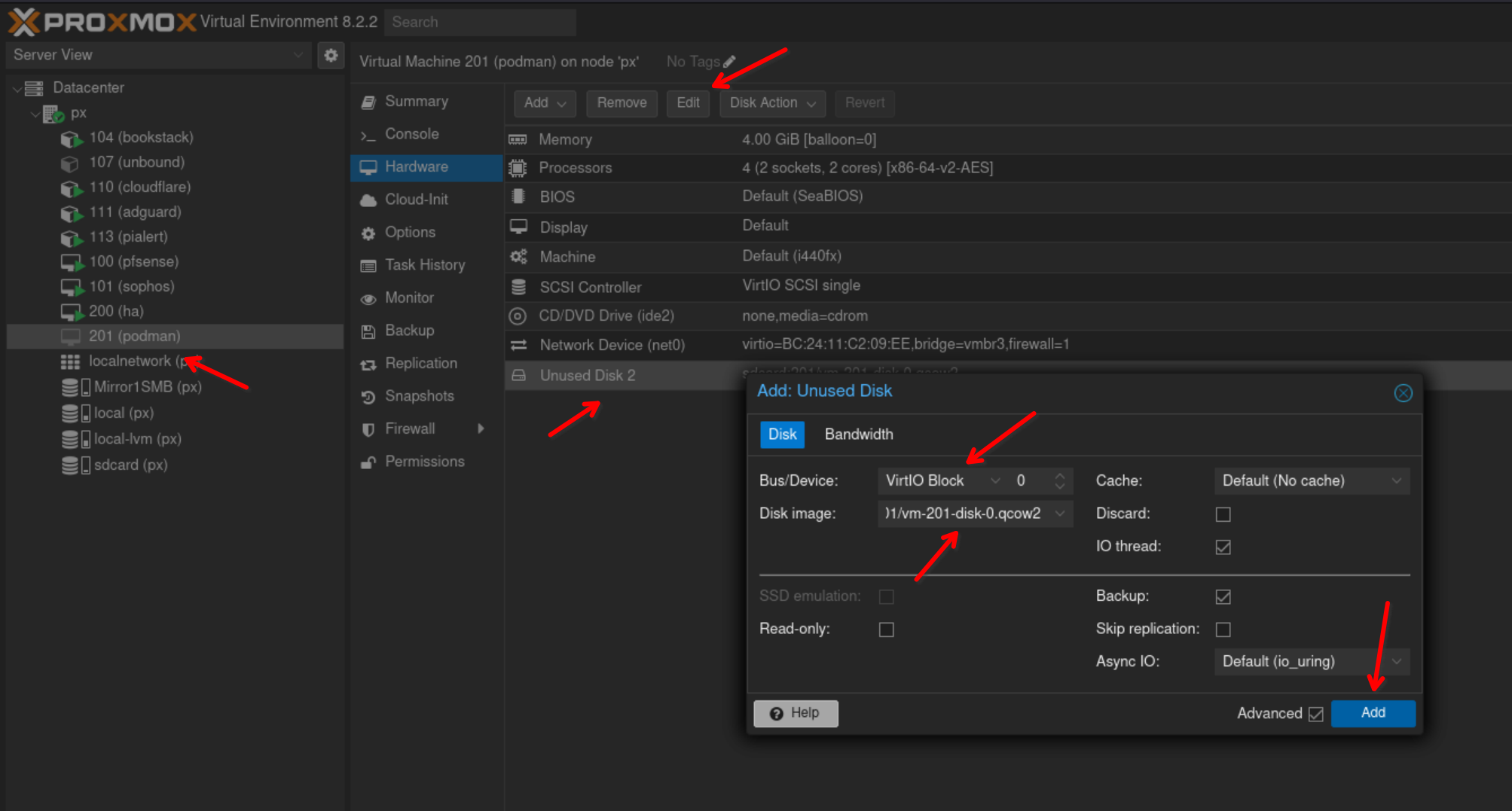
Now we select Unused disk 2 in this example and then edit then Add, make sure Bus/DEvice is set to VirtIO Block
Rebuild proxmox and attach old drives and ZFS pool
first create mount point and mount disk
mkdir /mnt/pve/nvme
mount /dev/nvme01n101 /mnt/pve/nvme
Add Dir to proxmox
pvesm add dir nvme --path /mnt/pve/nvme --content images,rootdir,vztmpl,iso,snippets
pvesm remove nvme to remove (in case it needs to be removed)
lsblk -fs
sdd1 zfs_member 5000 zfs 2868149595680930352
└─sdd
sdd9
└─sdd
sde1 exfat 1.0 Ventoy 4E21-0000
└─sde
sde2 vfat FAT16 VTOYEFI 3F32-27F5
└─sde
pve-swap swap 1 4b7443dd-4357-40d6-98d7-4818f30dc971 [SWAP]
└─sda3 LVM2_member LVM2 001 kPYhIF-2doR-T21m-weoW-bCDV-dzQs-enc6rS
└─sda
pve-root ext4 1.0 b2859389-2b3c-49cb-a5c3-4ff199c9d370 32.4G 7% /
└─sda3 LVM2_member LVM2 001 kPYhIF-2doR-T21m-weoW-bCDV-dzQs-enc6rS
└─sda
pve-data
└─pve-data-tpool
├─pve-data_tmeta
│ └─sda3 LVM2_member LVM2 001 kPYhIF-2doR-T21m-weoW-bCDV-dzQs-enc6rS
│ └─sda
└─pve-data_tdata
└─sda3 LVM2_member LVM2 001 kPYhIF-2doR-T21m-weoW-bCDV-dzQs-enc6rS
└─sda
pve-vm--100--disk--0 ext4 1.0 b0990dfc-450e-463c-b83d-9b3ac5fab81e
└─pve-data-tpool
├─pve-data_tmeta
│ └─sda3 LVM2_member LVM2 001 kPYhIF-2doR-T21m-weoW-bCDV-dzQs-enc6rS
│ └─sda
└─pve-data_tdata
└─sda3 LVM2_member LVM2 001 kPYhIF-2doR-T21m-weoW-bCDV-dzQs-enc6rS
└─sda
nvme0n1p1 ext4 1.0 34336a3a-a495-42a4-a0b9-e970b7165c9e 702.9G 18% /mnt/pve/nvme
└─nvme0n1
echo '34336a3a-a495-42a4-a0b9-e970b7165c9e /mnt/pve/nvme ext4 defaults 0 2' >> /etc/fstab
root@pve:/mnt/pve# echo '34336a3a-a495-42a4-a0b9-e970b7165c9e /mnt/pve/nvme ext4 defaults 0 2' >> /etc/fstab
root@pve:/mnt/pve# cat /etc/fstab
# <file system> <mount point> <type> <options> <dump> <pass>
/dev/pve/root / ext4 errors=remount-ro 0 1
UUID=B107-3B17 /boot/efi vfat defaults 0 1
/dev/pve/swap none swap sw 0 0
proc /proc proc defaults 0 0
34336a3a-a495-42a4-a0b9-e970b7165c9e /mnt/pve/nvme ext4 defaults 0 2
systemctl daemon-reload
for ZFS pool
zpool import -f zfs (name of the pool)
Nvidia Driver Install on Proxmox LXC
1. Blacklist nouveau:
vi /etc/modprobe.d/blacklist-nouveau.conf
2. Paste, save and quit:
blacklist nouveau
options nouveau modeset=0
3. Update initramfs:
update-initramfs -u
4. Check if nouveau is enabled:
lsmod | grep nouveau
5. Disable nouveau and verify:
rmmod nouveau
lsmod | grep nouveau
6. Ensure GPU is visible:
lspci | grep NVIDIA
7. Download driver (check for most recent version compatible with nvidia-utils-xxx-server):
wget https://us.download.nvidia.com/XFree86/Linux-x86_64/550.90.07/NVIDIA-Linux-x86_64-550.90.07.run
chmod +x NVIDIA-Linux-x86_64-550.90.07.run
8.Install build packages:
apt install build-essential pve-headers-$(uname -r)
9. Run instalation:
./NVIDIA-Linux-x86_64-550.90.07.run
10. Check if instalation was successfull:
nvidia-smi
11. [optional] Turn on persistane mode if necessary (lowers IDLE power consumption):
https://docs.nvidia.com/deploy/driver-persistence/index.html
nvidia-smi --persistence-mode=1 #only for current session
nvidia-persistenced
12. After creating CT shut it down and edit lxc configuration file (location might be diffrent):
vi /etc/pve/nodes/pve/lxc/10001.conf
13. run ls -al /dev/nvidia* to find out your VMID, in our case is 195,255
$ sudo ls -al /dev/nvidia*root@pve:/home# ls -al /dev/nvidia*
crw-rw-rw- 1 root root 195, 0 Jan 31 02:03 /dev/nvidia0
crw-rw-rw- 1 root root 195, 255 Jan 31 02:03 /dev/nvidiactl
crw-rw-rw- 1 root root 508, 0 Jan 31 02:03 /dev/nvidia-uvm
crw-rw-rw- 1 root root 508, 1 Jan 31 02:03 /dev/nvidia-uvm-tools
14. Edit your lxc config, /etc/pve/lxc/XXX.conf append the following
lxc.cgroup2.devices.allow: c 195:* rwm
lxc.cgroup2.devices.allow: c 508:* rwm
lxc.mount.entry: /dev/nvidia0 dev/nvidia0 none bind,optional,create=file
lxc.mount.entry: /dev/nvidiactl dev/nvidiactl none bind,optional,create=file
lxc.mount.entry: /dev/nvidia-uvm dev/nvidia-uvm none bind,optional,create=file
lxc.mount.entry: /dev/nvidia-uvm-tools dev/nvidia-uvm-tools none bind,optional,create=file
Conf example
arch: amd64
cores: 4
features: nesting=1
hostname: immich
memory: 8096
mp0: nvme:105/vm-105-disk-1.raw,mp=/nvme/upload,size=500G
mp1: /zfs/media,mp=/mnt/media
nameserver: 192.168.3.1
net0: name=eth0,bridge=vmbr0,hwaddr=BC:24:11:E2:D3:5D,ip=dhcp,type=veth
onboot: 1
ostype: ubuntu
rootfs: nvme:105/vm-105-disk-0.raw,size=50G
swap: 2048
lxc.cgroup2.devices.allow: c 195:* rwm
lxc.cgroup2.devices.allow: c 508:* rwm
lxc.mount.entry: /dev/nvidia0 dev/nvidia0 none bind,optional,create=file
lxc.mount.entry: /dev/nvidiactl dev/nvidiactl none bind,optional,create=file
lxc.mount.entry: /dev/nvidia-uvm dev/nvidia-uvm none bind,optional,create=file
lxc.mount.entry: /dev/nvidia-uvm-tools dev/nvidia-uvm-tools none bind,optional,create=file
14. Push the nvidia driver to your LXC by selecting the LXC VMID
sudo pct push <VMID> ./NVIDIA-Linux-x86_64-550.90.07.run /root/NVIDIA-Linux-x86_64-550.90.07.run15. Install Nvidia driver on LXC
sudo ./NVIDIA-Linux-x86_64-550.90.07.run --no-kernel-moduleTest with nvidia-smi
