WebRTC Phone Management
What Is a WebRTC Phone?
A Genesys Cloud WebRTC phone is a browser or desktop app-based softphone that lets users place and receive calls directly in the Genesys Cloud client — no physical desk phone required. It is the most common phone type for contact center agents, remote users, and fast deployments.
Provisioning Model
WebRTC phones are provisioned in two steps:
Step 1: Create Base Settings
        ↓
Step 2: Create the Phone object
Base Settings is a shared configuration profile that defines how the WebRTC phone behaves. The Phone is the individual user-assigned record that uses those settings. Always build Base Settings first.
Navigation
| Task | Path |
|---|---|
| Open Phone Management | Admin → Telephony → Phone Management |
| Create WebRTC Base Settings | Phone Management → Base Settings tab → Add |
| Create WebRTC Phone | Phone Management → Phones tab → Create New |
| Configure global WebRTC behavior | Admin → Telephony → Global Telephony Settings |
| Configure site media behavior | Admin → Telephony → Sites → [Site] → General |
| User selects WebRTC phone | Genesys Cloud client → Calls panel → phone selector |
Required permission: Telephony > Plugin > All
Step 1: Create Base Settings
| Step | Action |
|---|---|
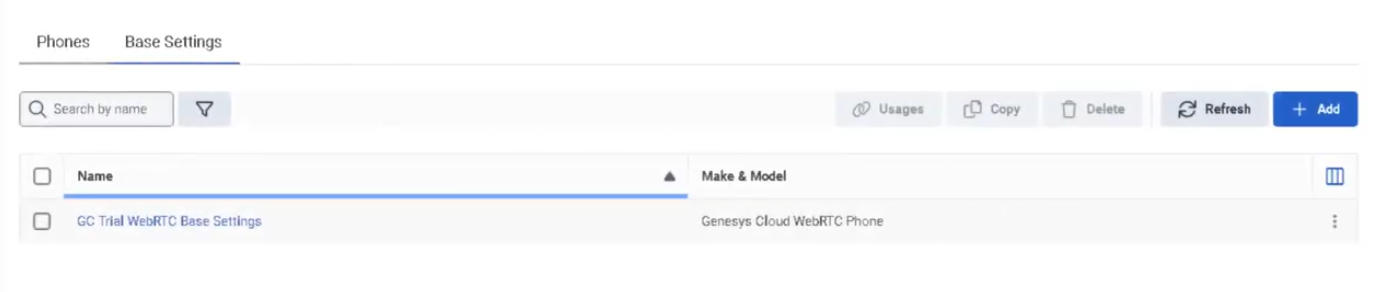
| Step 1 | Navigate to Admin → Telephony → Phone Management |
| Step 2 | Open the Base Settings tab |
| Step 3 | Click Add |
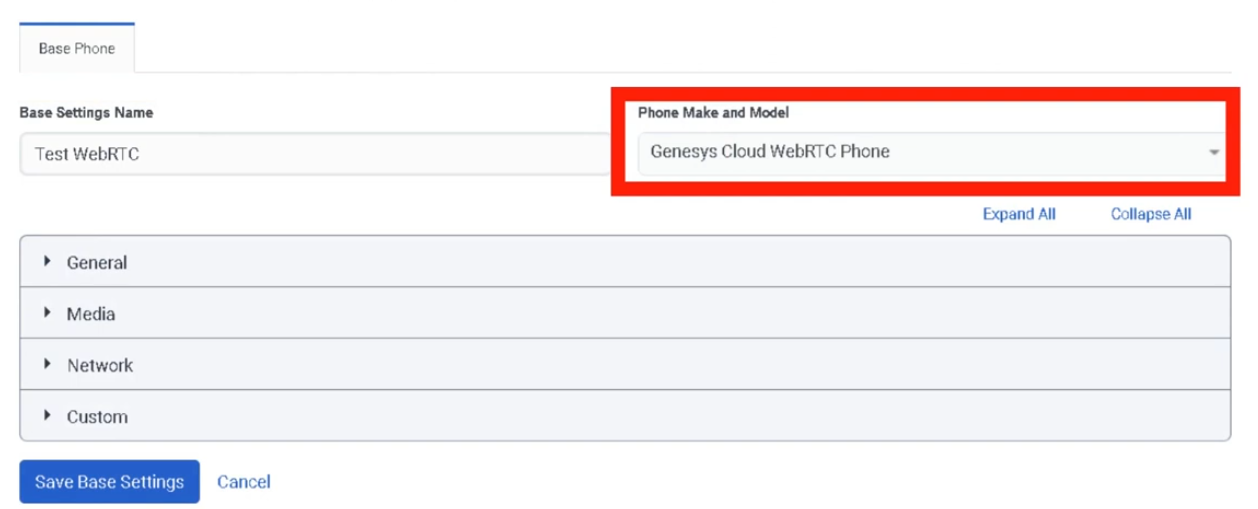
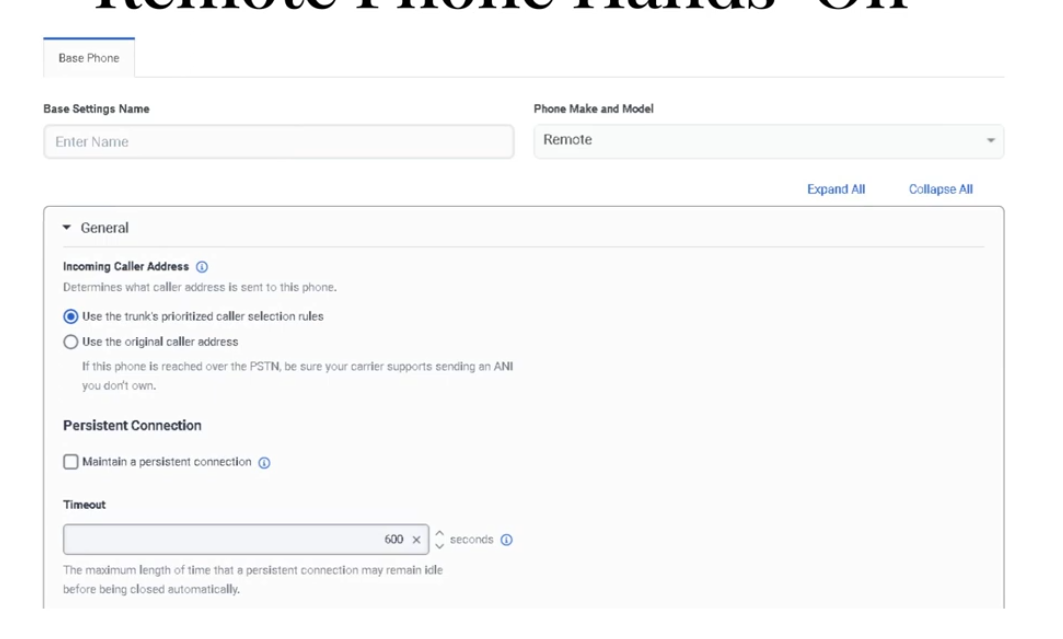
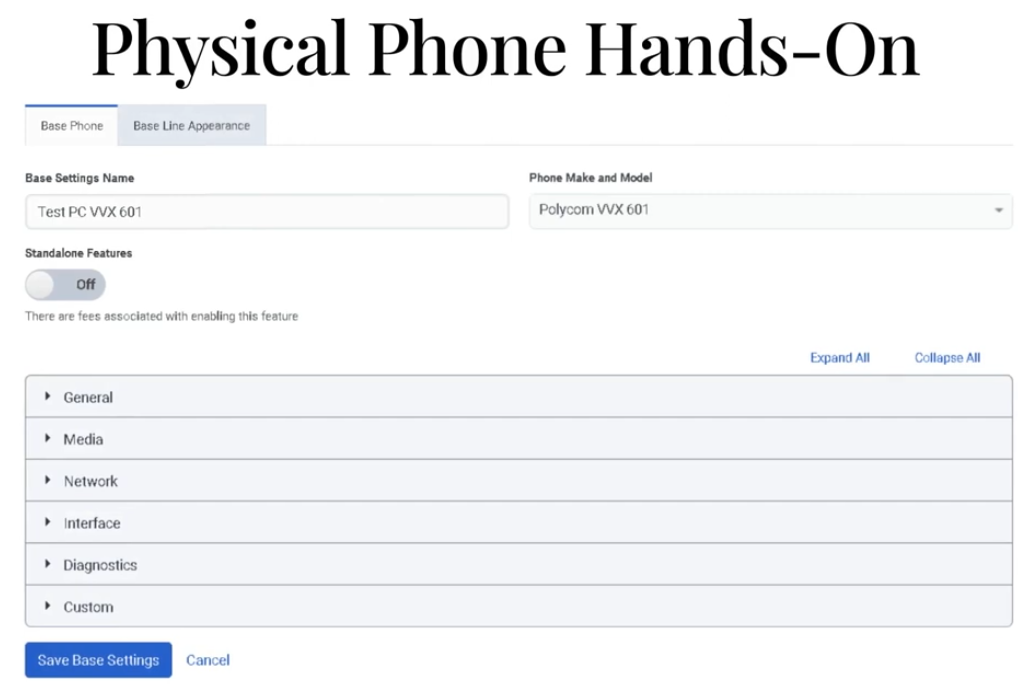
| Step 4 | Enter a Base Settings Name |
| Step 5 | In Phone Make and Model, select Genesys Cloud WebRTC Phone |
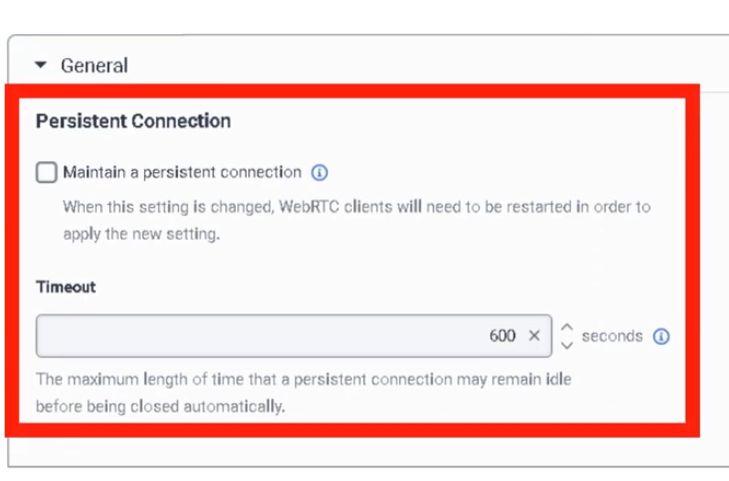
| Step 6 | Enable Persistent Connection if needed |
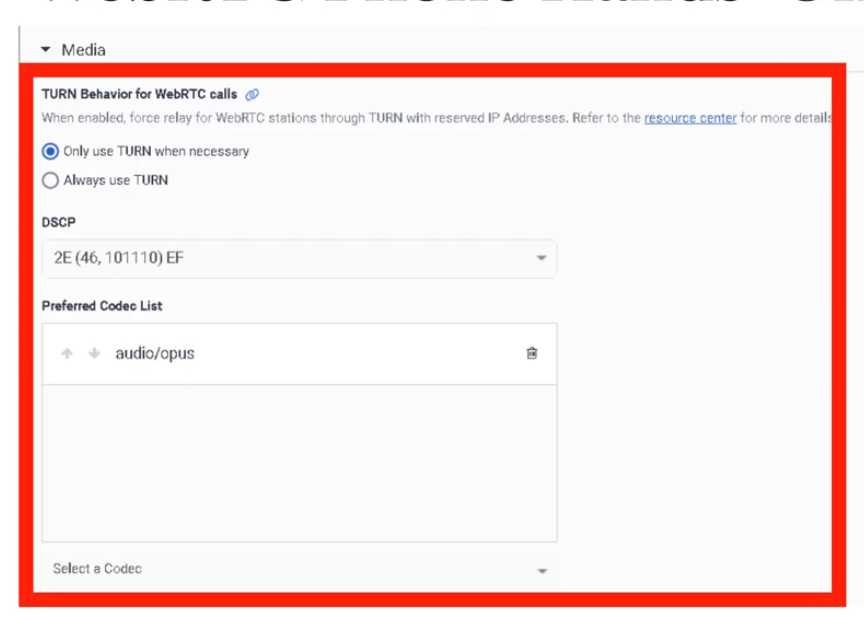
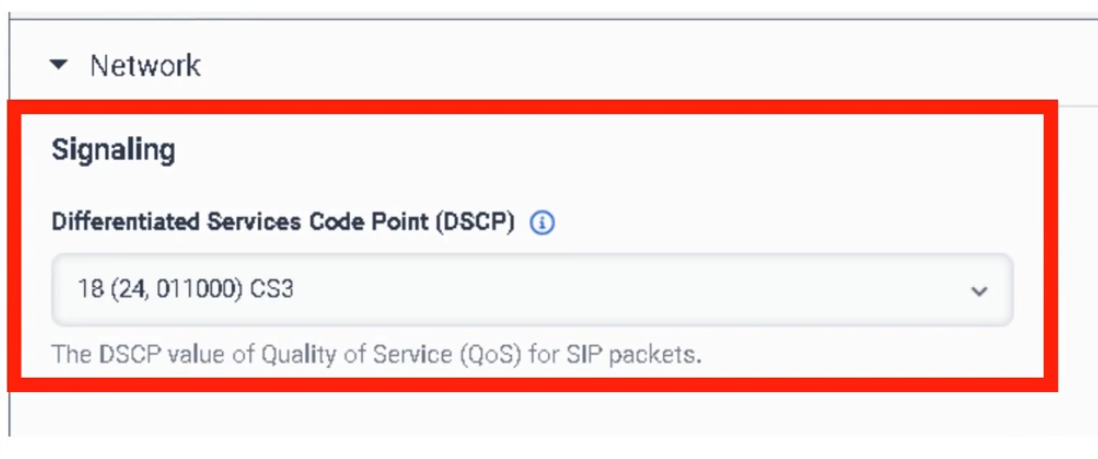
| Step 7 | Configure Transport DSCP Value and Media DSCP Value |
| Step 8 | Click Save Base Settings |
Base Settings Fields
| Field | Description | Notes |
|---|---|---|
| Base Settings Name | Name for this configuration profile | Use a descriptive name e.g. Support_WebRTC_Standard |
| Phone Make and Model | Select the phone type | Choose Genesys Cloud WebRTC Phone |
| Persistent Connection | Keeps the WebRTC connection open after calls end | Improves subsequent call handling speed |
| Persistent Connection Timeout | How long the connection stays active | Configure based on call volume patterns |
| Transport DSCP Value | QoS marking for SIP signaling traffic | Align with enterprise voice network policy |
| Media DSCP Value | QoS marking for audio/media traffic | Align with enterprise voice network policy |
Step 2: Create the Phone
| Step | Action |
|---|---|
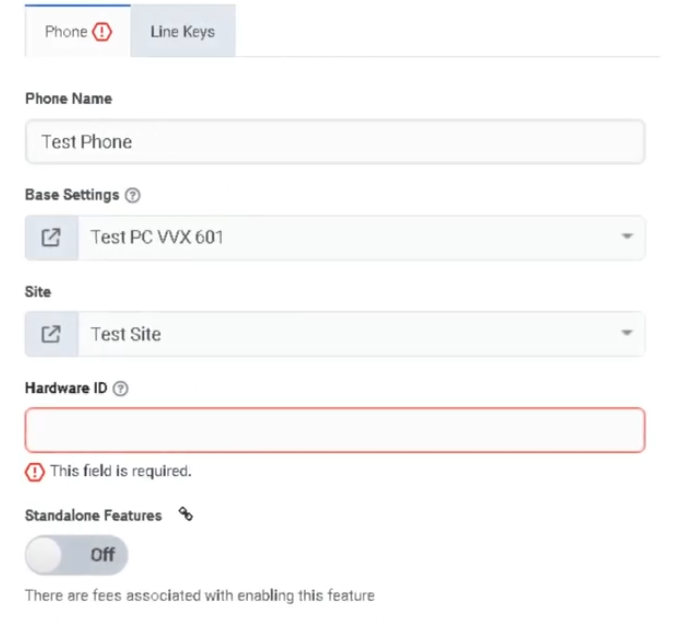
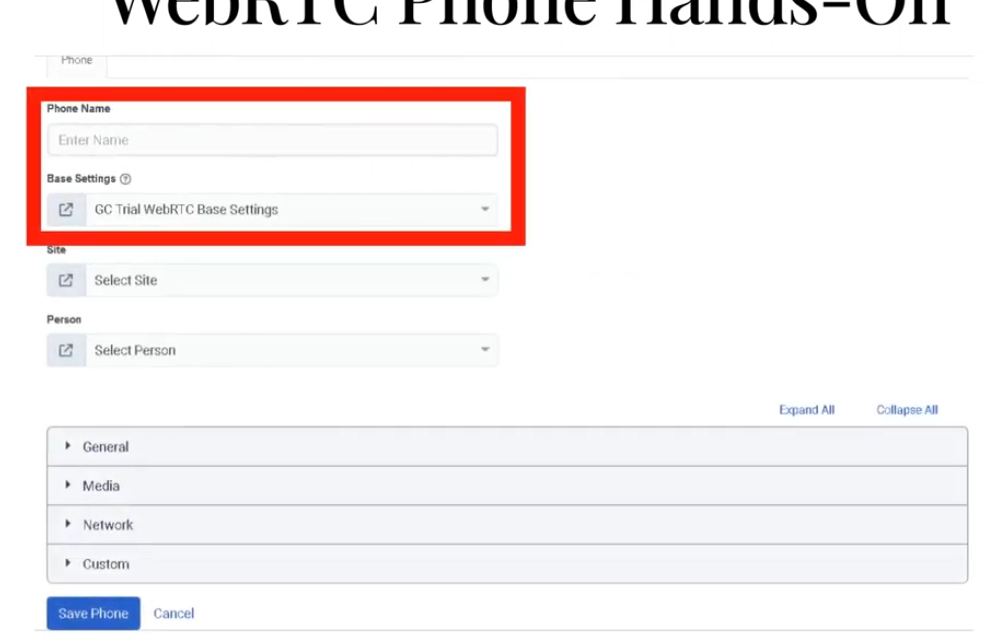
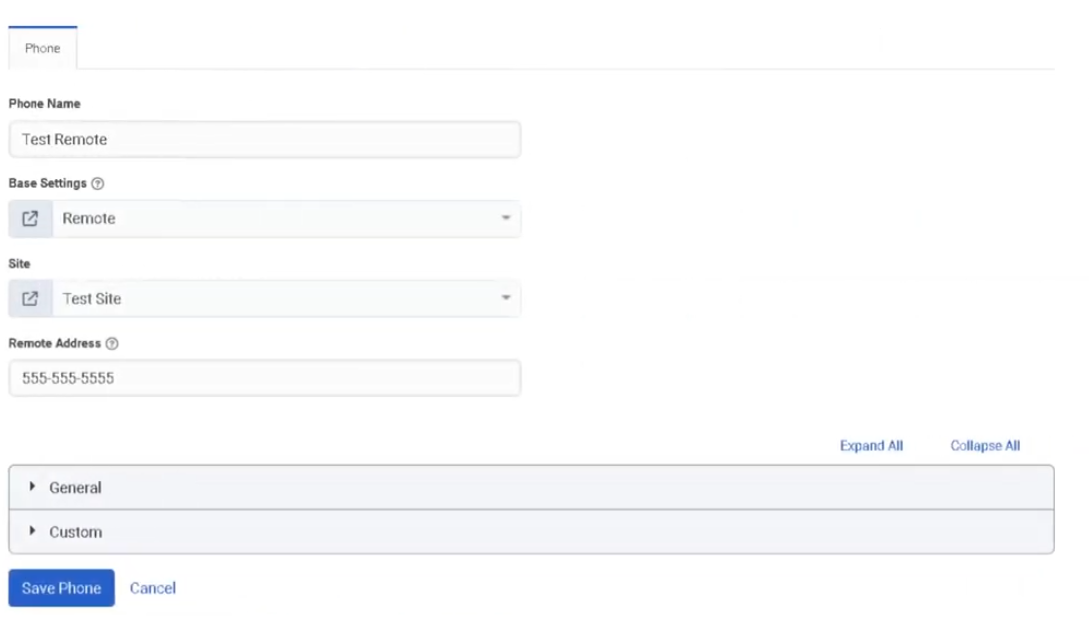
| Step 1 | In Phone Management, open the Phones tab |
| Step 2 | Click Create New |
| Step 3 | Enter the Phone Name |
| Step 4 | Select the Site |
| Step 5 | Select the Base Settings profile created in Step 1 |
| Step 6 | Assign the User |
| Step 7 | Click Save |
| Step 8 | Have the user select the WebRTC phone in the client and test calling |
Persistent Connection
Keeping the WebRTC connection open after a call ends allows subsequent calls to alert faster because the connection is already established.
| Setting | Behaviour |
|---|---|
| Disabled | Connection closes after each call; next call requires fresh connection setup |
| Enabled | Connection stays open for the timeout period; subsequent calls alert immediately |
⚠️ Important: If you enable Persistent Connection after users are already logged in, they must log out and back in for the setting to apply. Genesys recommends making this change outside business hours.
QoS / DSCP
DSCP values mark WebRTC SIP and media traffic so your network can prioritize it. Set these values to match your organization's enterprise voice QoS policy.
| DSCP Field | Applies To |
|---|---|
| Transport DSCP | SIP signaling traffic |
| Media DSCP | Audio/RTP media traffic |
Site-Level WebRTC Media Settings
These are configured on the Site, not in Base Settings. Validate these for every site that will host WebRTC users.
| Field | Options | Description |
|---|---|---|
| Media Regions | Available Home/Core/Satellite regions | Select and prioritize regions for WebRTC / Global Media Fabric |
| Relay/TURN Behavior | Any media region set on this site / Lowest latency via Geo-Lookup | Controls how Genesys selects TURN relay regions for WebRTC calls that need relay services |
| Relay/TURN Option | Best For |
|---|---|
| Any media region set on this site | Strict control — limits TURN relay to configured regions only |
| Lowest latency via Geo-Lookup | Best performance — Genesys dynamically selects lowest-latency TURN region |
⚠️ Forcing TURN relay can reduce resiliency and force RTP through relay services when not otherwise necessary.
User Experience
Users select and manage the WebRTC phone from the Calls panel in the Genesys Cloud client:
- Choose microphone and speaker device
- Adjust volume
- Run audio diagnostics
ℹ️ Recommend using a quality headset rather than laptop built-in speakers and microphone to avoid echo and audio quality issues.
Troubleshooting
| Issue | Cause | Resolution |
|---|---|---|
| User cannot answer calls reliably | Persistent connection disabled or not applied | Enable it; have user log out and back in |
| No audio | Wrong microphone/speaker selected | Verify audio devices in WebRTC phone client settings |
| Poor call quality | DSCP/network/headset issue | Check QoS policy, headset, and local network |
| WebRTC phone not visible to user | Phone not created or not assigned to correct user | Recheck phone assignment |
| Calls do not route | Site/routing configuration issue | Validate site, number plans, and trunks |
| Settings change not applied | User session retained old settings | Log out and back in |
| Unexpected TURN/media path | Site Media Regions or Relay/TURN Behavior misconfigured | Review assigned Site's General tab |
Quick Reference
| Question | Answer |
|---|---|
| How do you add a WebRTC phone? | Create Base Settings first, then create the Phone |
| What model do you select? | Genesys Cloud WebRTC Phone |
| Why enable Persistent Connection? | Improves subsequent call handling speed |
| Where is Relay/TURN Behavior configured? | On the Site, not in Base Settings |
| What should users do after Persistent Connection is enabled later? | Log out and back in |
Naming Convention
| Resource | Example |
|---|---|
| Base Settings | Support_WebRTC_Standard |
| Base Settings | Sales_WebRTC_Remote |
| Phone | AgentName_WebRTC |
Pattern: <BusinessArea>_WebRTC_<Purpose>
See Also
- Sites — Media Regions and Relay/TURN Behavior are configured here
- Topology — confirm phone-to-edge assignments and site relationships
- Architectural Build Order — phones are assigned in Phase 3 (People)
Screenshots
Now Add a phone