Technical & Routing Behaviours
These settings control low-level ACD engine behavior — how agent stations are managed, how skills travel with interactions during transfers, how agents are scored in queue, and global media defaults. Configured under Admin → Account Settings → Organization Settings → Settings → Contact Center Settings.
Navigation Path
| Step | Path |
|---|---|
| 1 | Click Admin |
| 2 | Under Account Settings, click Organization Settings |
| 3 | Click the Settings tab |
| 4 | Locate the Contact Center Settings section |
1. Station & Presence Behavior
Free Seating
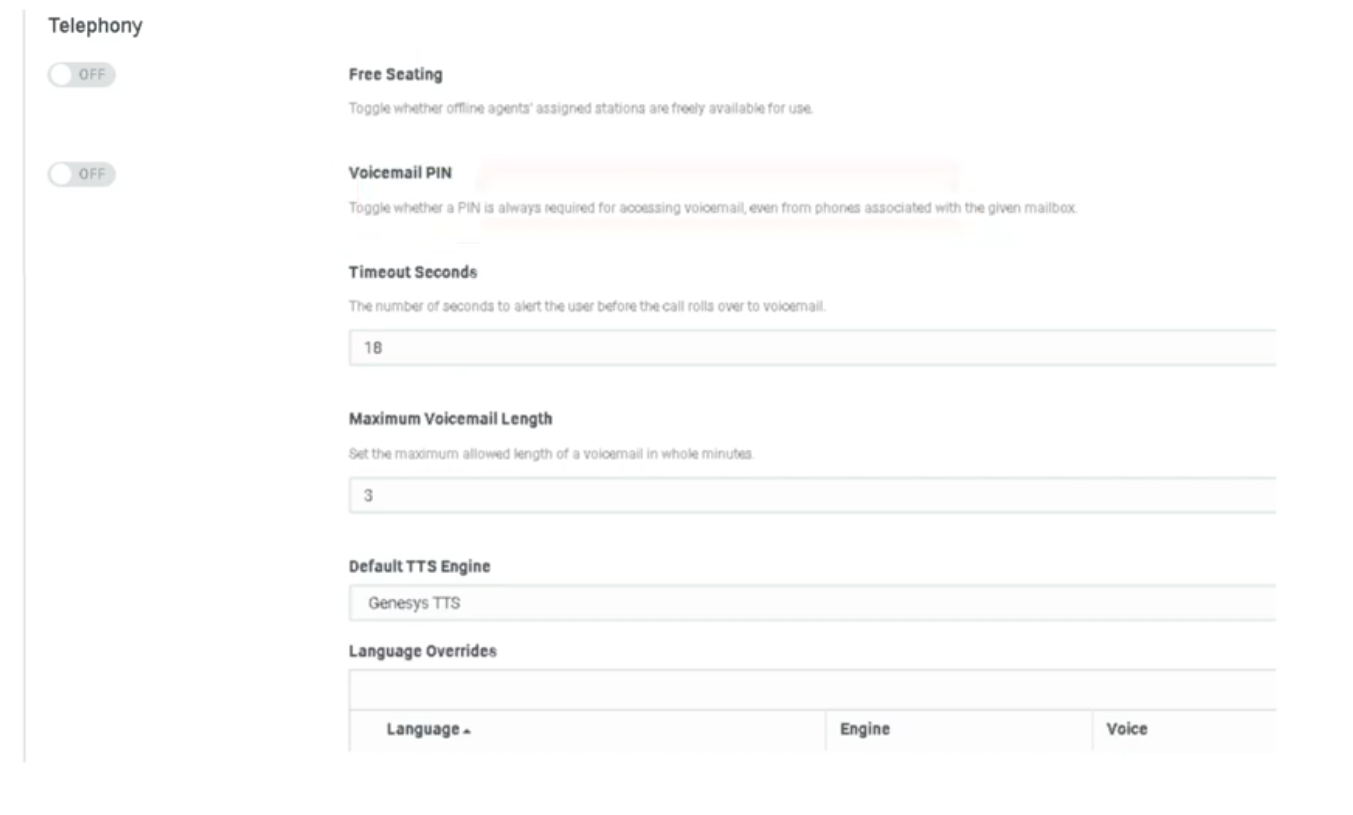
| Setting | Description |
|---|---|
| Free Seating | When enabled, a station (WebRTC or physical phone) is released once an agent goes offline, making it available for the next user who logs in. When disabled, stations remain assigned to specific users and are not shared. |
Use cases:
| Scenario | Recommended Setting |
|---|---|
| 24/7 contact center with shift rotations sharing physical workstations | Enabled |
| Dedicated desks — one agent per station permanently | Disabled |
| Hot-desking environments or work-from-home with shared profiles | Enabled |
📌 Note: Free Seating must also be enabled at the org level before it can be applied to individual user profiles. Requires compatible phone base settings. See Onboarding & Access page for the user-level configuration.
ACD Routing Score Reset
| Setting | Description |
|---|---|
| Reset routing score after presence change | When enabled, an agent's idle time counter resets to zero whenever they change their presence status (e.g., Available → Away → Available). This sends them to the back of the queue priority order. When disabled, agents retain their accumulated idle time through status changes. |
How routing score works:
Genesys Cloud uses idle time to determine which agent receives the next interaction. The agent with the longest idle time (most idle) is prioritized.
| Configuration | Behavior |
|---|---|
| Reset enabled | Agent goes Available → Away → Available = starts at zero idle time, goes to back of the line |
| Reset disabled | Agent retains accumulated idle time through the status change, keeps their queue position |
📌 Telecom note: This is the Genesys equivalent of an Avaya "Most Idle Agent" reset. Use Reset for strict fairness enforcement; disable it to avoid penalizing agents for brief unavoidable status changes (e.g., system-triggered Away).
2. Routing & Transfer Logic
Skill Stripping on Blind Transfers
| Setting | Description |
|---|---|
| Strip skills from voice interactions on blind transfers by agents | When enabled, all ACD skill requirements attached to an interaction are removed when an agent performs a blind transfer to a queue. The interaction arrives at the target queue with no skill requirements, making it eligible for any available agent in that queue. |
Default behavior (skill stripping OFF):
When an agent transfers an ACD call to a queue, Genesys Cloud remembers both the priority and the skills-based information applied to the original call. This means the call will only route to agents in the new queue who also have the required skills.
With skill stripping ON:
All skill requirements are stripped at the moment of blind transfer. The interaction is treated as a fresh, unskilled interaction in the target queue.
| Scenario | Recommended Setting |
|---|---|
| Transfer to a specialized queue where agents may not share the original skills | Enabled — prevents calls getting stuck waiting for a skill no one has |
| Transfer within the same skill group where agents share skills | Disabled — preserves routing context |
⚠️ Important: To apply the Strip Skills on Blind Transfer setting, the agent must select the queue from the suggestions list during the blind transfer. The skill stripping does not apply if the agent manually types a queue name.
📌 Note: Consult transfers always discard skills regardless of this setting.
Preserve Routing Data for Callbacks and Voicemails
| Setting | Description |
|---|---|
| Preserve routing data from calls for callbacks and voicemails | When enabled, the skill and priority data from the original call is preserved when the interaction becomes a callback or voicemail. Ensures the callback or voicemail is routed back to an agent with the same skills that handled the original call. |
Routing Score (Conversation Score vs. Priority Score)
This is configured per queue, not at the org level, but understanding the two models is essential for org-wide routing strategy.
| Score Type | Formula | Best For |
|---|---|---|
| Conversation Score (default) | Arrival time + priority value. One priority point = 60,000 ms (1 minute) of simulated earlier arrival. | Standard fairness — balances wait time with priority. |
| Priority Score | Uses only the absolute priority value assigned in Architect. Time in queue is a tiebreaker only. | VIP lines — high-priority callers jump to the front regardless of how long others have waited. |
📌 Best practice: Set the scoring method at queue creation or when the queue has no waiting interactions. If you change the scoring method midway while the queue has interactions waiting, the waiting interactions may be assigned in an unexpected order. The new scoring method takes effect only after interactions that arrived before the change are routed.
3. Media & Timer Defaults
Voicemail Defaults
| Setting | Default | Description |
|---|---|---|
| Alert Time (Ring Timeout) | 18 seconds | How long the phone rings before the call is forwarded to voicemail. Equivalent to a "ring-no-answer" coverage path in traditional telephony. Configurable per org. |
| Maximum Voicemail Length | 3 minutes (180 seconds) | Maximum duration of a voicemail message a caller can leave. Caps file size for storage and prevents accidental extended recordings. |
| Voicemail PIN | On | Requires users to enter a PIN to retrieve voicemail. Can be disabled org-wide. |
| Voicemail Transcription | Off | Transcribes voicemail audio to text and includes it in email notifications. Requires Speech & Text Analytics. |
📌 See the Global Settings page for the full voicemail settings table including notifications and PII handling.
Default Text-to-Speech (TTS) Engine
| Setting | Description |
|---|---|
| Default TTS Engine | Sets the org-wide voice engine used in Architect flows when no specific engine is defined at the flow level. Affects every flow action that uses Play Audio with TTS or dynamic data playback. |
Available options:
| Engine | Notes |
|---|---|
| Genesys TTS (native) | Built-in, no additional configuration required |
| Google Cloud TTS | Requires AppFoundry integration |
| Microsoft Azure TTS | Requires AppFoundry integration |
| Amazon Polly | Requires AppFoundry integration |
⚠️ Deprecation notice (August 2026): Genesys will end native Enhanced TTS support for select Google and Microsoft voices on August 5, 2026. After that date, those voices require a third-party TTS AppFoundry integration under the BYOT-A billing model. Plan ahead if your Architect flows use Google Standard or Microsoft voices.
📌 Telecom note: Changing the default TTS engine affects every Architect flow that uses dynamic audio or text-to-speech blocks and has not explicitly specified an engine. Test in a non-production flow first.
4. Additional Contact Center Settings
| Setting | Description |
|---|---|
| Turn off file uploading in chats | Disables file attachment capability in Genesys Collaborate (internal chat). Useful for data loss prevention (DLP) compliance. |
| Route email to multiple destinations | Allows inbound email interactions to be sent to more than one queue or destination simultaneously. |
| Enable communication level After Call Work (ACW) | Enables ACW to be tracked and enforced at the individual communication level rather than the interaction level. |
| Enable agents to specify queue for scheduled callbacks | Allows agents to select which queue a scheduled callback is placed in, rather than defaulting to the originating queue. |
| Set maximum interaction data retention time | Controls how long interaction data is retained in Genesys Cloud before automatic deletion. Relevant for compliance and storage management. |
| Manage historical execution data | Configures which Architect flow execution data types are stored and for how long. Used for Replay Mode and flow troubleshooting. |
Telecom Engineer Summary
| Setting | What It Prevents |
|---|---|
| Skill Stripping | Calls stuck in new queues waiting for skills that agents there don't have |
| ACD Routing Reset | Agents gaming status changes to stay at the front of the queue |
| Conversation vs. Priority Score | Unexpected routing order when queue scoring changes mid-operation |
| Voicemail Alert Time | Callers waiting too long before hitting voicemail coverage |
| Free Seating | Unused station licenses being held by offline agents |
Last verified against Genesys Cloud Resource Center – March 2026