Survey forms
| Section |
Description |
| Module Context |
Part of Quality Management and Voice of the Customer capabilities in Genesys Cloud. |
| Purpose |
Allows organizations to collect customer feedback after interactions using web-based surveys such as CSAT and NPS. |
| Admin Location |
Admin → Quality → Survey Forms |
| Key Requirement |
Survey invitations require Survey Invite Flow in Architect and a Quality Policy to trigger survey delivery. |
Survey Forms enable organizations to measure customer satisfaction, service quality, and customer sentiment following interactions. They are typically triggered through policies and Architect flows.
Study Notes
| Topic |
Explanation |
| Survey Forms |
Templates used to collect feedback from customers after interactions. |
| Survey Invite Flow |
Architect flow responsible for sending the survey invitation email or message. |
| Policies |
Determine which interactions trigger surveys. |
| Question Types |
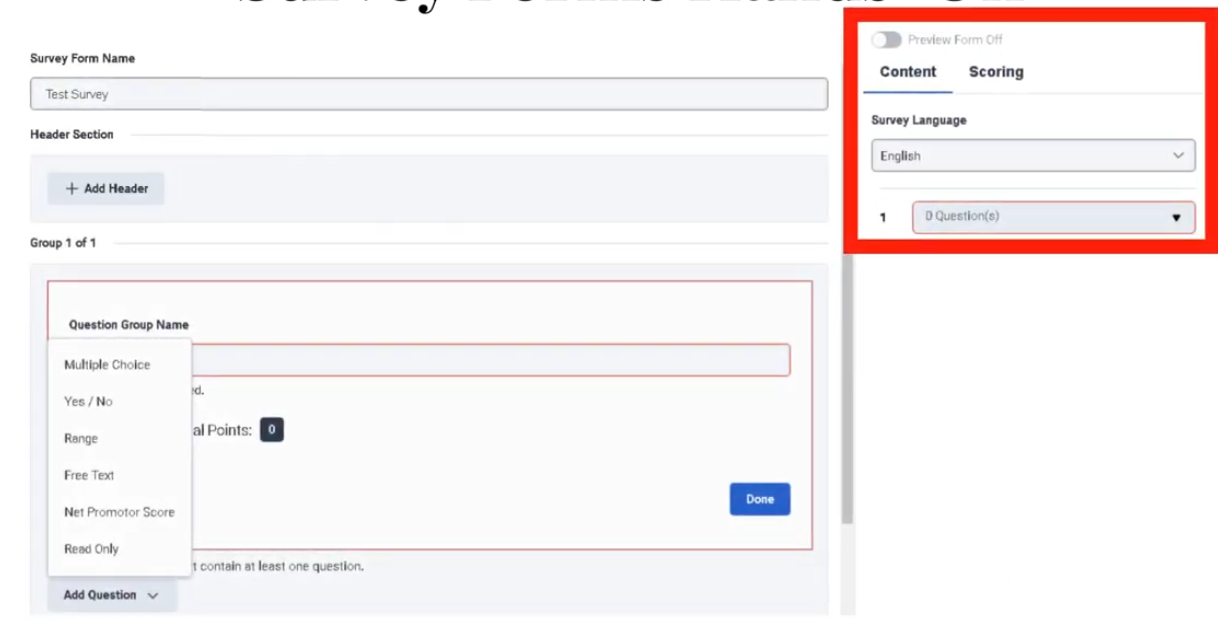
Multiple Choice, Yes/No, Range, Free Text, and Net Promoter Score (NPS). |
| NPS Limit |
Only one NPS question can be used per survey. |
| Survey Language |
Determines language of the survey displayed to the customer. |
| Header Section |
Displays instructions, images, or branding above survey questions. |
Survey feedback helps contact centers monitor customer satisfaction and identify areas for service improvement.
Navigation
| Task |
Navigation |
| Create survey form |
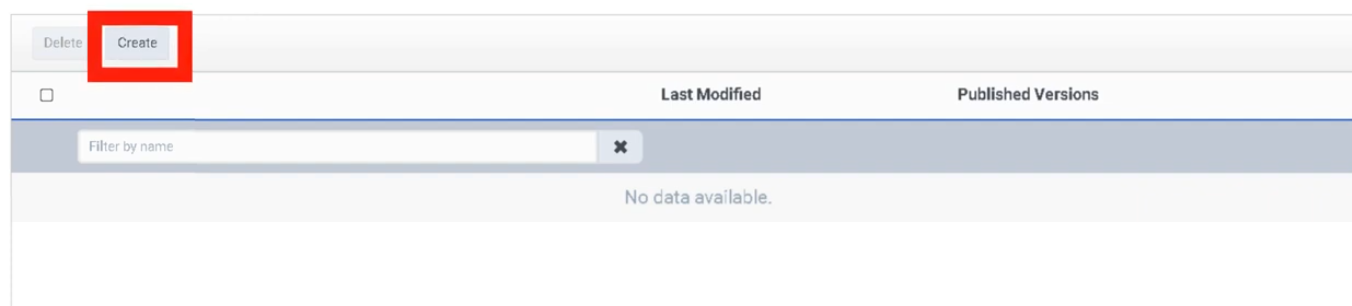
Admin → Quality → Survey Forms → Create |
| Edit survey form |
Admin → Quality → Survey Forms → Select Form |
| Publish survey form |
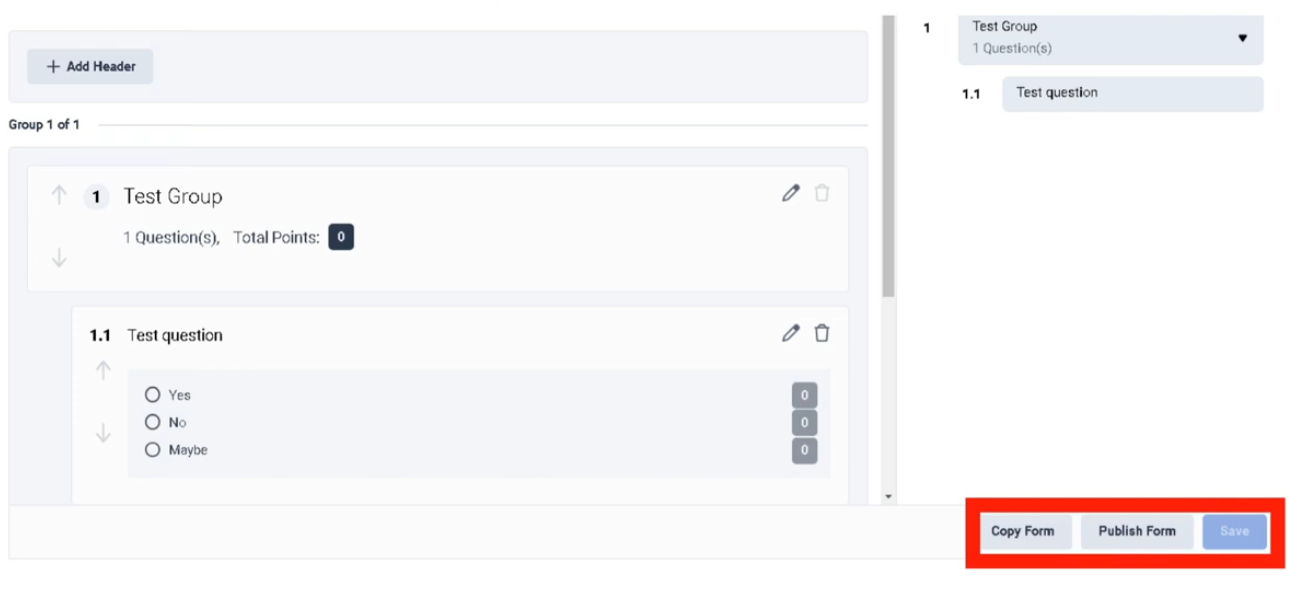
Admin → Quality → Survey Forms → Publish |
| Configure survey invite flow |
Architect → Survey Invite Flow |
| Configure survey policies |
Admin → Quality → Policies |
Configuration Fields (UI Form Fields)
| Field |
Description |
Options |
| Create |
Creates new survey form |
Button |
| Survey Language |
Language used for the survey |
Dropdown |
| Survey Form Name |
Internal survey identifier (not visible to customers) |
Text |
| Header |
Instructional text or image displayed to customer |
Text / Image |
| Add Question |
Adds a survey question |
Button |
| Save |
Saves draft survey form |
Button |
| Publish |
Publishes survey form |
Button |
Question Configuration
| Field |
Description |
Options |
| Question Type |
Defines format of survey question |
Multiple Choice / Yes-No / Range / Free Text / NPS |
| Question Text |
Question shown to the customer |
Text |
| Help Text |
Optional guidance for question |
Text |
| Required |
Makes question mandatory |
Toggle |
| Answer Options |
Choices available for customer response |
Text |
| Range Scale |
Numeric scale used for rating |
1–5 or custom range |
| NPS Question |
Measures customer loyalty |
0–10 scale |
| Delete Question |
Removes question |
Button |
| Reorder Questions |
Change question order |
Drag and drop |
Dependencies
| Component |
Purpose |
| Architect |
Sends survey invitations through survey invite flow |
| Policies |
Determine which interactions trigger surveys |
| Interaction Recording |
Optional integration with quality monitoring |
| Customer Contact Data |
Used to deliver survey invitation |
| Component |
Relationship |
| Architect Survey Invite Flow |
Sends survey invitation email or message |
| Quality Policies |
Automates survey triggers |
| Evaluation Forms |
Complement surveys with internal quality scoring |
| Speech & Text Analytics |
Analyze feedback trends |
| Customer Journey Analytics |
Combine survey feedback with interaction analytics |
| Topic |
Purpose |
| Evaluation Forms |
Internal agent evaluation |
| Quality Policies |
Automate survey delivery |
| Architect Flows |
Configure survey invitation workflow |
| Speech Analytics |
Analyze conversation sentiment |
| Gamification |
Use feedback metrics to motivate agents |
Implementation Checklist
| Step |
Status |
| Create survey form |
☐ |
| Add survey questions |
☐ |
| Publish survey form |
☐ |
| Create Architect survey invite flow |
☐ |
| Configure survey policy |
☐ |
| Test survey delivery |
☐ |
| Review survey analytics |
☐ |
Implementation Guide
| Step |
Action |
| Step 1 |
Navigate to Admin → Quality → Survey Forms |
| Step 2 |
Click Create |
| Step 3 |
Select survey language |
| Step 4 |
Enter survey form name |
| Step 5 |
Add header instructions |
| Step 6 |
Add survey questions |
| Step 7 |
Save survey form |
| Step 8 |
Publish survey form |
| Step 9 |
Configure Architect survey invite flow |
| Step 10 |
Create policy to trigger surveys |
How to Implement
| Phase |
Description |
| Survey Creation |
Create survey form and questions |
| Workflow Setup |
Configure Architect survey invite flow |
| Policy Configuration |
Trigger surveys based on interaction criteria |
| Testing |
Validate survey delivery |
| Monitoring |
Review survey results and customer feedback |
Workflow
Customer Interaction
        ↓
Interaction Ends
        ↓
Quality Policy Evaluates Interaction
        ↓
Survey Invite Flow Triggered
        ↓
Customer Receives Survey Link
        ↓
Customer Completes Survey
        ↓
Feedback Stored in Analytics
Architecture Diagrams
Survey Delivery Architecture
Customer Interaction
        ↓
Genesys Cloud Policy Engine
        ↓
Architect Survey Invite Flow
        ↓
Survey Form Delivery
        ↓
Customer Response
        ↓
Feedback Analytics
Real Flow Scenarios
Post Call Survey
Customer Call Ends
      ↓
Policy Matches Interaction
      ↓
Survey Invite Flow Triggered
      ↓
Customer Receives Email Survey
      ↓
Customer Submits Feedback
Customer Experience Monitoring
Customer Chat Session Ends
      ↓
Survey Triggered
      ↓
Customer Rates Interaction
      ↓
Feedback Used for Performance Monitoring
Usage Scenarios
| Scenario |
Description |
| Post Interaction Survey |
Collect CSAT after call/chat/email |
| Net Promoter Score |
Measure customer loyalty |
| Service Quality Monitoring |
Identify customer dissatisfaction |
| Product Feedback |
Collect insights on services |
| Customer Experience Tracking |
Monitor long-term service trends |
Implementation Examples
| Survey Type |
Example |
| CSAT Survey |
Rate your support experience |
| NPS Survey |
How likely are you to recommend our service |
| Product Feedback Survey |
Rate product knowledge of agent |
| Customer Experience Survey |
Rate overall interaction quality |
Example Survey Structure
| Question |
Type |
| How satisfied are you with our service? |
Range |
| Was your issue resolved? |
Yes / No |
| What could we improve? |
Free Text |
Design Example
Customer Interaction
       ↓
Quality Policy Trigger
       ↓
Architect Survey Flow
       ↓
Survey Delivery
       ↓
Customer Response
       ↓
Analytics Dashboard
Best Practices
| Practice |
Reason |
| Keep surveys short |
Improve completion rate |
| Limit number of questions |
Avoid survey fatigue |
| Use NPS for loyalty tracking |
Standard industry metric |
| Combine surveys with evaluations |
Complete quality monitoring |
| Test survey flows before production |
Ensure delivery reliability |
Naming Convention
| Resource |
Example |
| Survey Form |
Post_Call_CSAT |
| Survey Policy |
Inbound_Call_Survey_Policy |
| Survey Flow |
Customer_Survey_Flow |
Naming Pattern:
<InteractionType>_<Purpose>_Survey
Security Considerations
| Control |
Description |
| Data Privacy |
Protect customer responses |
| Access Permissions |
Restrict survey editing rights |
| Data Retention |
Define retention policies for feedback |
| Compliance |
Ensure survey questions meet regulatory standards |
Limitations / Constraints
| Constraint |
Description |
| NPS Limit |
Only one NPS question allowed per survey |
| Survey Trigger |
Requires Architect survey invite flow |
| Policy Scope |
Applies only to interactions after activation |
| Survey Delivery |
Depends on valid customer contact information |
Troubleshooting
| Issue |
Cause |
Resolution |
| Survey not sent |
Policy not configured |
Verify policy rules |
| Survey invite flow not triggered |
Architect flow misconfiguration |
Validate flow logic |
| Customer not receiving survey |
Missing contact information |
Verify customer email or messaging channel |
| Survey responses missing |
Survey not published |
Publish survey form |
Interview Cheat Sheet
| Question |
Answer |
| What is a Survey Form in Genesys Cloud? |
A form used to collect customer feedback after interactions. |
| What is required to send surveys? |
Survey form, survey invite flow in Architect, and a quality policy. |
| What question types are supported? |
Multiple choice, Yes/No, Range, Free text, and NPS. |
| How many NPS questions can a survey have? |
Only one per survey. |
| When are surveys triggered? |
After interactions that match a policy. |
Key Takeaways
| Topic |
Summary |
| Survey Forms |
Collect customer feedback after interactions |
| Architect Integration |
Survey invite flows deliver surveys |
| Policies |
Automate survey triggers |
| NPS |
Measures customer loyalty |
| Customer Feedback |
Provides insight into service quality |
Screenshots
Create survey form

Select Survey Language - Preview form on would allow you to preview form

Publish to view on survey form

Question Group Name
| Field |
Description |
Implementation Purpose |
Example |
| Question Group Name |
A label used to organize related survey questions into a logical section. |
Helps structure surveys into categories such as service quality, agent behavior, or product feedback. |
Customer Experience |
How It Appears in the UI
When creating a survey form:
Survey Form Builder
      ↓
Add Question Group
      ↓
Enter Question Group Name
      ↓
Add Questions Within the Group
Example layout:
Survey Form: Post_Call_CSAT

Question Group: Customer Experience
    - How satisfied are you with the service?
    - Was your issue resolved?

Question Group: Agent Interaction
    - Was the agent professional?
    - Did the agent explain the solution clearly?
Why Question Groups Are Important
| Benefit |
Explanation |
| Improves survey readability |
Customers understand sections of the survey |
| Organizes feedback categories |
Helps separate customer experience from product feedback |
| Simplifies analytics |
Enables grouping of related feedback metrics |
Best Practices
| Practice |
Reason |
| Use clear group names |
Makes survey easier to interpret |
| Limit number of groups |
Avoid overwhelming customers |
| Group related questions only |
Maintain logical structure |
Naming Examples
| Group Type |
Example |
| Customer Experience |
Customer_Satisfaction |
| Agent Performance |
Agent_Interaction |
| Product Feedback |
Product_Feedback |
Key Implementation Tip
Keep group names customer-friendly if visible in the survey, and short but descriptive for reporting purposes.