Recording Management
Recording Management (Genesys Cloud Quality & Performance Management)
| Section |
Description |
| Module Context |
Part of Quality Management / Workforce Engagement Management (WEM) |
| Admin Location |
Admin → Quality → Recording Management |
| Purpose |
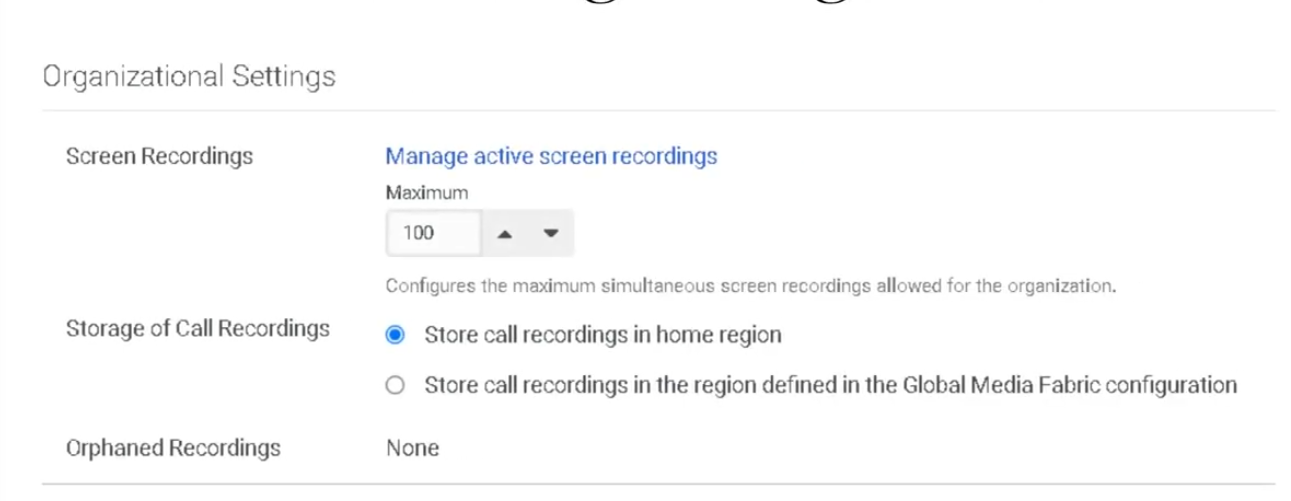
Manage recording infrastructure settings, including screen recording limits, recording URL expiration, storage region configuration, and orphaned recording handling |
Recording Management controls how call recordings and screen recordings are stored, accessed, and processed in Genesys Cloud. It also provides administrative controls to prevent excessive bandwidth usage and maintain recording lifecycle management. :contentReference[oaicite:1]{index=1}
Study Notes
| Topic |
Explanation |
| Interaction Recording |
Captures voice/audio recordings for interactions |
| Screen Recording |
Records agent desktop activity during interactions |
| Recording Storage |
Determines regional storage for recordings |
| URL Expiration |
Controls how long recording download/playback links remain valid |
| Orphaned Recordings |
Recordings left on Edge devices when upload or deletion fails |
| Screen Recording Concurrency |
Prevents too many desktop recordings from running simultaneously |
Key behavior:
- Screen recording concurrency limit = maximum 2000 recordings simultaneously. :contentReference[oaicite:2]{index=2}
- Playback/download links expire after 2–60 minutes. :contentReference[oaicite:3]{index=3}
- Orphaned recordings appear when recordings remain on the Edge device due to processing failures. :contentReference[oaicite:4]{index=4}
Navigation
| Task |
Navigation |
| View recording settings |
Admin → Quality → Recording Management |
| Manage orphaned recordings |
Admin → Quality → Recording Management → Orphaned Recordings |
| Configure recording retention |
Admin → Quality → Policies |
| View recordings |
Performance → Workspace → Interactions |
Configuration Fields (UI Form Fields)
Recording Management Main Page
| UI Field |
Description |
Real Options |
| Maximum Simultaneous Screen Recordings Allowed |
Limits concurrent screen recordings to prevent excessive bandwidth usage |
0–2000 recordings |
| Number of Currently Active Screen Recordings |
Displays number of screen recordings currently running |
Read-only counter |
| Recording Playback URL Time-to-live |
Time period playback link remains valid |
2–60 minutes (Default 60) |
| Recording Batch Download URL Time-to-live |
Time period batch download link remains valid |
2–60 minutes (Default 60) |
| Storage of Call Recordings |
Determines where recordings are stored |
Home Region or Global Media Fabric trunk region |
| Orphaned Recordings |
Displays number of recordings stranded on Edge devices |
Clickable link |
| Save |
Apply configuration changes |
Button |
Orphaned Recordings UI Fields
| UI Field |
Description |
Options |
| Conversation Status Filter |
Filter orphan recordings by conversation availability |
All / Known Conversation |
| Play Recording |
Play orphan recording |
Button |
| Download Recording |
Download recording file |
Button |
| Delete Recording |
Delete orphan recording |
Button |
| Attach Recording to Conversation |
Reattach recording to conversation |
Button |
| Archive Date |
Optional archive date when reattaching |
Date selector |
| Delete Date |
Optional deletion date when reattaching |
Date selector |
| Reattach |
Confirm recording reattachment |
Button |
Orphan recordings exist when Genesys cannot determine what to do with a recording based on policy, often when interaction processing fails. :contentReference[oaicite:5]{index=5}
Dependencies
| Component |
Purpose |
| Interaction Recording |
Required to capture recordings |
| Screen Recording Policies |
Control when desktop recording begins |
| Quality Policies |
Define recording retention |
| Edge Devices |
Temporary recording storage |
| Encryption Keys |
Secure recordings |
| Component |
Relationship |
| Evaluation Forms |
Evaluators review recordings |
| Quality Policies |
Control retention and automation |
| Speech & Text Analytics |
Analyze conversations |
| Interaction Analytics |
Access recordings in interaction details |
| Survey Forms |
Link customer feedback to interactions |
| Topic |
Description |
| Evaluation Forms |
Score agent interactions |
| Survey Forms |
Customer feedback |
| Quality Policies |
Automate evaluation & retention |
| Encryption Keys |
Secure recordings |
| Speech Analytics |
Analyze conversation transcripts |
Implementation Checklist
| Task |
Status |
| Enable interaction recording |
☐ |
| Configure screen recording concurrency |
☐ |
| Configure recording storage region |
☐ |
| Set URL expiration policies |
☐ |
| Configure recording retention policies |
☐ |
| Monitor orphaned recordings |
☐ |
Implementation Guide
| Step |
Action |
| Step 1 |
Navigate to Admin → Quality → Recording Management |
| Step 2 |
Configure maximum simultaneous screen recordings |
| Step 3 |
Configure playback/download URL expiration |
| Step 4 |
Select recording storage region |
| Step 5 |
Configure recording retention policies |
| Step 6 |
Monitor orphan recordings |
How to Implement
| Phase |
Description |
| Recording Configuration |
Enable recording and screen recording |
| Infrastructure Setup |
Configure storage region |
| Performance Control |
Set concurrency limits |
| Lifecycle Management |
Configure retention policies |
Workflow
Customer Interaction
        ↓
Recording Engine Captures Interaction
        ↓
Recording Stored in Cloud Storage
        ↓
Quality Policy Applies Retention Rules
        ↓
Recording Available for Evaluation / Analytics
Architecture Diagram
Customer Interaction
        ↓
Genesys Recording Engine
        ↓
Temporary Storage (Edge)
        ↓
Upload to Cloud Storage
      ├─ Home Region
      └─ Global Media Fabric
        ↓
Quality Management
      ├─ Evaluations
      ├─ Speech Analytics
      └─ Compliance Monitoring
Real Flow Scenarios
Scenario 1 – Quality Monitoring
Customer Call
      ↓
Recording Enabled
      ↓
Recording Stored
      ↓
Evaluator Reviews Interaction
Scenario 2 – Orphan Recording Recovery
Recording Stored on Edge
      ↓
Upload Failure
      ↓
Recording Marked Orphan
      ↓
Admin Reattaches Recording
Usage Scenarios
| Scenario |
Description |
| Compliance recording |
Financial or healthcare compliance |
| Agent coaching |
Review recordings for training |
| Dispute resolution |
Investigate customer complaints |
| Performance analytics |
Evaluate service quality |
Implementation Examples
| Example |
Configuration |
| Large contact center |
Screen recording concurrency = 1000 |
| Compliance environment |
Store recordings in home region |
| Security environment |
Playback URL TTL = 10 minutes |
Design Example
Inbound Support Call
        ↓
Recording Policy Triggered
        ↓
Recording Stored
        ↓
Evaluation Assigned
        ↓
Supervisor Review
Best Practices
| Practice |
Reason |
| Monitor orphan recordings |
Prevent stranded recordings |
| Configure concurrency limits |
Avoid system overload |
| Use retention policies |
Manage storage growth |
| Secure recordings with encryption |
Protect sensitive data |
| Align storage region with compliance |
Regulatory requirements |
Naming Convention
| Resource |
Example |
| Recording Policy |
Support_Call_Recording |
| Screen Recording Policy |
Agent_Desktop_Recording |
| Storage Configuration |
Global_Recording_Storage |
Naming pattern:
<Department>_<Purpose>_Recording
Security Considerations
| Control |
Description |
| Encryption Keys |
Protect recording data |
| Role-based access |
Limit recording access |
| URL expiration |
Prevent unauthorized playback access |
| Compliance storage |
Regional storage requirements |
Limitations / Constraints
| Constraint |
Description |
| Max screen recordings |
2000 concurrent |
| Playback URL TTL |
Minimum 2 minutes, maximum 60 minutes |
| Batch download TTL |
Minimum 2 minutes, maximum 60 minutes |
| Screen recording retention |
Up to 365 days |
Troubleshooting
| Issue |
Cause |
Resolution |
| Screen recordings not starting |
Concurrency limit reached |
Increase limit |
| Recording unavailable |
Storage configuration error |
Verify region |
| Playback link expired |
TTL expired |
Generate new link |
| Recording missing |
Recording policy disabled |
Enable policy |
Interview Cheat Sheet
| Question |
Answer |
| What is Recording Management? |
Admin area used to control recording infrastructure |
| What is the maximum concurrent screen recordings limit? |
2000 |
| What does TTL control? |
Recording playback/download link expiration |
| What are orphan recordings? |
Recordings stranded on Edge devices |
Key Takeaways
| Topic |
Summary |
| Recording Management |
Controls recording infrastructure |
| Screen Recording |
Desktop activity recording |
| URL Expiration |
Secure recording access |
| Storage Configuration |
Determines where recordings are stored |
| Orphan Recordings |
Recovery mechanism for failed uploads |
Screenshots