Queues
| Topic | Detail |
|---|---|
| Navigation | Admin → Contact Center → Queues |
| Purpose | Core ACD routing objects that hold interactions until an agent is available |
| Max Queues | 5,000 queues per organization |
| Max Members | 5,000 members per queue |
| Tabs | General, Routing, Members, Voice, Chat, Message, Email, Callback, Wrap-Up Codes |
Step 1 — Initial Queue Creation


Step 2 — General Tab
| Field | Description |
|---|---|
| After Call Work (ACW) Mode | Controls how agents transition out of ACW after each interaction |
| ACW Timeout | Maximum ACW duration in seconds — max is 900 seconds |
| Manual Assignment | Allows supervisors to manually push waiting interactions to specific agents (rarely used in high-volume environments) |
ACW Modes
| Mode | Behavior |
|---|---|
| Mandatory Timeboxed | Automatically returns agent to Available after the ACW timeout expires |
| Mandatory Discretionary | Agent stays in ACW until they manually click to finish |
| Optional | Agent can choose to enter ACW or skip it |
| Optional Timed | ACW is optional, but auto-ends after the timeout |
| None | No ACW — agent is immediately available after interaction ends |
⚠️ Mandatory Timeboxed is most common in high-volume voice environments. Mandatory Discretionary is preferred when agents need time to complete CRM updates before going available again.
Step 3 — Routing Tab
Routing Methods
| Method | Behavior |
|---|---|
| Standard | Routes to the longest-idle available agent matching skills |
| Bullseye | Starts with strict skill requirements; relaxes requirements in rings over time if no agent found |
| Predictive | Uses AI to match the best agent to the specific caller based on historical outcomes |
Evaluation Methods
| Method | Behavior |
|---|---|
| All Skills Matching | Agent must have every skill required by the interaction |
| Best Available Skills | Routes to the agent with the highest combined skill proficiency |
Scoring Methods
| Method | Formula / Behavior |
|---|---|
| Conversation Score | Score = (Minutes in Queue) + (Priority Value) — allows high-priority calls to jump ahead of older, lower-priority calls |
| Priority Score | Ranks strictly by priority value set in Architect flow; equal-priority interactions handled FIFO |

Step 4 — Members Tab
| Option | Description |
|---|---|
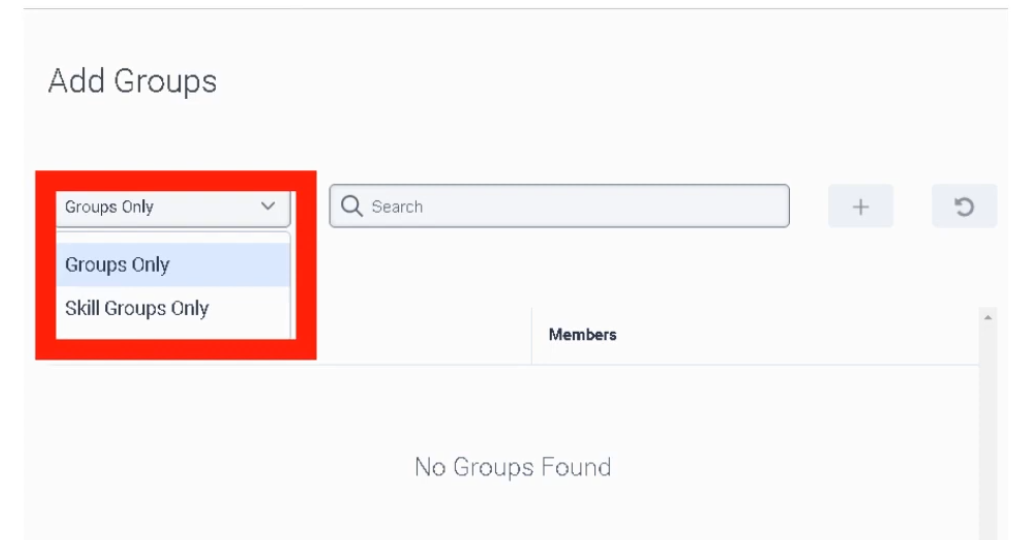
| Add User | Search for and add individual agents |
| Add Work Team | Add an entire Work Team to the queue |
⚠️ Generally add either individual users or a Work Team — not a mix of both for the same queue.


Step 5 — Media-Specific Tabs
Voice Tab
| Field | Description |
|---|---|
| Service Level | Target percentage of calls answered within the SLA window (e.g., 80%) |
| Service Level Target | Time goal in seconds (e.g., 20 seconds) |
| In-Queue Flow | Architect flow handling the caller's wait experience — plays hold music, EWT announcements, or offers callback |
| Calling Party Name/Number | Outbound caller ID shown to recipients when agents call on behalf of this queue |
| Alerting Timeout | Seconds a call rings at an agent's station before being routed to the next available agent |
| Default Script | Script that pops on the agent's screen when they answer |
| Whisper Prompt | Short audio clip played only to the agent just before the caller connects — helps agents pivot context across multiple queues |
| Auto-Answer | If enabled, call connects to agent automatically without requiring them to click Answer |
| Continue Voice Recording during Q-Wait | Enabled = records hold music; Disabled = recording starts only when agent and caller connect (saves storage) |

Chat Tab
| Field | Description |
|---|---|
| Service Level & Target | SLA goal — digital targets are typically slightly longer than voice (e.g., 80% within 30 seconds) |
| Alerting Timeout | Seconds chat request flashes on agent screen before rerouting to next available agent |
| Auto-Answer | Enabled = chat session connects automatically; Disabled = agent must click Answer |
| Default Script | Published script that loads for the agent — often includes Data Actions to look up customer account data |
| In-Queue Flow (Message Flow) | Architect flow managing the customer wait experience — handles welcome messages and position-in-queue announcements |

Message Tab
Covers SMS, WhatsApp, Facebook Messenger, and LINE. Messaging is asynchronous — customers may not reply immediately.
| Field | Description |
|---|---|
| Service Level & Target | SLA goal — messaging SLAs are typically more relaxed than voice (e.g., 80% within 60 seconds) |
| Alerting Timeout | Seconds the notification flashes for the agent before rerouting |
| Auto-Answer | Enabled = message thread pops open immediately; recommended for high-volume SMS/WhatsApp queues |
| In-Queue Message Flow | Architect Inbound Message Flow — acts as a digital IVR, can collect account number or reason for contact via bot |
| Default Script | Script displaying customer data such as phone number or WhatsApp display name |
| Outbound SMS Number | DID or Short Code used when an agent starts a new outbound SMS — must be provisioned in SMS Inventory |

Email Tab
| Field | Description |
|---|---|
| Service Level & Target | SLA goal — email targets are typically set in hours rather than seconds (e.g., 90% within 4 hours) |
| Alerting Timeout | Seconds email flashes on agent screen before moving to next agent |
| Auto-Answer | Enabled = email workspace opens immediately; best for high-volume ticket environments |
| Outbound Email Address | Address recipients see when an agent replies (e.g., support@company.com) |
| Email Domain | Verified domain used for outbound email — validates sender identity |
| In-Queue Email Flow | Architect Inbound Email Flow — can perform keyword routing (e.g., raise priority if subject contains "Billing") |
| Default Script | Script displaying customer history or canned response suggestions |
| Auto-Reply | Sends an immediate acknowledgement to the customer before an agent reviews the email |

Callback Tab
| Field | Description |
|---|---|
| Service Level & Target | SLA goal — callback clock typically starts when the agent's phone rings for the return call |
| Alerting Timeout | Seconds callback request flashes on agent screen before rerouting |
| Allow Agents to Take Ownership | Agents can claim a scheduled callback so it routes back specifically to them |
| Ownership Duration | How long callback remains reserved for the specific agent — 1 hour to 7 days |
| Advance Scheduling | How far in advance an agent can schedule a callback — 1 hour to 30 days |
| Auto-Answer | Enabled = system dials customer and connects agent automatically; Disabled = agent must manually click Call |

Wrap-Up Codes Tab
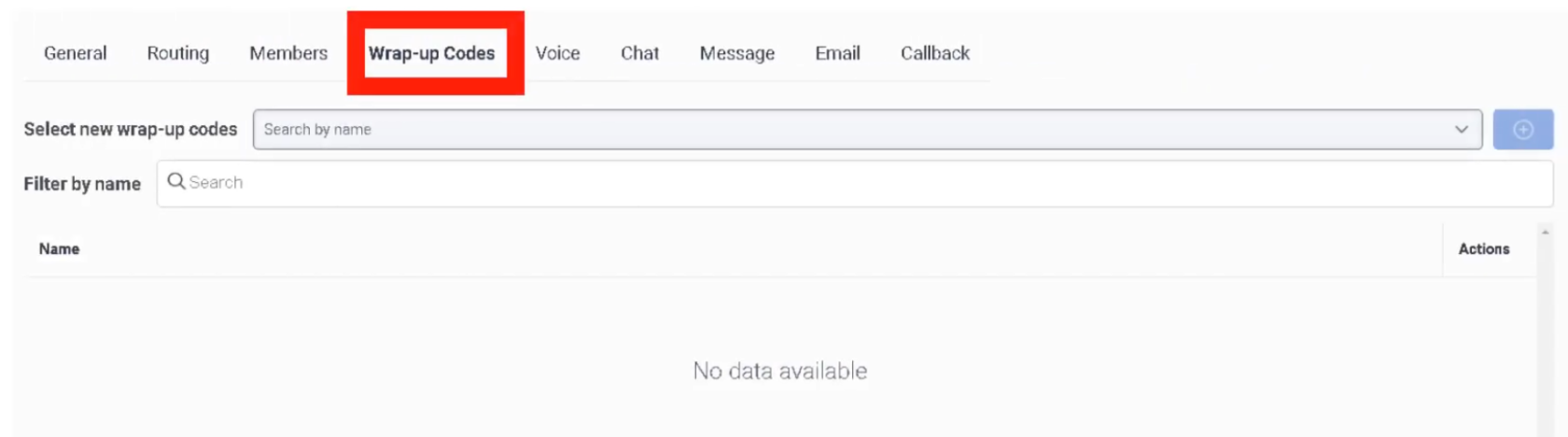
⚠️ Critical: If wrap-up codes are not added to the queue here, agents cannot tag their interactions even if the codes exist globally in the system.
Interview Cheat Sheet
| Question | Answer |
|---|---|
| Max queues per org? | 5,000 |
| Max members per queue? | 5,000 |
| Max ACW timeout? | 900 seconds |
| What does Bullseye routing do? | Starts with strict skills; relaxes requirements in rings over time |
| Conversation Score formula? | Minutes in Queue + Priority Value |
| When does an interaction count toward utilization? | When it starts Alerting (ringing), not when answered |
| Can you mix Users and Work Teams in a queue? | Not recommended — use one or the other |