Groups (People & Permissions)
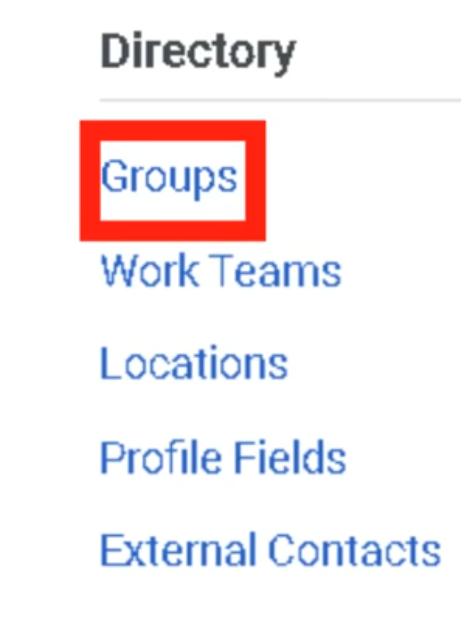
Genesys Cloud has two distinct group systems that serve completely different purposes. This page covers Directory Groups — the groups used for access control, role assignment, queue membership, and communication. Do not confuse these with Work Teams (WFM-specific groupings) or group workspaces (document sharing). All group management lives under Admin → Directory → Groups.
Navigation Path
| Task | Path |
|---|---|
| Manage all groups | Admin → Directory → Groups |
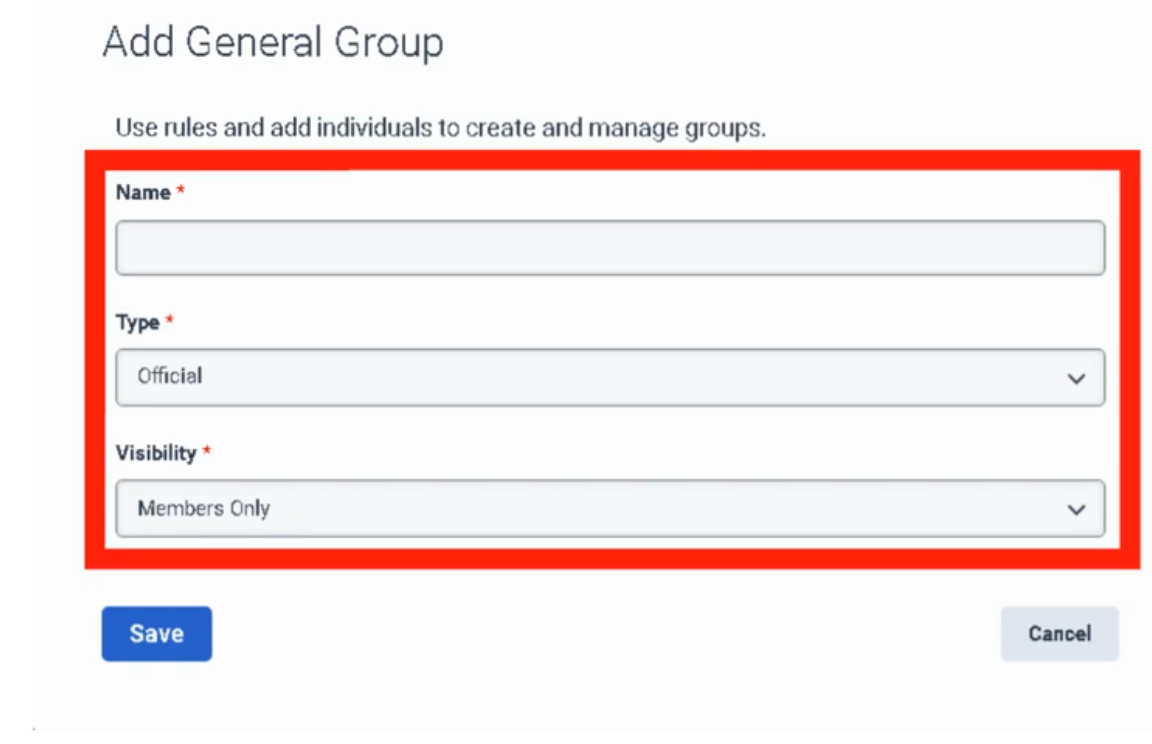
| Create a group | Admin → Directory → Groups → Add Group |
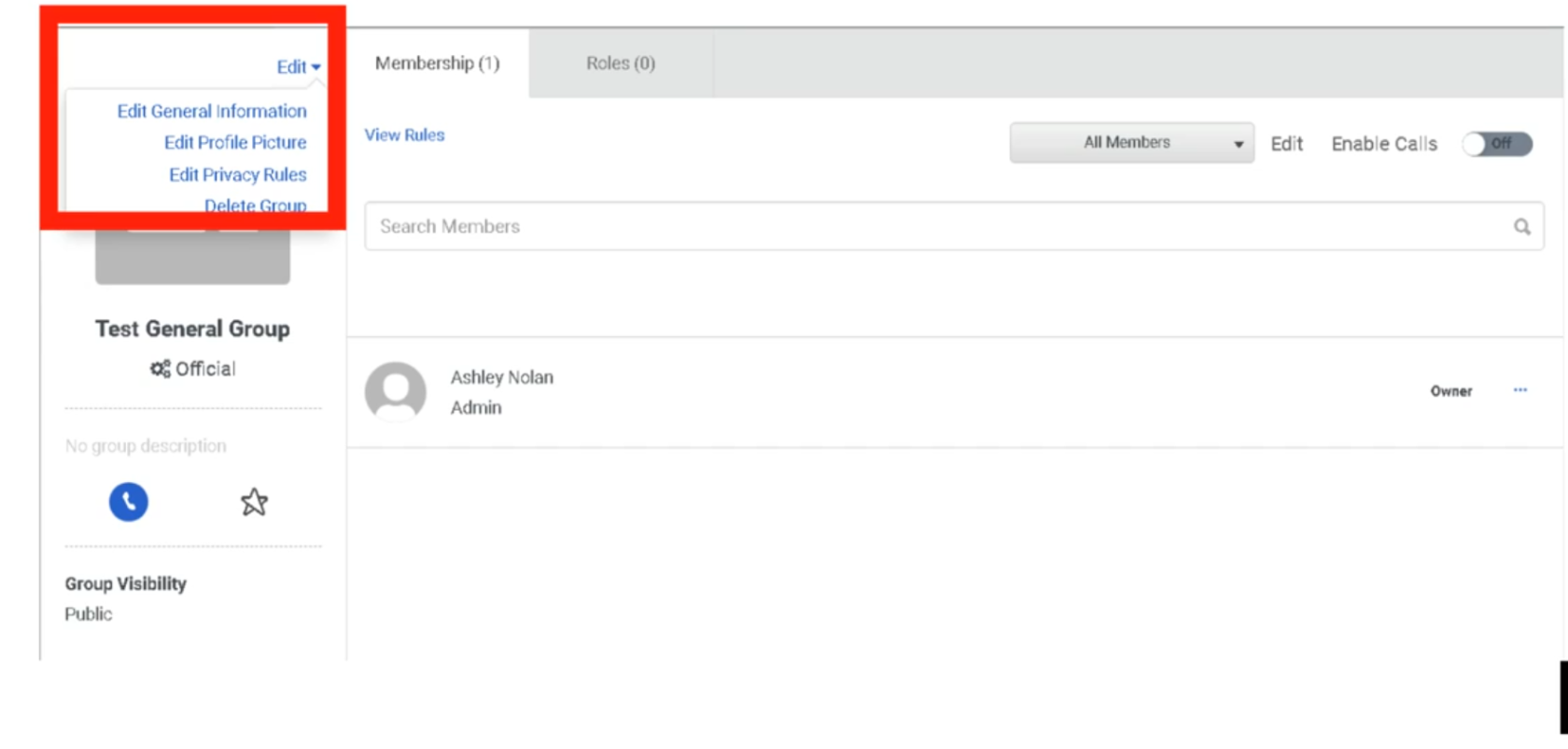
| Edit a group | Admin → Directory → Groups → click group name |
| Assign roles to a group | Admin → Directory → Groups → select group → Roles tab |
Required permissions:
| Permission | Required For |
|---|---|
Directory > Group > View |
Viewing groups |
Directory > Group > Edit |
Editing groups and managing membership |
Directory > Group > Add |
Creating new groups |
Directory > Group > Delete |
Deleting groups |
1. Two Types of Groups
Genesys Cloud has two fundamentally different group types, each with distinct behavior and use cases.
General Groups
Manual or rule-based groups used for communication, role assignment, and directory organization.
| Feature | Detail |
|---|---|
| Membership | Added manually one at a time, or automatically via membership rules based on profile data and org hierarchy relationships |
| Chat room | Genesys Cloud automatically creates a persistent chat room with the same name when a general group is created |
| Profile page | Has a group profile page showing members, contact info, and group photo |
| Roles | Can have roles assigned directly — all group members inherit those roles and division scopes |
| Group types | Can be designated as Official (work-related) or Social |
| Deletion | Deleting a general group does NOT delete the associated chat room. Chat rooms cannot be deleted. |
When to use general groups:
| Use Case | Example |
|---|---|
| Role assignment at scale | Create "Outbound Supervisors – Monterrey" group, assign the Supervisor role + Monterrey division once — all members inherit it automatically |
| SME identification | "SBC Experts" group makes specialists findable via directory search |
| Project teams | Temporary groups for cross-functional projects |
| Location-based teams | "Monterrey Floor 2" for announcements and group chat |
| Queue membership via Bullseye routing | Assign groups to bullseye routing rings in queue configuration |
Skill Expression Groups
Dynamic groups whose membership is automatically managed by the system based on ACD skill and language proficiency conditions.
| Feature | Detail |
|---|---|
| Membership | Fully automatic — the system adds/removes members when their ACD skill assignments or proficiency ratings change |
| Update speed | Membership changes take effect within approximately 1 minute of a skill change |
| Chat room | No chat room is created for skill expression groups |
| Primary use | Dynamically populating queue membership or bullseye routing rings based on agent skills |
| Inactive members | The Membership tab always shows total member count including inactive users |
Example skill expression:
| Expression | Meaning |
|---|---|
English > 3 |
Includes all agents whose English language skill proficiency is greater than 3 |
Spanish >= 4 AND SBC_Support >= 2 |
Includes agents with both Spanish proficiency ≥ 4 and SBC Support skill ≥ 2 |
📌 Key distinction: General groups are managed by admins or rules based on profile data. Skill expression groups are managed entirely by the ACD skill engine based on skill assignments. Use skill expression groups when your queue membership should automatically track skill levels.
2. Group Limits
| Limit | Value |
|---|---|
| General groups per org (recommended max) | 500 |
| Skill expression groups per org | 300 (contact Customer Care to exceed) |
| Primary conditions per skill expression group | 10 |
| Subconditions per primary condition | 10 |
| Groups a single user can belong to | Up to 100 official + 100 social (200 total) |
| Individual members added manually (recommended max) | 1,000 per group |
3. Group Membership — General Groups
Manual (Individual) Membership
Add users one at a time via the group's Membership tab.
Admin → Directory → Groups → select group → Membership tab → Edit → Individuals tab → search and add
📌 Members added individually are not affected by changes to membership rules. Manual additions are permanent until explicitly removed.
Automatic Membership Rules
Rules automatically add or remove members based on profile data and org hierarchy relationships.
| Rule Type | Example |
|---|---|
| Profile tags/certifications | All users tagged with "Cisco" |
| Reporting relationship — Superiors | Everyone in the management chain above a specific person |
| Reporting relationship — Subordinates | All direct reports below a specific manager |
| Inclusions / Exclusions | Include everyone from a rule, then exclude specific individuals |
Admin → Directory → Groups → select group → Membership tab → Edit → Inclusions tab → define rule
Owners vs. Members
| Role | Capabilities |
|---|---|
| Owner | Full editing rights — can modify group settings, membership, and roles |
| Member | Limited rights — can participate in group chat, appears in group directory |
📌 When you create a group, you are automatically its owner. If you create a group on behalf of someone else and don't want editing rights, remove yourself as an owner after creation. If you remove yourself as owner, you lose editing rights unless you have the
Directory > Group > ViewandDirectory > Group > Editpermissions assigned to your role.
4. Group Membership — Skill Expression Groups
Admin → Directory → Groups → Skill Expression tab → select group → Membership tab → Build Skill Expression
Membership is built by defining conditions using ACD skills and language proficiencies with relational operators (greater than, equal to, greater than or equal to, etc.) and logical operators (AND, OR).
⚠️ Skill expression groups are dynamic. If you modify an agent's ACD skill assignments or proficiency ratings, their membership in any skill expression group that references that skill updates automatically within approximately 1 minute.
5. Assigning Roles to Groups
One of the most powerful uses of general groups is bulk role assignment. When you assign a role (with a division) to a group, every current and future member of that group inherits that role scoped to that division automatically.
Admin → Directory → Groups → select group → Roles tab → Assign Roles → select role → select division → Save
| Behavior | Detail |
|---|---|
| New members | Automatically inherit all roles assigned to the group upon joining |
| Removed members | Lose all roles inherited from the group upon removal |
| Role editing | Roles inherited from a group cannot be edited on an individual user's Roles tab — you must edit the group or remove the user from the group |
| Division-Aware Role Management | If enabled org-wide, admins can only assign roles to groups within divisions they themselves have access to |
📌 Best practice: For large teams with shared permissions (e.g., all Monterrey supervisors), use a group + role assignment instead of assigning roles to each user individually. This dramatically reduces maintenance overhead when staff changes occur.
6. General Group Types: Official vs. Social
When creating a general group, you designate it as Official or Social. This affects how users can search and filter groups in the directory.
| Type | Use Case | Workspace Eligible? |
|---|---|---|
| Official | Work-related — teams, departments, projects, queues | ✅ Yes — can be added to group workspaces |
| Social | Non-work — interest groups, social clubs | ❌ No — social groups cannot be workspace members |
7. Groups and Chat Rooms
| Behavior | Detail |
|---|---|
| Creating a general group | Automatically creates a persistent chat room with the same name |
| Deleting a general group | Deletes the group but not the chat room — chat rooms cannot be deleted |
| Skill expression groups | No chat room is created |
📌 If you create test groups or temporary groups, be aware that their associated chat rooms persist indefinitely even after the group is deleted.
8. Limits & Operational Notes
| Item | Guidance |
|---|---|
| Keep org group count under 500 | Genesys recommends no more than 500 groups per org for performance |
| Limit individual manual members to 1,000 | For groups with larger populations, use membership rules instead |
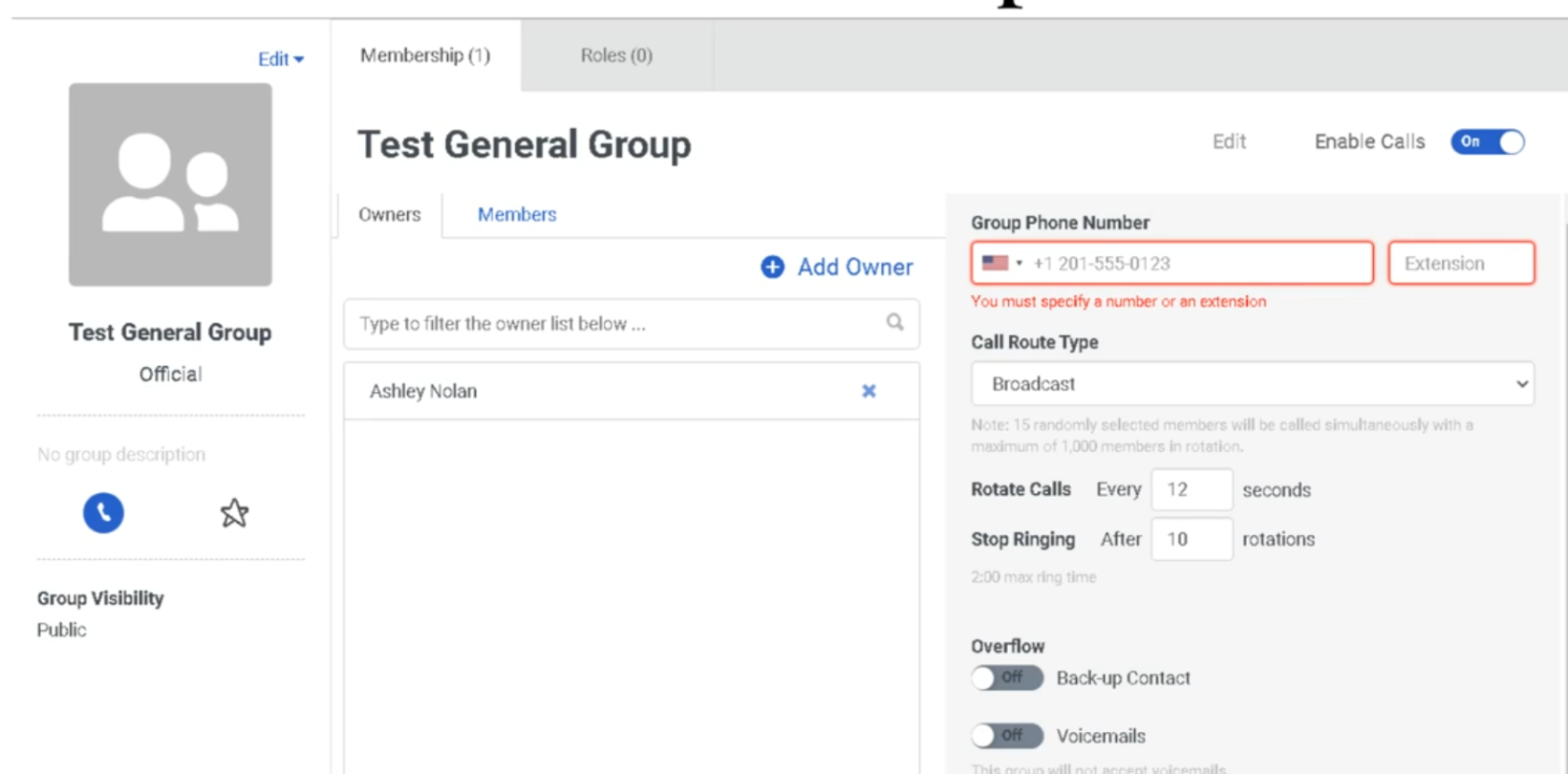
| Disable group calls when adding members | For best results, temporarily disable group calls while bulk-adding members |
| Workspace access via groups | When an official group is added to a workspace, any user added to the group automatically gains workspace access — use carefully for sensitive files |
Quick Comparison: General vs. Skill Expression Groups
| Feature | General Group | Skill Expression Group |
|---|---|---|
| Membership management | Manual or profile/hierarchy rules | Automatic via ACD skill conditions |
| Chat room created | ✅ Yes | ❌ No |
| Profile page | ✅ Yes | ✅ Yes |
| Role assignment | ✅ Yes | ✅ Yes |
| Queue/bullseye routing | ✅ Yes (manual) | ✅ Yes (dynamic) |
| Max per org | 500 (recommended) | 300 |
| Membership update speed | On admin action or rule trigger | ~1 minute after skill change |
Last verified against Genesys Cloud Resource Center – March 2026