DID & Toll-Free Numbers
Navigation: Admin → Telephony → DID Numbers
Last verified: Genesys Cloud Resource Center — March 2026
What Are DID and Toll-Free Numbers?
DID (Direct Inward Dial) and toll-free numbers are the inbound phone numbers your organization uses. They must be added to Genesys Cloud as inventory before they can be assigned to a person, phone, or call flow.
| Number Type |
Description |
| DID |
Geographic number with a local area code; used for direct user or department dialing |
| Toll-Free |
Non-geographic number (800, 833, 844, 855, 866, 877, 888); typically used for public-facing inbound access |
Both DID and toll-free numbers are managed in the same workflow under Admin → Telephony → DID Numbers.
Two Main Areas
| Tab |
Purpose |
| DID Ranges |
Add and manage blocks of DID or toll-free numbers |
| DID Assignments |
Assign individual numbers to a person, phone, or call flow; view and manage current assignments |
Navigation
| Task |
Path |
| Open DID Numbers |
Admin → Telephony → DID Numbers |
| Open DID Ranges |
DID Numbers → DID Ranges tab |
| Create a range |
DID Ranges → Create Range |
| Open DID Assignments |
DID Numbers → DID Assignments tab |
| Assign a number |
DID Assignments → select number → Assign |
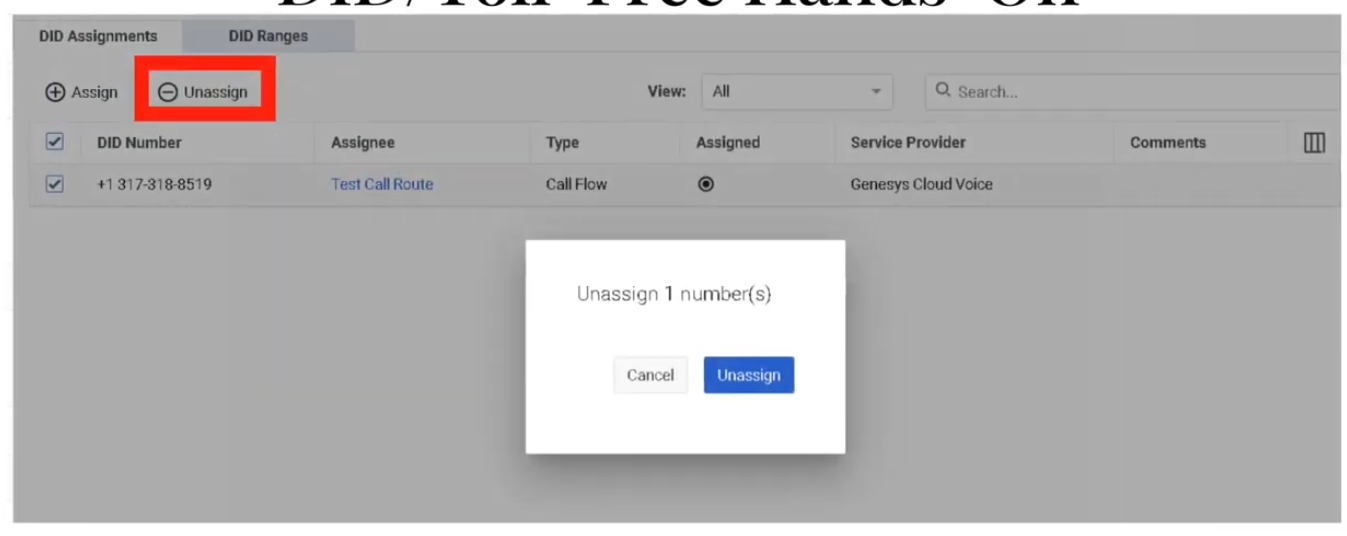
| Unassign a number |
DID Assignments → select assigned number → Unassign |
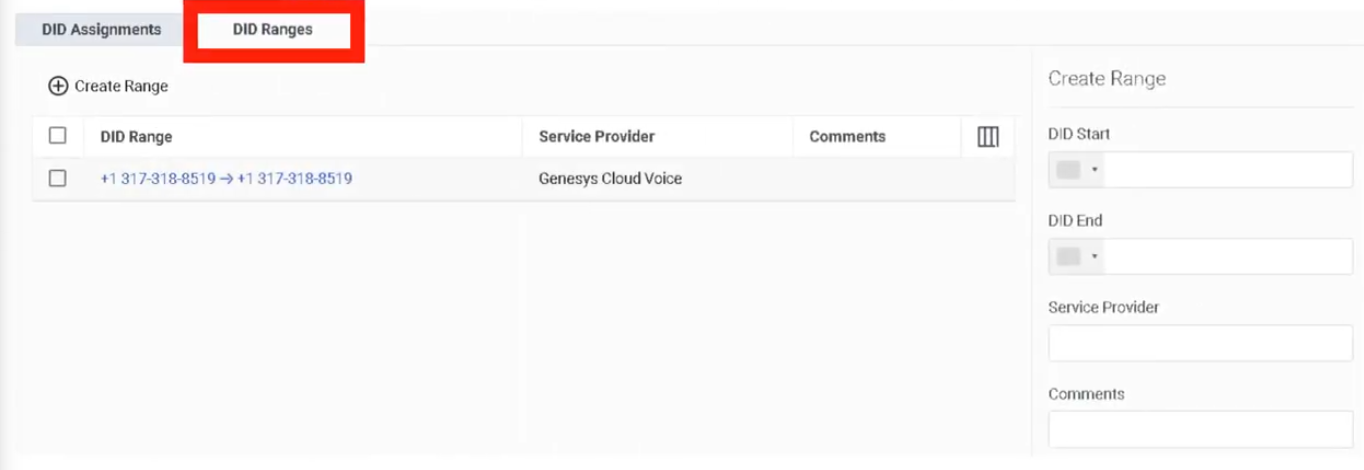
Step 1: Create a DID or Toll-Free Range
Numbers must be added as a range before they can be assigned.
| Step |
Action |
| Step 1 |
Navigate to Admin → Telephony → DID Numbers |
| Step 2 |
Open the DID Ranges tab |
| Step 3 |
Click Create Range |
| Step 4 |
In DID Start, select the country and enter the first number |
| Step 5 |
In DID End, select the same country and enter the last number |
| Step 6 |
Enter the Service Provider (carrier/provider name) |
| Step 7 |
Save the range |
Range Creation Fields
| Field |
Description |
| DID Start |
First number in the range — country selector + number |
| DID End |
Last number in the range — same country as Start |
| Service Provider |
Carrier or provider name associated with this block |
ℹ️ For a single number, enter the same value in both Start and End.
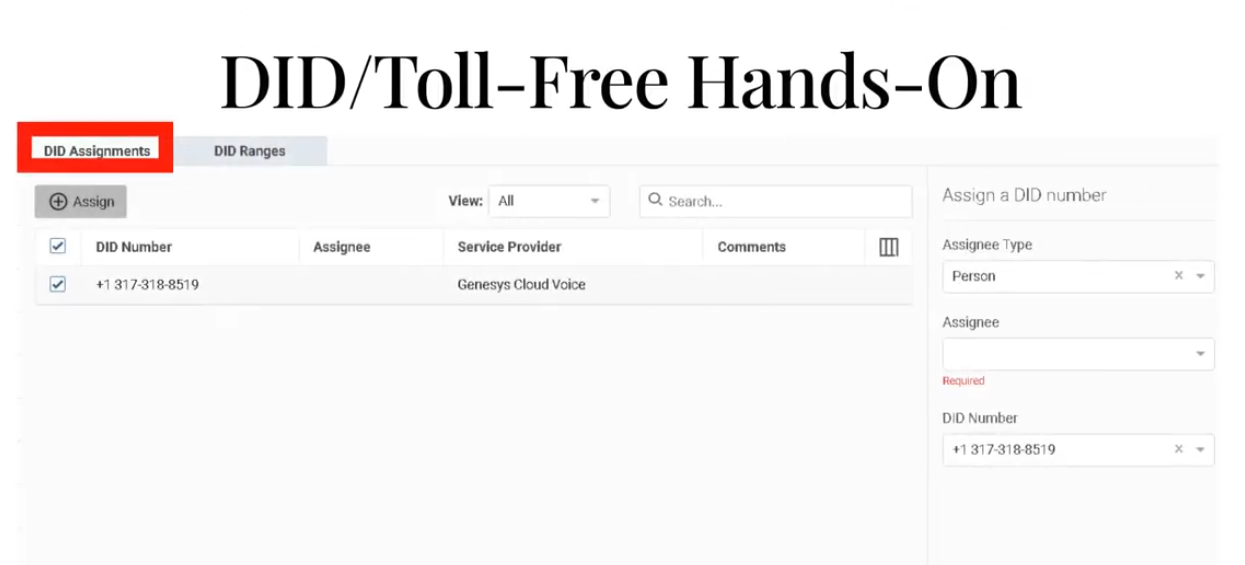
Step 2: Assign a Number
Once numbers are in inventory, assign them from the DID Assignments tab.
| Step |
Action |
| Step 1 |
Open the DID Assignments tab |
| Step 2 |
Locate the desired number (search or filter by assignment status) |
| Step 3 |
Select the number |
| Step 4 |
Choose the assignment target type |
| Step 5 |
Select the specific Person, Phone, or Call Flow |
| Step 6 |
Save the assignment |
| Step 7 |
Test inbound routing |
Assignment Target Types
| Target |
Use Case |
| Person |
Assign a direct number to a specific user |
| Phone |
Assign a number to a specific device |
| Call Flow |
Assign a number to an inbound Architect flow (IVR / queue entry point) |
Common Assignment Scenarios
| Scenario |
Target |
| Employee direct inward dial |
Person |
| Main inbound IVR number |
Call Flow |
| Shared lobby or reception device |
Phone |
| Public-facing toll-free number |
Call Flow |
| Branded toll-free for a department |
Call Flow |
Unassigning a Number
Select the assigned number in DID Assignments and choose Unassign. The number returns to available inventory and can be reassigned.
Troubleshooting
| Issue |
Cause |
Resolution |
| Number not visible |
Range not created or not imported |
Recheck DID Ranges and provider data |
| Number cannot be assigned |
Already assigned or not in available inventory |
Filter by assignment status; unassign first if needed |
| Calls do not reach destination |
Wrong assignment target or downstream routing issue |
Verify the assignment target and its call flow/phone/user setup |
| Wrong user or flow receives calls |
Incorrect assignment |
Unassign and reassign correctly |
| Toll-free not available |
Number not yet purchased, ported, or activated |
Confirm procurement or porting status with carrier |
Quick Reference
| Question |
Answer |
| Where do you manage DID and toll-free numbers? |
Admin → Telephony → DID Numbers |
| What are the two main tabs? |
DID Ranges and DID Assignments |
| What can a number be assigned to? |
A person, a phone, or a call flow |
| What fields are needed to create a range? |
DID Start, DID End, and Service Provider |
| Can toll-free numbers be managed here too? |
Yes — same workflow |
| What must happen before a number can be assigned? |
It must exist in a DID Range |
Naming Convention
| Resource |
Example |
| DID Range (provider) |
CarrierA_US_DID_Block_01 |
| Toll-Free main entry |
US_TF_Main_Inbound |
See Also
- Call Routing & Message Routing — DID numbers are associated with inbound call routes
- Architect Overview — call flows are the assignment target for main inbound numbers
- Extensions — separate from DIDs; extensions are internal-only dialing numbers
- Architectural Build Order — DID numbers are configured in Phase 2
Screenshots

To unassign

DID Ranges