# AZ-104 Azure Identity - Managing Tenants
##### [Set up a tenant](https://learn.microsoft.com/en-us/entra/identity-platform/quickstart-create-new-tenant)
##### **Managing Tenants**
**Designing Tenants:**
Planning out the design of our tenant will support easy adoption
- Build Secure Foundations: Setup best practices (e.g., SSPR (Self Service Password Reset), MFA, backup global admin, and privileged users), for specific tasks.
- Populate Identity Resources: Add users, create groups, add devices, and setup hybrid identity
- Manage Applications: Identify apps to be used form the app gallery, and register apps from on-premises
- Monitor and automate: Monitor administrators perform access reviews, and automate user life-cycles.
##### **Creating a Tenant**
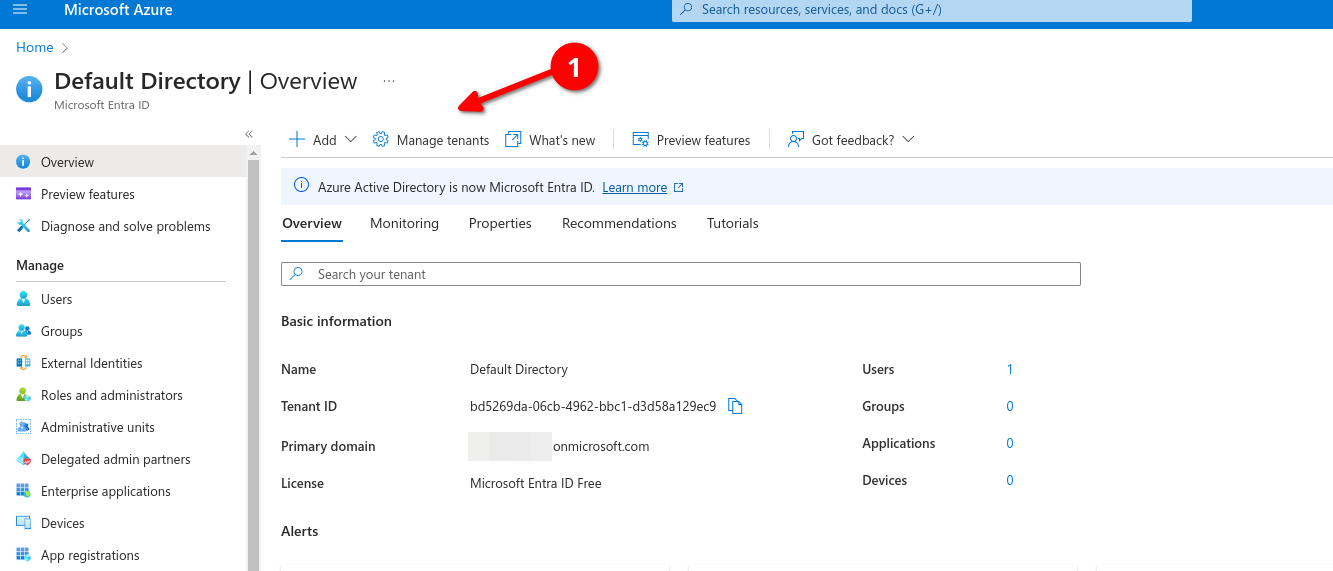
Logon to azure portal and go to Entra ID (formerly known as Active Directory) then go to Manage Tenants

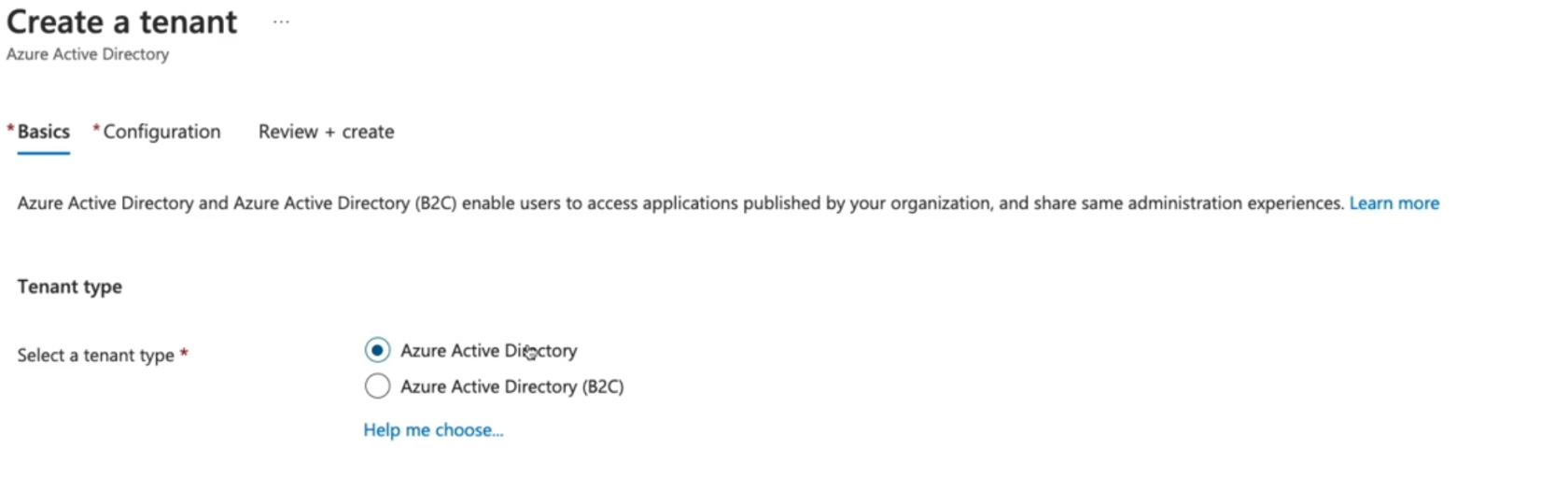
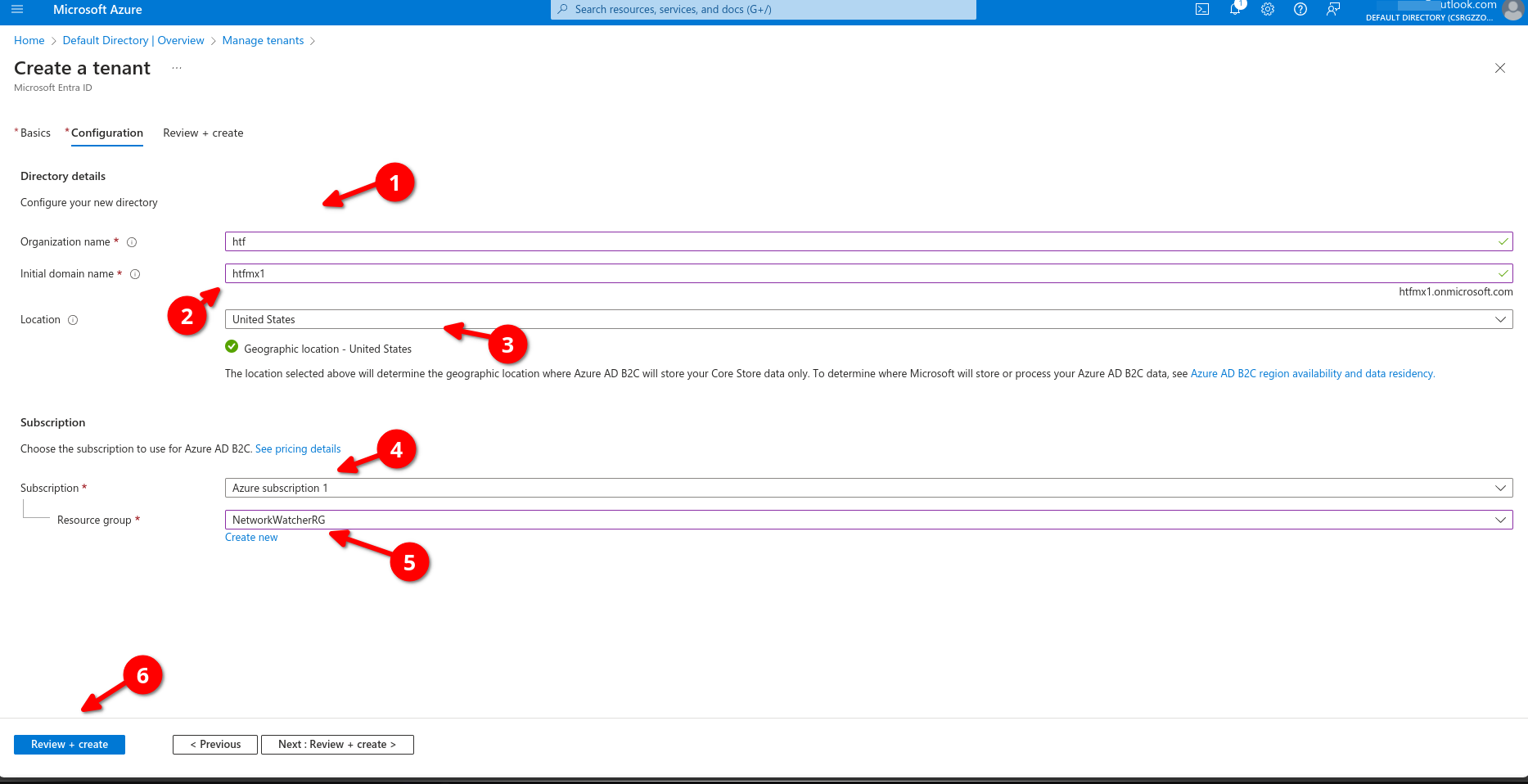
Add organization name, Make sure initial domain its unique, select location, assign your tenant to a subscription, add a resource group then review+create
Now we can go back to manage our tenant, remember this will be different from the main tenant.
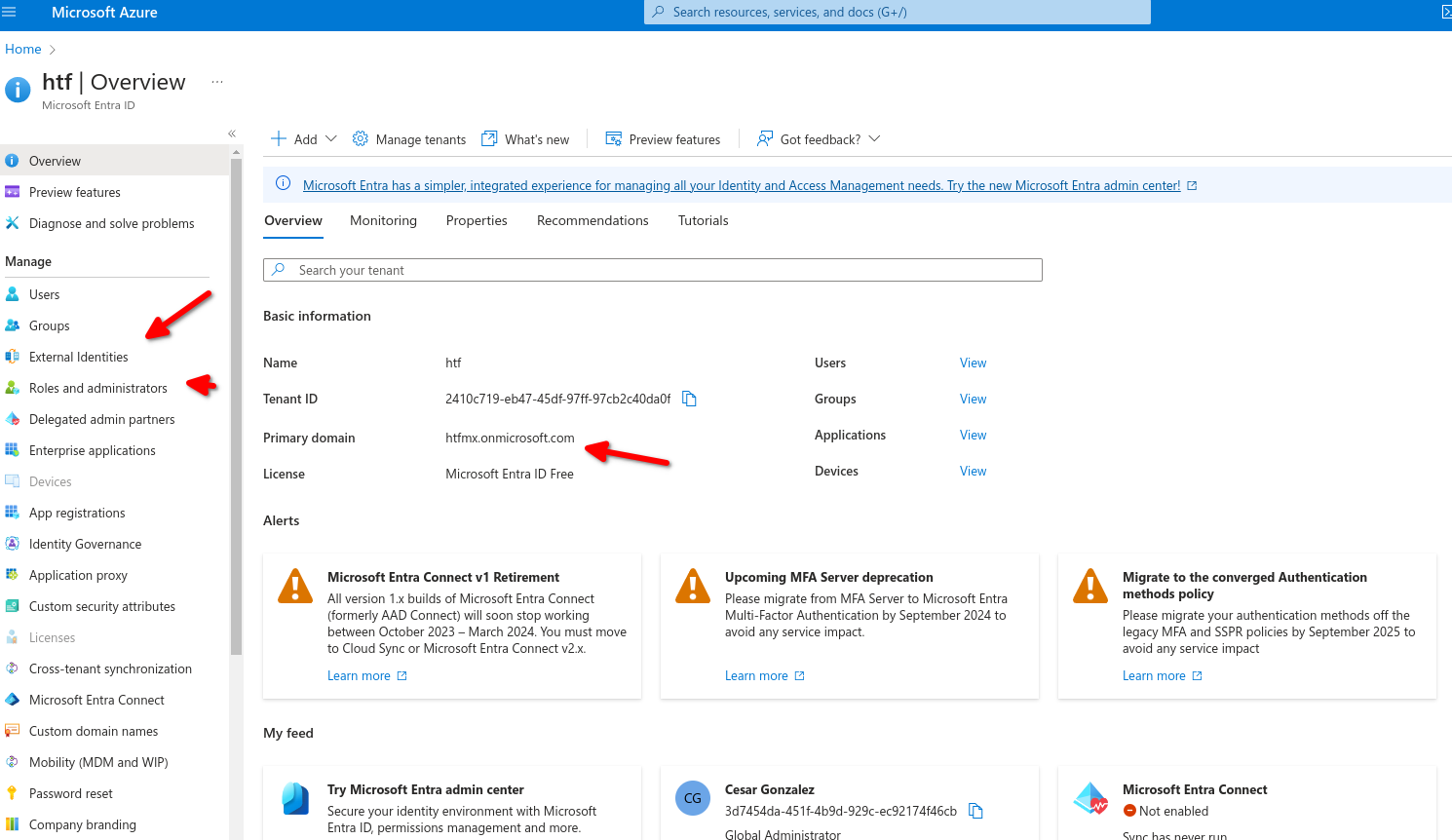
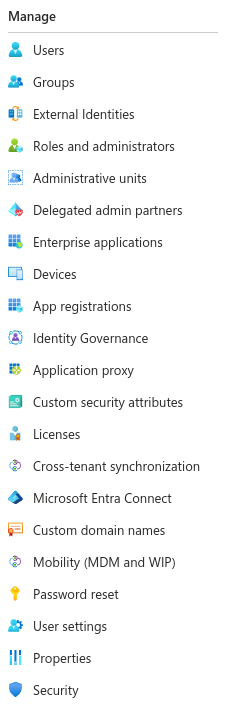
We can use the left panel to manage our tenant access, licensing, external devices, enterprise applications, etc.