# AZ-104 Azure Identity - Configuring SSPR (self serfice password reset)
- [Self Serfice Password Reset (SSPR)](https://learn.microsoft.com/en-us/training/modules/allow-users-reset-their-password/)
- SSPR Process
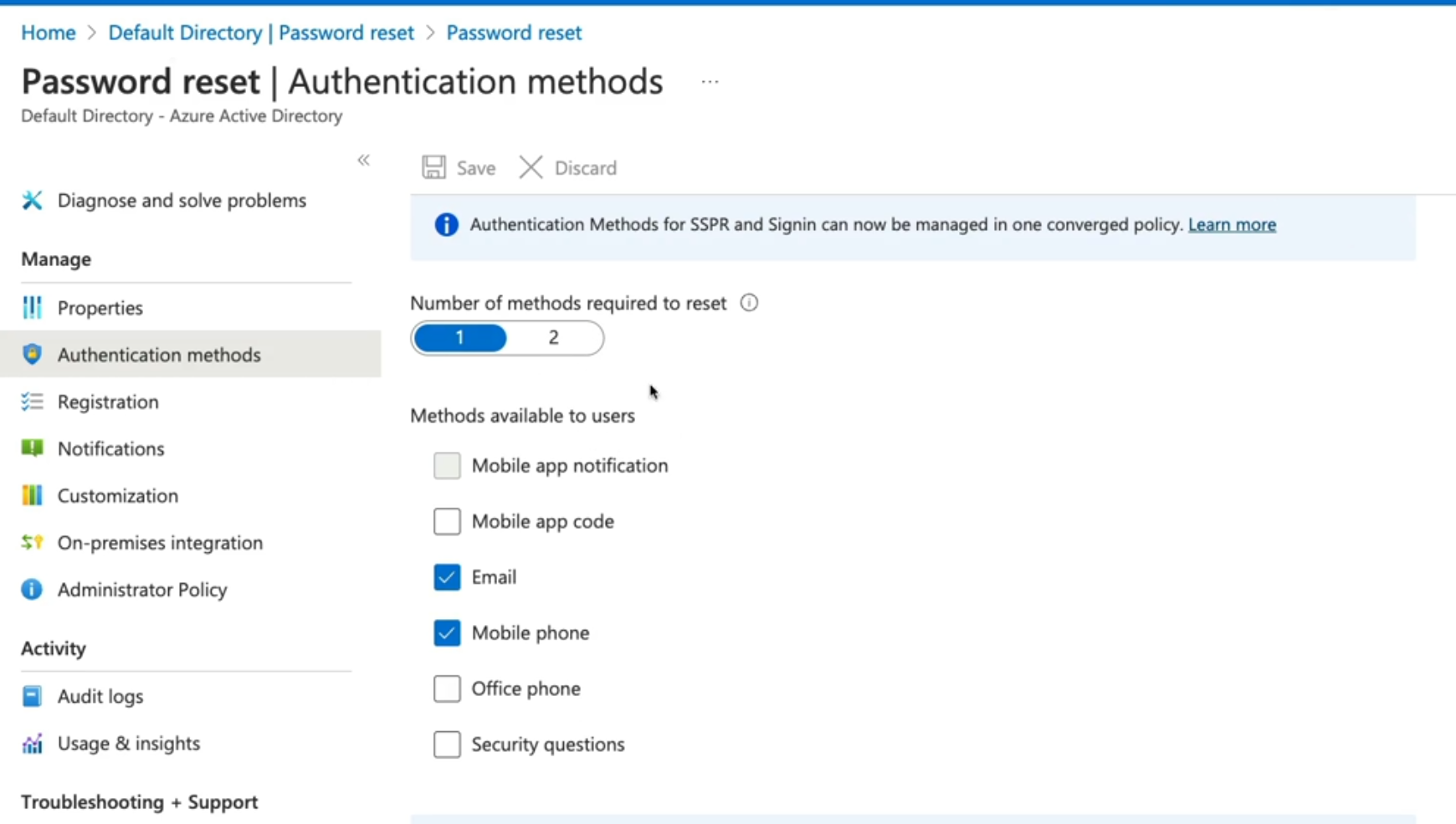
- Authentication Methods
- SSPR Considerations

##### **Authentication methods**
- Mobile app: Authentication via app notification. AN example is the Microsoft authentication application
- Mobile app code: Authentication via time-based codes, An example is the Microsoft authentication application
- Email: Authentication via an external to Microsoft using codes sent to that email address
- Mobile Phone: Authentication via a mobile number using a phone call or SMS provides a code. (less recommended method)
- Office Phone: Authentication via a non-mobile phone using a phone cal that prompts the user to press #
- Security Questions: Authentication via answering a set of security questions (Least recommended method).
##### SSPR Considerations
Enable and manage SSPR via Azure AD Groups.
- Required methods: One or more of the available authentication methods is required for SSPR
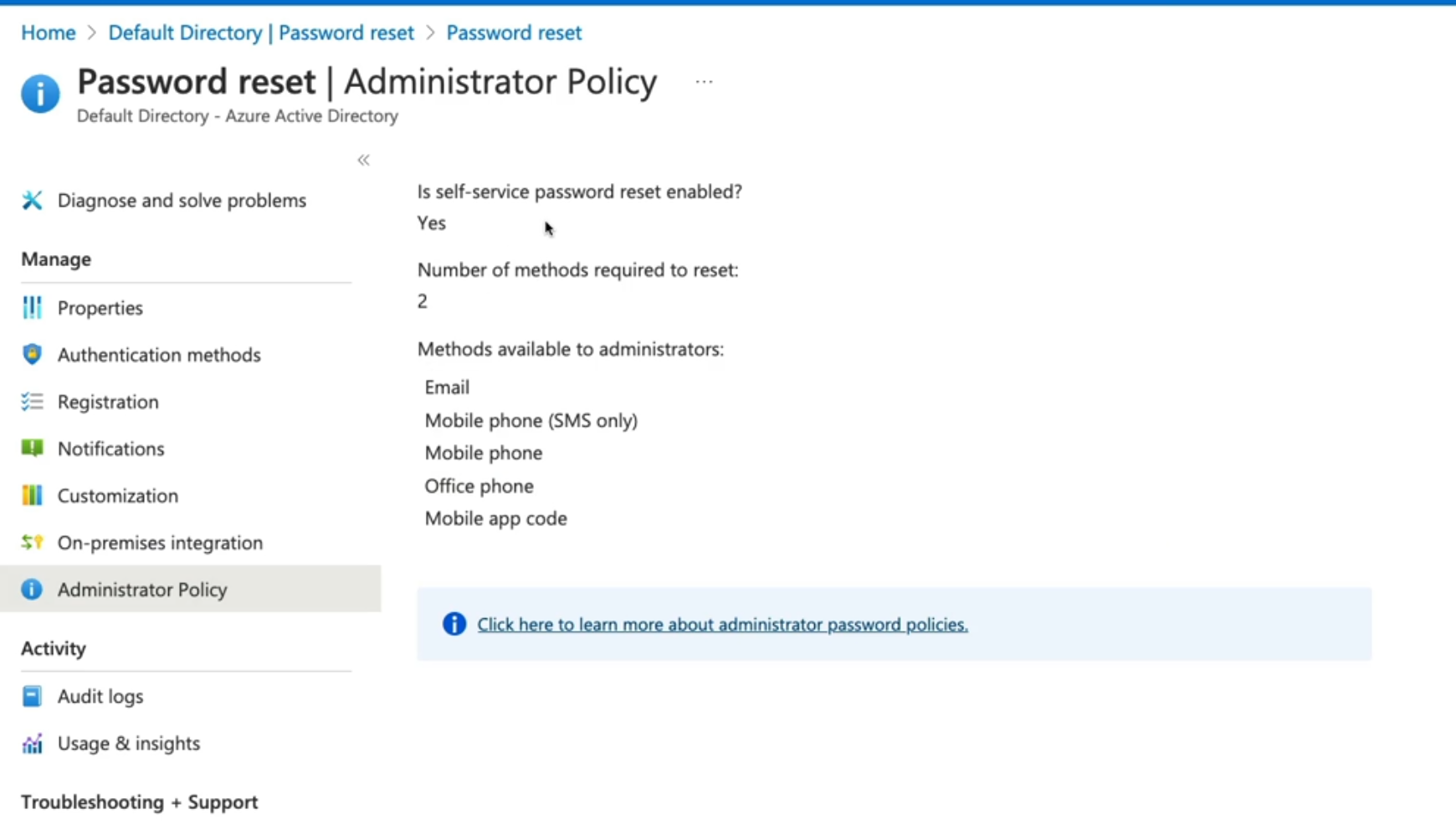
- SSPR for Admins: Security questions not available by admins. By Default, admins must register for MFA methods
- Required Licenses: Azure AD P1 or P2, Microsoft apps for business, or Microsoft licensing is required for SPPR.
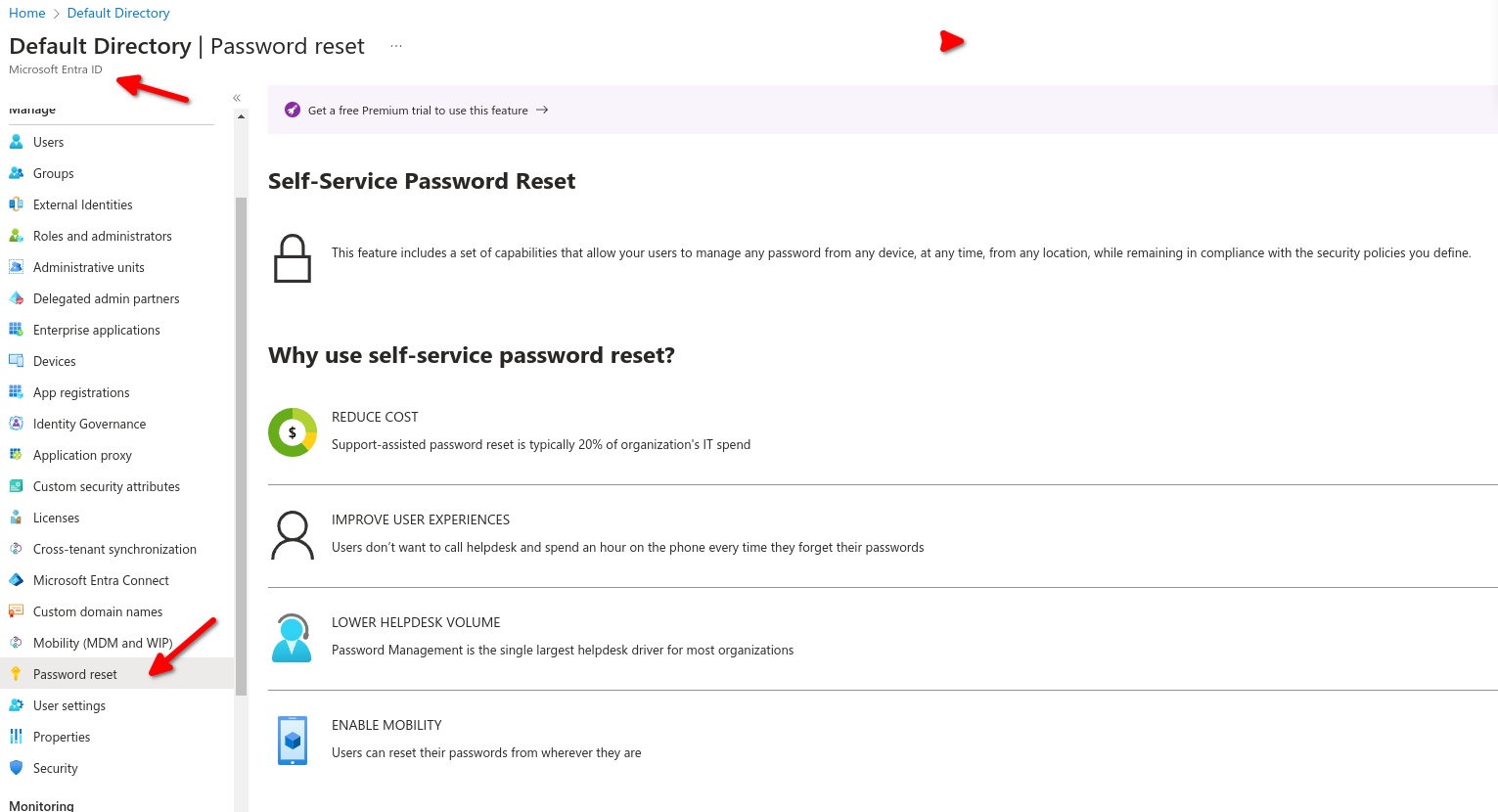
Navigate to Entra ID then password reset
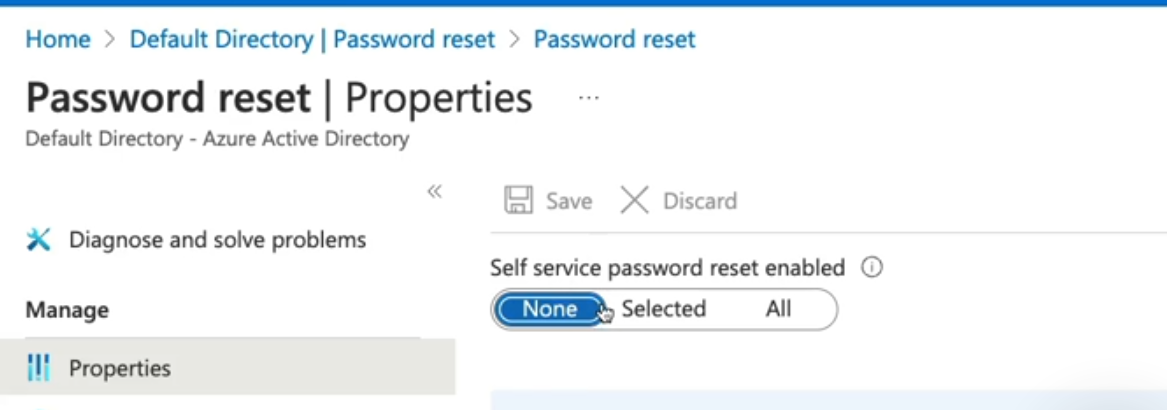
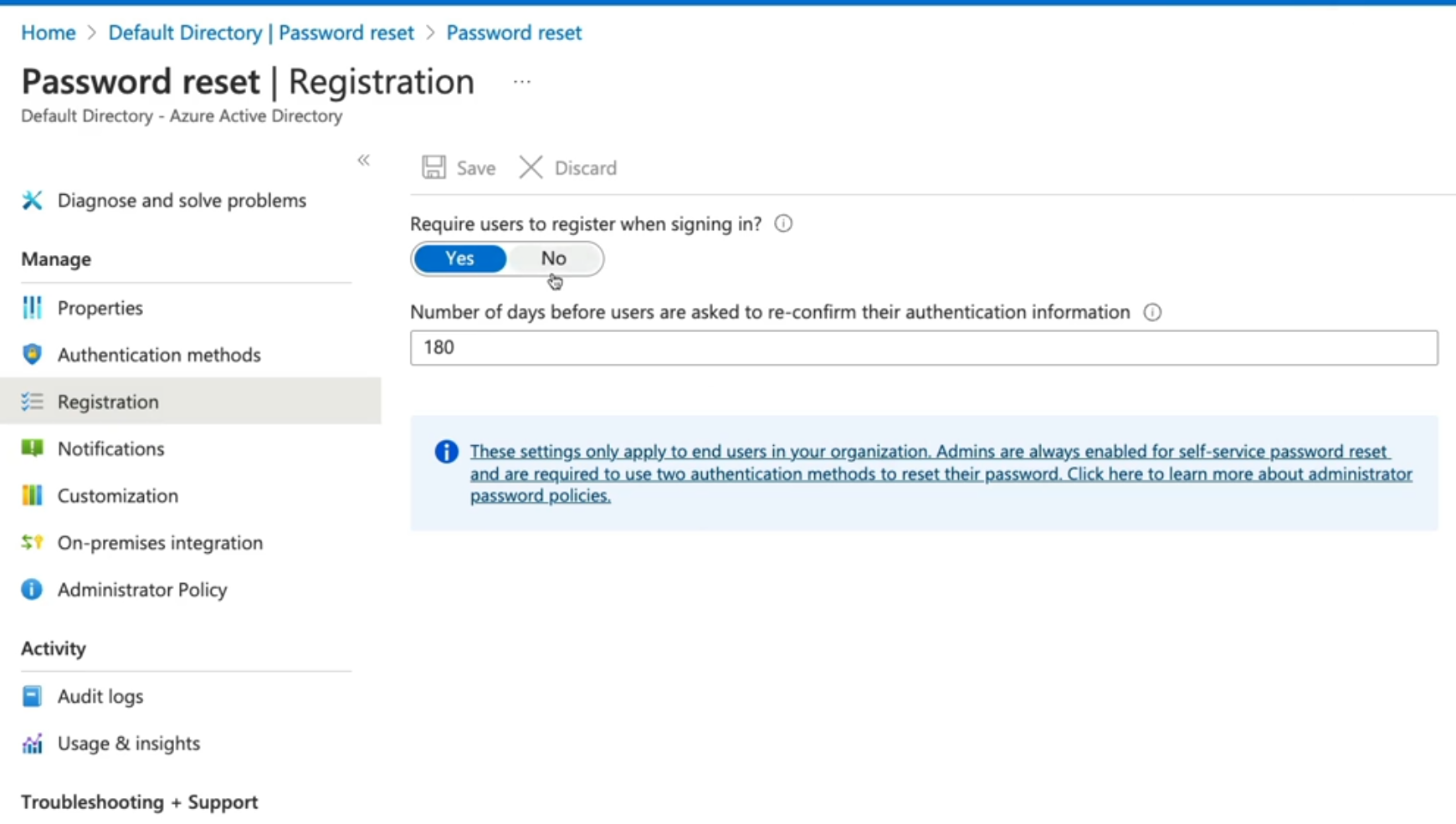
These settings only apply to end users in your organizations ,admins are always enabled for SSPR and are required to use two authentication methods to reset their passwords
- None: no user can perform SSPR (except admins).
- Select: Here we can use groups to Enable SSPR.
- ALL - this will enable all users in the tenant with SSPR.
For this exercise we select all users and select which type of authentication method