# Troubleshooting
# SMGR - JBoss reestart
There are multiple situations where Avaya System Manager JBoss needs to be restarted, in my case multiple alerts from different Avaya systems about loosing connectivity to the Web License Manager (CM, SBCE and AES) were received.
After troubleshooting the problem, it was narrowed down to the JBoss process in the System Manager which had to be restarted to clear all the issues.
Here is the command to verify the status and restart the process (root access is required)
***\#service jboss status***
***\#service jboss restart***
Restarting JBoss process is NOT service affecting, but System Manager web administration wont be accessible for about 10 minutes.
# JBoss - Unable to start disk full maillog
to clear out maillog from system manager follow the procedure below
```bash
root >df -k
Filesystem 1K-blocks Used Available Use% Mounted on
/dev/mapper/smgrvg01-lv_root 4343808 2042116 2301692 48% /
devtmpfs 6056520 0 6056520 0% /dev
tmpfs 6068832 8 6068824 1% /dev/shm
tmpfs 6068832 586280 5482552 10% /run
tmpfs 6068832 0 6068832 0% /sys/fs/cgroup
/dev/mapper/smgrvg01-lv_var 5724160 1704032 4020128 30% /var
/dev/mapper/smgrvg01-lv_home 1935360 366932 1568428 19% /home
/dev/mapper/smgrvg01-lv_var_log 1935360 1935340 20 100% /var/log
/dev/mapper/smgrvg01-lv_var_log_audit 1935360 33520 1901840 2% /var/log/audit
/dev/mapper/smgrvg01-lv_data 13854720 926576 12928144 7% /var/lib/pgsql/data
/dev/mapper/smgrvg01-lv_opt 10078208 8282612 1795596 83% /opt
/dev/mapper/smgrvg01-lv_tmp 1525760 33192 1492568 3% /tmp
/dev/sda1 520868 254280 266588 49% /boot
/dev/sdc 15718400 87540 15630860 1% /emdata
/dev/sdd 22009344 1435376 20573968 7% /swlibrary
/dev/mapper/smgrvg02-lv_cnd 1038336 70188 968148 7% /var/opt/nortel/cnd
/dev/mapper/smgrvg02-lv_perfdata 25149444 116200 25033244 1% /perfdata
tmpfs 1213768 0 1213768 0% /run/user/779
du -h --max-depth=1 | sort -hr
ls -l --block-size=M
to zero out maillog run command:
/dev/null > /var/log/maillog
```
# System Manager Logs
Navigate to /var/log/Avaya/mgmt/
LS directory

for example cd to geo directory to check georedundant logs
# System Manager 8.1 - Geo Replicaition not tworking due o CSYNC2 service down
### Problem Clarification
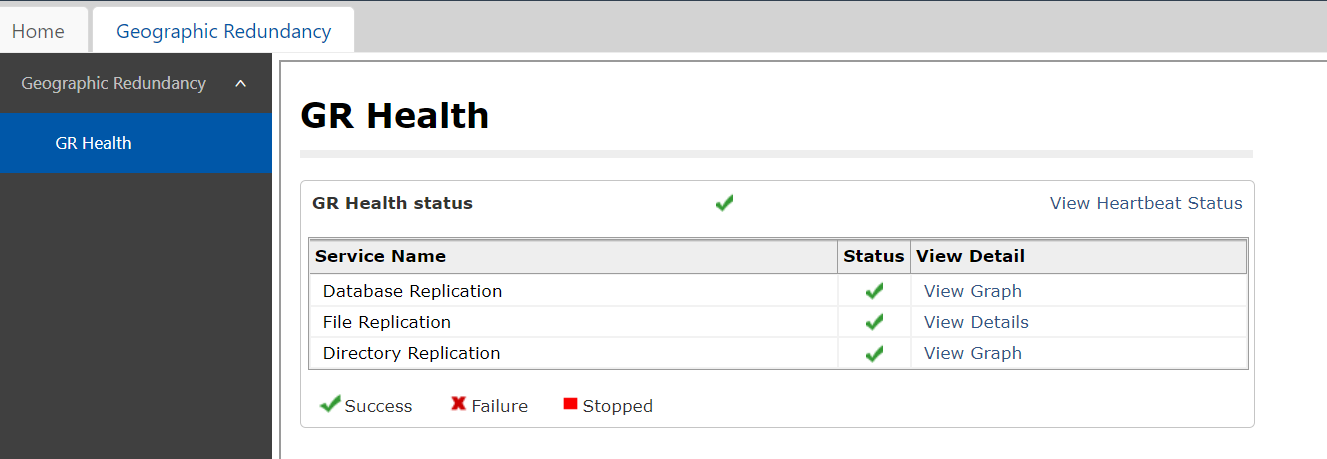
Geo replication is enabled, but File Replication Health status on Primary SMGR is showing failed.
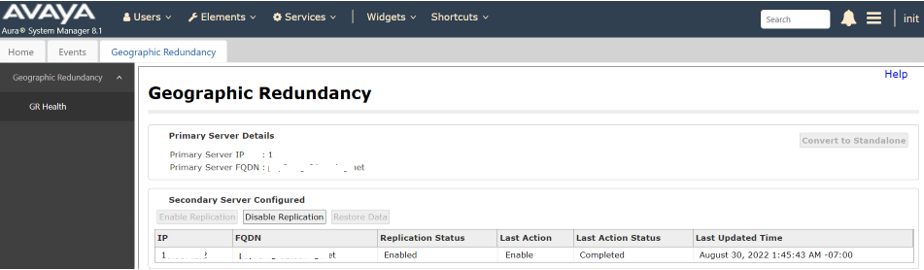
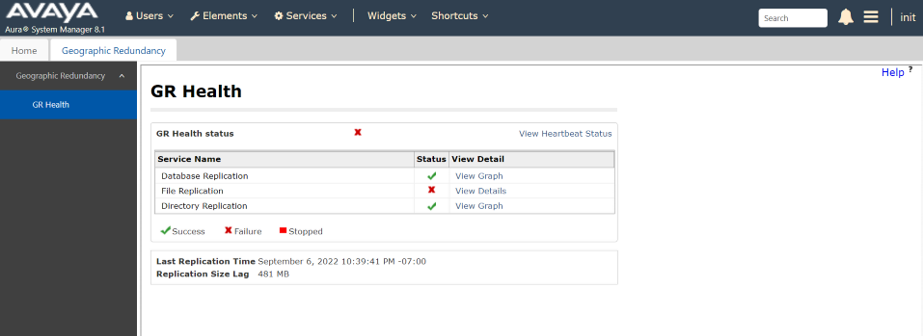
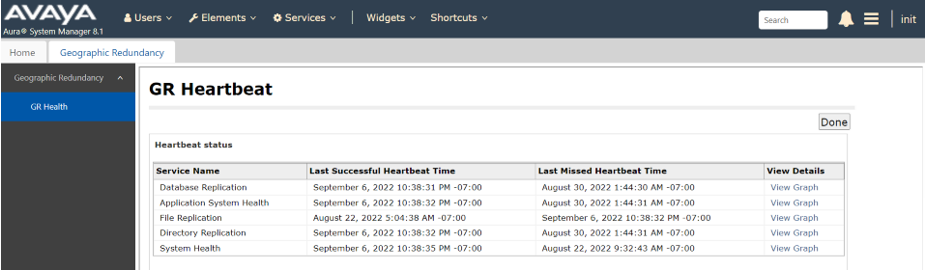
Primary SMGR file replication Heartbeat failed since 22nd Aug
### Cause
```
Primary SMGR csync2.log shows connection to Secondary SMGR failed.
TIMESTAMP: 2022-09-07 10:25:02 AEST (GMT+1000)
TIMESTAMP: 2022-09-07 10:25:02 AEST (GMT+1000)
[10:25:02] ERROR: Connection to remote host `secondarySMGR' failed.
[10:25:02] ERROR: Connection to remote host `secondarySMGR' failed.
Sniffer trace shows primary SMGR csync2 sent TCP SYNC to secondary SMGR port 30865, but secondary SMGR reset TCP connection.
Secondary SMGR is not listening on port 30865 used by Csync2.
Found Csync2.socket service is not running on Secondary SMGR which caused the issue
```
### Solution
```
Peform below actions resolved issue.
1. Disable GEO from primary server.
2. Restart csync2 on secondary server.
# systemctl restart csync2.socket
3. Check csync2 on secondary server to make sure it’s up and running.
# systemctl status csync2.socket
4. Then enable GEO from primary server.
File replication health status is showing good now
```
# System Manager 8.1 virtual fqdn change - geo redundant not sync
if Virtual fqdn does not match with primary server, secondary server will fail to sync/register, in order to update the virtual fqdn run the following command to update vfqdm
```shell
root >changeVFQDN
Enter new virtual hostname : louusvm-asysmgr
Enter virtual domain name: continuumgbl.com
>> Validating domain name : continuumgbl.com ...
>> Basic pattern ok. Checking if TLD is all-numeric
New virtual FQDN : louusvm-asysmgr.continuumgbl.com
System configured FQDN : louusvm-asysmgr.continuumgbl.com
FQDN and VFQDN cannot be same
root >changeVFQDN
Enter new virtual hostname : grsmgr
Enter virtual domain name: continuumgbl.com
>> Validating domain name : continuumgbl.com ...
>> Basic pattern ok. Checking if TLD is all-numeric
New virtual FQDN : grsmgr.continuumgbl.com
System configured FQDN : louusvm-asysmgr.continuumgbl.com
SMGR old VFQDN : ' LOUUSVM-ASYSMGR.continuumgbl.com '
SMGR old VFQDN hostname : ' LOUUSVM-ASYSMGR '
New Virtual FQDN will be - ' grsmgr.continuumgbl.com '
Do You want to proceed y/n =>:y
Thu Oct 26 23:54:49 IST 2023: Starting ........
Thu Oct 26 23:54:49 IST 2023 : Waiting for script execution to be completed
script will run in background more datails check /var/log/Avaya/SMGRVirtualFqdnUtility.log
```
# System Manager - Change root password on VM Instances
Reactivate Account and Modify Kernel option in GRUB:
Reboot the vCenter Server appliance using the vSphere Client.
When the GRUB bootloader appears, press the spacebar to disable autoboot.
Note: After powering on, the virtual machines takes only a short time to exits the BIOS/EFI and to launch the guest operating system. You can adjust the boot delay or force the virtual machine to enter BIOS or EFI setup screen after power on. For more information, see the Delay the Boot Sequence in the vSphere Client section in the VMware vSphere 5.5 Single Host Management Guide.
Type p to access the appliance boot options.
Enter the GRUB password.
Note:
If the vCenter Server appliance is deployed without editing the root password in the Virtual Appliance Management Interface (VAMI), the default GRUB password is vmware.
If the vCenter Server appliance root password is reset using the VAMI, the GRUB password is the password last set in the VAMI for the root account.
Use the arrow keys to highlight VMware vCenter Server Appliance and type e to edit the boot commands.
Modifying the GRUB boot loader to start root password reset process
Scroll to the second line displaying the kernel boot parameters.
Scroll to the second line displaying the kernel boot parameters
Type e to edit the boot command.
Append init=/bin/bash to the kernel boot options.
Append init=/bin/bash to the kernel boot options
Press Enter. The GRUB menu reappears.
Type b to start the boot process. The system boots to a shell.
Reset the root password by running the passwd root command.
Restart the appliance by running reboot command.
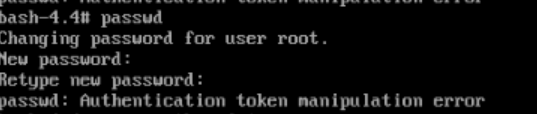
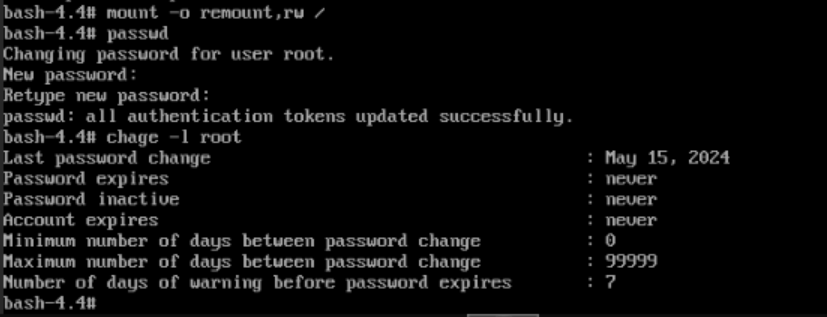
If error received " Authentication manipulation error" mount / with rw permissions
mount -o remount,rw /
run passwd again and change password
[](https://wiki.tinod.net/uploads/images/gallery/2024-05/puvV7LNYrG9wi0F6-image.png)
[](https://wiki.tinod.net/uploads/images/gallery/2024-05/11EjgOm2cu4A5lSa-image.png)
Note: If you cannot restart the appliance by running reboot command, then run these commands:
mkfifo /dev/initctl
reboot -f
In order to prevent this issue from happening again in the future, you could set the root password to never expire at the VAMI page or by running this command: chage -I -1 -m 0 -M 99999 -E -1 root
Verify the root account password expiry settings have been changed using the following command: chage -l root
 Found Csync2.socket service is not running on Secondary SMGR which caused the issue
 ```
### Solution
```
Peform below actions resolved issue.
1. Disable GEO from primary server.
2. Restart csync2 on secondary server.
# systemctl restart csync2.socket
3. Check csync2 on secondary server to make sure it’s up and running.
# systemctl status csync2.socket
4. Then enable GEO from primary server.
File replication health status is showing good now
```
### Solution
```
Peform below actions resolved issue.
1. Disable GEO from primary server.
2. Restart csync2 on secondary server.
# systemctl restart csync2.socket
3. Check csync2 on secondary server to make sure it’s up and running.
# systemctl status csync2.socket
4. Then enable GEO from primary server.
File replication health status is showing good now
 ```
# System Manager 8.1 virtual fqdn change - geo redundant not sync
if Virtual fqdn does not match with primary server, secondary server will fail to sync/register, in order to update the virtual fqdn run the following command to update vfqdm
```shell
root >changeVFQDN
Enter new virtual hostname : louusvm-asysmgr
Enter virtual domain name: continuumgbl.com
>> Validating domain name : continuumgbl.com ...
>> Basic pattern ok. Checking if TLD is all-numeric
New virtual FQDN : louusvm-asysmgr.continuumgbl.com
System configured FQDN : louusvm-asysmgr.continuumgbl.com
FQDN and VFQDN cannot be same
root >changeVFQDN
Enter new virtual hostname : grsmgr
Enter virtual domain name: continuumgbl.com
>> Validating domain name : continuumgbl.com ...
>> Basic pattern ok. Checking if TLD is all-numeric
New virtual FQDN : grsmgr.continuumgbl.com
System configured FQDN : louusvm-asysmgr.continuumgbl.com
SMGR old VFQDN : ' LOUUSVM-ASYSMGR.continuumgbl.com '
SMGR old VFQDN hostname : ' LOUUSVM-ASYSMGR '
New Virtual FQDN will be - ' grsmgr.continuumgbl.com '
Do You want to proceed y/n =>:y
Thu Oct 26 23:54:49 IST 2023: Starting ........
Thu Oct 26 23:54:49 IST 2023 : Waiting for script execution to be completed
script will run in background more datails check /var/log/Avaya/SMGRVirtualFqdnUtility.log
```
# System Manager - Change root password on VM Instances
Reactivate Account and Modify Kernel option in GRUB:
Reboot the vCenter Server appliance using the vSphere Client.
When the GRUB bootloader appears, press the spacebar to disable autoboot.
Note: After powering on, the virtual machines takes only a short time to exits the BIOS/EFI and to launch the guest operating system. You can adjust the boot delay or force the virtual machine to enter BIOS or EFI setup screen after power on. For more information, see the Delay the Boot Sequence in the vSphere Client section in the VMware vSphere 5.5 Single Host Management Guide.
Type p to access the appliance boot options.
Enter the GRUB password.
Note:
If the vCenter Server appliance is deployed without editing the root password in the Virtual Appliance Management Interface (VAMI), the default GRUB password is vmware.
If the vCenter Server appliance root password is reset using the VAMI, the GRUB password is the password last set in the VAMI for the root account.
Use the arrow keys to highlight VMware vCenter Server Appliance and type e to edit the boot commands.
Modifying the GRUB boot loader to start root password reset process
Scroll to the second line displaying the kernel boot parameters.
Scroll to the second line displaying the kernel boot parameters
Type e to edit the boot command.
Append init=/bin/bash to the kernel boot options.
Append init=/bin/bash to the kernel boot options
Press Enter. The GRUB menu reappears.
Type b to start the boot process. The system boots to a shell.
Reset the root password by running the passwd root command.
Restart the appliance by running reboot command.
If error received " Authentication manipulation error" mount / with rw permissions
mount -o remount,rw /
run passwd again and change password
[](https://wiki.tinod.net/uploads/images/gallery/2024-05/puvV7LNYrG9wi0F6-image.png)
[](https://wiki.tinod.net/uploads/images/gallery/2024-05/11EjgOm2cu4A5lSa-image.png)
Note: If you cannot restart the appliance by running reboot command, then run these commands:
mkfifo /dev/initctl
reboot -f
In order to prevent this issue from happening again in the future, you could set the root password to never expire at the VAMI page or by running this command: chage -I -1 -m 0 -M 99999 -E -1 root
Verify the root account password expiry settings have been changed using the following command: chage -l root
```
# System Manager 8.1 virtual fqdn change - geo redundant not sync
if Virtual fqdn does not match with primary server, secondary server will fail to sync/register, in order to update the virtual fqdn run the following command to update vfqdm
```shell
root >changeVFQDN
Enter new virtual hostname : louusvm-asysmgr
Enter virtual domain name: continuumgbl.com
>> Validating domain name : continuumgbl.com ...
>> Basic pattern ok. Checking if TLD is all-numeric
New virtual FQDN : louusvm-asysmgr.continuumgbl.com
System configured FQDN : louusvm-asysmgr.continuumgbl.com
FQDN and VFQDN cannot be same
root >changeVFQDN
Enter new virtual hostname : grsmgr
Enter virtual domain name: continuumgbl.com
>> Validating domain name : continuumgbl.com ...
>> Basic pattern ok. Checking if TLD is all-numeric
New virtual FQDN : grsmgr.continuumgbl.com
System configured FQDN : louusvm-asysmgr.continuumgbl.com
SMGR old VFQDN : ' LOUUSVM-ASYSMGR.continuumgbl.com '
SMGR old VFQDN hostname : ' LOUUSVM-ASYSMGR '
New Virtual FQDN will be - ' grsmgr.continuumgbl.com '
Do You want to proceed y/n =>:y
Thu Oct 26 23:54:49 IST 2023: Starting ........
Thu Oct 26 23:54:49 IST 2023 : Waiting for script execution to be completed
script will run in background more datails check /var/log/Avaya/SMGRVirtualFqdnUtility.log
```
# System Manager - Change root password on VM Instances
Reactivate Account and Modify Kernel option in GRUB:
Reboot the vCenter Server appliance using the vSphere Client.
When the GRUB bootloader appears, press the spacebar to disable autoboot.
Note: After powering on, the virtual machines takes only a short time to exits the BIOS/EFI and to launch the guest operating system. You can adjust the boot delay or force the virtual machine to enter BIOS or EFI setup screen after power on. For more information, see the Delay the Boot Sequence in the vSphere Client section in the VMware vSphere 5.5 Single Host Management Guide.
Type p to access the appliance boot options.
Enter the GRUB password.
Note:
If the vCenter Server appliance is deployed without editing the root password in the Virtual Appliance Management Interface (VAMI), the default GRUB password is vmware.
If the vCenter Server appliance root password is reset using the VAMI, the GRUB password is the password last set in the VAMI for the root account.
Use the arrow keys to highlight VMware vCenter Server Appliance and type e to edit the boot commands.
Modifying the GRUB boot loader to start root password reset process
Scroll to the second line displaying the kernel boot parameters.
Scroll to the second line displaying the kernel boot parameters
Type e to edit the boot command.
Append init=/bin/bash to the kernel boot options.
Append init=/bin/bash to the kernel boot options
Press Enter. The GRUB menu reappears.
Type b to start the boot process. The system boots to a shell.
Reset the root password by running the passwd root command.
Restart the appliance by running reboot command.
If error received " Authentication manipulation error" mount / with rw permissions
mount -o remount,rw /
run passwd again and change password
[](https://wiki.tinod.net/uploads/images/gallery/2024-05/puvV7LNYrG9wi0F6-image.png)
[](https://wiki.tinod.net/uploads/images/gallery/2024-05/11EjgOm2cu4A5lSa-image.png)
Note: If you cannot restart the appliance by running reboot command, then run these commands:
mkfifo /dev/initctl
reboot -f
In order to prevent this issue from happening again in the future, you could set the root password to never expire at the VAMI page or by running this command: chage -I -1 -m 0 -M 99999 -E -1 root
Verify the root account password expiry settings have been changed using the following command: chage -l root