Avaya Session Manager
Administration, upgrades and maintenances
App sequence checklist
SM:
Home / Services / Inventory / Manage Elements
-Add CM element and synchronize
Home / Elements / Routing
-Add CM SIP Entity
-Add CM Entity Link
-Add CM Routing Policy
(Dial Patterns are not needed for SIP phones, but may be added towards CM for VM and SIP trunks)
Home / Elements / Session Manager / Application Configuration
-Add Application for CM. CM SIP Entity & CM Element added previously.
-Add Application Sequence with CM App as the only sequence.
Home / Users / User Management / Manage Users
-When adding a SIP user, Origination/Termination Sequence is set to CM App Sequence
CM:
If the SIP user was added correctly, a SIP station should also be added to CM.
Ch station xxxx (sip phone previously created in SM)
-pg6 SIP Trunk: AAR
ch trunk x (x= trunk group created for SM)
-Numbering Format=private
ch route x (x= route pattern added for SM)
-Group No = SIP trunk to SM that matches the SIP entity created in SM; FRL=0; Numbering Format=Lev0-pvt
ch aar analysis 0
-dial string created for sip extension range with route pattern created previously for SM and Call Type=lev0
ch private-numbering 0
-create Ext Code that matches the sip extension range
Items that are usually missed when setting up an Aura SIP phone environment are the last two.
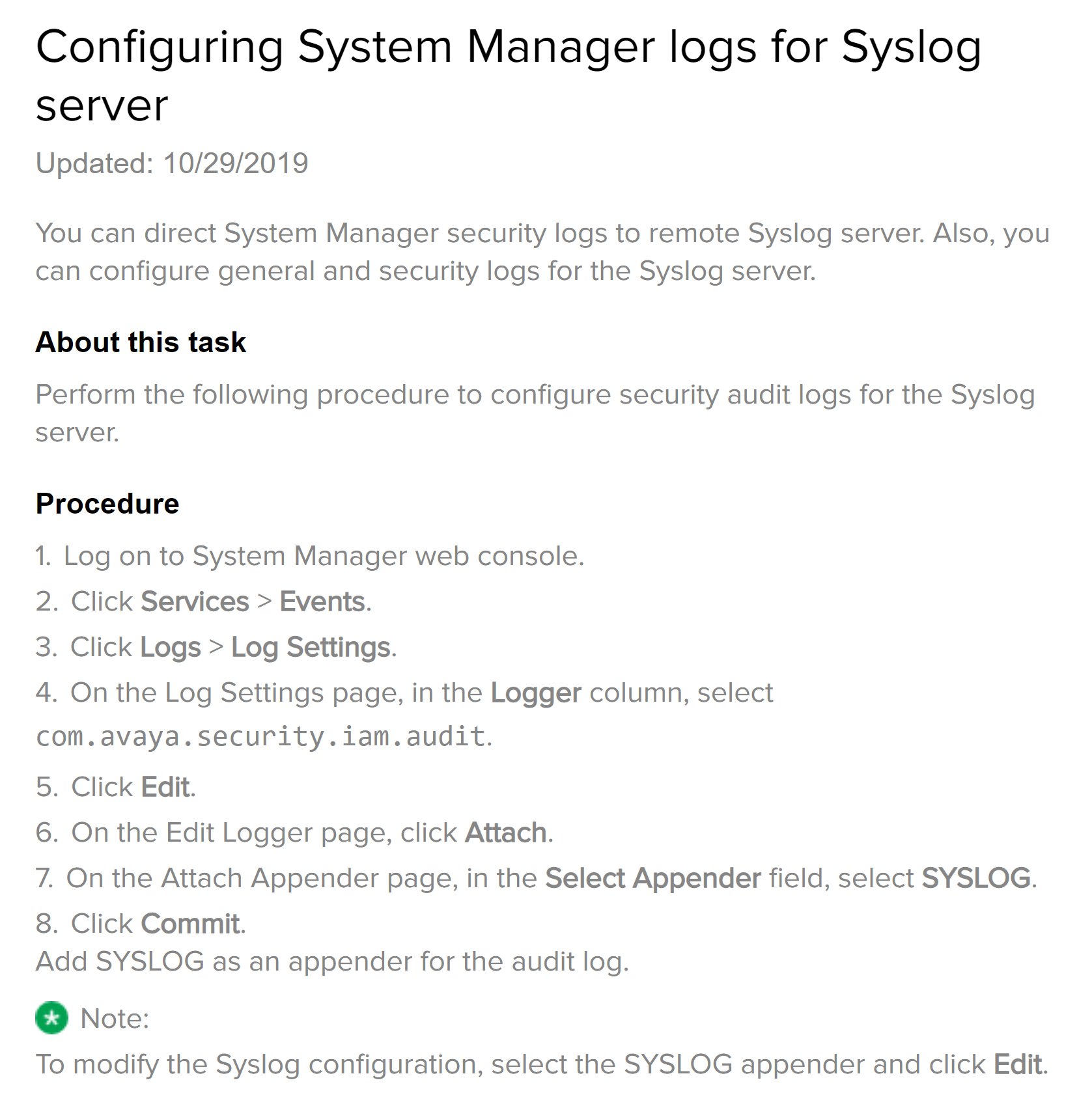
Syslog
SMnetSetup
run SMnetSetup
get enrollment pwd first from System Manager
Enter the IP Address of System Manager
[10.10.220.113]:
Changes:
Virtual fqdn from active.smgr.com to choosahostname.lab.mylab.com
Primary SMGR fqdn from avaya-smgr.localdomain to chooseahostname-LABSYSMGR.mylab.COM
Enter the Enrollment Password that matches the value in System
Manager administration (Security -> Certificates --> Enrollment Password).
Enrollment Password:
.................................
Waiting for Management components to startup...
Thu Jun 24 11:37:46 CDT 2021: DRS Replication registration succeeded
Please go to the System Manager Replication Page to check the synchronization state
check symetric logs
/var/log/Avaya/mgmt/drs/
Registering Session manager with System Manager ver 10.1
On system Manager Navigate to the Elements > Routing > SIP Entities page and add the Session Manager
and Branch Session Manager as a SIP entity. (here you specify the IP for the Security Module)
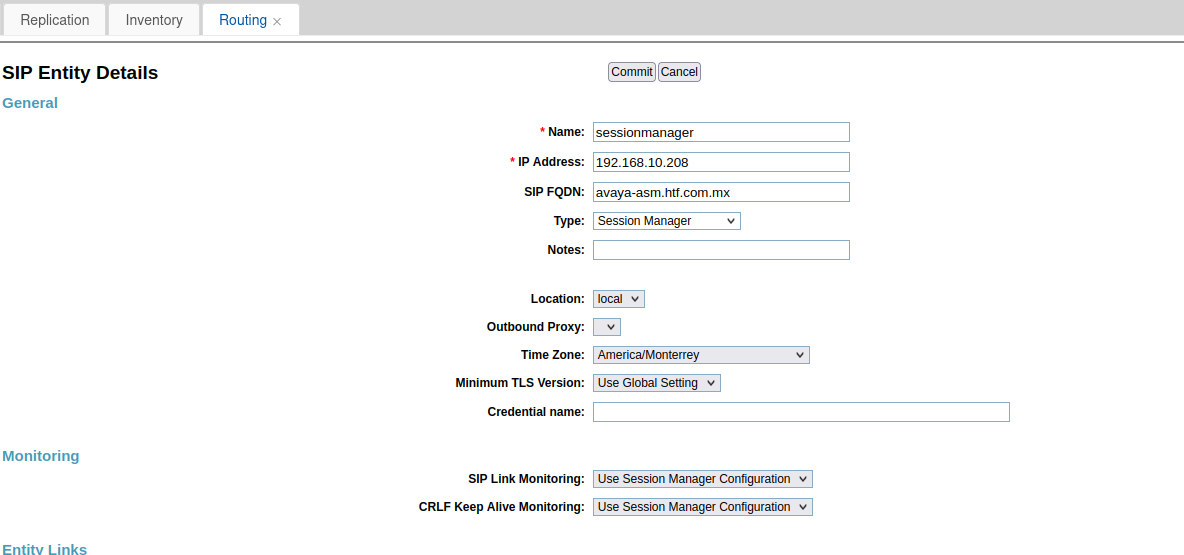
Add new Element for session manager, select previous sip entity and specify the session manager management IP address.

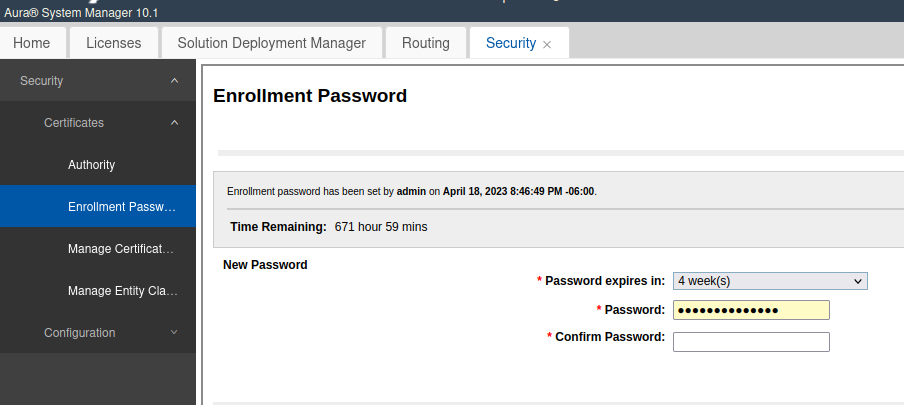
Enrollment is usually done at the initial deployment of Session Manager, you can also perform a manual enrollment process by running initTM, this not always work and its recommended to redeploy session manager and run wizard from CLI after fresh installation.
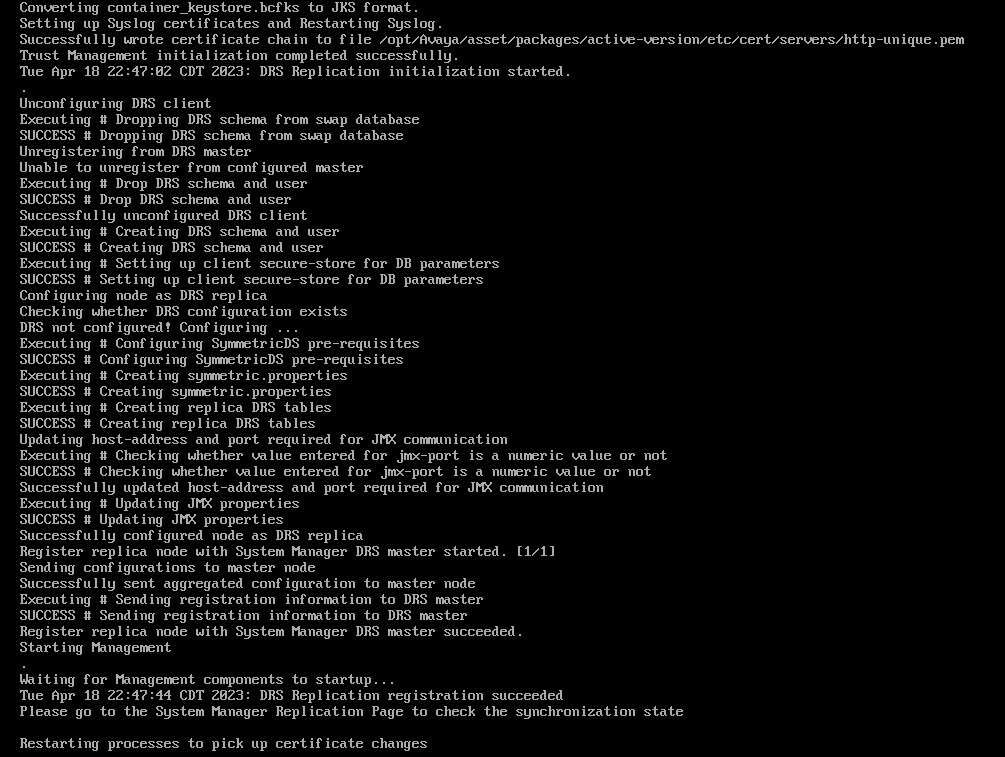
Validate replication on services, replication, session manager.
Logon to session manager via ssh and run initTM (/opt/Avaya/bin/initTM).
cust@avaya-asm bin]$ initTM
Downloading System Manager root CA
Unable to download System Manager root CA, rc = 28

Enter the Enrollment Password that matches the value in System
Manager administration (Security -> Certificates --> Enrollment Password).
Enrollment Password:
Enrollment Password again:
Trust Management Initialization started.
Trust Management Initialization with System Manager started.
Fail to replicate
validate hostname /etc/hosts to make sure both system manager and session manager have fqdn on their host files
[cust@avaya-asm ~]$ cat /etc/hosts
127.0.0.1   localhost localhost.localdomain localhost4 localhost4.localdomain4
::1         localhost localhost.localdomain localhost6 localhost6.localdomain6
192.168.10.209       avaya-asm.htf.com.mx avaya-asm Asm
192.11.13.17    smgrvirtual.htf.com.mx smgrvirtual AsmSysMgr
192.168.10.210  smgr.htf.com.mx smgr AsmSysMgr1
root >cat /etc/hosts
127.0.0.1 localhost.localdomain localhost
192.168.10.210 smgr.htf.com.mx smgr
::1 localhost6.localdomain6 localhost6
192.168.10.210 smgrvirtual.htf.com.mx smgrvirtual
192.168.10.209 avaya-asm.htf.com.mx avaya-asmTroubleshooting
Session Manager - Certificate renewal
In the last few days, we have received multiple emails from Avaya for alarm OP_MMTC20048 in our Session Manager 8.x, this is the information included in the email:
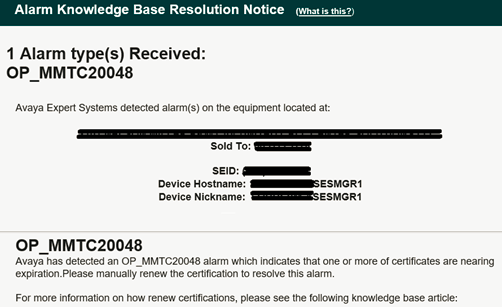
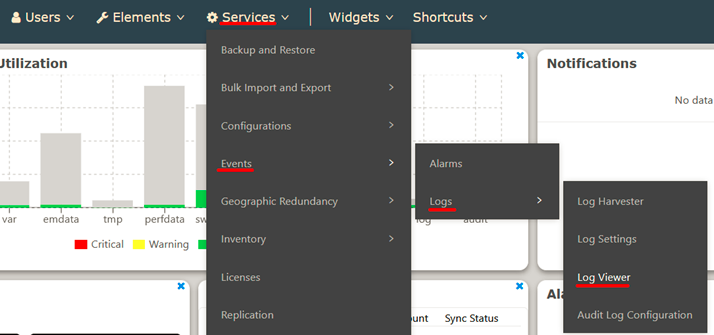
After verifying the System Manager those alarms can be found in (as shown in the image below)
Services -> Events -> Logs -> Log Viewer
Then applying the Event ID = OP_MMTC20048, all alarms are related to identity certificates used by Session Manager for different services:
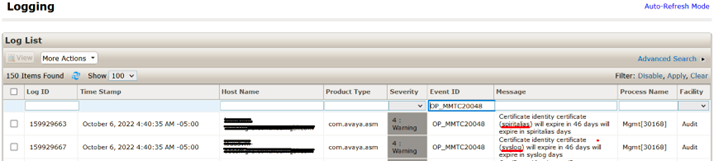
With all the previous information let’s the identity certificates in that Session Manager, navigate to
Services -> Inventory -> Manage Elements
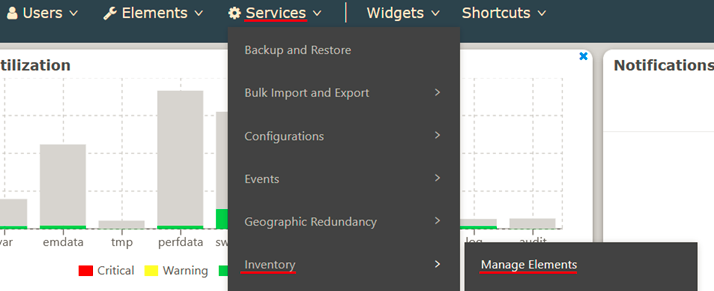
Then with the IP address or name select the Session Manager and click on
More Actions -> Manage Identity Certificates
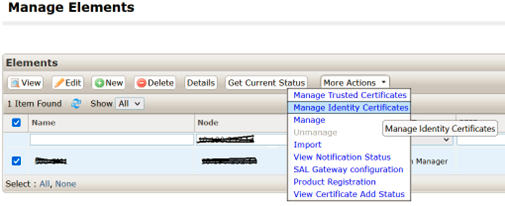
In the next page it displays the Valid To information (when certificate expires)
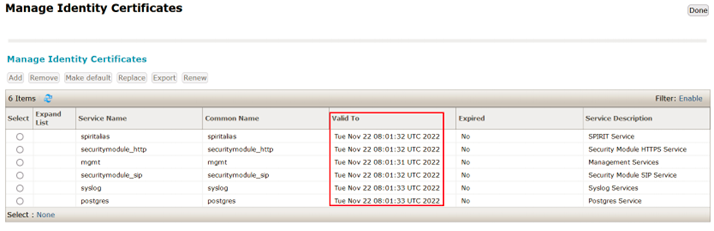
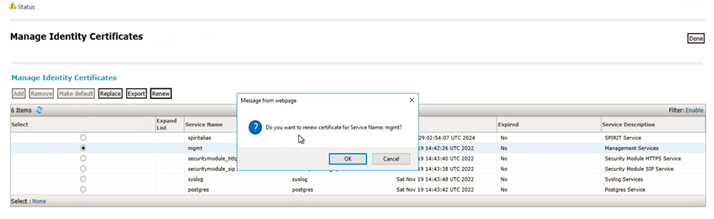
To renew the certificates, select one by one each entry and select the renew button, this is not a service impacting but changes will be applied until Session Manager is rebooted (apply the renewal under a maintenance window to renew all certificates and reboot).
Logs
Asset Logs
/var/log/Avaya/asset/asset.log:Mar 4 00:37:56 denusvm-asesmgr1 AasSipMgr[5168]: prv/src/AslTlsData.cpp::verify_callback(312:AslConnector_5326):verify_callback: Error verify_error = 10: certificate has expired , Issuer: /CN=System Manager CA/OU=MGMT/O=AVAYA Subject: /CN=denusvm-asesmgr1.continuumgbl.com/O=Avaya/C=US RootCA 0
/var/log/Avaya/asset/asset.log:Mar 4 00:38:12 denusvm-asesmgr1 AasSipMgr[5168]: prv/src/AslTlsData.cpp::verify_callback(312:AslConnector_5326):verify_callback: Error verify_error = 10: certificate has expired , Issuer: /CN=System Manager CA/OU=MGMT/O=AVAYA Subject: /CN=denusvm-asesmgr1.continuumgbl.com/O=Avaya/C=US RootCA 0
/var/log/Avaya/asset/asset.log:Mar 4 00:38:16 denusvm-asesmgr1 AasSipMgr[5168]: prv/src/AslTlsData.cpp::verify_callback(312:AslConnector_5326):verify_callback: Error verify_error = 10: certificate has expired , Issuer: /CN=System Manager CA/OU=MGMT/O=AVAYA Subject: /CN=denusvm-asesmgr1.continuumgbl.com/O=Avaya/C=US
Event Logs
to /var/log/Avaya/sm
operationalEvent.log
PPM Logs
/var/log/Avaya/jboss/SessionManager/ppm.log
shell commands
Session Manager Shell Commands
Contents
■ 1 Initialization and Recovery Commands
■ 1.1 start
■ 1.2 stop
■ 2 Logging Commands
■ 2.1 acalls
■ 2.2 clcalls
■ 2.3 clgrep
■ 2.4 smlogclear
■ 2.5 sm
■ 2.5.1 clogin/clogoff
■ 2.5.2 logrestart
■ 2.6 smlogrestart
■ 3 Maintenance commands
■ 3.1 changeMgmtIP
■ 3.2 initDRS
■ 3.3 initTM
■ 3.4 IPchange
■ 3.5 runsmconsole
■ 3.6 setup_snmp
■ 3.7 smclust
■ 3.8 smconfig
■ 3.9 smstat
■ 3.10 swversion
■ 4 Product/Alarm IDs
■ 4.1 getProductID
■ 4.2 setProductID
■ 4.3 spiritAgentCLI
■ 5 ASSET commands
■ 5.1 asset-hw
■ 5.2 asset-report
■ 5.3 asset-version
■ 5.4 asset-shell
■ 5.5 asset-cold-boot
Initialization and Recovery Commands
start
Starts the SM processes either singly or as a whole.
[root@asm ~]# start -?
USAGE: start -a [-c]
start -s application [-cm]
-a will start all applications
-c will continually display system status
-m when combined with -s, will manually start the service if watchd
is not running.
-p make start persistent (e.g. after a Linux reboot).
-s will start a specific application/service, which can be:
logevent
atd
crond
ntpd
sshd
syslog
postgres-db
sm-mgmt
sm-maint
sipas-MS
sipas-SD
sipas-SH
sipas-LH
sipas-LES
secmod
rename_callfile
sal-agent
-? display this help message
stop
Stops the SM processes either singly or as a whole.
[root@asm ~]# stop -?
USAGE: stop -a [-cbfinp]
stop -h [-cbfinp]
stop -r [-cbfinp]
stop -s application [-Sbcfmnp]
-a will stop all applications
-c will continually display system status
-f will override any warnings/errors encountered with with the -a, -h,
-r and -s options
-h will stop all applications and then execute a processor halt
-i immediately stop all applications without allowing them to clean up
-m when combined with -s, will manually stopt the service if watchd
is not running.
-n do not prompt before prior to executing this command
-p make stoppage persistent (i.e. service not started).
-r will stop all applications and then execute a processor reboot
-S do not return until application(s) is stopped. Normally, this
command returns when the stop request has been received by the
system.
-s will stop a specific application/service, which can be:
logevent
atd
crond
ntpd
sshd
syslog
postgres-db
sm-mgmt
sm-maint
sipas-MS
sipas-SD
sipas-SH
sipas-LH
sipas-LES
secmod
rename_callfile
sal-agent
-? display this help message
Logging Commands
acalls
turns the ASSET call logging output (from /var/log/asset.log) into the same format as that in the calls.log file. It's output can be given to the
clcalls command (with the - option).
clcalls
This command is used to analyze call logs and group messages into individual call sequences. This includes subscriptions/notify events, and
registrations
There are several options that allow you to filter and present calls in several different ways.
[root@asm ~]# clcalls -?
clcalls [option]... [-|calls.log...]
- stdin has calls.log stream
if no file is specified than calls.log is assumed
-a read and convert messages from asset.log instead
-l when processing standard log files, use latest
-n show numeric IP addresses
-p show TCP/UDP ports
-v verbose (--showDelta,--showIndent,--showName,--showTime)
-vv verbose+ (--showMessage, --showPorts)
Call Filtering
-g pat only show those calls that have one message that matches pat
(tag matching message with a *)
-gr pat only match the request/response line
-go pat only show those messages that match pat
--noINV do not show INVITE/BYE calls
--noREG do not show REGISTER calls
--noSUB do not show SUBSCRIBE/NOTIFY calls
--noIncomplete do not show incomplete calls
--noGood do not show good calls (bad ones only)
--noGood2 do not show good calls, nor PRA, nor UPD errors
--onlyINVITE -oi only show INVITE messages
--onlyINVITEcomplete
-oic INVITE/OK/BYE
--onlyIncomplete -oinc only show incomplete calls
--MessageOnly -mo don't group messages into calls
--noLinkCalls do not link calls together with Via: tag= parameter
Call Message Filtering
--noMsg do not show messages associated with calls (headline only)
--noCM do not show messages to/from CM
Call Headline information
-csv show calls in csv file format => --noMsg
--showCallTimes -sct show time between certain messages {in ms}
--showHeadlineIP -ship show IP info on headline
--showSize -ssiz show message counts and sizes on headline
--showTags -stag show various tags and call-id's on headline
Call Message information
--showDelta -sd show time from call beginning on each message
--showIndent -si indent call endpoints into different columns
--showMessage -sm show the full SIP message
--showNameIP -sni show IP address along with name
--showPorts -sp show TCP/UDP ports (same as -p)
--showSig -ssig show call signatures
--showTime -st show time of day for each message
--showTrying -stry show trying messages too
--Summary summarize calls (at bottom)
--SummaryOnly don't show calls
--sumReg -sur show summary of registered contacts
--sumSig -sus show summary of call signatures
--sumCallTimes -suct show summary of call timing
--sumEpt -suept show summary by endpoint
clgrep
from the calls.log, display the full message that has any part that matches the grep pattern
smlogclear
Run with a module as an argument, this command clears the logs for that module (which should be stopped first). This eliminates any ability
to debug past problems.
sm
See smclust below for background information.
clogin/clogoff
To enable call logging for the Service Host (SH) execute
[root@asm ~]# sm clogon
ServiceHost calls.log: changing state to INFO
To disable, run
[root@asm ~]# sm clogoff
ServiceHost calls.log: changing state to WARN
logrestart
■ To clear the logs and restart the Service Host use
[root@asm ~]# sm logrestart
watchdog stopping sipas-SH
shutdownsvc succeeded
watchdog starting sipas-SH
addsvc succeeded
■ to clear all the logs and restart all SIP A/S services (Service Host/Management Server/Service Director):
[root@asm ~]# sm logrestart all
watchdog stopping sipas-SH
shutdownsvc succeeded
watchdog stopping sipas-SD
shutdownsvc succeeded
watchdog stopping sipas-MS
shutdownsvc succeeded
watchdog starting sipas-SH
addsvc succeeded
watchdog starting sipas-SD
addsvc succeeded
watchdog starting sipas-MS
addsvc succeeded
smlogrestart
Run with a module as an argument, this command stops, clear logs, then starts the module. This command may be removed in later releases.
Maintenance commands
changeMgmtIP
This script points a Session Manager at a new System Manager IP address.
[root@asm ~]# changeMgmtIP
Usage: /opt/Avaya/bin/changeMgmtIP IP_ADDRESS
initDRS
This script is used to manually start DRS Replication and initial loading of the database.
initTM
This script can be used to update the enrollment password used in Trust Management during installation. If you change or reinstall System
Manager you will have to run it as well.
[admin@asm ~]$ /opt/Avaya/bin/initTM
Enrollment Password:
Initializing Session Manager Trust Management
Finished configuring Trust Management
Restarting Session Manager Maintenance
shutdownsvc succeeded
addsvc succeeded
IPchange