Avaya SDM Client
Avaya SDM Client - ESXI integration
Prerequisites
- Server with vSphere ESXi installed
- ESXi License with vSphere API enabled (the free one doesn’t work)
- Avaya SDM client on Windows
- Local DNS Services
Afer SDM installation go to Applications

Go to applications and add new location, choose a name and save

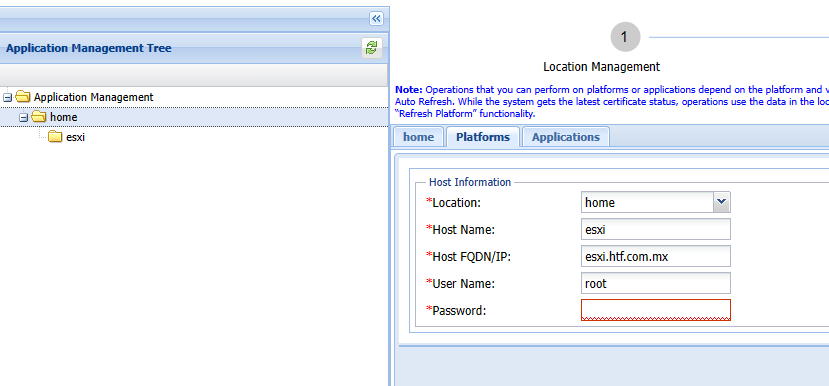
go to platforms and add a new platform

You need to specify a FQDN if you choose IP the certs will fail, make sure the hostname match your esxi server and your fqdn responds then save.
if you need to rehost your ESXI server or reegenerate your
[root@esxi:~] esxcli system hostname set --host=esxi
[root@esxi:~] esxcli system hostname set --fqdn=esxi.htf.com.mx
[root@esxi:~] /sbin/generate-certificates
[root@esxi:~] /etc/init.d/hostd restart && /etc/init.d/vpxa restart
watchdog-hostd[528910]: Terminating watchdog process with PID 528633
hostd stopped.
hostd started.
watchdog-vpxa[528967]: Terminating watchdog process with PID 528666
vpxa stopped.
vpxa started.
after you sync SDM client with esxi you can go to applications to deploy system manager
Avaya SDM Client - System Manager ova deployment
Go to home/esxi/applications
add new application

Select your platform (esxi on our case) and your data store

Select browse, search your local PC for the system manager ova and click ok, wait until it reach 100% then click submit file

Fill out details for System manager, remember to setup root password, scroll down and last option is where you enable root.

Setup network parameters and click deploy
